EDI and eMessaging Information
The EDI information frame shows three attributes connected to EDI claim message processing. It also allows the user to view any permanent overrides that apply to this claim, and register the dates when he/she has seen the claims file.
Former UCR and Former Our Sequence number #
If there is a change of broker on a claim supported by EDI messages, it is possible that a new UCR will be issued by the new broker. If so, the broker sequence number (if used) will restart at 1. In order for EDI to maintain adjustments in the correct sequence, you can record the former UCR and the Our-sequence number.
- In Find Claim, retrieve the Claim for which you want to edit a Claim Reference.
- Open the Claim.
- Open the Section Specific tab.
- Select Edit from the pop-up menu in the Claim References section.
- Select the claim reference with type Unique Claim Reference
- Click on the Store Previous UCR checkbox to record the former UCR and Former Our Sequence number
- Change the reference to the new UCR
- Click Save and OK
Note! Former UCR and sequence number are not used in eMessaging
EDI Bulk Claim #
In order to save on the number of messages being transmitted, there is an EDI process where a number of claims for one insured period can be grouped together into a single bulk claim for payment. To make a SICS claim a bulk claim header; you must tick the EDI Bulk Claim box. This can only be done on informational claims.
Permanent Overrides #
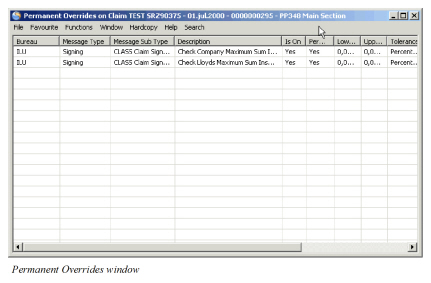
Clicking on the Permanent overrides icon will open the Permanent Overrides window. This window shows any EDI validation rules that have been permanently overridden for this Claim. All messages linked to this claim will omit the permanently overridden rules. In Edit mode it is possible to remove the permanent override status from each rule. When changing the status, you must enter a reason for the change in the Permanent Override dialogue box. Permanent Overrides are not used in eMessaging. Instead a claim section ruleset may be defined using the Menu button on the Section Specific Tab. See chapter 16 for further details.
SCM Expected /File Seen #
In order to be able to monitor the message performance between when you have seen the file, and the date you actually receive the message, SICS allows you to register the “File Seen” dates, and whether or not you expect a subsequent message. The fields are only enabled if you the referenced business has the Bureau indicator selected.
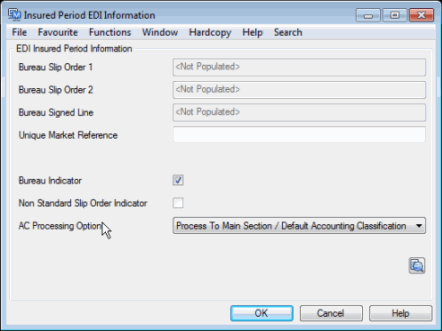
To register SCM Expected /File Seen: #
- Open the claim for which you have seen the file, and want to register this.
- Open the Section Specific window
- In the EDI information frame, select the menu labelled SCM Expected. The View SCM Expected window opens.
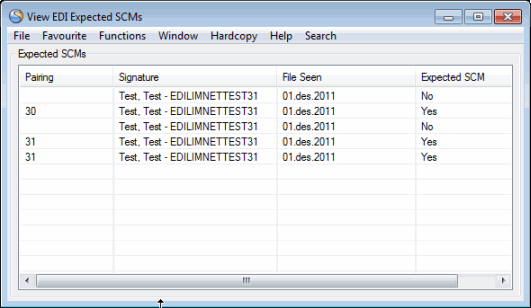
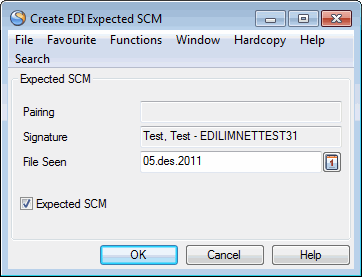
Select New from pop-up menu. The Create EDI Expected SCM window opens
- Enter the File Seen date, and indicate whether or not you expect a message, and press OK.
To edit an existing EDI Expected SCM: #
- Open the claim for which you want to edit an existing File Seen record.
- Open the Section Specific window
- In the EDI information frame, select the menu labelled SCM Expected. The View SCM Expected window opens.
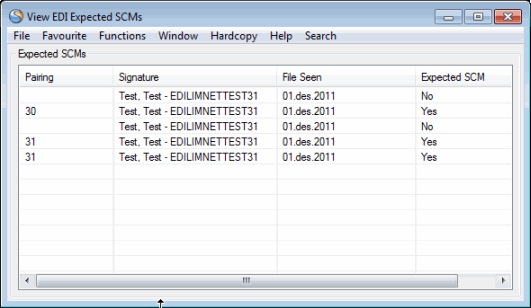
- Highlight the record you want to amend, and select Edit from pop-up menu. If the chosen record has been “paired” with a received message, edit is no longer allowed.
- Change the information as required, and press OK
Pairing of Expected SCM and movements
The pairing between the File seen records, and the actual movements takes place automatically. When you process an EDI message, the system pairs this with the oldest unpaired record for which you are expecting a message, and updates the record with the message’s sequence number.
| Field | Description |
|---|---|
| Pairing | Output field only. The message sequence with which the File Seen record is paired. Derived from: The message sequence number |
| Signature: | Output field only. The user creating the “SCM Expected/File seen” record. Values: Any user Mandatory: Yes |
| File seen: | The date the file was shown to you Values:Any valid date. Mandatory: Yes Functional impact: None |
| Expected SCM: | Indication whether you are expecting a corresponding claim message. Values: Selected/cleared Functional impact: Enables pairing between processed messages and File Seen records. |