FGU Advisory - Cedent's Claim Figures
The FGU Advisory contains the loss figures as advised by the cedent or insured, and is therefore the basis for all calculations and distribution.
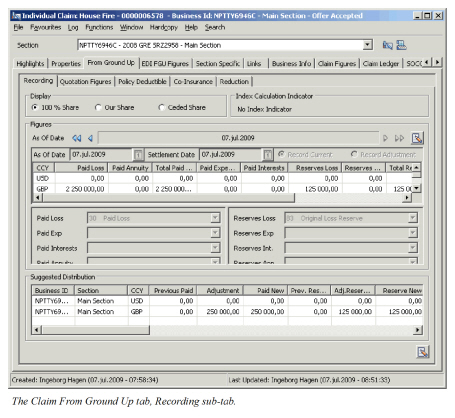
When you click the FGU tab, you see the latest FGU Advisory Figures in the upper part of the window, and the latest suggested distribution in the bottom part of the window. In addition, there is a Display Option and an Index Calculation Indicator.
Display Option: The display option refers to the distribution list and provides you with three alternatives. You can either view the suggested distribution figures for 100%, for From Ceded share, or for your share. If you select From ceded share, and this share is missing for one or more of the linked treaties, figures for this section will be displayed for 100%. Some information will be displayed for 100% regardless of your choice, for instance Cover and Excess. Note that the worksheet you create from the FGU (refer to generate worksheet) will be created based upon the display option value. If you have selected View 100%, the worksheets are generated for a 100% share, and if you have selected any of the other two options, the worksheet is generated for your share.
Index Calculation Indicator: This is an indicator of how Index shall be applied. The values displayed will depend on the Index Clause, and whether the Claim should be indexed. When the Index Clause indicates that only Payments are subject to indexation the indicator is “Payments”. For all other values (i.e. None, Reserves, Both), the indicator is Payments and Incurred Limits. If the claim is not indexed the indicator is No Index Indicator.
Create FGU Advisory #
When you receive a new loss advice from the cedent/insured containing new loss estimates you can create a new advisory. This option is enabled for all claims that have status open provided the business and insured period is open for accounting. If your System Administrator has activated the FGU Indicator functionality, Advisories cannot be created unless the indicator has been activated on the Claim Properties. The option is also enabled for CLOSED claims, provided current disposition is either Informational or Precautionary on all linked claim sections, and your System Administrator has enabled this. There are two ways to create a new FGU Advisory, either you record the new current position or you record the adjustments to the current position. If you record Adjustments the system will add or subtract the entered figures from the current FGU Advisory figures.
If your System Administrator has activated the option to “Maintain FGU Incurred Position” any increase or decrease in a paid amount is automatically reflected in the corresponding existing reserve amount. There is no impact if you do not have existing reserves. If negative reserves are disallowed, the reserves cannot be reduced to an amount less than zero, nor can they be recorded. If negative reserves are allowed, an increase in the paid amount may result in negative reserves. The suggested reserve may be overwritten.
Note that the system does not allow negative figures as current amounts for payment entries or a negative amount for incurred amount for any of the categories (for example paid loss + loss reserve), or the total incurred.
- Open the Claim you want to create a new From Ground Up advisory for.
- Click the From Ground Up tab.
- Select New from Menu button in the Figures section. You see the New From Ground Up Advisory window. Note that if claim Bdx is in use, the system will validate that the indicator is the same on the claim conditions of all linked sections. If it is not, you are not allowed to create a new advisory.
- Specify As of Date.
- Define Settlement Date, if required.
- Indicate whether FGU figures will be recorded as Adjustments or New Current Position. If you want to register Own Incurred estimate, and ACR you should use the “New Current Position”.
- Record FGU figures.
- Define entry codes for each of the categories you have recorded an Advisory Amount for. If FGU Booking Groups are in use entry codes will be defaulted. If you want to remove the entry code, click the checkbox behind the current category.
- Click OK
Note! Creating new or editing an existing FGU advisory and your System Administrator has activated the Market Ground Up Loss functionality, the system defaults the Paid amounts from FGU into the Market Ground Up Loss figures.
Edit FGU Advisory #
If you discover that some of the details in an Advisory were incorrect, you can edit the existing advisory. This option is enabled for the latest Advisory if this has no linked worksheets. Earlier Advisories are only editable if no worksheets have been created (linked to any of the advisories). Contrary to the Create Advisory process, you can only edit by recording the New Current position. The reason is that only the Current Positions are stored in the system, and not the individual adjustments.
- Open the Claim for which you want to edit the latest FGU Advisory (last As of Date.)
- Click the From Ground Up tab.
- Select the latest as-of date, and select Edit from the Menu button in the Figures section.
- Record the corrected Advisory details. If your System Administrator has activated Additional Case Reserves in FGU, you must make sure to register the Own Incurred Estimate, and any ACR LAE if applicable. An edit of the Advisory automatically sets the Own Incurred Estimate equal to the calculated Incurred.
- Click OK. If your System Administrator has activated the “Inuring Recovery in FGU” functionality, and you have an Inuring Record, the system returns a warning whether you want to update the Inuring information. Remember to confirm this warning so that your changed advisory figures are taken into consideration in the calculation of inuring amounts.
View Development of FGU Figures #
- Open the Claim that you want to inspect the From Ground Up development and click the From Ground Up tab, or select the claim and select View From Ground Up.
- In the Figures section, use the arrows next to the As-of-Date to view the historical FGUs.
- The distribution list will reflect the chosen advisory.
| Field | Description | Location |
|---|---|---|
| As of Date | The date the booking will be associated with, figures are expressed as of this date. Value: Date field. Mandatory: Yes Validations: Must be later or equal to the Date of Loss From or the Claim Trigger Date. Must be later or equal to previous FGU Advisory Date. Must be less or equal to today’s date. Functional impact: Determines which claim limits and shares that will apply if recorded, and which policy deductible, co-insurance, and reduction. Determines the order in which the booking will appear on claim ledger. |
FGU Recording |
| Settlement Date | The date used for index point retrieval when the claim is automatically indexed. Value: Date field. Default: As-of-date Mandatory: Yes Validations: Must be later or equal to the Date of Loss From or the Claim Trigger Date. Functional impact: Determines which index point will be applied in index calculation. |
FGU Recording |
| Record Current | Indicator that the advisory figures represent current position. Values: Selected /cleared Default: Selected Functional impact: FGU Calculations |
FGU Recording |
| Record Adjustments | Indicator that the advisory figures represent movements. Values: Selected /cleared Default: Cleared Functional impact: FGU Calculations |
FGU Recording |
| CCY | Output field only - Limit currencies in which FGU figures can be recorded. | FGU Recording |
| Paid Loss | The amount the cedent/insured has paid for loss. Values: Amount with two decimals. Validations: If Record current position is chosen only positive amounts are allowed. If Record Adjustments are selected, a validation will occur that the new Current Position for Paid in that currency is greater or equal to zero, and that the current position for Paid and Reserves in that currency is greater or equal to zero, and that the overall Incurred in that currency is greater or equal to zero. |
FGU Recording |
| Paid Annuity | The amount the Cedant/insured has paid in respect of annuities. Enabled: When your System Administrator has enabled the “FGU with Annuities” function. Values: Amount with two decimals Validations: If Record current position is chosen only positive amounts are allowed. If Record Adjustments are selected, the new Current Position for Paid in that currency is greater or equal to zero, and that the new current position for Paid and Reserves in that currency is greater or equal to zero, and that the overall Incurred in that currency is greater or equal to zero. |
|
| Total Paid Loss And Annuity | The sum of the Paid Loss and Paid Annuity. Enabled: When your System Administrator has enabled the function “FGU with Annuities” Values: Output field only |
|
| Paid Expenses | The amount the cedent/insured has paid in respect of expenses. Values: Amount with two decimals. Validations: If Record current position is chosen only positive amounts are allowed. If Record Adjustments are selected, a validation will occur that the new Current Position for Paid Expenses in that currency is greater or equal to zero, and that the current position for Paid Expenses and Reserve Expenses in that currency is greater or equal to zero, and that the overall Incurred in that currency is greater or equal to zero |
FGU Recording |
| Paid Interests | The amount the cedent/insured has paid for interests related to the claim. Enabled: When non-proportional claim condition has an interest clause defined. Values: Amount with two decimals. Validations: If Record current position is chosen only positive amounts are allowed. If Record Adjustments are selected, a validation will occur that the new Current Position for Paid Interests in that currency is greater or equal to zero, and that the current position for Paid Interests and Reserve Interests in that currency is greater or equal to zero, and that the overall Incurred in that currency is greater or equal to zero |
FGU Recording |
| Reserves Loss | The amount that the cedent/insured has not yet paid for the loss, but maintained as outstanding. Values: Amount with two decimals. Validations: The new current position for Paid and Reserves in that currency must be greater or equal to zero, and that the overall Incurred in that currency must be greater or equal to zero |
FGU Recording |
| Reserves Annuity | The amount the Cedant/insured has reserved in respect of annuities. Enabled: When your System Administrator has enabled the “FGU with Annuities” function. Values: Amount with two decimals Validations: The new current position for Paid and Reserves in that currency must be greater or equal to zero, and that the overall Incurred in that currency must be greater or equal to zero |
|
| Total Reserves Loss And Annuity | The sum of the Reserves Loss and Reserves Annuity. Enabled: When your System Administrator has enabled the function “FGU with Annuities” Values: Output field only |
|
| Reserve Expenses | The expense amount that the cedent/insured has not yet paid for the loss, but maintained as outstanding. Values: Amount with two decimals. Validations: The new current position for Incurred Expenses in that currency must be greater or equal to zero, and that the overall Incurred in that currency must be greater or equal to zero |
FGU Recording |
| Reserve Interests | The interest amount that the cedent/insured has not yet paid for the loss, but maintained as outstanding. Enabled: When non-proportional claim condition has an interest clause defined. Values: Amount with two decimals. Validations: The new current position for Incurred Interests in that currency must be greater or equal to zero, and that the overall Incurred in that currency must be greater or equal to zero |
FGU Recording |
| Incurred | The overall incurred amount in the currency. Output field only. Derived from: Other advisory amounts. Functional impact: FGU Calculation, may update the “Incurred From Ground Up” field on Claim Figures. |
FGU Recording |
| Own Incurred Estimate | Your company’s estimate of Incurred Loss Default: Incurred. If system parameter Keep Own Incurred Estimate is selected, Own Incurred Estimate is copied from latest advisory. Functional impact: ACR amount and FGU Calculation |
|
| ACR | Output field only, indicating the amount towards ACR. Derived from: Own incurred estimate - Incurred - ACR LAE Functional impact: FGU calculation |
|
| ACR LAE | The amount estimated for Loss Adjustment Expenses. Functional impact: Will reduce the amount calculated for ACR with same amount. |
|
| Client IBNR | The amount cedent has advised as their IBNR. Functional impact: ACR Amount and FGU calculations. |
|
| Client IBNR LAE | Available only when paramater Include Client IBNR and Client IBNR LAE in Worksheet is activated. The amount cedent has advised as their IBNR LAE. Functional impact: ACR Amount and FGU Calculations. |
|
| Entry Code Selection | The entry codes that shall be used when booking the calculated distribution. Values: All entry codes defined for the selected subcategory that is valid for Claim Worksheets for the Base Company. Mandatory: For all subcategories a FGU Advisory figure has been recorded, except Client IBNR which is not bookable. When FGU with Annuities is in use you must define entry codes for both Loss and Annuity. Validation: The selected entry code for Paid Loss cannot be the same as the one chosen for Paid Annuity, and the entry code chosen for Reserves Loss cannot be the same as the one chosen for Reserves Annuity. |
FGU Recording |