Find Claims
When you receive a claim advice, the first thing you do usually is check if the claim is already registered in SICS or if you must create a new claim. If you are not sure of which business the claim affects, you can use the Find Claims feature.
The Find Claim feature allows you to search for existing claims in the system by using numerous extract criteria. The search criteria and result columns that are available in the Find Claims window partially depends on your access rights. You access the Find Claim feature from the SICS desktop.
For more information about the concepts and conventions of the Find features in SICS, refer to the Getting Started chapter.
Search for Claims for a Specific Cedent within a Specific Period #
Open the Claim folder on the SICS desktop and double-click the Claim icon. You see the Find Claim window.
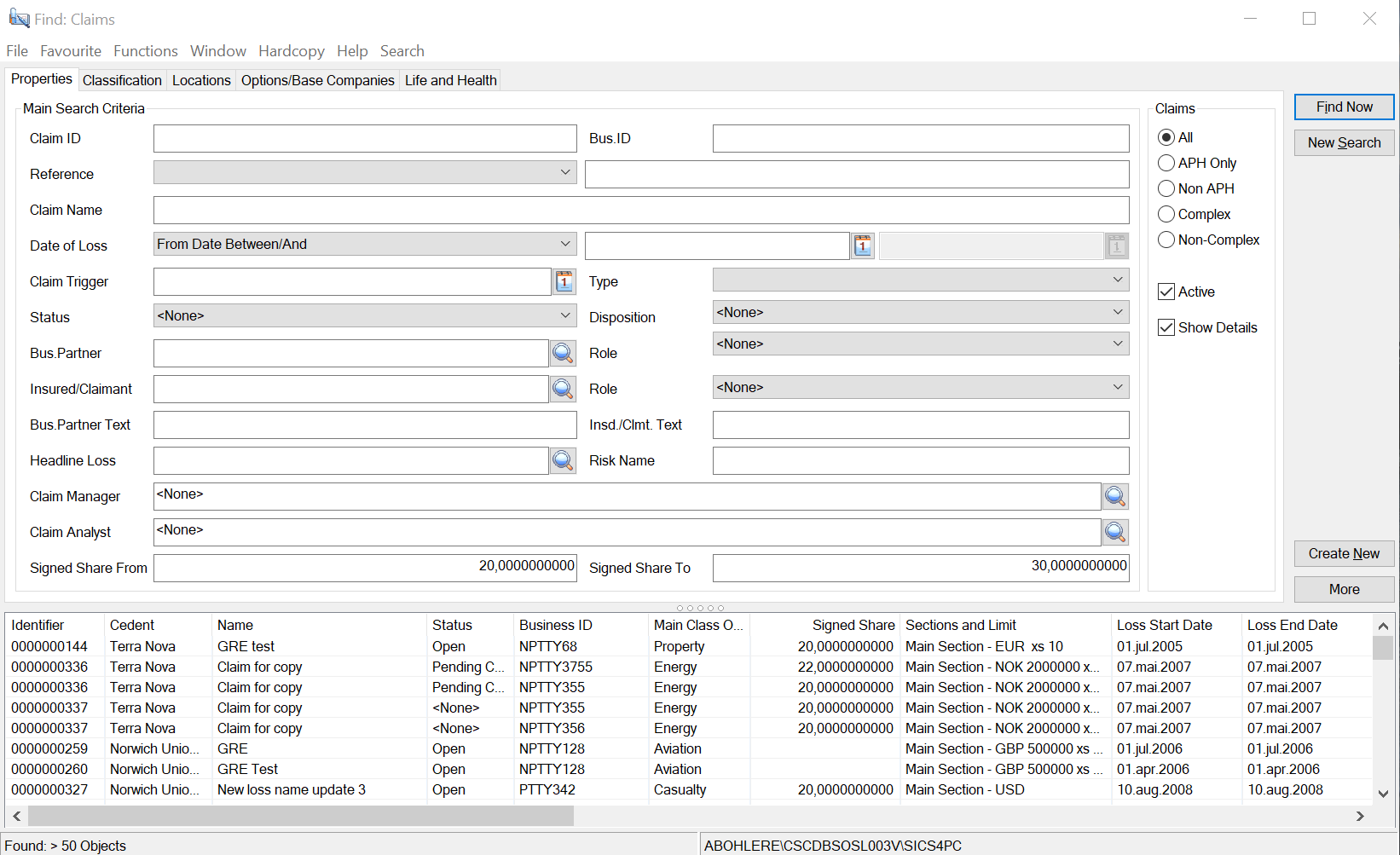
- On the Properties tab, select From Date between/and as Date of Loss extract criteria, and enter the period from and to dates.
- On the Properties tab, enter the cedent identifier in the Bus. Partner text box, or you can type in the Business Partner name or part of it directly into the field and receive possible matches for the text. You may also use the Find button. Refer to Find Business Partner for further information about how to search for a business partner.
- Select Cedent as the Bus. Partner Role.
- Click ‘Find Now’.
The system displays a list of all claims created for the specified cedent with a Loss Start Date within the period specified.
Search for Claims linked to a Business with a Specific Signed Share or Share Range #
- On the Options/Base Companies tab, select Search option “Business identifier”
- On the Properties tab two new Share fields are available
- Enter Signed Share From and/or Signed Share to.
- Select View Details and press _Find Now.
The system displays a list of all claims linked to businesses with Signed Share within defined range.
Search for Claims for a Specific Class of Business #
- Open the Claim folder on the SICS desktop and double-click the Claim icon. You see the Find Claim window.
- Select the Classification tab and then the Section Specific Classifications sub-tab.
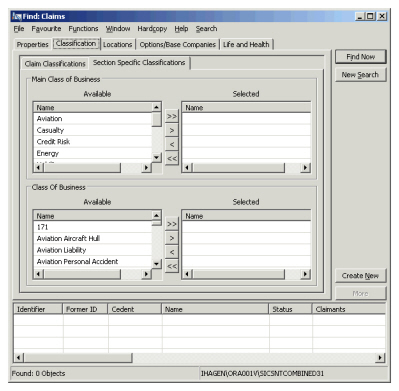
- Select the Class of Business (or Classes) you want to include in your search.
- Click ‘Find Now’.
Search for Claims for a Specific Base Company #
- Open the Claim folder on the SICS desktop and double-click the Claim icon. You see the Find Claim window.
- Select the Options/Base Companies tab and then select the Base Company (or Companies) you want to include in your search.
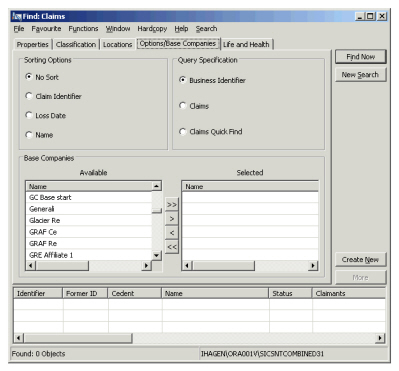
- Click’Find Now'.
| Field | Description | Location |
|---|---|---|
| Claim ID | The unique identifier generated by SICS by which the Claim is known. Value: Free-text entry, maximum 10 characters. Wildcards allowed. |
Properties |
| Bus. ID | The Business Identifier you want to include in your search. Value: Any part of a Business Identifier. |
Properties |
| Reference | All other reference types than the generated System identifier used by internal or external parties when referring to the claim. Value: Customised. |
Properties |
| Reference | The actual reference or identifier. Value: Free-text entry. |
Properties |
| Claim Name | The name given to a claim in the system. Value: Free-text entry. This search criterion is dependant on your access rights. |
Properties |
| Date of Loss | The extract criteria to be used when searching for claim dates. Value: Loss Period Includes, From Date Between/And and To Date Between/And Default: Value defined by your System Administrator, or if no default value defined Loss Period Includes Functional Impact: Loss Period Includes: the retrieved claims must have a loss period including the period or single date specified. FromDate Between/And: the retrieved claims have a start date which is witin the period of the two dates To Date Between/And: the retrieved claims have a ‘To:’ date that is within the period of the two specified dates. |
Properties |
| Date | The actual date you want to search for. Value: Any date DD/MM/YYYY |
Properties |
| Date | The actual date you want to search for. Value: Any date DD/MM/YYYY Default: Entered date in above Date field when from Date Between/And or To Date Between/And. Note that if the second date value is removed with the search options Date Between/And or To Date Between/And, SICS interprets this ‘empty’ date as ‘Current’ date. |
Properties |
| Claim Trigger Date | The actual trigger date of the claim. This is particularly helpful for claims created on business with Claims Made, Manifestation, or Begin of Construction. Value: Any date - DD/MM/YYYY |
Properties |
| (Claim) Type | The Type of Claim you want to search for. Value: Individual, Interlocking, and Various. |
Properties |
| Status | The status of the claims included in the search. Value: Open, Closed Default: None |
Properties |
| Disposition | The disposition of the claims included in the search. Value: Informational, Accepted, Accepted-Regress, Disputed, Disputed-Regress, Precautionary, Pending Default: None |
Properties |
| Bus. Partner | The identifier of a Business Partner existing in the system. If the business partner belongs to a merger group and system parameter ‘Include merged companies and merge parent at search by business partner’ is selected, all other members of this business partner’s merger group will be automatically added also. | Properties |
| Role | The role the selected partner has for the specific claim, for example Loss Adjuster, Cedent. Value: Customised. Default: None |
Properties |
| Insured/Claimant | The identifier of a Third Party existing in the system. If the third party being business partner belonging to a merger group and system parameter ‘Include merged companies and merge parent at search by business partner’ is selected, all other members being third party of this business partner’s merger group will be automatically added also. | Properties |
| Role | The role the selected Third Party has for the claim. Value: Claimant, Insured Default: None |
Properties |
| Bus. Partner Text | The Name of a Business Partner. Value: Free-text entry. |
Properties |
| Insured/Claimant Text | The Name of a Third Party not created separately in the system. Value: Free-text entry. |
Properties |
| Headline Loss | The Headline Loss identifier to which all claims included in your search must be linked. | Properties |
| Risk Name | The individual risk name. Value: Free-text entry. 50 characters. Mandatory: No Functional impact: Non-Proportional Per Risk Recovery Calculation |
Properties |
| Claim Manager | The user who has been assigned as Claim manager for the specific claim | Properties |
| Claim Analyst | The user who is assigned as the Claim Analyst for the specific claim. | Properties |
| Signed Share From/To | The signed share of linked business. Enabled when search option is Business Identifier. | Properties |
| All | All registered claims are included in the search without filtering out the claims registered as APH (asbestos/pollution/health hazard) claims. Default: As per user preference |
Properties |
| APH Only (asbestos/pollution/health-hazard) |
Only the claims registered as APH-claims are included in the search. Default: As per user preference |
Properties |
| Non APH (asbestos/pollution/health-hazard) |
Only the claims not registered as APH-claims are included in the search. Default: As per user preference |
Properties |
| Complex | Only the claims registered as Complex are included in the search. Default: As per user preference |
Properties |
| Non Complex | Only the claims registered as non-complex claims are included in the search. Default: As per user preference |
Properties |
| Active | Indicator of whether the claims are active or inactive. Default: Active. |
Properties |
| Show Details | Enables the display of Former Claim ID and Claimants, Signed Share, and Limit information in Display List when query option is either Business Identifier or Cession. Default: As per user preference. |
Properties |
| Cause of Loss | The reason why the loss happened. More than one cause can be selected. Values: Customised. This search criterion is dependant on your access rights. |
Classification - Claim Classification |
| Consequence of Loss | The result or consequence of the loss. Values: Customised. |
Classification - Claim Classification |
| Type of Risk | The risk or risks affected by the loss. Values: Customised. |
Classification - Claim Classification |
| Claim Classification | A user defined classification item. Values: Customised. |
Classification - Claim Classification |
| Claim Risk Event Indicator | Indicator of whether the loss is a risk or event loss. Values: Risk, Event. |
Classification - Claim Classification |
| Claim Loss Risk Detail | A further description of the Type of Risk and Loss, e.g. Type of Risk Aviation, Loss Risk Detail Phase: Landing. Values: Customised. |
Classification - Claim Classification |
| Main Class of Business | The nature of the covered business. Values: Customised. |
Classification - Section Specific Classifications |
| Class of Business | A further description of the nature of the covered Business, e.g. Fire. Values: Customised. |
Classification - Section Specific Classifications |
| Country | The country or countries in which the loss occurred. Values: Any country defined in the system. |
Locations |
| Country Groups | The geographical area where the loss occurred, for example Scandinavia. Values: Any area defined in the system. |
Locations |
| Risk Zone | The Risk Zone in which the loss occurred. Value: Any risk Zone defined in the system. Validations: None Mandatory: No Functional impact: None |
Locations |
| Base Companies | This is one’s own company. If the company is part of a group, there might be many Base Companies. Values: Business Partners defined as Base Companies |
Options/Base Companies |
| Policy Id | The identifier of the prime insurance policy Values: Free-text field |
Life and Health |
| Insured Date Of Birth | Date of birth of an insured person you want to search for. Values: Complete date (dd/mm/yyyy) |
Life and Health |
| Early Claim | Indicator of whether the claim is an Early Claim. Values: Yes/No |
Life and Health |
Define Retrieved Claim List Information and Sorting #
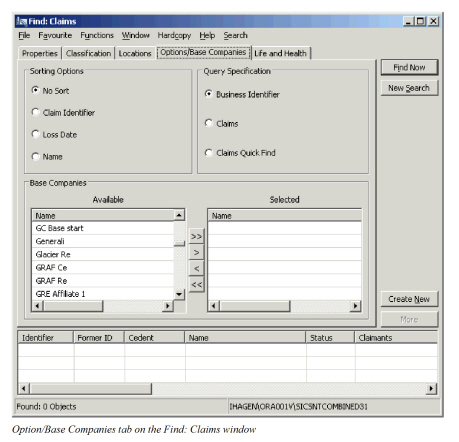
On the Options/Base Companies tab you can select the base companies you want to retrieve claims for. In addition, you can define sorting and query options (the type of information that will be retrieved and displayed in the display list). The options displayed on the tab depend on how they have been defined in the in System Parameters and in User Preferences. For further information on how to define your system parameters and user preferences, see Set User Preferences, Misc Preferences in the Getting Started chapter or the System Parameter chapter in the System Administrator’s Guide.
Define Sorting Options #
- No Sort: The claims are retrieved and listed in a random fashion. When you use this option you should always make certain that you use the More button when enabled, so that all claims meeting your extract criteria are included in the display list.
- Claim Identifier: The claims are retrieved and listed sorted by the Claim ID.
- Loss Date: Claims are retrieved and listed sorted by the Date of Loss Start Date.
- Name: Claims are retrieved and listed sorted by the Loss Name.
Define Query Options #
- Business Identifier: The retrieved claims will also display the ID of the Business they are linked to. Choosing this option may result in retrieving and listing the same claim ID more than once, if it has been linked to other businesses and/or sections. This option enables display of Signed Share and Limit information.
- Claims: The system only lists a claim ID once, no matter how many businesses or sections it has been linked to. The Business ID is not displayed.
- Claims Quick Find: A minimum amount of information is displayed. This search is faster than the other search options.
From Find Claim, you can create new claims or open the Properties window, FGU Recording window and the Claim Ledger of existing claims.
If the selected claim is linked to a Headline Loss, or marked as being included in recovery, you can also navigate to an overview of the (non-proportional) recovery claims.