Find Headline Loss
When you want to link a claim to a Headline Loss, or when you want to register a new Headline Loss, the first step would normally be to search amongst the existing Headlines. SICS allows you to use numerous extract criteria, to facilitate this search. Some possible searches are described below.
Search for Headline Loss by Identifiers, Name and Dates #
- Open the Find Headline Loss window from the SICS desktop.
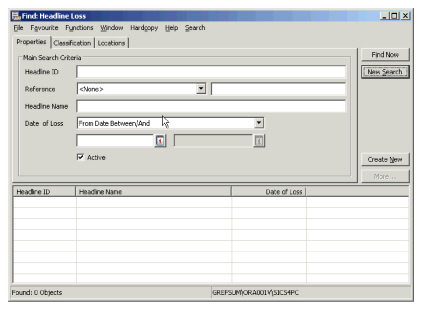
- On the Properties tab enter extract information about Headline Loss ID and/or Headline Loss name (or parts of these combined with a wildcard), and date information.
- Click Find Now.
Search for Headlines with specific Cause of Loss, or Risk/Event indicator (Claim classifications) #
- Open the Find Headline Loss window from the SICS desktop.
- Click the Classifications tab.
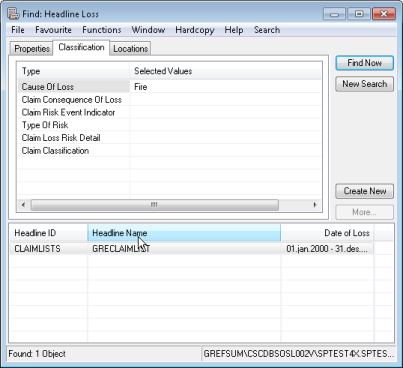
- Select the Classification item you want to extract on
- Select the value by moving it from the available to the selected part and click Close
- Repeat steps 3-5 for all Classification items you want to extract on
- Click Find Now.
Search for Headline Losses within a specified Country #
- Open the Find Headline Loss window from the SICS desktop.
- Click the Locations tab.
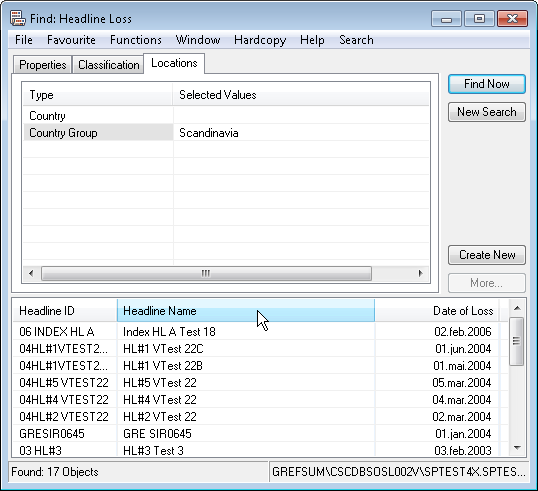
- Select Country and open the Select Countries window.
- Select the country, for example Norway, and move it over to the Selected and click Close.
- Click Find Now.
Search for all Headlines in 2000, caused by Fire, occurring in Scandinavia #
- Open the Headline Loss from the SICS desktop.
- On the find Headline Loss properties window select Date Extract Criterion “From Date Between/And”.
- In the first date field enter 01/01/2000.
- In the second date field enter 31/12/2000.
- Open the Classifications tab.
- Select the Cause of Loss and open the Select cause of Loss window.
- Select “Fire” and move it over to the selected column and click Close.
- Open the Location tab.
- Select Country Group and open the Select Country Groups window.
- Select Scandinavia, and move it over to the Selected and click Close.
- Click Find Now.
| Field | Description | Location |
|---|---|---|
| Headline ID | The unique identifier created by the user to denote the Headline Loss. Value: Free-text entry - maximum 30 characters |
Properties |
| Reference | The type of reference given to the Headline Loss, for example Cat. Number. Value: Customised |
Properties |
| Reference ID | The identifier or reference selected as reference type. Value: Free-text entry - maximum 20 characters |
Properties |
| Headline Name | The name given to the Headline Loss. Value: Free-text, maximum 60 characters. |
Properties |
| Date of Loss | The extract criterion defining what the dates used represent, for example Date of Loss From Between/And, or Date of Loss To Between/And Values: Date of Loss From Between/And, Date of Loss To Between/And, Loss Period Include |
Properties |
| Date field 1 | The first date used to extract Headline Losses. Represents whatever has been defined as criterion. Value: Any date DD/MM/YYYY |
Properties |
| Date field 2 | The second date used to extract Headline Losses. Represents whatever has been defined as criterion. Value: Any date DD/MM/YYYY |
Properties |
| Active | Indicator of whether the Headline Loss is Active or Inactive Value: Active / Inactive Default: Active |
Properties |
| Cause of Loss | The reason the loss occurred. Values: Customised Default: Not selected (meaning all) |
Classifications |
| Consequence of Loss | The consequence of the loss occurrence. Values: Customised Default: Not selected (meaning all) |
Classifications |
| Claim Risk/Event Indicator | Indicator of whether the Headline Loss is a Risk claim or Event claim Values: Risk, or Event Default: Not selected (meaning all) |
Classifications |
| Type of Risk | The Type of Risk of the Headline Loss - e.g. Drilling Platform Values: Customised Default: Not selected (meaning all) |
Classifications |
| Claim Loss Risk Detail | A further description of the Type of Risk in connection with the Loss. Values: Customised Default: Not selected (meaning all) |
Classifications |
| Claim Classifications | A user defined classification item. Values: Customised Default: Not selected (meaning all) |
Classifications |
| Country | The country or countries in which the Headline Loss occurred. Values: Any country defined in the system Default: Not selected (meaning all) |
Locations |
| Area Group | The area groups in which the Headline Loss occurred - e.g. World Wide. Values: Customised Default: Not selected (meaning all) |
Locations |
Create Headline Loss #
There are various ways in which to create a Headline Loss. It can be done from scratch or you can use existing claim information as the basis for the new Headline Loss. What you select depend on where you are when you make the decision to create the Headline Loss. Whichever way you select, the system will to a certain extent try to validate that this is in fact a new Headline Loss by checking various criteria.
Create New Headline Loss #
- Open the Find Headline Loss window from the SICS desktop.
- Click the Create New button or select New from the pop-up menu.
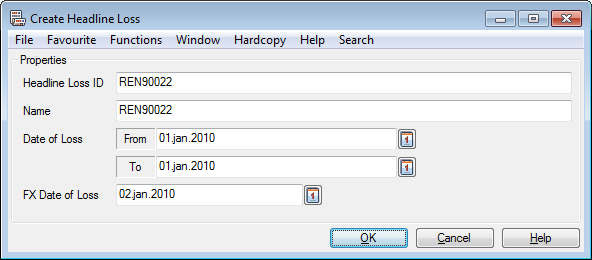
- Enter the Identifier, Name, and Date(s) of Loss, and FX Date of Loss. The Identifier and FX Date of Loss fields are only available if your System Administrator has enabled these options.
- Click OK.
Create New Headline Loss when linking Claim to Headline #
If you want to link your claim to a Headline Loss, you will attempt to find the appropriate Headline from the claim. If this cannot be found, you have the option to create the Headline in the same process. Refer to Link Claim to Headline Loss.
- Open the Claim you want to link to a Headline Loss.
- Open the Claim Properties window.
- In the Assignment section select Assign to Headline Loss from the pop-up menu.
- Click Find Now. The system defaults Loss Date and Country/Area based upon the claim information.
- Select Create New, or New from the pop-up menu.
- Define Identifier (if field is enabled), Name, and Headline Loss dates, and click OK
- Click Find Now.
- Select the newly created Headline Loss and select Transfer from the pop-up menu.
Copy Existing Claim Information from Headline Loss #
This option can be used if you have performed a search and decided that the Headline Loss has not yet been created, and at the same time know or believe that an existing Individual claim already exists.
- Open the Headline Loss from the SICS desktop.
- Select Copy from Claim from the pop-up menu.
The system opens the Find claim window. Retrieve the claim you want to use as a template - refer to Find Claim. Only Individual and Interlocking claims are available. If the selected claim is already linked to a different Headline Loss, it cannot be used as a template. 3. If the claim is linked to more than one Scope of Cover, the warning will appear. Click OK. 4. Enter the Headline Loss identifier (if enabled by your System Administrator), change the defaulted name and period if required. 5. Click OK.
The claim used as template for the Headline loss will automatically be linked to the new Headline Loss.
Copy Existing Claim Information from Business Claim List #
This option can be used if you make the decision to create a new Headline Loss whilst you are on a specific Business' Claim List.
- Open the Business Claim List with the claim you want to use as a template for the new Headline Loss.
- Select the claim you want to use as a template for the new Headline Loss.
- Select Copy to Headline from the pop-up menu. Only Individual claims can be chosen, and only claims that are not linked to a Headline or included in Recovery Calculations.
If the selected claim is linked to more than one Scope of Cover/Section, a warning will appear. Click OK. 4. Enter the Identifier (if field is enabled), and change the Headline Loss Name and Dates if required. 5. Click Save.
The claim used as a template will automatically be linked to the new Headline Loss.
Copy Existing Claim Information from Insurable Object Historical Loss #
- Open the Insurable Object on which the Historical Loss exists.
- Open the LH (Loss History) details.
- Select the Historical Loss you want to use as a template, and select Copy to Headline from the pop-up menu.
- Enter the Identifier (if field is enabled), and modify the Name and loss dates if required,
- Click OK.
No link between the Historical Loss and the Headline will be created.
| Field | Description |
|---|---|
| Headline Loss ID | The unique identifier created by the user, or generated by the system, which is used to denote the Headline Loss. Value: Free-text entry when not generated by the system - maximum 30 characters Validations: Must be unique amongst the Headline losses. Mandatory: Yes |
| Name | The name given to the Headline Loss. Value: Free-text entry, maximum 60 characters. Default: The name of the Loss used as a template. Validations: Warning if other Headline has same name. Mandatory: Yes |
| Date of Loss From | The start date of the Headline Loss. Value: Any date DD/MM/YYYY. Default: The date of loss from of the claim used as a template Validations: Warning if other Headline is created for same date. Mandatory: Yes. Functional impact: The dates of loss of claims linked to the Headline Loss must be equal to or later than this date. |
| Date of Loss To | The end date of the Headline Loss. Value: Any date DD/MM/YYYY, including future dates. Default: None, or if Headline Loss is created through a copy process, the date of loss to of the claim used as a template for the Headline Loss. Mandatory: No |
| FX Date of Loss (enabled if system parameter Use the FX Date of Loss field is activated) |
The date to be used when converting amounts into functional currencies. Value: Any date DD/MM/YYYY. Default: Date of Loss From Mandatory: No Functional impact: FX Date of Loss on linked claims, Functional Currency calculation |