Headline Loss Company Estimates
The Headline Loss Company Estimate is the estimates relevant to your company (or group of companies) only. SICS allows you to create such estimates in different currencies, so that you can see the development of these over time.
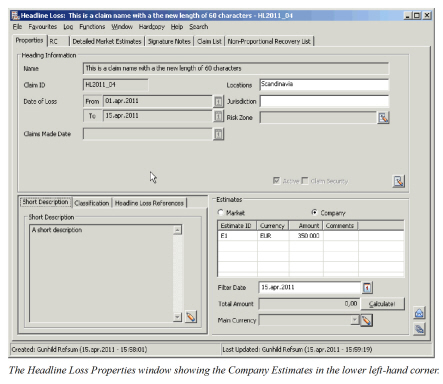
Create Headline Loss Company Estimate #
- Open the Headline Loss from the SICS desktop.
- In Find Headline Loss, retrieve the Headline Loss for which you want to Create a Company Loss Estimate.
- In the Estimate section of the Properties tab, select Company.
- In the estimate display list, select Add from the pop-up menu.
- Enter the Estimate ID, comments, currency and amount.
- Click OK.
- Repeat steps 4 - 6 for all the company estimates you want to create.
Edit Company Estimate #
The Company Estimates can be edited at any time, for example when you want to add some comments, or the estimate amount.
- Open the Headline Loss from the SICS desktop.
- In Find Headline Loss, retrieve the Headline Loss for which you want to edit a Company Estimate.
- In the Estimate Section of the Properties tab, select Company.
- Select the Company Estimate you want to edit and select Edit.
- Change the information as required.
- Click OK.
Delete Company Estimate #
If an estimate was created in error, it can easily be deleted.
- Open the Headline Loss from the SICS desktop.
- In Find Headline Loss, retrieve the Headline Loss for which you want to delete a Company Estimate.
- In the Estimate section of the Properties tab, select Company.
- Select the estimate you want to delete.
- Select Delete from the pop-up menu.
View Company Estimate at a specific Date #
If you want to view the Company Estimate Amount at a certain point in time, you can do so by using the Filter Date field.
- Open the Headline Loss from the SICS desktop.
- In Find Headline Loss, retrieve the Headline Loss for which you want to view a Company Loss Estimate.
- In the Estimate Section of the Properties tab, select Company.
- Enter the date you want to view the Company Estimate for in the Filter Date field.
- If Main Currency is not defined, or if you want to view the Estimate in a different currency than the one already defined, click the Edit button next to the Main currency field.
- Select the currency, and click OK.
- Click Calculate.
| Field | Description |
|---|---|
| Estimate ID | The identifier associated with this estimate. Values: Free-text entry Mandatory: Yes Validations: Must be unique. |
| Currency | The currency in which the estimate is expressed. Value: Any currency in the system. Default: Main Currency defined in system Mandatory: Yes |
| Amount | The total estimate amount for this estimate identifier. Value: Amount field |
| Comments | Any comments associated with this estimate. Value: Free-text entry |
| Filter Date | The date which you want to use as an extract criterion for company estimates, view the company estimate as of this date. Value: date field |
| Total Amount | The total amount of all company estimates as of the selected filter date expressed in the selected Main Currency. Value: Output field only. |
| Main Currency | The Main Currency in which you want to view the total company estimate amount. Values: Any currency defined in the system. Mandatory: Yes, when attempting to view the overall amount. |
| Estimated By | The name of the person who created/added the estimate. Values: Output field only. |