Headline Loss Market Estimates
The Market Loss Estimate provides you with useful information when comparing this against your own actual exposure. SICS allows you to record the Market Loss, and the development of this, at a detailed level.
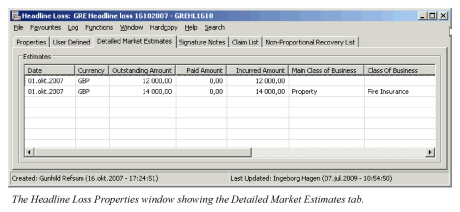
Create Detailed Market Loss Estimates #
The detailed market loss estimates allows you to break down the estimate into currencies, line of Business, and even insured. This allows you to analyse the Market Loss in greater detail.
- Open the Headline Loss from the SICS desktop.
- In Find Headline Loss, retrieve the Headline Loss for which you want to record a Market Loss Estimate.
- Open the Detailed Market Loss Estimate tab.
- Select Add from the pop-up menu. You see the Create Detailed Market Estimate window.
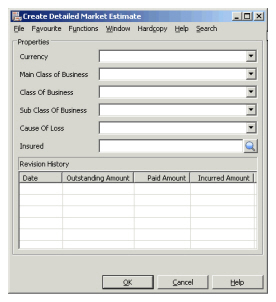
- Record the estimate details (currency, Main Class of Business, Class of Business, Sub Class of Business, Cause of Loss, and Insured.).
- In the Revision History display list, select Add from the pop-up menu.
- Define the Estimate Date, Outstanding Amount, and Paid Amount.
- Click Save.
- Repeat steps 5 - 8 for all the estimates you want to record.
- Click OK.
Edit Detailed Market Loss Estimate #
You can at any time edit the Market Loss Estimate, either by changing the information entirely, or adding more details to an existing estimate.
- Open the Headline Loss from the SICS desktop.
- In Find Headline Loss, retrieve the Headline Loss for which you want to edit a Market Loss Estimate.
- Open the Detailed Market Loss Estimate tab.
- Select the Estimate you want to edit, and select Edit from the pop-up menu.
- Change the information in the estimate details (currency, Main Class of Business, Class of Business, Sub Class of Business, Cause of Loss, and Insured.).
- In the Revision History display list, select the estimate entry you want to edit and select Edit from the pop-up menu.
- Change the Estimate Date, Outstanding Amount, and Paid Amount.
- Click Save.
- Repeat steps 5 - 8 for all the estimates you want to edit.
- Click OK.
Delete Detailed Market Loss Estimates #
If an entire estimate (with all the history) was created in error, you can easily delete this.
- Open the Headline Loss from the SICS desktop.
- In Find Headline Loss, retrieve the Headline Loss for which you want to delete a Market Loss Estimate.
- Open the Detailed Market Loss Estimate tab.
- Select the Estimate you want to delete, and select Delete from the pop-up menu.
- Repeat step 4 for all the estimates you want to delete.
Delete Detailed Market Loss Estimate Detail #
If the Detail Estimate in itself was correct, and only one of the development entries are incorrect, this can easily be deleted from the Estimate.
- Open the Headline Loss from the SICS desktop.
- In Find Headline Loss, retrieve the Headline Loss for which you want to delete a Market Loss Estimate detail.
- Open the Detailed Market Loss Estimate tab.
- Select the Estimate for which you want to delete a detail, and select Edit from the pop-up menu.
- Select the estimate detail you want to delete in the Revision History display list, and select Delete from the pop-up menu.
- Repeat step 5 for all the estimate details you want to delete.
- Click OK.
View Detailed Market Loss Estimates #
You can view the Market Loss Estimate in various ways, all depending on your need.
View Detailed Market Loss Estimate Detail Revision History #
- Open the Headline Loss from the SICS desktop.
- In Find Headline Loss, retrieve the Headline Loss for which you want to view a Market Loss Estimate Detail Revision History.
- Open the Detailed Market Loss Estimate tab.
- Select the Estimate you want to view, and select View from the pop-up menu. All entries for this Estimate are displayed in the Revision History Display List, the latest one at the top.
View Detailed Market Loss Estimates Latest Position per Estimate #
- Open the Headline Loss from the SICS desktop.
- In Find Headline Loss, retrieve the Headline Loss for which you want to view a Market Loss Estimate Detail.
- Open the Detailed Market Loss Estimate tab. The latest position for each estimate detail is displayed.
View Detailed Market Loss Estimates Overall in selected Currency #
- Open the Headline Loss from the SICS desktop.
- In Find Headline Loss, retrieve the Headline Loss for which you want to view the Market Loss Estimate.
- On the Properties tab, Estimates section, select Market.
- Click the Edit button. You see the Market Loss Description with… window.
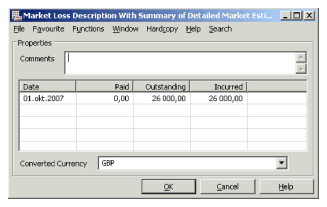
- Select a currency.
- Click OK. The system converts all the Detailed Market Estimates into the selected currency.
| Field | Description |
|---|---|
| Comment | Comments associated with the Market Estimate. Values: Free-text entry Mandatory: No |
| Date | The date the estimate entry is associated with - the as-of-date. Value: Date field - output only. |
| Paid | The total amount registered as paid for each estimate date, expressed in the selected Converted Currency Value: Output field only |
| Outstanding | The total amount registered as outstanding for each estimate date, expressed in the selected Converted Currency Value: Output field only |
| Converted Currency | The selected currency in which you want to view the total of all estimates. Values: Any currency defined in the system Default: The currency of the first Market Loss Estimate Detail |
| Currency | The currency in which the Detailed Market Estimate will be expressed. Values: Any currency defined in the system |
| Main Class of Business | The nature of the Business associated with this estimate. Values: Customised |
| Class of Business | The nature of the Business associated with this estimate. Values: Customised |
| Sub Class of Business | The nature of the Business associated with this estimate. Values: Customised |
| Cause of Loss | The “reason” for losses within this estimate, for example “Grounding”, “Property Damage” Values: Customised |
| Insured | The Market Loss estimate for a specific Insured. Values: Any Third Party registered in the system. |
| Date | The date associated with this estimate - that is its as-of-date. Values: Date field DD/MM/YYYY |
| Outstanding Amount | The reserve or outstanding amount reported with this estimate, expressed in the selected currency. Values: Number field, maximum 20 + 2 decimals |
| Paid Amount | The paid amount reported with this estimate, expressed in the selected currency. Values: Number field, maximum 20 + 2 decimals |
| Incurred Amount | The sum of paid and outstanding amounts reported with this estimate. Values: Output field only. |