Handle Limits and Shares for a Claim
Some claims are subject to special conditions that are not general for the business. This might be the situation if there are special deductibles for specific claims, or the claim is indexed (and you for some reason do not want to use the automatic calculation facility), or the cedent/insured agrees to retain more of a specific loss (your share decrease). SICS allows you to record these special conditions for Limit and/or Share for Non-Proportional Assumed Claims, and will if recorded apply these conditions in the From Ground Up calculations and worksheet validations rather than the Business Conditions. Refer to Claim From Ground Up Handling. When a claim is subject to an Index Clause, the system will not warn you that other limits apply in the FGU Calculation. This warning will only appear if the claim is not subject to an Index Clause. The new limits will regardless be displayed in the From Ground Up suggested distribution display list.
The Claim Limit and Share condition appears as a sub-tab under the Business Info tab provided your System Administrator has enabled this functionality in System Parameters. Refer to System Administration Guide - Claim Parameters.
Record New Claim Limit #
You can at any time create new claim limits, but you can only create one per Advice Date. If required you can create claim limits that apply prior to the latest one recorded. Note however that claim limits will only affect subsequent bookings.
- Open the Claim Business Info tab - sub-tab Limit and Share.
- Click the Menu button in the Limit section of the window and select the New option.
- Record the New Limit information and click OK. Refer to Claim Limit Field description for further details.
Claim Limits will apply the same Rate of Exchange as defined on Limit condition. (Refer to Record Limits.)
Edit Existing Claim Limit #
Claim Limits can be edited as long as this or later limits have not been applied in a FGU distribution and a worksheet ID has been generated.
- Open the Claim Business Info tab - sub-tab Limit and Share.
- Navigate to the Limit you want to edit. Refer to View Historical Development of Claim Limit.
- Click the Menu button in the Limit section of the window and select Edit.
- Record the New Limit information and click OK. Refer to Claim Limit Field description for further details.
View Claim Limit for Another Currency #
- Open the Claim Business Info tab - sub-tab Limit and Share.
- Navigate to the Limit you want to inspect. Refer to View Historical Development of Claim Limit.
- Select the currency from the drop-down list for both Incurred and Payment.
View Historical Development of Claim Limit #
- Open the Claim Business Info tab - sub-tab Limit and Share.
- Use the arrows next to the date field to view the development of the Claim Limit.
| Field | Description | Location |
|---|---|---|
| Advice Date | The date from when the limit is valid. Value: Date field - DD/MM/YYYY. Validations: Must be greater or equal to the Date of Loss From (or Claim Trigger Date), must be less or equal to today’s date. Must be another date than other Advice Dates Mandatory: Yes Functional impact: From Ground Up, Claim Accounting Worksheet Validations |
Business Info Limit and Shares |
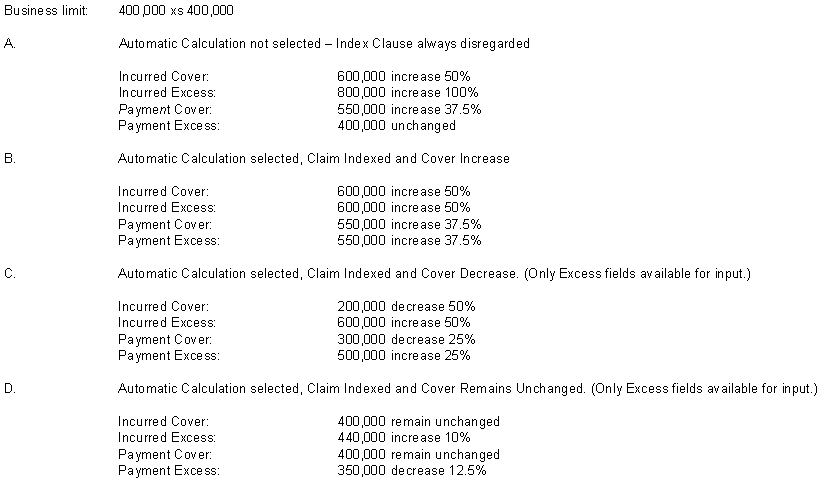
| Automatic Calculation of Cover and Excess | When selected the system will automatically recalculate the cover based on what is defined as the excess, and vice versa. Values: Selected/cleared Default: Selected when Limit Condition is defined on section, cleared when no Limit Condition is defined on section. Validations: Available for selection only when Limit Condition is defined on section. Functional impact: When selected, the cover and excess will be changed with the same factor. The Index Clause Fluctuation will be considered in the recalculation. For unlimited covers, only the excess point can be recorded. If not selected, the cover and excess can be changed with different factors, and the Index Clause Fluctuation will not be considered. |
Business Info Limit and Shares |
| Applied Date | The Date the Claim Limit was created Values: Output field only - DD/MM/YYYY Functional impact: None |
Business Info Limit and Shares |
| User | The user who created the claim limit. Value: Output field only, user. Functional impact: None |
Business Info Limit and Shares |
| Following fields apply to both Incurred Claim and Payments Section | ||
| Unlimited Cover | Output field indicating that the Incurred Cover is Unlimited. Derived from: Business Limits Functional impact: FGU |
Business Info Limit and Shares |
| Currency | Output field only, displaying available business limits currencies. Mandatory: Yes |
Business Info Limit and Shares |
| Cover | The new limit/cover that shall be applied in FGU Calculations and worksheet validations. Available for entry when cover is limited (specific amount) or unlimited and automatic calculation is not selected. If the Claim is indexed the cover field is only available if the cover should increase. Default: Payments Cover defaults to Incurred Claim Cover. Mandatory: Yes Validations: Warnings returned if new cover exceeds the Annual Aggregate Limit, or if Paid Cover exceeds the Incurred. Functional impact: FGU Calculations and Worksheet validations. |
Business Info Limit and Shares |
| Excess | The new excess that shall be applied in FGU Calculations and worksheet validations. Default: Payments Excess defaults to defined Incurred excess Mandatory: Yes Validations: Warning if Payments Excess exceeds Incurred Excess. Functional impact: FGU Calculations |
Business Info Limit and Shares |
| Our Share | Output field only displaying our share of the new cover amount. Derived from: Claim share (if existing) or Business Share x Cover Amount |
Business Info Limit and Shares |
Claim Limit Example #
Record New Claim Share #
You can at any time record a new share, but only one share per advice date. If required you can create claim shares that apply prior to the latest one recorded. Note however that claim shares will only affect subsequent bookings.
- Open the Claim Business Info tab/ Limit and Share sub tab.
- Click the Menu button in the Share section of the window and select New.
- Record the New Share information and click OK. Refer to Maintain Non-Proportional Treaty Shares for explanation of fields.
Edit Existing Claim Share #
- Claim Shares can be edited as long as this or later share conditions have not been applied in a FGU distribution and a worksheet ID has been generated.
- Open the Claim Business Info tab - sub-tab Limit and Share.
- Navigate to the Share you want to edit. Refer to View Historical Development of Claim Share.
- Click the Menu button in the Share section of the window and select Edit.
- Record the New Share information and click OK. Refer to Claim Share Field description for further details.
View Historical Development of Claim Share #
- Open the Claim Business Info tab - sub-tab Limit and Share.
- Use the arrows next to the date field to view the development of the Claim Share.
| Field | Description | Location |
|---|---|---|
| Advice Date | The date from when the share is valid. Value: Date field - DD/MM/YYYY. Validations: Must be greater or equal to the Date of Loss From (or Claim Trigger Date), must be less or equal to today’s date. Must be another date than other Advice Dates Mandatory: Yes Functional impact: From Ground Up, Claim Accounting Worksheet Validations |
Business Info Limit and Shares |
| Share (1stfield) | The share that will be applied in FGU Calculations, equivalent to “Our Share of 100%”. Value: Percentage Mandatory: Yes Can be Derived from: Share 2 x Share 3 x Share 4 Functional impact: FGU Calculations |
Business Info Limit and Shares |
| Share (2ndfield) | Share used when our share (Share 1stfield) is expressed as a percentage of another percentage, e.g. a broker’s placement. Value: Percentage - 7 decimals, maximum 100% Mandatory: No (if nothing is entered, this is interpreted as 100%) Can be Derived from: Share 1 x Share 3 x Share 4 Functional impact: Claim Share values |
Business Info Limit and Shares |
| Share (3rdfield) | Share used when our share (Share 1stfield) is expressed as a percentage of another percentage, e.g. a broker’s placement. Value: Percentage - 7 decimals, maximum 100% Mandatory: No (if nothing is entered, this is interpreted as 100%) Can be Derived from: Share 1 x Share 2 x Share 4 Functional impact: Claim Share values |
Business Info Limit and Shares |
| Share (4thfield) | Share used when our share (Share 1stfield) is expressed as a percentage of another percentage, e.g. a broker’s placement. Value: Percentage - 7 decimals, maximum 100% Mandatory: No (if nothing is entered, this is interpreted as 100%) Can be Derived from: Share 1 x Share 2 x Share 3 Functional impact: Claim Share values |
Business Info Limit and Shares |
| Applied Date | The Date the Claim Share was created Values: Output field only - DD/MM/YYYY Functional impact: None |
Business Info Limit and Shares |
| User | The user who created the claim share. Value: Output field only, user. Functional impact: None |
Business Info Limit and Shares |