Link a Claim to a Claim Group
To include a claim in a Claim Group, you must create a link between the Claim and the Claim Group. This link is created from the Claim itself, or from the Claim Group Claim List.
Link Claim to Claim Group from Claim Group #
- Open the Claim Group from the SICS desktop
- Find the Claim Group you want to link a claim to and select Properties from the pop-up menu. The linked claims with bookings are displayed.
- Select Add from the pop-up menu.
- Find the Claim you want to link to the Claim Group. Refer to Find Claim.
Note! If the Claim is already linked to another Claim Group you should edit the Allocation Percentage. Refer to Edit Claim Group Allocation Percentage.
Link Claim to Claim Group from Claim #
- Open the Claim, which you want to link to a Claim Group.
- Open the Claim Links tab, sub-tab Claim Group.
- Select Edit from the pop-up menu. You see the Edit Allocation Percentage window.
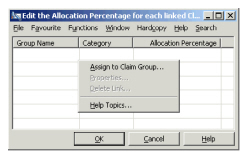 4. Select Assign to Claim Group from the pop-up menu.
5. Find the Claim Group to which you want to link the claim.
6. Edit the Allocation Percentage (the proportionate share the claim is part of the claim group).
7. Repeat steps 4 - 6 if you want to link the claim to any additional Claim Groups.
8. Click OK.
4. Select Assign to Claim Group from the pop-up menu.
5. Find the Claim Group to which you want to link the claim.
6. Edit the Allocation Percentage (the proportionate share the claim is part of the claim group).
7. Repeat steps 4 - 6 if you want to link the claim to any additional Claim Groups.
8. Click OK.
Edit Claim Group Allocation Percentage #
- Find the Claim for which you want to edit the Claim Group Allocation Percentage. Refer to Find Claim.
- Open the Claim Properties.
- Open the Claim Links tab, sub-tab Claim Groups.
- Select Edit from the pop-up menu.
- Enter the correct Allocation Percentage.
- Click OK.