Loss Estimates
There is sometimes a need to record and view loss estimates for your total expected exposure for an individual claim, and to see the development of these over time. Together with the actual bookings, the estimates provide you with valuable information.
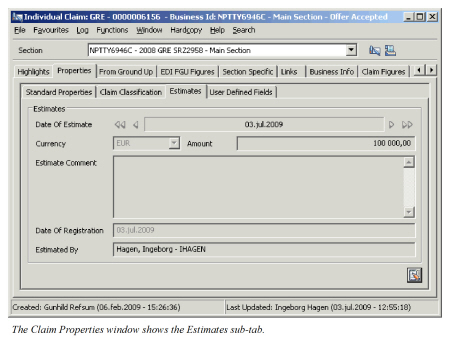
The Loss Estimates can be found as a separate tab on the Claim Properties and are available for Individual Claims only.
Create New Estimates #
Estimates cannot be created through the claim wizard, and must therefore be created on an already existing claim. The estimate is valid for all the linked sections, and should as such be general rather than section specific. It is possible to create numerous estimates per claim, but only one estimate per date.
- Open the Claim Properties of an existing Individual Claim.
- Click the Estimates tab.
- Click the Menu button in the bottom right corner and select New. You see the Create New Claim Estimate Item window.
- Record the estimate information.
- Click OK.
Edit Existing Estimates #
If you discover that some of the estimate information you have recorded is wrong, or insufficient, it is always possible to edit the existing estimates, even though subsequent estimates might exist.
- Open the Claim Properties of an existing Individual Claim
- Click the Estimates tab.
- Move to the estimate that you want to edit using the arrow buttons.
- Click the Menu button in the bottom right corner and select Edit.
- Change the estimate information as required.
- Click OK.
View Historical Development of Estimates #
The navigation between the estimates enables you to Delete and Edit specific estimates, and also to see the development of estimates through time.
- Open the Claim Properties of an existing Individual Claim
- Click the Estimates tab.
- Use the arrow buttons next to the Date of Estimate field to see the estimates for different dates.
Delete Existing Estimates #
If you have recorded estimate information in error, it is always possible to delete an existing estimate, even when later estimates exist.
- Open the Claim Properties of an existing Individual Claim.
- Click the Estimates tab.
- Move to the estimate that you want to delete using the arrow buttons next to the Date of Estimate field.
- Click the Menu button in the bottom right corner and select Delete. You see the Delete Selected Claim Estimate Item window.
- Confirm that you want to delete the estimate item by clicking OK.
| Field | Description | Location |
|---|---|---|
| Date of Estimate | The date the estimate is associated with. Value: Any date DD/MM/YYYY. Default: Today’s date Validations: Cannot be set beyond today’s date, nor an existing estimate date. Mandatory: Yes Functional impact: None |
Properties - Estimates |
| Currency | The currency in which the estimate is expressed. Values: Any currency defined in the system. Default: The Base Company’s Base currency. Mandatory: Yes Functional impact: None |
Properties - Estimates |
| Amount | The estimate amount Values: Amount 18 digits + 2 decimals Mandatory: Yes Validations: None Functional impact: None |
Properties - Estimates |
| Estimate Comment | Any comment associated with the estimate entry. Values: Free-text entry. Mandatory: No Functional impact: None |
Properties - Estimates |
| Date of Registration | The date the estimate entry was created. Values: Output field only |
Properties - Estimates |
| Estimated By | The user who created the estimate entry. Values: Output field only |
Properties - Estimates |