Produce Claim Documents
Claim documents can be used to provide loss information to internal and external interested parties. The documents that can be produced from within claims are as follows:
- Claim Advice
The claim advice document is a document that is created per claim to section link. The document typically contains information about the claim, and its' bookings. The Claim Advice can also be used to create a loss advice to your proportional facultative retrocessionaires.
- Large Loss Notice
The Large Loss Notice is a document that can retrieve information from all the linked sections of the claim, and is therefore particularly useful when you have a claim that affects a program with many layers.
- Claim Remittance Advice
The Claim Remittance Advice is a document that can produced for a Claim worksheet balance that is linked to a remittance, and can retrieve information from both the claim, the claim worksheet, and the remittance worksheet. The document can be used for example, as an advice to the Financial Department of a payment that is due.
From where to produce the document depends on the document type.
Create a Claim Advice #
The claim advice document is relevant for a single claim to section link only, and can be produced from the Claim Figures tab of the claim, or from the General Document icon - document list from the Properties tab.
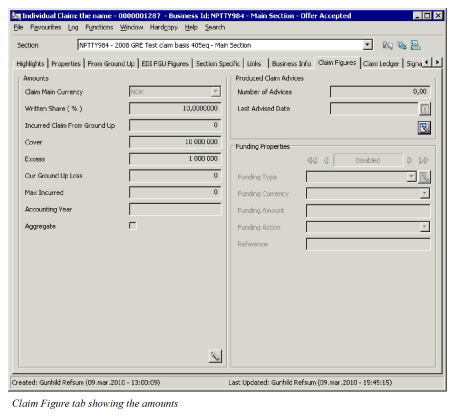
Produce a Claim Advice from the Claim Figures Tab #
- Open the Claim Figures tab of the claim, and click the Menu button in the Produced Claim Advices section.
- Select List Documents from the pop-up menu. The system opens the document list window.
- Select New from the pop-up menu.
- Select the required document template sub category.
- Select the document template you want to produce.
- Click OK.
The system automatically updates the fields Last Advised Date, and Number of Advices.
Produce Claim Advice from the Claim Properties Tab #
- Open the Properties tab of the claim, and click the Menu button in the Heading Information section.
- Select List Documents from the pop-up menu. The system opens the document list window.
- Select New from the pop-up menu.
- Select the required document template sub category.
- Select the document template you want to produce.
- Click OK.
Produce a Claim Advice using the Produced Documents Icon #
- Open any tab of the claim for which you want to produce a claim advice.
- Click the Produced Document icon in the upper part of the window; next to the Section Indicator field. The system opens the document list window.
- Select New from the pop-up menu.
- Select the required document template sub category.
- Select the document template you want to produce.
- Click OK.
Retrieve a Claim Advice #
The Claim Advice can be retrieved from the general Produced Document icon on the claim, the Claim Figures tab, or the Claim Properties of the claim.
Retrieve a Claim Advice using the Produced Document Icon #
- Open any tab of the claim, ensure that the section navigator displays the required section, and click the Produced Document icon.
The system opens the Document List window, with all the large loss notices, claim advices, and claim remittance advices produced for this claim. 2. Select the claim advice that you want to retrieve.
Retrieve a Claim Advice from the Claim Figures Tab #
- Open the Claim Figures tab of the claim, and select List Documents from the menu in the Produced Claim Advices section.
The system opens the Document List window, with all the claim advices produced for this claim. 2. Select the claim advice that you want to retrieve.
Retrieve a Claim Advice from the Claim Properties Tab #
- Open the Properties tab of the claim, and select List Documents from the Menu button in the lower part of the Heading Information section.
The system opens the List Documents window, listing all the claim advices, large loss notices, and claim remittance advices produced for this claim. 2. Select the claim advice that you want to retrieve.
Create a Large Loss Notice #
The Large Loss Notice is produced per Claim (general level abstract), and refers to all sections of a claim, and is produced from the Claim Properties.
- Open the Properties tab of the claim, and click the Menu button in the Heading Information section.
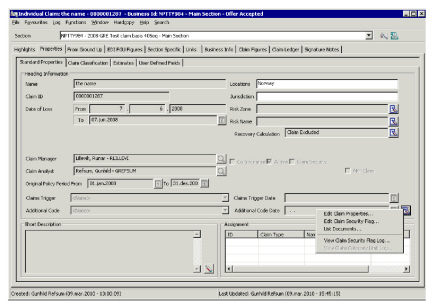 2. Select List Documents from the pop-up menu. The system opens the document list window.
3. Select New from the pop-up menu.
4. Select the required document template sub category.
5. Select the document template you want to produce.
6. Click OK.
2. Select List Documents from the pop-up menu. The system opens the document list window.
3. Select New from the pop-up menu.
4. Select the required document template sub category.
5. Select the document template you want to produce.
6. Click OK.
Alternatively; the large loss notice can be produced from the Produced Document icon on the claim:
- Open any tab of the claim for which you want to produce a claim large loss notice.
- Click the Produced Document icon in the upper part of the window; next to the Section Indicator field. The system opens the document list window.
- Select New from the pop-up menu.
- Select the required document template sub category.
- Select the document template you want to produce.
- Click OK.
Retrieve a Large Loss Notice #
The large loss notice can be retrieved from the Properties tab of any of the linked claim-to-section links, as well as the general Produced Document icon.
Retrieve a Large Loss Notice from the Properties Tab #
- Open the Properties tab of one of the linked claim-to-section links.
- Open the Properties tab of the claim and select Produce Documents from Menu button in Heading Information section.
The system opens the List Documents window, listing all the claim advices, large loss notices, and claim remittance advices produced for this claim. 3. Select the large loss notice that you want to retrieve.
Retrieve a Large Loss Notice using the Produced Document Icon #
- Open any tab of the claim, and click the Produced Document icon.
The system opens the List Documents window, with all the large loss notices, claim advices, and claim Remittance advices produced for this claim. 2. Select the large loss notice that you want to retrieve.
Create a Claim Remittance Advice #
The Claim Remittance Advice functionality retrieves information for a single balance and the linked remittance, and is produced from the claim ledger, or the business partner ledger.
Create a Claim Remittance Advice from the Claim Ledger #
- Open the Claim Ledger of the claim,.
- Select a claim worksheet by highlighting the As-of-Date.
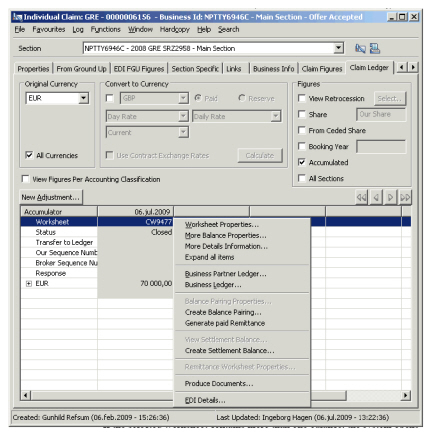
- Select Produce Documents from the pop-up menu.
-
requiring you to select the balance for which you want to create the document. Select the balance and click OK
The system opens the document list window.
- Select New from the pop-up menu.
- Select the required document template sub category, for example, Claim Remittance Advice.
- Select the document template you want to produce.
- Click OK.
The document will only be produced if there exists a link between the selected balance and a remittance worksheet.
Create a Claim Remittance Advice from the Business Partner Ledger #
- Open the business partner ledger.
- Select the claim or remittance balance for which you want to produce a claim remittance advice.
- Select Produce Documents from the pop-up menu.
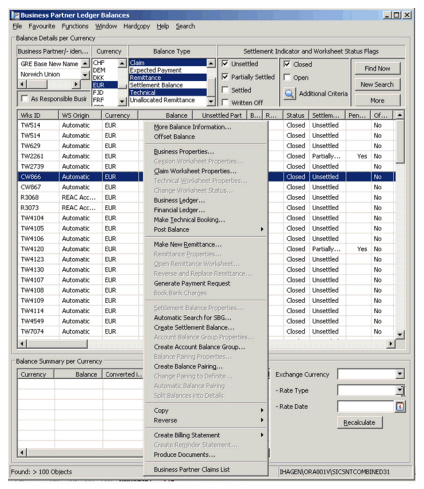
The system opens the document list window.
- Select New from the pop-up menu.
- Select the required document template sub category, for example, Claim Remittance Advice.
- Select the document template you want to produce.
- Click OK.
The document will only be produced if there exists a link between a claim and remittance balance.
Retrieve a Claim Remittance Advice #
A claim remittance advice can be retrieved from the claim ledger, the Produced Document icon of the claim, the business partner ledger, as well as the business partner.
Retrieve a Claim Remittance Advice from the Claim Ledger #
- Open the claim ledger of the claim and select a worksheet by highlighting the .As of Date column and then right-click in the display list .
- Select Produce Documents from the pop-up menu.
-
If the selected worksheet contains more than one balance, the system opens the List Chooser and you are required to select a balance. Select the balance and click OK.
The system opens the Document List window, listing all the claim remittance advices produced for this claim.
- Select the claim remittance advice that you want to retrieve.
Retrieve a Claim Remittance Advice using the Produced Documents Icon #
- Open any tab of the claim and select the Produced Documents icon in the upper part of the window, next to the Section Indicator field.
The system opens the Document List window, listing all the claim advices, large loss notices, and claim remittance advices produced for this claim. 2. Select the claim remittance advice that you want to retrieve.
Retrieve a Claim Remittance Advice from the Business Partner Ledger #
- Open the business partner ledger for the claim.
- Select the claim or remittance balance included in the claim remittance advice.
- Select Produce Documents from the pop-up menu
The system opens the Document List window, listing all the documents created for the business partner; including the claim remittance advices. 4. Select the claim remittance advice that you want to retrieve.
Retrieve a Claim Remittance Advice from the Business Partner Properties #
- Open the business partner properties for the partner for which the claim remittance advice is produced.
- Click the Document Production icon on the Properties tab.
The system opens the Documents List window, listing all the documents created for the Business Partner; including the Claim Remittance Advices.
- Select the claim remittance advice that you want to retrieve.
Retrieve a Document #
All claim documents can be retrieved from the general document icon on the claim.
-
Open the claim for which you want to retrieve a claim document.
-
Select the Document Production icon in the upper part of the window, next to the Section field. The system opens the Document List window, listing all the produced documents relevant for this claim.
-
Select the claim document (claim advice, claim large loss notice, or claim remittance advice) that you want to inspect. Alternatively, the documents can be retrieved from where they were produced.
Edit and View Document Properties #
The document properties provides information about the document itself, such as file names, file path, document type, document id, document status and so on, and not the contents of the document. This information cannot be edited, with the exception of status and title.
- Find the document for which you want to edit/view the document properties.
- Select the document you want to edit, and select Edit from the pop-up menu. Alternatively, select Properties from the pop-up menu, and click the Edit button.
- Change the document title and/or status. If the status is changed to Sent, the Sent Date field is populated with today’s date.
- Click OK.
Print Document #
From the Document List window,you have the option to print the claim advice.
- Retrieve the document you want to print.
- Select the document you want to print, and select Print from the pop-up menu.
Delete Document #
If you have created a document in error, and/or no longer want to keep it in the document list, you can delete it.
- Retrieve the document you want to delete.
- Select the document you want to delete, and select Delete from the pop-up menu.
- Click OK.
- Confirm the deletion.
- Respond to question whether you want to remove the physical files.
Note! Deleting a document will not update the fields on Claim Figures tab, nor will the document be deleted from the path unless you confirm the question in step 5.
| Field | Description | Location |
|---|---|---|
| Number of Advices | Output field of the number of advice produced for this claim. If an advice is produced for more than one retrocessionaire, the number will be increased correspondingly. Functional impact: None |
Claim Figures |
| Last Advised Date | Output field of the last date a claim advice was produced. Functional impact: None |
Claim Figures |