Reduction
When the non-proportional Claim and/or Limit information should be reduced for any reason, for example legal sessions, this can be taken into account in the FGU Calculations by defining Reduction Information. The reduction will be applied to the Claim Figures and/or Limit information after the Policy Deductible and Co-insurance. The Reduction can be applied to Claim Figures, Claim Figures and Covers, Covers, or Deductible only. Each of these methods are described below. You can at any time record or add a new reduction, change the reduction method or percentage.
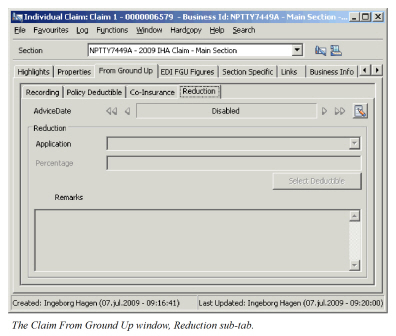
Reduction applied to Claim Figures #
Each of the FGU advisory figures are recalculated following this model:
FGU figure x (1 - Reduction %) = FGU figure applied in calculations.
The Cover and Excess remain unchanged.
Example:
Limit: 200,000 xs 100,000
Paid FGU 200,000
Reduction 10% - applied to claim figures only
Recalculated Paid FGU = 200, 000 x (1-10%) = 180,000
To layer: 180,000 - 100,000 = 80,000
Reduction applied to Claim Figures and Covers #
Each of the FGU advisory figures are recalculated following this model:
FGU figure x (1 - Reduction %) = FGU figure applied in calculations.
The Cover and Excess are recalculated in the same manner.
Example:
Limit: 200,000 xs 100,000
Paid FGU 200,000
Reduction 10% - applied to claim figures and covers.
Recalculated Paid FGU = 200, 000 x (1-10%) = 180,000
Recalculated cover:
200,000 (1-10%) xs 100,000 (1-10%) = 180,000 xs 90,000
To layer: 180,000 - 90,000 = 90,000
Reduction applied to Covers #
The Cover and Excess are recalculated as follows:
Limit (1-Reduction%) = Limit applied in calculations
Excess (1-Reduction%) = Excess applied in calculations. The Claim Figures remain unchanged.
Example:
Limit: 200,000 xs 100,000
Paid FGU 200,000
Reduction 10% - applied to Covers
Recalculated cover:
200,000 (1-10%) xs 100,000 (1-10%) = 180,000 xs 90,000
To layer: 200,000 - 90,000 = 110,000
Reduction applied to Deductibles #
Only the excess point is recalculated, all other remains unchanged.
Excess x (1-reduction %) = Excess applied in calculations
Example:
Limit: 200,000 xs 100,000
Paid FGU 200,000
Reduction 10% - applied to Deductible
Recalculated cover:
200,000 xs 100,000 (1-10%) = 200,000 xs 90,000
To layer: 200,000 - 90,000 = 110,000
Record New Reduction applied to Claim Figures, Claim Figures and Covers or Covers #
- Open the Claim that you want to record reduction information for.
- Click the From Ground up tab and then click the Reduction sub-tab.
- Select New from the Menu button.
- Enter the Advice Date, Application Method and the Reduction Percentage.
- Enter any remarks.
- Click OK.
Record Reduction applied to Deductibles #
- Open the Claim you want to record reduction information for.
- Click the From Ground up tab and then click the Reduction sub-tab.
- Select New from the Menu button. You see the New FGU Reduction dialog box.
- Enter the advice date, select Reduce Deductible from the Application drop-down list and enter the reduction percentage.
- Click the Select Deductible button. You see the Select Deductible Reduction Calculation dialog box.
- Select the scope of cover for which the excess shall be reduced, and double-click so that calculated excess appears. (If you selected the erroneous deductible, clear it by double-clicking, and make your correct selection.).
- Click Save.
- Enter any remarks.
- Click OK.
Select Deductible Validations #
- When you select a deductible, the system recalculates the excess for all layers from that point. For example, if the lowest layer is selected, all layers are recalculated, whereas if the second layer is chosen the first layer will not be recalculated.
- You can actively clear a layer by selecting it and double-clicking.
- All recalculated layers are shown as selected.
- A Gap exists if there is a gap between the recalculated excess points. If the Ignore Gaps/Overlaps has not been selected the system will return a warning with an option to clear all changed deductibles. If you select Yes, the system will clear all, and you must go through the selection process again. If you select No, the selection remains.
- If an Overlap exists if more than one layer covers the same span. If the Ignore Gaps/Overlaps has not been selected the system will return a warning with an option to clear all changed deductibles. If you select Yes, the system will clear all, and you must go through the selection process again. If you select No, the selection remains.
Select or View Deductible Display Options #
- Select or clear the Ignore gaps/Overlaps to ignore or display whether Gaps and Overlaps exist.
- Select the Show all Currencies check box to see the layers displayed in all limit currencies
- Clear the Show all Currencies check box to see the layers displayed in Main Currency only
Edit Reduction #
If the recorded Reduction information is incorrect, you can change this as long as it has not yet been applied in a FGU worksheet.
- Open the claim you want to edit Reduction information for.
- Click the FGU tab and then the Reduction sub-tab.
- Select Edit from the Menu button.
- Change the reduction information as required.
- Click OK.
View Reduced Deductible Information #
When Reduction is applied to the Deductible (i.e. Excess), you can at all times view the recalculated deductibles that are applied in the FGU Calculations.
- Open the claim you want to view the Reduction Deductible information for.
- Click the FGU tab and then the Reduction sub-tab.
- Click the View Deductible button.
View Development of Reduction Information #
The advice date associated with each reduction allows you to view the development of the Reduction information, thus enabling you to understand the FGU Calculations.
- Open the claim you want to view the development of Reduction information for.
- Click the FGU tab and then the Reduction sub-tab.
- Use the arrows next to the Advice Date field to see the development.
.
| Field | Description | Location |
|---|---|---|
| Advice Date | The date from which the reduction information is applicable in FGU Calculations. Value: Date field Mandatory: Yes Validations: Must be equal or after Date of Loss, or Claim Trigger Date. Must not be equal to other Reduction Advice Date. Functional impact: Determines when to apply the reduction information in FGU calculations by comparing with as-of-date. |
FGU - Reduction |
| Application | The reduction method. Values: None, Reduce Claim Figures, Reduce Covers, Reduce Covers and Claim Figures, Reduce Deductible Mandatory: Yes Functional impact: Determines how the reduction applies to the various factors in the FGU Calculation. |
FGU - Reduction |
| Percentage | The percentage by which the figures shall be reduced. Values: Percentage less than 100 - 4 decimals Mandatory: Yes Functional impact: All figures determined by the Method will be reduced by this percentage by multiplying the figure with (1 - reduction percentage). |
FGU - Reduction |
| Remarks | Any notes that apply to the reduction entry Values: Free-text input. |
FGU - Reduction |
| Claim Section | The non-proportional sections to which the claim is linked. | FGU- Reduction - Select/View Deductible |
| Currency | The limit currency | FGU- Reduction - Select/View Deductible |
| Cover | The Cover Amount that will be applied in FGU Calculations. This will consider Claim Limits, Cover Basis, and Co-insurance. | FGU- Reduction - Select/View Deductible |
| Excess | The Excess Amount that will be applied in FGU Calculations, prior to the reduction. This will consider Claim Limits, Cover Basis, and Co-insurance. | FGU- Reduction - Select/View Deductible |
| Calculated Excess | The Excess Amount that will be applied in FGU Calculations. This will consider Claim Limits, Cover Basis, Co-insurance and Reduction. | FGU- Reduction - Select/View Deductible |
| Incurred Cover | The Incurred Cover Amount that will be applied in FGU Calculations. This considers Claim Limits, Cover Basis, and Co-insurance. | |
| Incurred Excess | The Incurred Excess Amount that will be applied in FGU Calculations, prior to the reduction. This considers Claim Limits, Cover Basis, and Co-insurance. | |
| Incurred Calculated Excess | The Calculated Incurred Excess Amount that will be applied in FGU Calculations. This considers Claim Limits, Cover Basis, Co-insurance and Reduction | |
| Gap | Indicator of whether any gap exist between | FGU- Reduction - Select/View Deductible |
| Overlap | Indicator of whether any overlap exist | FGU- Reduction - Select/View Deductible |
| Selection | Indicator of whether the section will have a reduced deductible/excess. Values: Yes/No |
FGU- Reduction - Select/View Deductible |
| Ignore Gaps/Overlaps | When selected the system will not display whether gaps or overlaps exist, and these columns will be set to no. Functional impact: If overlap exists, the selection cannot be made unless the Ignore Gaps/Overlaps is selected. |
FGU- Reduction - Select/View Deductible |
| Show All Currencies | Will display the limits in all limit currencies. | FGU- Reduction - Select/View Deductible |