Handle Treaty Links
The Claim Program can be linked to more than one treaty from the same cedent. These treaties can be other individual treaties (that is treaties without a link to a Reinsurance Program), or they can be treaties that are part of the same Reinsurance Program or other Reinsurance Programs.
If your System Administrator has activated this functionality, the Claim Program can include treaties from more than one Reinsurer.
The Treaty Links are listed and maintained in the Treaty Links window of the Claim Program. The following will describe the processes involved when adding or removing treaty links from the Claims Program, or changing the Transfer to Ledger check box.
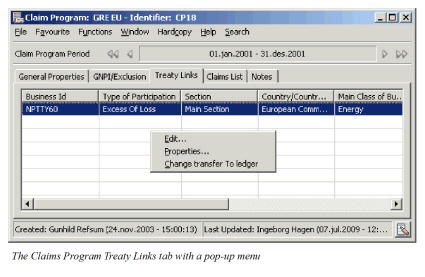
Add Treaties #
Treaties can be added to the Claim Program at any time, either during creation of the Claim Program or at a later date. These treaties can be other individual treaties (that is treaties without a link to a reinsurance program), or they can be treaties that are part of the same Reinsurance Program or other Reinsurance Programs. The system will perform the necessary validations, and create the required links to existing claims if you decide to add a treaty at a later date.
Add Treaties from same Reinsurance Program #
- Open the Claim Program - Treaty Links tab
- Select Edit from the pop-up menu.
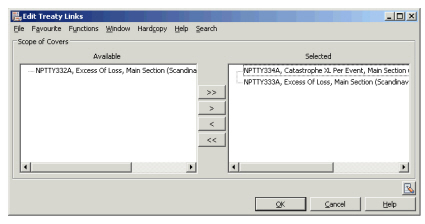
- Move the treaties or treaty sections you want to include from Available to Selected list.
- Click OK.
Add Single Treaties #
-
Open the Claim Program - Treaty Links tab.
-
Select Edit Treaty Links from the pop-up menu
-
Click the menu button, and select “Add single treaty”.
(The Find Business window opens with default extract criteria matching your Claim Program). -
Add additional search criteria, and click Find Now.
-
Select the treaty or treaty section you want to include, and transfer this back to the Claim Program by selecting transfer from the pop-up menu.
-
Repeat steps 2 - 4 if you want to include additional single treaties.
-
Click OK.
Add Treaties from other Reinsurance Program #
-
Open the Claim Program - Treaty Links tab
-
Select Edit Treaty Links from the pop-up menu
-
Click the Menu button, and select Add treaties linked to reinsurance program.
(The Find Business window opens with default extract criteria matching your Claim Program). -
Add additional search criteria, and click Find Now.
-
Select the Reinsurance Program you want to include, and transfer this back to the Claim Program.
-
Select the individual treaties or treaty sections you want to include in the Claim Program and move them from the Available to Selected list.
-
Repeat steps 2 - 5 if you want to include additional Reinsurance Program.
-
Click OK.
Add Treaty Link effect on Claims #
When you add a treaty link the system:
- Displays the Claim Program on the Business Claim List of the treaty.
- Creates the link between all claims linked to the Claim Program and the new treaty.
Add Treaty Links Validations #
When you add treaty links the system validates that all selected treaties conform to the Claim Program by checking the following:
-
Supporting Treaty.
The selected treaties cannot be Supporting Businesses -
Period
All linked treaties must cover the Claim Program Period.
-
Classifications
All linked treaties must contain the Claim Program’s classifications, with the exception of the Additional Classification if defined.
-
Country/Area
All linked treaties must contain the Claim Program’s country/area.
-
Cession Basis
All linked treaties must contain the Claim Program’s cession basis.
-
Type of Cover
The linked Excess of Loss Treaties must all be of the same type, either Clash, Cost or Regular.
-
Limits
The system validates that no overlaps exist for the linked non-proportional excess of loss treaties for the same reinsurer. A warning message appears if gaps exist.
-
Business Partners
Cedent must be the same for all linked treaties. The system returns a warning message if Broker is different.
Remove Treaty Links #
If you want to remove a treaty link from a Claim Program, there is only one process, and it does not matter whether the treaty you select to remove is a Single Treaty or a Treaty that is part of a Reinsurance Program.
- Open the Claim Program - Treaty Links tab.
- Select Edit Treaty Links from the pop-up menu.
- Select the individual treaties you want to remove from the Claim Program and move them from Selected to Available. (Leaving at least one treaty or treaty section as selected.)
- Click OK.
Remove Treaty Links effect on Claims #
When you remove a treaty link the system:
- Removes the Claim Program from the Business Claim List of the removed treaty.
- Removes the link between the treaty and all the claims linked to the Claim Program.
Remove Treaty Links Validations #
When you remove treaty links the system validates that the Claim Program either has:
- No linked claims, or
- No bookings on the treaties that are removed.
Edit Transfer to Ledger Option for Linked Treaties #
The Claim Program can contain links to both Proportional and Non-Proportional treaties. Since the two treaty types normally are accounted for in different ways, you can select to transfer to ledger only the bookings of the non-proportional treaties. The proportional claim bookings you can leave as informational and for recovery purposes only.
You set the transfer to ledger option (Yes/No) on the Treaty Links tab.
- Open the Claim Program - Treaty Links tab.
- Select the treaty for which you want to change.
- Select Change Transfer to Ledger from the pop-up menu.
The linked claims now display the new transfer to ledger flag on the Claim Section Specific tab - Booking information. Refer to Edit Booking Information.
View Business Properties from Claim Program #
If you want to inspect a linked treaty in more detail, to see the conditions or classifications for example, you can open the business directly from the Claim Program without going through the Find Business process.
- Open the Claim Program - Treaty Links tab.
- Navigate to the period that includes the treaty you want to inspect.
- Select the treaty you want to view.
- Select Properties from the pop-up menu.