Update Claim
In the following chapters, you can read more about each available field and functionality within Claims. Whenever you update a field within the claims, you may be required to enter a Claim Signature Note, provided your System Administrator has activated this functionality. Refer to Claim Description, Comments and Notes later in this chapter.
To Update a Single Claim: #
- Open the Claim which you want to update
- Navigate to the field which you want to update
- Go through the edit process, as described in the following chapters
Mass Update Claim #
SICS supports Mass Update of specific claim information based on a spreadsheet format The following fields can be included:
- Claims Manager
- Claims Analyst
- Additional Claim Classifications 1 - 7
- Claim Category Limit Currency and Amount
The columns in the input file must have the following labels:
- Claim ID (being the only mandatory field)
- Claims Manager
- Claims Analyst
- Add Claim Class 1 ( through to 7)
- Claim Category CCY
- Claim Category Amount
A file template can be generated.
- All included columns must have a valid and active value, or the value <None>
- If Claim Category CCY is include, you must also include the Claim Category Amount, and vice versa.
- Only a single value can be given for any one Classification item. If more than one column has the same heading, the system updates the claim with the value in the last column.
- The values in the input file
- replaces any existing values on the claim
- If a classification item is mandatory it cannot be set to none as part of a Mass Update.
- If classification items and/or claim category currency and amount are not available for the base company, but have been included in the Mass Update input file, they are ignored
- Claim Signature Notes are not created, even though your System Administrator may have activated this by update of claim
- The Mass Update disregards any Domain Restrictions
- The Mass Update disregards any conflict information
Perform Mass Update of Claims: #
- Open Find Claims
- From popup menu, select Mass Update Claims
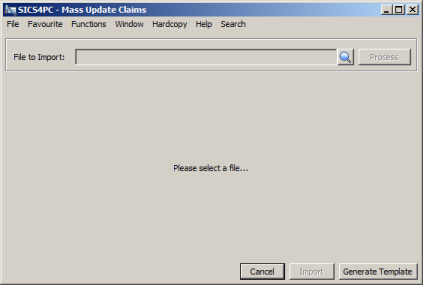
- Retrieve the input file, or select Generate Template to let the system create a spreadsheet with all columns already present. In the generated template, specify the Claim ID, and define the new values for included items. Make sure you remove all columns which should not be included
- Select Process to validate the file. If the system detects any issues, a list of errors is presented. Resolve all errors prior to processing the file again.
- If no errors are detected, the system returns a message that the file is ready for import
- Press Import
- The system updates all claims included in the input file, with information as provided in the file. All audit logs are updated.