Various Claims Specifics
If the business is affected by many minor claims and you do not want to create separate individual claims for all, you can create a Various claim. The Various claim differ from the individual claims to a certain extent, and these differences will be described in the following.
The Various claim is available for all types of business, similar to the Individual claim.
Create and Edit Various Claim #
The Create Various Claim wizard differs from the Individual Claim wizard as follows:
- Claim trigger information is removed
- Claims Made Date is available - mandatory if Claim Basis is Claims Made.
- Co-insurance check box is removed
- Include in Recovery calculation indicator is removed.
- Non-Proportional Assignment option is removed
- Claim Program assignment is removed
The validations are the same for as for Individual claims except for Date of Loss From. This can be in the future, but must be within the Insured Period.
On the created various Claim there are a few differences in addition to the above:
- Classifications appear on the Main Properties tab
- The option to link the Claim to a Headline Loss is removed.
- An option to Add Assigned Claims is introduced
- An option to create Various Claim details is introduced
- The option to record Loss Estimates is removed
- FGU functionality is not available
- Business info - sub tab Claim Limits and Shares is removed
Add Assigned Claims (Link Individual Claims) #
The Various Claim is often created to act as a “summary” claim for the entire Insured Period. Still there is often a need to monitor certain elements of the Various Claim more closely, e.g. for recovery purposes, and at the same time avoid that double-booking occurs. SICS allows you to link Informational Individual Claims to a Various Claim, thus enabling these claims to be visible on the Various Claim, and at the same time ensure that any bookings on these claims are not transferred to ledgers. The option to assign individual claims to a Various Claim is available from both the Various Claim itself, and from Informational Individual Claims.
- Find and open the various claim you want to link individual claims to, or the informational individual claim you want to assign to a various claim
- Open the Properties tab
- In the Assignment section select Add Assigned Claims (on a Various Claim) or Link to Various Claim (on the Informational Individual Claim).
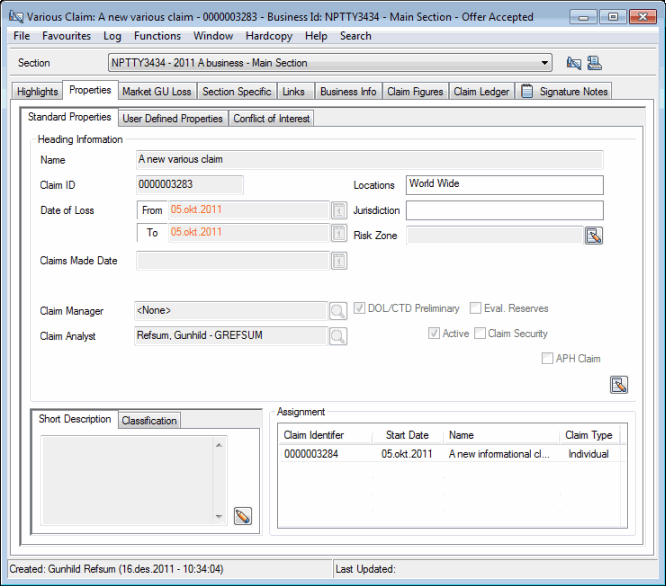
- Select the claim you want to link to the various claim, or the various claim you want to link the individual claim to.
- Select Transfer from the pop-up menu.
Delete Link to Assigned Claims #
If you have created a link to a various Claim or Individual Claim erroneously, you can easily delete this.
- Find and open the various claim you want to remove an assigned claim from, or the individual claim you want to remove the link to a various claim from.
- Open the Properties tab.
- In the Assignment section select the claim you want to delete the link to.
- Select Delete Link from the pop-up menu
- Confirm you want to delete the link by clicking OK to the warning message.
Create Various Claim Details #
When you have created a various claim, and want to know which elements that are included without creating Individual Claims, SICS allows you to create so-called Various Claim Details. Note that this option should not be used if you need to monitor the bookings on an Individual Claim level, or include figures in recovery calculations.
- Find and open the various claim that you want to create a detail for.
- Open the Properties tab
- In the Assignment section, select New Various Claim Detail.
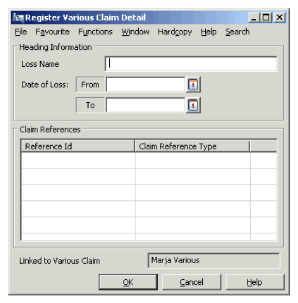
- Enter the Name, Date of Loss, and any Claim References (refer to Create Claim reference)- and click OK.
- Close the Various Claim Detail window.
Edit Various Claim Detail #
If you want to edit any of the information on the Various Claim Detail, this is allowed at any time.
- Find and open the various claim that contains the detail you want to edit.
- Open the Properties tab.
- In the Assignment section, select the detail you want to edit, and select Properties from the pop-up menu.
- Click the Edit button in the Heading section, or in the Reference section.
- Change the information as required.
- Click OK.
Delete Various Claim Details #
If you have created a detail in error, this can easily be deleted and removed. Note that this detail will be entirely removed from the database, as it only exists as a “note” on the Various Claim.
- Find and Open the Various Claim that contains the Detail you want to remove
- Open the Properties tab.
- In the Assignment section, select the detail you want to remove, and select Delete Link.
Note! No warning message will appear.
| Field | Description | Location |
|---|---|---|
| Name | The name by which the Various Claim detail is known. Value: Free-text input. Mandatory: Yes |
Various claim Detail |
| Date of Loss From | The start date of loss of the Various Claim Detail Value: Date field Mandatory: Yes Validations: Must be within the loss period of the Various Claim |
Various Claim Detail |
| Date of Loss To | The end date of loss of the Various Claim Detail. Value: Date field Mandatory: No |
Various Claim Detail |
| Claim References | Refer to Claim references field description Note that references created on details cannot be used in Find Claims. |
Various Claim Detail |