View Claims
When you are working with a claim it may be of interest to look at other claims linked to the business, the cedent, the insured, the Claim Program, a Headline Loss, or a Claim Group. If your claim is linked to the same, there are navigation possibilities. The following claims lists can be accessed directly from the Claim, Business, Partner, Headline Loss, Claim Program or Claim Group.
View Claims on Business #
To open the business claim list directly from a claim:
- In the Claim window, click the Claims icon in the upper right-hand corner .
Note! The Claim List refers only to the section (and the child sections) and period you are currently at.
The Business Claim List provides you with an overview of linked claims and their bookings, as well as the Total Claim Figures and Remaining cover - expressed in the main currency of the business as default, but any limit currency defined in Premium and Limit Condition can be selected. The fields displayed vary depending on whether the business is proportional or non-proportional.
If one of the listed claims is linked either to a Headline Loss, or marked as “Included in Recovery”, you can also navigate directly to the list of Recovery claims by choosing this option from the pop-up menu.
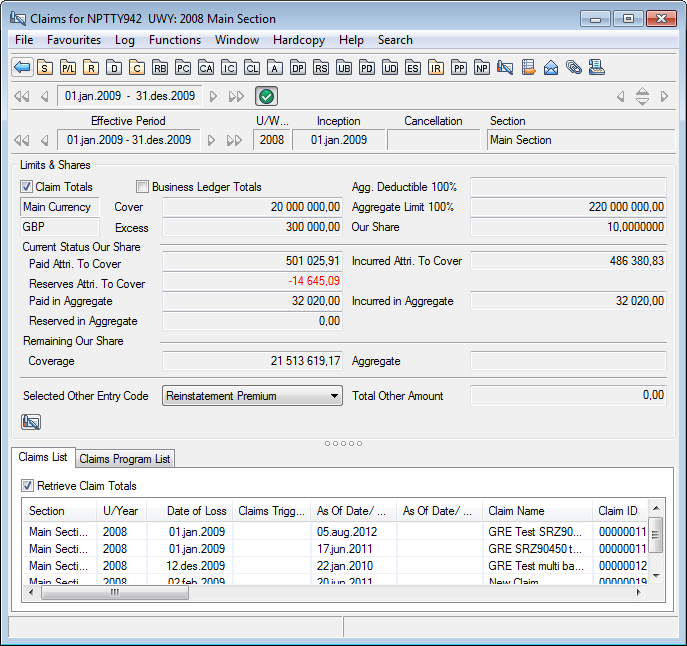
| Field | Description | Location |
|---|---|---|
| Show Claim Totals | Indicator that the Total fields on Claim List will display all bookings on Claim Worksheets only, including No Transfer To Ledger and Open Worksheets, but excluding Informational Claims. Value: Selected, cleared Default: As defined by your System Administrator. |
Business Claim List |
| Show Business Ledger Totals | Indicator that the Total fields on Claim List will display figures transferred to ledger only, including Open Worksheets, and also including Technical Worksheet bookings. Value: Selected, cleared |
Business Claim List |
| Currency | Currency of the business in which all amounts are expressed, using the business rate of exchange. Values: Limit currencies defined in Premium and Limit Conditions Default: Main currency of business |
Business Claim List |
| Limit indicator (only for proportional business) | The type of the defined Liability or Main Limit as it has been defined on Limit Conditions. | Business Claim List |
| Cover | The cover on non-proportional business | Business Claim List |
| Liability | The liability on proportional treaty business | Business Claim List |
| Main Limit | The main limit on proportional facultative and direct business | Business Claim List |
| Excess (only non-proportional business) | The excess point defined on non-proportional limit. | Business Claim List |
| Aggregate 100% (non-proportional only) | The amount defined as Annual Aggregate Deductible (AAD) on non-proportional limits. Note that if the AAD is combined, the amount displayed is the limit defined on the parent AAD section. | Business Claim List |
| Aggregate Limit 100 % (non-proportional only) | The amount defined as Aggregate (Annual) Limit on non-proportional business. If cover Calculated from: Cover multiplied with number of reinstatements+1. |
Business Claim List |
| Our Share | Our share expressed as percentage of 100% as defined on the Share Condition. | Business Claim List |
| Paid Attributable to Cover | The sum of all amounts booked as entry code subcategory Informational - Advised Paid, Technical - Loss, and Technical - Loss Expenses when cost condition is “Follow Form”, “Part of Liability”, “None”, or “No Automatic calculation”. Which amounts are included depend on the selection of Show Totals and Show Business Ledger Totals | Business Claim List |
| Reserves Attributable to Cover | The sum of all amounts booked as entry code subcategories Reserve - Original Loss Reserve and Reserve - Additional Loss Reserve, and Reserve - Loss Expenses when costs are defined as “Follow Form”, “Part of Liability”, “None”, or “No Automatic calculation”. Which amounts are included depend on the selection of Show Totals and Show Business Ledger Totals | Business Claim List |
| Incurred Attributable to Cover | The sum of Total Paid and Total Reserves. | Business Claim List |
| Paid in Aggregate (non-proportional only) | The sum of all amounts booked as entry code subcategory Informational - Paid in Aggregate. Which amounts are included depend on the selection of Show Totals and Show Business Ledger Totals | Business Claim List |
| Reserve in Aggregate (non-proportional only) | The sum of all amounts booked as entry code subcategory Informational - Reserve in Aggregate. Which amounts are included depend on the selection of Show Totals and Show Business Ledger Totals | Business Claim List |
| Incurred in Aggregate (non-proportional only) | The sum of Paid in Aggregate and Reserve in Aggregate. | Business Claim List |
| Remaining Our Share Coverage (non-proportional only) | Our Share of the Aggregate Limit less the Total Incurred. | Business Claim List |
| Remaining Our Share Aggregate (non-proportional only) | Our Share of the Aggregate (Deductible) 100% less the Incurred in Aggregate. | Business Claim List |
| Selected Other Entry Code | A freely selected entry code sub category for which you want to display bookings (total) and per claim. Values: All entry code subcategories defined in the system. Default: Customised. |
Business Claim List |
| Total Other Amount | The sum of all amounts booked for the selected Other Entry Code subcategory. Which amounts are included depend on the selection of Show Totals and Show Business Ledger Totals | Business Claim List |
| Retrieve Claim Totals | An indicator of whether claim figures are displayed for the listed claims or not. When the list contains more than 100 claims, the indicator is defaulted to false for performance reasons. Figures are not displayed. To display the claim figures, this box must be selected. | Business Claim List |
| Field | Description | Location |
|---|---|---|
| As Of Date/Claim Ledger | Date indicating when claim figures was last updated in Claims ledger Values: Date Field Derived from: Claims Ledger Functional Impact: No |
Claims List |
| As Of Date/ FGU | Date indicating when claim figures was last updated in FGU window Values: Date field Derived from: FGU Window Functional impact: No |
Claims List |
| AAD Paid | Display the accumulated paid figures corresponding to the As Of Date/ Claim Ledger Values: Amount field Derived from: Claim Ledger Functional Impact: No |
Claims List |
| AAD Reserve | Display the accumulated reserve figures corresponding to the As Of Date/ Claim Ledger Values: Amount field Derived from: Claim Ledger Functional Impact: No |
Claims List |
View Claims Summary Snap Shot #
The Claim Summary window is an alternative Business Claim List, but does not replace this in full:
- It is only available for Assumed Business and Outwards Cedent’s Contracts
- It only lists Individual Claims
The Summary Snapshot, rather than just to list the individual claims, also gives you details about the ageing of the still open claims, the claim bookings split into Accounting Years, and a graphical presentation of the breakdown of each claim’s bookings.
To access Summary Snapshot:
- Open the Assumed Business or OCC for which you want to view a Claim Summary Snapshot.
- Navigate to the required Insured Period and Section.
- From Business, select File option on the menu bar, and select Claim Summary Snap Shot.
- Or open the Business claim list, and select the snapshot icon just above the claim list.
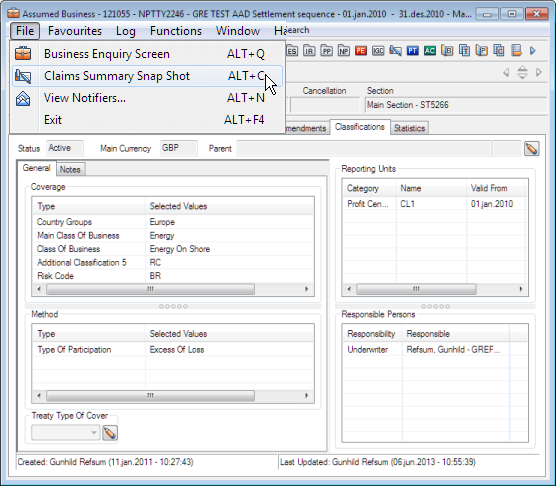
The Claim Summary Snap Shot window opens.
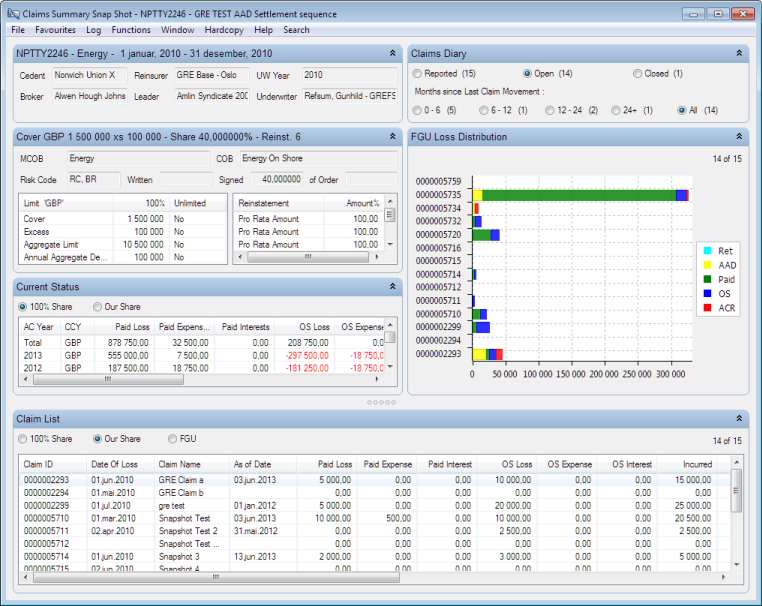
The Summary window contains a number of sections with information about the partners, display some classifications and conditions, a diary section, a FGU loss distribution section, a current status section, and a claim list section. Each section can be collapsed if required. The Partner section displays the key partners as defined on the business, the underwriting year, the underwriter.

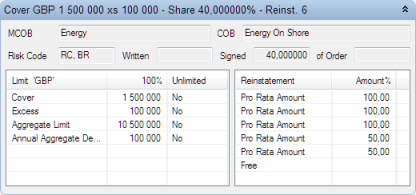
The Business Information section displays the Main Class of Business, the Class of Business, the Risk Code, the Written and Signed Shares, as well as the Limit condition container, and the Reinstatement container.
Claims Diary Section #
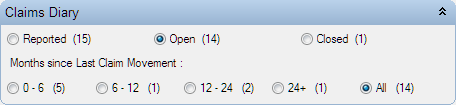
The Claims Diary section enables you to filter the claims being listed in the FGU Loss Distribution and Claim List sections.
By default all Open Claims are displayed.
- Reported: All reported claims - open and closed
- Closed: The number of Closed claims
- Open: The number of Open claims.
- Open claims must be used n combination with selection of Months since Last Claim Movement. The Last Claim Movement is determined by the worksheet’s as of date.
- All: All open claims, regardless of months since last adjustment. This is the default selection.
- 0-6: Open claims which have had a claim movement in the past 6 months.
- 6-12: Open claims where the last adjustment is older than 6 months, but within the last year.
- 12-24: Open claims where the last adjustment is older than one year, but within the last two years.
- 24+: Open claims where the last adjustment is older than two years.
The setting of the Diary options determines the claims to be displayed in FGU Loss Distribution section, and claim list. The counters in the corresponding sections are updated. They always display the number of displayed claims of the number of reported claims.
FGU Loss Distribution #
This section displays the breakdown of the claim bookings for the selected claims in Claims Diary section. By default, all figures are displayed for 100%.
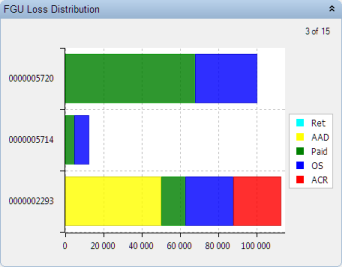
To view the breakdown for Our Share, or in an FGU perspective, you must choose the required share in the Claim List section. The same claims in FGU view would be displayed like this:
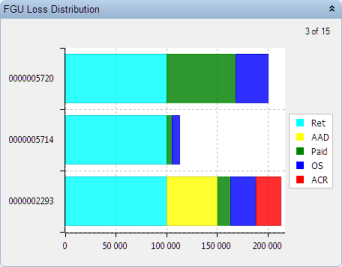
Note! The FGU view is a “calculated” FGU, and only displays the retention if there are any bookings towards the layer. The retention is set to the excess point, and does not consider any indexation. Whether you have actually created a FGU Advisory for the listed claim, and the amount of this Advisory or the resulting allocation towards the layer, is also not taken into account.
This section does not consider Claim Limits and Shares.
Current Status #
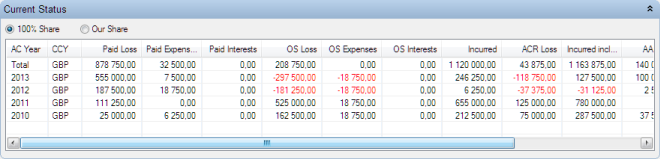
The Current Status section is not influenced by the selection in Claims Diary section, but displays all bookings on all claims. The bookings are broken down into Accounting Year, and “type” of claim detail. The default view is 100%.
Claim List #
The claims listed in the Claim List section, depends on the Claim Diary Selection. By default the share view is 100%. You can change the share to Our Share, or FGU. The selection impacts the display in FGU Distribution section also. If you select FGU, an additional column is appearing to display the FGU amount. The calculation of the FGU amount is simplified, and does not consider claim limits and shares, indexation, or actual FGU Advisory information.
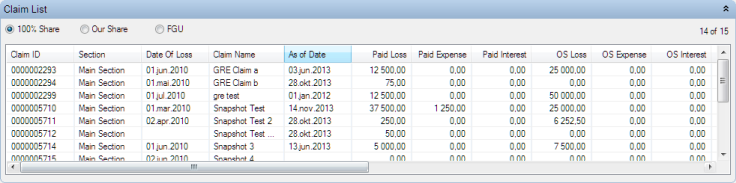
If you select a claim in the Claim List, the Individual Claim Snap shot window opens.
Note! If changes are made to any claims after you have opened the snapshot window, these changes are not reflected. You need to reopen the snapshot in order to see such changes.
View All Claims for Business #
An option to view all claims linked to a business, regardless of Insured Period and Section, is available from the regular Claim List
- Open the Business Claim List
- From popup menu, select View All Claims
The system opens a list of all claims linked to the Business.
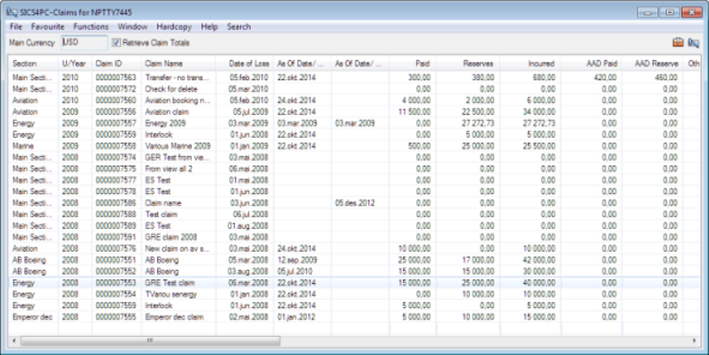
The list is sorted per Underwriting Year, and per branch of the hierarchy within each year. Note that the claim amounts are converted into the Main Currency as defined on Main Section on last Insured Period only. Also note that expense amounts are never included in the Paid and Reserve amounts. Otherwise, the display is identical to the regular claim list, and the options available from the popup menu from the View All Claims list are the same. For further information about the regular claim list, refer to chapter 10.38.1 View Claims On Business.
View All Claims for Multiple Participations in Same Risk #
Sometimes different entities within a company (different base companies) participate with shares in the same business risk. It is in these cases important to identify these businesses to ensure accurate figures on the ledgers, e.g. some business may have been updated and some not.
To obtain a quick overview of all claims established on multiple participations in the same risk
- Open the Cedent’s Contract in which you have multiple shares.
- Select the PL button (Placement List)
- From the pop up menu, select View All Claims
View All Claims for Multiple Participations in Same Risk - Display List #
The system may show the following information from each claim scope of cover. You may organisethe display list according to you preferences. Refer to description in Organize Display Lists.
| Column name | Description |
|---|---|
| Claim Name | The name given to the claim in the system |
| Claim Id | The unique identification of the claim |
| Date of Loss | The start date of the loss occurrence. |
| As of Date/Claim Ledger | The date indicating when claim figures were last updated in the claims ledger |
| Claim Status | Indicates whether the claim is open or closed. |
| Business Id | Unique identification of the business the claim scope of cover is linked to |
| Section | The name of the business section/external identifier the claim is linked to |
| Reinsurer | The name of the business partner with the role reinsurer of the business, to which the claim scope of cover is linked. |
View Claims for Partner from Partner #
- Open the Partner properties
- Select the Claim icon
- Select type of claim list (cedent or insured), and whether you want to include subsidiaries in the result
- Select retrieve claims
View Claims for Partner from Business #
- Open the Business Partner tab of the business, and highlight the cedent or insured.
- Select Business Partner Claim List from popup menu
- Select type of claim list (cedent or insured), and whether you want to include subsidiaries in the result
- Select retrieve claims
View Claims for Partner from Business Partner Ledger #
- Highlight a balance in partner ledger
- Select Business Partner Claim List from popup menu
- Select type of claim list (cedent or insured), and whether you want to include subsidiaries in the result
- Select retrieve claims
View Claims for Partner from Claim #
- Highlight the partner in the Claim Highlights window, Claim Links Business Partner tab, or Claim Business Info tab.
- Open the Business Partner properties
- Complete process described above in View Claims for Partner from Partner
View Claims for Partner from Business Claim List or Claim Program Claim List #
- Highlight a claim from the Business Claim List, or Claim program Claim List
- Select Business Partner Claim List
- Select Partner
- Select type of claim list (cedent or insured), and whether you want to include subsidiaries in the result
- Select retrieve claims
For further details refer to View Claims in the Business Partner chapter.
View Claims for Claim Program (only for individual treaty claims) #
- Open the Claim - Links - Claim Program tab.
- Select the Claim Program.
- Select Properties from the pop-up menu.
- On the Claim Program, click the Claim List tab.
Refer to Claim Program for further details.
View Claims for Headline Loss (only for individual and interlocking claims) #
- Open the Claim - Properties tab.
- Select the Headline Loss Assignment.
- Select Properties from the pop-up menu.
- On the Headline Loss, click the Claim List tab.
- Select the Retrieve Linked Claims check box.
Refer to Headline Loss for further details.
View Claims for Claim Group #
- Open the Claim - Links - Claim Program tab.
- Select the Claim Program.
- Select Properties from the pop-up menu.
Refer to Claim Group for further details.
View Claims for Placements of Cedent’s Contract from Cedent’s Contract Placement List #
- Navigate to Cedent’s Contract Placements list
- Select View All Claims from pop up menu
- See list of all claims linked to the placements for the insured period
For further details refer to View Claims for Cedent’s Contract Placements in the Manage Cedent’s Contract chapter.