View Claims linked to a Headline Loss
The Claim List and Non-Proportional Recovery List of the Headline Loss provide an overview of the Headline Loss total amounts for Assumed Businesses, and Non-Proportional Outwards Businesses respectively. For the Assumed Claims you can also get an overview of the proportional protections, amounts retroceded and the unplaced amounts. In addition you can see what has actually been booked on the retrocessionaires. This amount may be different from the placed amount due to retro calculation not having been run, or actual share differs from applied share, or one or more of the retrocessionaires have been commuted. A warning is displayed if one or more of the retrocessionaires are flagged as “Under Commutation” or “Commuted”. The Non-Proportional Recovery List also provides the total of the amounts placed and unplaced per Non-Prop Outward Cedent’s Contracts.
If your company is using the Proportional Protection Assignment on Non-Prop OCC functionality enabled by the Proportional Protection Assignment on Non-Prop OCC in use system parameter, the Non-Proportional Recovery List also shows an overview of the linked proportional retroceded recovery figures.
The system allows you to filter the claims using various criteria
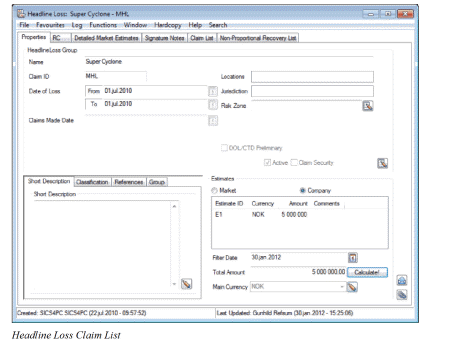
View Claims and Technical Worksheets linked to Headline Loss #
The Claim List of the Headline Loss provides you an overview of all inwards claims and technical worksheets linked to the Headline Loss.
If you want to view all details linked to the Headline Loss regardless of Base Company, Line of Business and so on as per most recent date, you should use the default view without specifying any filter or calculation criteria.
- From the desktop, click the Headline Loss icon.
- Find and open the Headline Loss for which you want to inspect the details.
- Click the Claim List tab (or Non-Proportional Recovery List tab).
- Select the Retrieve Claims check box. The system lists all linked claims.
- Select the Retrieve Claim Figures check box. The system retrieves all bookings made on claim worksheets, and produces totals for the Headline Loss.
- To view the individual bookings for each claim, open the Linked Claim Figures sub-tab, and expand the requested claim. Each booking item with associated as-of dates, entry codes and details are listed
-
Select the Retrieve TW Figures check box. The system lists all technical worksheets and details linked to the Headline Loss. The Headline Loss total amounts are updated.
-To view the individual technical worksheet details on each business, open the Linked TW Figures sub-tab, and expand the bookings for each claim, open the Linked Claim Figures sub-tab, and expand the requested business. Each worksheet with associated due dates, entry codes and details are listed -
Select the Retrieve Prop Figures check box. All proportional retrocession information is retrieved, and the remaining totals are produced for the Headline Loss.
- To view the details for each protection, open the Linked Proportional Retrocession sub-tab, and expand the requested protection. Each protection lists which businesses are included, as well as the amount Placed and Unplaced.
Extract Claims for specified Cedent (using the Filter criteria) #
If you want to extract the Headline Loss reported from a specific Cedent only, you must use the Filter Criteria.
- From desktop, select Headline Loss.
- Find the Headline Loss for which you want to inspect claims.
- Open the Claim List.
- Select the Retrieve Claims check box.
The system now displays the linked claims
- Select Retrieve Claim Figures and Retrieve TW Figures. The system now retrieves all bookings, and produces totals for the Headline Loss, and also activates the Active Filter check box.
- Select Active Filter check box. This enables the filter criteria list.
- Select the Cedent option, and select Exclude from the pop-up menu.
- Expand the Cedent list.
- Select the Cedent you want to include in your search and select Include from the pop-up menu.
- Click Calculate.
Loss Calculations on Headline Loss #
The Loss calculations on Headline Loss provides an option to filter the Headline Loss amounts at a certain date, view total figures converted into a specific currency, and also to view conversions using transaction date for payments.
Note! You must retrieve claims, retrieve claim figures, retrieve TW figures (even though there are none) in order to perform any of the below.
View Headline Loss at a Certain Date #
- From desktop, select Headline Loss.
- Find the Headline Loss for which you want to inspect claims.
- Open the Claim List (or Non-Proportional Recovery List).
- Select Retrieve Claims. The system now displays the linked claims.
- Select Retrieve Claim Figures and Retrieve TW Figures. The system now retrieves all bookings, and produces totals for the Headline Loss.
- Enter the date you want to filter on in the Calculation Date field.
- Click Calculate.
View Headline Loss using Transaction Rates for Payments #
- From desktop, select Headline Loss.
- Find the Headline Loss for which you want to inspect claims.
- Open the Claim List (or Non-Proportional Recovery List).
- Select Retrieve Claims.
- The system now displays the linked claims.
- Select the Retrieve Claim Figures and Retrieve TW Figures. The system now retrieves all bookings, and produces totals for the Headline Loss.
- Clear the Reserve Conv. (Reserve Conversion) Type field.
- Click Calculate.
| Field | Description | Location |
|---|---|---|
| Conversion Currency | The currency in which you want to convert all amounts in the Headline Loss, and in which the Total Figures will appear. Values: Any currency defined in the system. Default: System Base Currency |
Headline Loss Claim List & Non-Proportional Recovery List |
| Calculation Date | The filter date by which Headline Loss is calculated. Only bookings up to this date will be included in the total amounts. Values: Date field. Default: Today’s date |
Headline Loss Claim List & Non-Proportional Recovery List |
| Reserve Conv. Type | Indicator of whether the conversion into single currency should use latest daily rate (Reserve Conversion Type), or whether Payments should be converted using the rate of exchange as per as-of-date (transaction date). Values: Selected/cleared Default: Selected (Reserve conversion) |
Headline Loss Claim List & Non-Proportional Recovery List |
| Headline Loss Gross | The total amount (incurred/paid/reserve) of the Headline Loss expressed in selected currency. | |
| Protected 100% | The amount of the Headline Loss Gross which is proportionally protected expressed in selected currency. The amount includes unplaced shares. | |
| Protected Placed | The amount of the Protected 100% which is definitely placed expressed in selected currency. | |
| HL Gross Net inc. unplaced | The total Headline Loss less the Protected Placed amount. | |
| Booked | The amounts actually booked on the retrocessionaires. | |
| Other | Selection of entry code sub category that shall be displayed in the Linked Claim Figures Other Column. Values: All entry code sub categories defined in the system. |
Headline Loss Claim List & Non-Proportional Recovery List |
| Other amount | The total amount booked for the selected entry code sub category for the Headline Loss expressed in selected currency. Values: Output field only. |
Headline Loss Claim List & Non-Proportional Recovery List |
| Recovery 100% Total / Paid / Reserve | The total recovery amounts for the Headline Loss expressed in the selected currency. Incurred amount is the sum of the booked recovery paid and recovery reserve. Values: Output fields |
Non-Proportional Recovery List |
| Prop. Protection 100% Total / Paid / Reserve | The total proportionally retroceded recovery amount for the Headline Loss expressed in the selected currency. Incurred amount is the sum of the paid and reserve amounts. Values: Output field Note! These fields will only be displayed if your System Administrator has activated the functionality Prop Protection Assignment on Non-Prop OCC in combination with the retrocession of informational recovery bookings. |
Non-Proportional Recovery List |
| Gross Net Protection Total / Paid / Reserve | The total of the definitely placed recovery and proportional protection amounts. Total amount is the sum of the paid and reserve amounts. Values: Output field |
Non-Proportional Recovery List |
| Booked (Non Prop) | The recovery amount actually booked on the non proportional retrocessionaires. | |
| Booked (Prop) | The amount actually booked on the proportional retrocessionaires valid for the non-proportional protections. (This is only available if your System Administrator has activated this functionality.) |
Link Claim to Headline Loss #
You cannot link a claim to a Headline Loss from the Headline itself. This must be done from the claim. Refer to Link Claim to Headline Loss.