Find EDI Batches
|

EDI Batch icon | Click the EDI Batch icon on the SICS desktop to see the Find: EDI Batch window. |
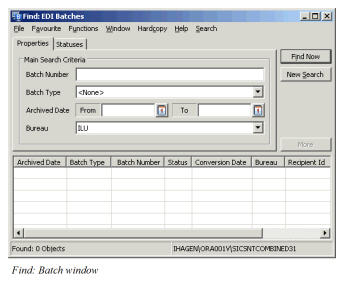
This is where you can input the criteria to search for a batch. The Properties tab includes Batch Number, Batch Type, Archived From and To Dates and Bureau, while you can check from a list of available statuses on the Status tab.
Batch Number: Type in the batch number for the batch you are looking for. JV batches have no official batch numbers. The given one is only for internal use.
Batch Type: A batch contains information relating to signings, settlements, or claims. This information is called the type, and each batch contains messages of only one type. Use the drop-down list to check the batch type: Signing, Settlement, CLASS, or None. (If you check None, you are not specifying a type and your search reveals all types.)
Archived Date From/To: This shows the date range that the batch was archived.
Bureau: Use the drop-down list to check the batch type: ILU, LIRMA, Lloyds, VNAB or Joint Venture. The default bureau is selected on the EDI tab/Bureau and Batch subtab (default tab) in the User Preferences window (SICS desktop/File/User Preferences).
Statuses: Check any status from the available list to the selected list. Options are: Unprocessed, Unparsable, Partially Processed, Error, Complete, and None.
Unparsable means that the EDI file could not be parsed. Unprocessed means that the EDI file could be parsed and no action has been taken. Error means that the batch failed the validation at the batch level. Partially Processed means that the batch succeeded in the validation at the batch level but that at least one message is still in error. Complete means that the batch succeeded in the validation at the batch level and that all messages are processed. Generated means that SICS produced the batch. To search for unparsable status you must specifically select Unparsable. Alone. See Unparsable Batches below.
The statuses that appear here initially are selected by the user in the EDI user preferences, batch statuses.
Click Find Now to activate your search. You see the results of your search in the display list at the bottom of the window. From this list you can access a pop-up menu that lets you either open the properties or process the batch.
Processing Batches #
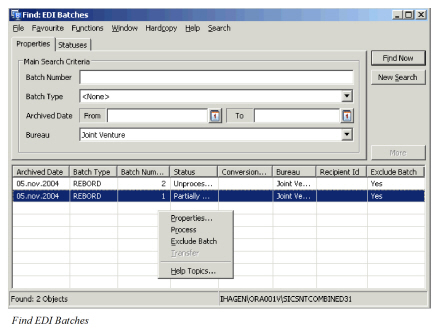
From the Find: EDI Batches window, once the required batch or batches have been found you can request to process them. From the available batches select those to be processed by selecting and then select process from the available options. For LIMNET, given a recipient identifier, the batch number indicates the order in which the batches must be processed. JV has no specific ordering.
Excluding Batches from Scheduled Processing #
The Job Scheduler can process EDI batches overnight (refer to EDI Batch in Systems Administration Guide). In one mode, the EDI batch process will try to reprocess all incomplete batches.
To prevent a batch from being reprocessed by the Job Scheduler, you can choose to exclude it.
To change the exclude batch status
- Select the batch to be excluded (note: if you select multiple batches, only the first one will be changed)
- Right-click to bring up the pop-up menu
- Select Exclude Batch from the list of options
- The status changes to Yes
The same process can be used to include the batch again (Exclude Status = No). When first loaded, a batch is always included.
Unparsable Batches #
An unparsable status occurs when a batch could not be read because it did not follow LIMNET or JV standards, or because XML was not in SICS-schema format. If a batch is unparsable, it cannot be loaded into the EDI archive. To examine the problem, select only the Unparsable status in the Statuses tab, and open the properties for the matching results. It may be necessary for the sender to send the batch again, or for XML-format batches to be re-parsed outside SICS.
Viewing Batches #
You can open a batch by double-clicking an item in the list. This opens the View Batch window, where you can view the contents of the batch.
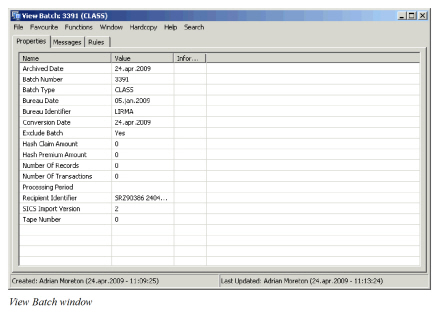
The window is divided into five tabs: Properties, Messages, Rules, Problems and Corrections. Properties show basic values of the batch. Messages show all messages that the batch contains. Rules shows all rules that are associated with this type of batch. Problems show all problems the system encountered during validating or processing the batch. Corrections show all corrections that have been made to batch fields.
The Rules tab shows a list of all rules that are associated with this batch type. In the list you can see:
- A description of the rule.
- An ‘is on’ indicator which tells if the rule is applied to all batches.
- An ‘override’ indicator which tells if the rule is to be applied for this particular batch.
- Lower and upper limits if the rule has a tolerance associated. Possible values are:
- -Blank for no tolerance.
- -Date for a tolerance based on days unit (e.g. +4/-3 days).
- -Percentage for a tolerance based on a value (e.g. +5/-10%).
- -Value for a tolerance based on a value (e.g. +5/-4).
- A tolerance type.
- A rule type tells during which step this rule is used. It can be referencing, field validation, preapplying, applying, or pairing. Preapplying and applying are internal rules used when validating the newly created claim, for example, or when closing a worksheet.
- An error type, tells what kind of error to generate: error or warning. It can be changed only for field validation and pairing. Pairing, however, does not affect the status of the message.
If you do not want a rule applied to a particular batch:
- Select a rule in the list.
- Click the right-mouse button.
- Select Override.
The Problems tab shows all error, warning, or referencing errors caused by a validation rule that failed. Problems and corrections are shown only if the batch has been processed and if it has errors.
Overriding lets you turn on or off a validation rule only for this specific batch. The batch can then be processed with or without the validation rules. (For example, if the system received a LIMNET batch and processed batch number 10, and then batch number 12 arrives, the system does not process it because it is waiting for batch 11. If you are a SICS System Administrator, you can override that rule so that it is processed anyway.) If a duplicate batch must be processed (if, for example, LIRMA sent the batch in several parts,) you can override the rule and then select the batch.
If you have security rights (you must be a SICS System Administrator,) you can override this rule for all batches if you go to the System Administration folder and open the System Parameter Maintenance window. Click the validation rule tab on the EDI tab and select the appropriate rule and select Is On from the pop-up menu.