Processing EDI LIMNET Messages
LIMNET messages are processed in two main steps, which are message validation and the update of SICS. The validation stage, which can be activated for individual messages by selecting validate from the message pop-up windows, comprises of referencing to various SICS objects and field validation. The update of SICS (applying), which comprises of the update of business share and EDI Information, claims and worksheets. Further validations are performed (pre-applying and applying) at this stage. If the update of SICS is enabled for the message then the updates may be manually activated by the swap to menu functions. Specific details follow.
Referencing #
Before a EDI LIMNET message can be validated or processed, it must be linked to SICS objects. This part of the cycle is known as referencing. Exactly which SICS objects are referenced depends on the message type and subtype. For example, signing messages must link to a business insured period, claim signings must additionally link to a claim.
Referencing to Business Insured Period #
All signing messages and CLASS messages of subtype ‘NEW’ must link to a Business Insured Period. (Other CLASS message subtypes may need to link to an insured period, depending on the setting of the EDI system parameter ‘Use Multiple Unique claim reference’). The link to an insured period can be made in a number of ways.
Via original signing reference
Via SICS identifier in member reference
Via various former identifiers in member reference. The primary method of linking message to insured period is to use the stamp number and original signing reference. This should be unique for each business insured period, so if the system finds a match on the business ledgers, we can be certain we have found the right insured period. If you find the original signing reference is on the wrong business, it should be removed (use the ‘More Balance Information’ window)
If an insured period cannot be found using original signing reference (for example this might be the first signing message of the period), the next approach is to use the contents of the message member reference as if it contained a SICS business identifier. The correct insured period is found using either underwriting year or insured period from date from the message. If this fails, the same member reference and dates are used to locate the business using
insured period former identifier, insured period original former identifier, and business former identifier
If the business insured period cannot be found by any of these means, the message will be rejected, and you can manually select the correct insured period using the Edit message highlights window.
Referencing to a Caim #
Claims are referenced using the Unique Claim Reference on the message. If the EDI system parameter ‘Use Multiple Unique claim reference’ is on, claim messages are also referenced to a business insured period using the member reference.
Referencing to a Business Partner #
All signing and settlement messages must be referenced to a business partner. This is done by using the broker identifier on the message to link to the LPC identifier on the business partner. By market convention, all broker identifiers begin with ‘B’.
Accounting Classification and Section Processing #
Processing EDI CLASS and signings messages to specific accounting classifications or sections on a business has presented a challenge for the SICS EDI module, the problem being that the message does not carry enough information to automatically identify the accounting classifications or section to be used. Historically we have used main section, and the first accounting classification encountered. From version 3.1.17, if a default accounting classification is specified, it is used in preference to the first.
There are two further alternatives to processing to the default accounting classification. The choice about which method is used is made on the insured period of the business, within the EDI information (See AC processing Option in chapter Handle Business Life Span).
Accounting Classification Split #
The first alternative is to book according to the split on the Accounting classification for the Insured period. For most Premium signings, all Treaty Statement, FDO and Delinked messages, the user must confirm the split on the booking mapping tab before the message can be processed. For CLASS new claim messages and reinstatement premium signings, it is assumed that all the bookings will be to one Accounting Classification, and so the split is not copied from the Accounting Classification on the Insured period. The user must enter the required split before processing can take place.
Reference to Accounting Classification/Section #
The remaining approach to booking to Accounting Classifications requires the message to be linked to a specific classification, and all bookings will be made to this one. A message will be rejected until it is linked to a specific Accounting Classification. This is very similar to the ‘Reference to section’ option, but can be applied regardless of the setting of that parameter.
The ‘reference to section’ parameter provides a method tailored to a specific way of using member references and business ids; the use of which is optional. There is acheck box in the EDI LIMNET system parameters called ‘Reference to sections’ thatallows this feature to be switched on or off.
There is a validation rule that highlights businesses where sections exist, allowing the user to reject messages linked to such business, and to process them manually to the correct section. When the parameter is on, the referencing of a message to SICS objects includes an attempt to link to section, but only if the referenced business actually has any sections and the message contains the necessary details.
Linking a Message to Section #
An EDI message will try to find a corresponding booking on the ledger using Originalsigning reference, or a claim using Unique Claim Reference (UCR.) If it does, then the section of the previous signing or of the claim will be used for the currentmessage. If the message does not find a previous signing or claim, an attempt toforge a new link between message and section must be made.
EDI Reference on Accounting Classification #
The link between message and section can be made using a new attribute on the business accounting classification. As each accounting classification relates to a single section, linking the message to an accounting classification also serves to link the message to section. The link is made using the ‘EDI Reference’ attribute, which can be seen in the accounting classification window, and can be edited in the accounting classification properties. The EDI Reference is up to 4 characters in length, and can be any value you select. Each accounting classification must have an EDI reference that is unique for that business within insured period, though different businesses can use the same EDI reference, as can earlier or later years of a business. On renewal, the EDI reference is copied forward so long as the accounting classification is also copied.
EDI Reference on LIMNET Messages #
To use the EDI - accounting classification (AC) link, the message must contain the EDI reference. This is held as part of the member reference. Much consideration was given to this decision, but our knowledge of the LIMNET bureaux and the way they handle messages leads us to the conclusion that this is the only suitable attribute in the message to carry this information. It is the only attribute that the member has real control over. (Unique market reference for example is set by the broker, and consequently is of no use in this matter.)
The way that the EDI - AC link is extracted from member reference has been designed to handle two specific implementations. The two approaches are for:
- Member reference containing a former number and EDI-AC link
- Member reference containing a SICS business identifier and EDI-AC link
If the ‘reference to sections’ parameter is on, the system will expect to find the EDI -AC link in one of these forms.
Former Number
If the member reference consists of a single letter followed by 7 digits (e.g. A1234567), the remaining characters after the 7thdigit are treated as the EDI-AC reference. The former number held in the Business insured period details must be the first 8 characters (A1234567) - therefore excluding the EDI-AC link part. This part is entered on the properties of the relevant Accounting Classification for the business. There are some exceptions however. If the remaining characters are 0 or ‘-’ (dash,) e.g. 0000 or 00–, they are ignored, and reference is not made to a child section.
SICS Business ID
If the member reference is numeric except for the character ‘/’ (e.g. 1234567/01,) it is assumed to be a SICS business identifier, consisting of the business identifier of 1234567, and an EDI-AC link of 01. The EDI-AC link may only be one or two digits long, and must be numeric. Member references without an EDI -AC link (e.g. 1234567 or 1234567/) will not reference to a child section.
If any other combination of characters is encountered, no attempt will be made to try and identify the EDI-AC link.
Manually linking Message to Section #
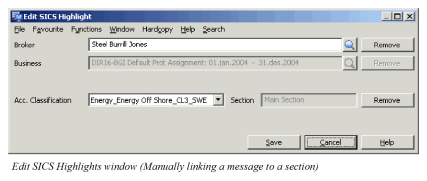
If the ‘reference to section’ system parameter is on, and if either the business has accounting classifications with an EDI-AC reference, or the message member reference includes an EDI-AC reference then the message must link to a section before it can be processed. If the system fails to make the link automatically then the user on the EDI message highlights window must make it manually.
The Edit EDI highlights window includes a drop-down list that shows all account classifications on the business. The user may select any classification. The section shown in the message highlights is the one shown in the ‘Section to link booking to’ box in the classification properties.
Message Validation #
Each appropriate field validation rule has an option to control how messages referenced to a section should be applied.
Where a message is only referenced to main section, all validations will use attributes at main section level.
When a message is referenced to a section, the validation rule will attempt to use the attribute at section level if it is present. If it is not (because the attribute is inherited from main section) the main section attribute will be used.
However, if the rule is set to validate at main section, even if the message is referenced to a child section then the main section attribute is tested.
Line Slips #
Each time a message references to a business the Type of Participation will be checked. If the Type of Participation includes Line Slip then the message subtype (if appropriate) will be changed to the corresponding Line Slip subtype. Conversely if the message is currently a Line Slip subtype and the business does not have Type of Participation Line Slip then the message subtype will be reverted back to the non-Line Slip equivalent. For Line Slips the EDI validation field rules with the Line Slip subtype will be applied.
Edit Highlights #
The highlights window shows (dependent on message subtype) referenced Broker, Business, Claim, Accounting Classification / Section, Our Sequence Number. If any of the above references cannot be made automatically then they may be made manually. Use the quick finds functions to select Broker, Business or Claim. Accounting Classification may be selected from the list of available values. Our sequence number may be set if Broker Sequence Number on the message is 0. Once changes have been made and the OK button clicked then the message will automatically validate (referencing and field validation) using the new values.
To limit the range of the search for a Claim, the quick find form is populated (under relevant circumstances) with the following defaults.
Business ID, from the referenced business. Section Specific Classifications - Main Class of Business and Class of Business are defaulted when the message is additionally referenced to a specific Accounting Classification. For Claim messages only, Date of Loss - Includes, from the message Loss From Date, or, in the case of this being a partial date, a Date of Loss - From Date Between range. Clicking new search will clear these values.
Claim Program supported in EDI #
When Claim Program is in use and mandatory (see Claim and Claim Programs in Claims Handling chapter for more information), the system ensures that all treaty claims processed through New Claim messages are linked to a Claim Program.
When a New Claim message is referenced to a treaty business and linked to an existing claim, the system validates if the claim is linked to a Claim Program. If it is not, the system raises an error to the message. If a link exists, the system processes the message as normal.
When a New Claim message is linked to a treaty business and the system does not find an existing claim through UCR, the system rejects the message. In order to create a new claim, you have to create it manually by selecting Swap to Claim. In the Create New Claim From EDI wizard you must link the claim to a Claim Program.
When linking the claim to a Claim Program, a claim section is created on all businesses included in the Claim Program. This means that the claim might already exist as part of an existing Claim Program. Before creating a new claim manually, you should therefore check if the claim already exists on the referenced business.
Swap To Share #
For singing messages with subtype Premium, FDO and Treaty then the signed line and EDI Information on the business will be updated.
Swap To Claim #
If the message is already linked to a claim then the claim will be updated, otherwise if the message is new claim then a new claim will be created.
New Claim #
The new claim wizard will be opened with values populated from the message.
If the loss from date is a partial date then the claim trigger will be set from the claim basis on the business, or if this cannot be determined then the default none value will be used. If the trigger is not none then the trigger date will be set.
Existing Claim #
The existing claim will be opened with values updated from the message.
If the update date of loss system parameter is set then the Date of Loss on the claim may be updated from the message if the claim has default values and the message values are deemed to be better. There is corresponding validation rule, which compares the loss from date on the message with the date of loss on the claim.
Swap To Worksheet #
If no worksheet exists then one will be created with values from the message; otherwise the existing worksheet will be opened. Signing messages will create either a technical or a claim worksheet for claim signing subtypes. Settlement messages will create remittance balances. Claim messages with new or existing subtypes will create claim worksheets.
EDI LIMNET Worksheets #
Each EDI Limnet message will link to a single SICS worksheet. The currencies on the worksheet are those of the message. For signings, this is always a single currency, but for CLASS messages multiple currencies are permitted. The business of the worksheet is the business to which the message is linked. All EDI Limnet worksheets are related to a single business insured period.
For claim worksheets created from CLASS messages there is a single claim, but for claim signing messages there is the potential to link more than one claim to the worksheet. This occurs if the claim signing settles a bulk claim advice. All the claims on a worksheet must be for the same business and insured period.
The number of balances created is determined from the message.
- Treaty statement and FDO signing messages will only create a single balance.
- Premium signing messages will create one balance per instalment (where there is just one payment, this is considered a single instalment)
- CLASS messages will normally create one balance per currency (letter of credit messages are slightly different, and create two balances).
- Claim signing messages will create two balances for each claim - one to reverse advised paid, and the second to rebook the same amount as paid claim.
Control Balance and Liquid Balance Validation #
Control balance test
The control balance test is used to ensure that no changes are made on technical booking amounts on a worksheet created by EDI.
When an EDI worksheet is created, the system looks up the entry codes to be used on the worksheet from the Limnet Entry Code Mapping table. It creates a Hash Total amount by adding all amounts with entry code having the “Include in Hash Total Test” parameter selected. (See EDI Limnet Entry Code Mappings in System Administration Guide for more information.)
When closing the worksheet, the system checks if the total of technical bookings to be included in the test matches the Hash Total amount. If it does not match, the system raises a validation error.
Liquid balance test
The liquid balance test is used to ensure that no changes are made on the liquid balance amount on each balance.
When the system creates an EDI worksheet, a control amount in original currency for each balance is populated from the message expected payment amounts. If the message settlement currency is present and different from the original currency, the system also populates a control settlement amount. When closing the worksheet, the system checks the liquid balances against these control amounts. If they do no match, the system raises a validation error. This means that if a Limnet entry code that is meant to update liquid balance, is mapped against a SICS entry code that is not updating liquid balance, the system will raise a validation error.
Protect Amount and Entry Code #
When an EDI worksheet is created, the system looks up the entry codes to be used on the worksheet from the Limnet Entry Code Mapping table. It checks the “Protect Amount” and “Protect Entry Code” parameters of each entry code. (See EDI Limnet Entry Code Mappings in System Administration Guide for more information.) The protected values are selected on the worksheet, and you are not allowed to change these values.
Accounting Year/Period and Booking Year/Periods #
Accounting Year/Period and Booking Year/Period attributes are mandatory on all worksheets. On manual worksheets some default values are provided and you can complete the rest yourself. But for automatically generated worksheets, all the values must come from within the message or SICS.
SICS provides two methods of setting Accounting and Booking Year periods on EDI LIMNET worksheets. The option of which to use is made in EDI system parameters. See SICS System Administrators Guide chapter 7 System Parameter Maintenance, EDI Defaults
The following descriptions offer an overview of the two options but they are not intended to be comprehensive.
The standard rules aim to use as much data as possible from the message, but will revert to Base Company Default settings where necessary.
- Accounting year is the underwriting year of the insured period, unless the premium period from date is outside the insured period, in which case the attribute is left unpopulated for you to complete manually.
- Messages with instalments use the due date to determine the accounting period, otherwise the premium period dates are used.
- Lloyds messages use the processing period from the batch header to determine Booking year/Period, whilst other single instalment messages use the current system date to generate the booking year and period. Multiple instalments once again use the due date to calculate the booking year and period.
The special rules are designed to work with Booking Periods set to quarters in the Base Company Booking Terms.
- Accounting year is based on the premium period from date, but is determined in relation to the start of the insured period.
- The accounting period for single instalments is worked out at the same time. For messages with 2, 3 or 4 instalments linked to a 12-month insured period, the instalments are assumed to be regular half-years, trimesters or quarters. If premium period dates are missing, these attributes must be completed manually.
- Booking year is the same as accounting year, and booking period is the calendar quarter of the premium from date, unless the resulting booking year/period is closed, when the first open booking year period is used instead.
SUPI adjustment (Premium signings only) #
If the message includes Premium Income, and the worksheet books an informational GNPI amount, an attempt will be made to update to adjusted SUPI. The update will be omitted if the validation rule ‘Adjusted SUPI update’ is overridden or switched off. The first adjustment after the ‘premium period to date’ on the message is the one that will be updated.