Find Messages
Once the messages have been imported to the SICS eMessaging database, the find message window is the place to start looking for messages of interest. In normal operation, you would look for messages not yet processed, so the default situation is to show messages with the following life-cycle statuses:
- Unprocessed
- Error
- Examined
From the find message window you can select one or more messages for further action, chiefly to process them or to view them individually. Double clicking on a message will open the view eMessage window for that message.
Some of the search options can be pre-defined as user preferences. These include message type and status. See section User Preferences - Message find for further details.
General Search Options #
To do a search, you use the following buttons:
- Find Now starts the search.
- New Search clears the results in the display list and resets the search criteria to the back to the default values.
- More is enabled if the search returns more than 50 messages. Each time you press More, up to another 50 messages are returned.
Specific Search Options - Tech Account Messages #
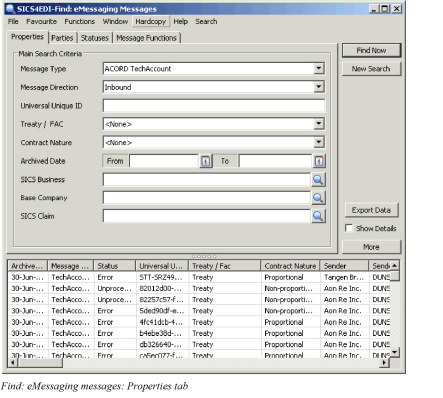
The main selection criteria for messages are chosen on the properties tab.
| Field | Description |
|---|---|
| Message Type | Narrows the search to a particular message type. Values: Any value in reference data table eMessaging Document Type Default: ACORD Tech Account, but a user preference default may override this Mandatory: Yes (though by selecting None, all message types can be found) |
| Message Direction | Limits the search to inbound or outbound messages. Values: None (shows both inbound and outbound) Inbound Outbound Default: Each user can select default value in user preferences. If no preference is made, ‘inbound’ is assumed. If the message type is ACORD acknowledgment, the direction is automatically reversed. Mandatory: Yes |
| Universal Unique ID | This identifier is supposed to be unique, and so can identify one specific message. If you know the Universal Unique Id (UUid), this is best way to find a message. There are two points to consider however: True Uuid’s are long strings of seemingly random numbers and letters. Use copy and paste to enter a value here. If you load the same message more than once, you can get duplicate Uuids, though SICS will not allow more than one to process to completion. Values: Text Mandatory: No |
| Account Type | Allows selection of a particular Financial Account type Values: From Usage table ‘Settlement message type’ Default: No Mandatory: No |
| Treaty/FAC | This is an ACORD code used to distinguish between different types of business. Values: - Treaty - FAC - Direct Default: None Mandatory: Yes (though by selecting None, all values can be found) |
| Contract Nature | This is an ACORD code used to distinguish between * Nonpropotional * Proportional _Values:_ Text _Default:_ None _Mandatory:_ Yes (though by selecting _None,_ all values can be found) |
| Archived Date From - To | The date on which the message was loaded into the eMessaging database. Values: Date Mandatory: No |
| SICS Business | Finds messages linked to the selected contracts and insured periods. Values: Text Existing SICS Businesses and insured periods Validations: Multiple businesses and insured periods allowed Mandatory: No |
| Base Company | Finds messages linked to the selected base companies. Values: Text Existing Base Companies Validations: Multiple base companies allowed Mandatory: No |
| SICS Claim | Finds the messages linked to selected claims. Values: Text Existing SICS Claims Validations: Multiple claims allowed |
| Show Details | When selected more columns show information in the display list at the bottom of Find messages. Values: Yes or No Default: No Mandatory: Yes |
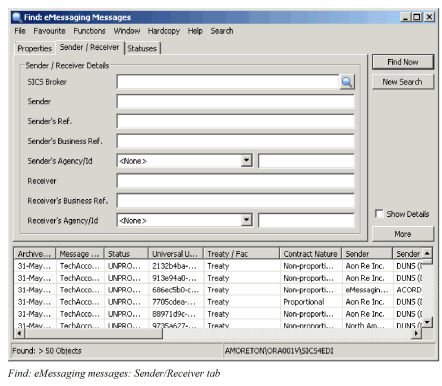
| Field | Description |
|---|---|
| SICS Broker | This option can find messages for one specific SICS business partner in the role of broker on the message. The message must be linked to this SICS business partner to be included in the results. Values: Text Mandatory: No |
| Sender | Enter the name of the sender to limit the search to messages sent by this partner. The search matches the senders name on the message, not the name of the business partner in SICS. Values: Text Mandatory: No |
| Sender’s Ref | The sender’s transaction reference, which changes from message to message. If the sender contacts you about a specific message, this is the reference to use. The search checks the value on the message. Values: Text Default: None Mandatory: Yes (though by selecting None, all values can be found) |
| Sender’s Business Ref | The sender’s reference for the business - their business identifier. All messages from the sender for this business are returned. Values: Text Mandatory: No |
| Sender’s Agency | The sender party details of the message must also contain an agency that manages the identifier. Here the agency can be selected to view a message where the sender identifier is managed by a particular agency. It’s particularly relevant for service provider messages, where the agency will typically be ILU, LIRMA or Lloyds. Values: Text Mandatory: No |
| Sender’s ID |
If the sender agency is selected, it is also possible to select a specific sender id for that agency. Values: Text Mandatory: No |
| Receiver | Enter the name of the receiver to limit the search to messages sent to this partner. The search matches the receivers name on the message, not the name of the business partner in SICS (use the Base Company search for that). Values: Text Mandatory: No |
| Receiver’s Business Ref | This is your reference for the business, as given by you to the sender. The search checks the value on the message. Values: Text Mandatory: No |
| Receiver’s Agency | The receiver party details of the message must also contain an agency that manages the identifier. Here the agency can be selected to view message where the receive identifier is managed by a particular agency. It’s particularly relevant for service provider messages, where the agency will typically be ILU, LIRMA or Lloyds. Values: Text Default: None Mandatory: Yes (though by selecting None, all values can be found) |
| Receiver’s ID |
If the receiver agency is selected, it is also possible to select a specific receiver id for that agency. It is particulary useful to find service provider messages for one stamp number. Values: Text Mandatory: No |
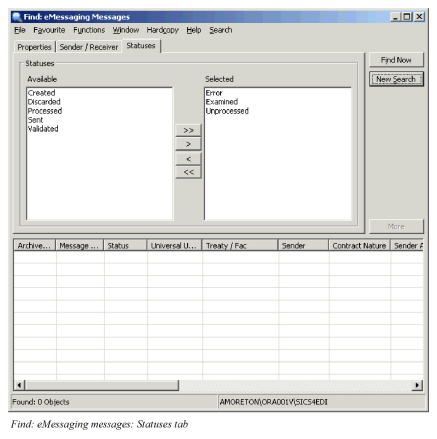
| Field | Description | Location |
|---|---|---|
| Status | Determines which life-cycle statuses are returned by the search: Values: - Unprocessed - Validated - Error -Discarded - Examined - Processed - Generated -Sent Default: - Error -Examined - Processed Mandatory: Yes |
There is a user preference option to pre-define which statuses are returned. See User Preferences - Messages Find for further details.
Find Message Display List #
| Display List Item | Description |
|---|---|
| Archived date | Date the message was loaded into the eMessaging database |
| Message type | The message type where this is known |
| Status | The life-cycle status of this message |
| Universal Unique Id | The universal unique identifier |
| Treaty/Fac | Defines if the message is for a treaty business, for FAC or for a Direct business |
| Contract Nature | Defines if the message is for a proportional or non proportional business |
| Sender | The name of the message sender |
| Sender Agency | The agency that manages the sender’s identification |
| Sender Reference | The sender’s transaction reference for this message |
| Sender’s Business reference | The sender’s business reference |
| Receiver | The name of the message receiver |
| Receiver Agency | The agency that manages the receiver’s identification |
| Receiver’s Business reference | The business reference you gave to the sender |
| Base Company | The SICS base company to which the message is referenced |
| Message broker | The name of broker in the message (if any). |
| SICS Business | The SICS business/insured period to which the message is referenced |
| Ref SICS Broker | The SICS business partner referenced as broker |
| Excluded | Indicates if the message will be included in background reprocessing of messages by the job scheduler. |
Pop-up Menu Options #
If you select one or more messages, the following options are available on the pop-up menu. (Note: some options are not available if multiple messages are selected at one time)
Properties: will open the eMessage view window for that message. The same effect is achieved by double clicking the message in the find results list.
Process: This option initiates the processing of the message - the rules for this message are executed until the message is processed or an error that stops processing is detected
Validate: Similar to process, but no apply rules(those that do updates) are executed. The process stops once the validation rules have all be executed.
Discard/Restore: Allows the user to change the life cycle status of the message to Discarded. If the message is already discarded, it can be restored to unprocessed status. By highlighting multiple messages, the user can Discard/Restrore several messages in one go. The user must enter a reason for discarding or restoring the message(s), and may also create a query acknowledgement to return to the message sender.
Include: Changes the setting of the include/exclude flag on the message. Included messages will be reprocessed by any scheduled eMessage job that is set to reprocess existing messages.
Exclude: Changes the setting of the include/exclude flag on the message. Excluded messages will not be reprocessed by any scheduled eMessage job that is set to reprocess existing messages.
Swap to: Opens a sub-menu showing the swap-to options allowed on the message. Unavailable options are greyed out. See Swap-tofor further details about swap-to options.
Send Query: Opens the Send Query window, where the user can add text that will be included in a query acknowledgement to be returned to the message sender.
Specific Search Options - Settlement Messages #
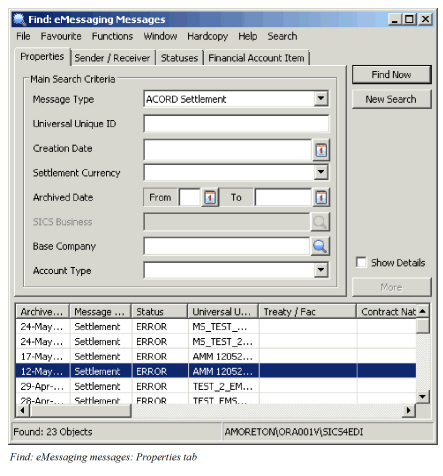
The main selection criteria for messages are chosen on the properties tab.
| Field | Description |
|---|---|
| Account Type | Allows selection of a particular Financial Account type Values: From Usage table ‘Settlement message type’ Default: No Mandatory: No |
| Settlement Currency | Each settlement message may only contain a single settlement currency. Select a specific currency here to reduce the number of messages displayed database. Values: SICS Currency Mandatory: No |
| Archived DateFrom - To |
The date on which the message was loaded into the eMessaging database. Values: Date Mandatory: No |
| SICS Business | This option is not available for settlement messages. Settlements do not relate to one specific SICS business. |
| Base Company | This option can find messages for one specific base company. The message must be linked to the SICS base company to be included in the results. Values: Text Mandatory: No |
| Creation Date | The date on which the message was created by the sender database. Values: Date Mandatory: No |
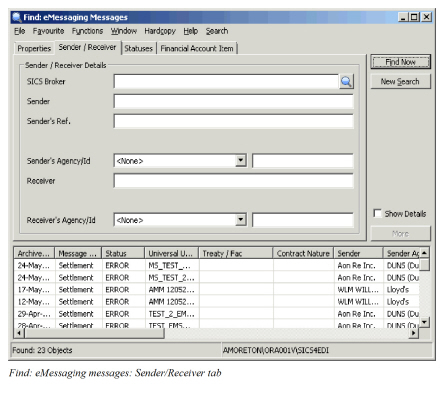
| Field | Description |
|---|---|
| SICS Broker | This option can find messages for one specific SICS business partner in the role of broker on the message. The message must be linked to this SICS business partner to be included in the results. Values: Text Mandatory: No |
| Sender | Enter the name of the sender to limit the search to messages sent by this partner. The search matches the senders name on the message, not the name of the business partner in SICS. Values: Text Mandatory: No |
| Sender’s Ref | The sender’s transaction reference, which changes from message to message. If the sender contacts you about a specific message, this is the reference to use. The search checks the value on the message. Values: Text Default: None Mandatory: Yes (though by selecting None, all values can be found) |
| Sender’s Agency | The sender party details of the message must also contain an agency that manages the identifier. Here the agency can be selected to view a message where the sender identifier is managed by a particular agency. It’s particularly relevant for service provider messages, where the agency will typically be ILU, LIRMA or Lloyds. Values: ACORD Code value Mandatory: No |
| Sender’s Id | If the sender agency is selected, it is also possible to select a specific sender id for that agency. Values: Text Mandatory: No |
| Receiver | Enter the name of the receiver to limit the search to messages sent to this partner. The search matches the receivers name on the message, not the name of the business partner in SICS (use the Base Company search for that). Values: Text |
| Receiver’s Agency | The receiver party details of the message must also contain an agency that manages the identifier. Here the agency can be selected to view message where the receive identifier is managed by a particular agency. It’s particularly relevant for service provider messages, where the agency will typically be ILU, LIRMA or Lloyds. Values: ACORD Code value Default: None Mandatory: Yes (though by selecting None, all values can be found) |
| Receiver’s Id | If the receiver agency is selected, it is also possible to select a specific receiver id for that agency. It is particularly useful to find service provider messages for one stamp number. Values: Text Mandatory: No |
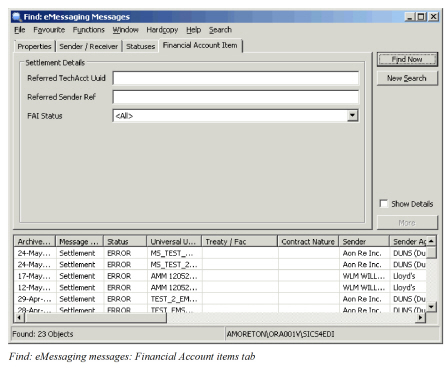
| Field | Description |
|---|---|
| Referred TechAcct Uuid | Enter the Uuid of a specific Tech Account message to find any settlement messages related to that Tech Account. (Note: Uuid’s consist of a long string of seemingly random numbers and letters. It is best to copy and paste them to avoid errors) Values: Text Mandatory: No |
| Referred Sender Ref | Enter the Sender Ref from a specific Tech Account message to find any settlement messages related to that Tech Account. Can be used for generic searches to find a range of settlement messages with common Sender refs.. Values: Text Mandatory: No |
| FAI Status | Each Financial Amount item in a settlement message is assigned a status. Selecting the FAI status here will select settlement messages containing one of these statuses. Useful for finding settlement messages where one or more FAI’s have status ‘pending’, indicating that user action is required. Values: SICS Reference Code value Mandatory: No |
Specific Search Options - Claim Movement Messages #
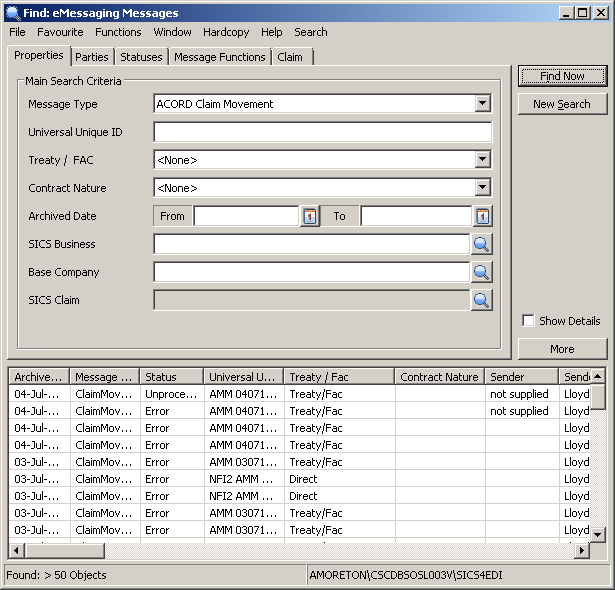
| Field | Description |
|---|---|
| Treaty/FAC | This is an ACORD code used to distinguish between different types of business. Values: - Treaty - FAC - Direct Default: None Mandatory: Yes (though by selecting None, all values can be found) |
| Contract Nature | This is an ACORD code used to distinguish between * Nonpropotional * Proportional _Values:_ Text _Default:_ None _Mandatory:_ Yes (though by selecting _None,_ all values can be found) |
| Archived Date From - To | The date on which the message was loaded into the eMessaging database. Values: Date Mandatory: No |
| SICS Business | Here you can select a SICS business and insured period to which messages are linked. The find will only return messages referenced to this insured period. Useful if you need to find earlier messages linked to this insured period. Values: Text Mandatory: No |
| Base Company | This option can find messages for one specific base company. The message must be linked to the SICS base company to be included Values: Text Mandatory: No |
| SICS Claim | Use the find icon to open the Find Claim window. Once a SICS claim has been selected, the Find eMessaging window will return eMessages linked to the selected SICS claim. Values: SICS Claim (selected in Find Claim) Mandatory: No |
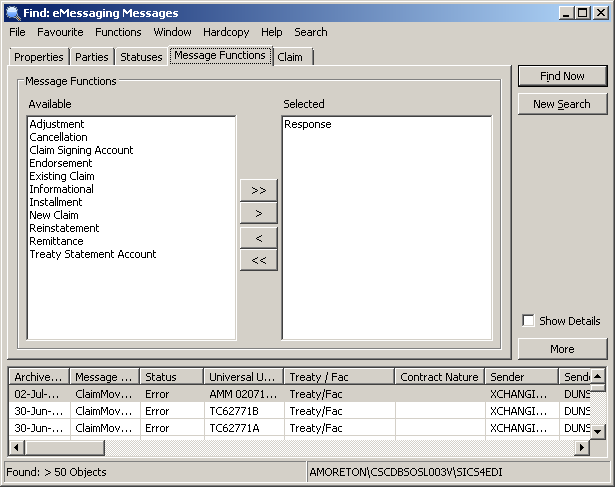
| Field | Description |
|---|---|
| Note: | this tab is provided for all messages types |
| Available | This is a complete list of message functions currently available in SICS. |
| Selected | Use the arrow buttons to move one or more Message functions from the available column to the selected column. When Find now is pressed, the messages returned will all have the a message function in the selected column. Be aware that message functions are used on certain ACORD message types only, and it is possible to select a message function here that is not compatible with the ACORD message type selected on the Properties tab. This may result in no messages being found. |
| Field | Description |
|---|---|
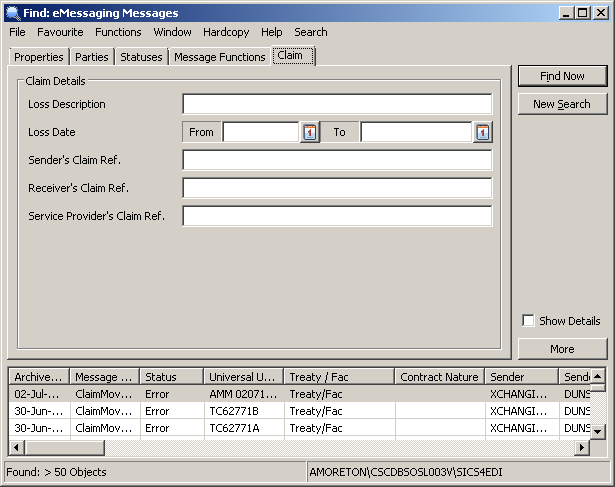
| Loss Description | The loss description on the message. It is advisable to use wild cards characters to ensure matching messages are found. Values: Text Mandatory: No |
| Loss Date | The loss date from (and optionally loss date to) from the message. Values: Date Mandatory: No |
| Sender’s Claim Reference | The sender’s claim reference on the message. When the sender is ‘broker’ this is the London Market Unique Claim Reference (UCR) Values: Text Mandatory: No |
| Receiver’s Claim Reference | The claim reference you have assigned to the claim. Not widely used on London Market claims, as there is no easy mechanism to notify XIS what your SICS claim number is. Values: Text |
| Service Providers’s Claim Reference | The claim reference used by the Service Provider. On Claim Movements related to Lloyd’s this contains the Originator’s claim reference (OCR). Note :UCR is not mandatory on Lloyds claims, whilst OCR is always provided. SICS maintains both references on Claims created from a Lloyds claim movement. Values: Text Mandatory: No |
Specific Search Options - Placing Messages #
| Field | Description |
|---|---|
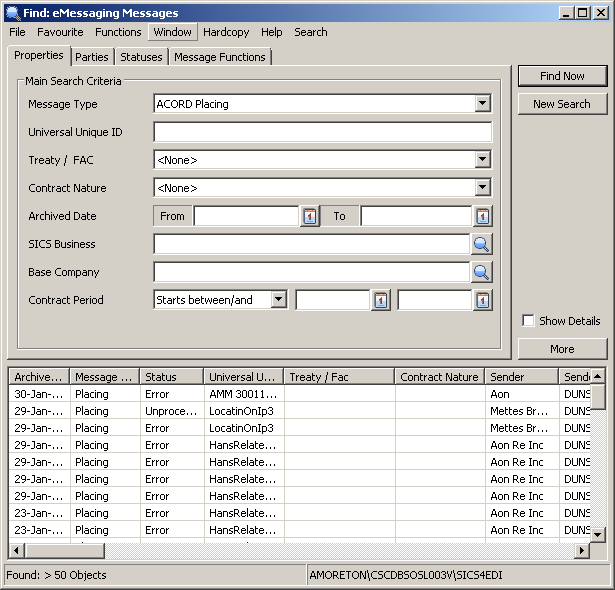
| Treaty/FAC | This is an ACORD code used to distinguish between different types of business.Values: * Treaty * FAC * Direct _Default:_ None _Mandatory:_ Yes (though by selecting _None,_ all values can be found) |
| Contract Nature | This is an ACORD code used to distinguish between * Nonpropotional * Proportional _Values:_ Text _Default:_ None _Mandatory:_ Yes (though by selecting _None,_ all values can be found) |
| Archived Date From - To | The date on which the message was loaded into the eMessaging database. Values: Date Mandatory: No |
| SICS Business | Here you can select a SICS business and insured period to which messages are linked. The find will only return messages referenced to this insured period. Useful if you need to find earlier messages linked to this insured period. Values: Text Mandatory: No |
| Base Company | This option can find messages for one specific base company. The message must be linked to the SICS base company to be included Values: Text Mandatory: No |
| Contract Period | This option can search for messages which start, end or include a particular contract period date Values: Date Mandatory: No |