Import Messages
There are three ways messages can be loaded into SICS.
1 - SOAP #
SICS eMessaging includes a SOAP interface based on SICS/Server that defines services to:
Submit a single ACORD message to the XML Archive for processing
Poll for and retrieve a single outbound ACORD (Acknowledgement) message from the XML archive
Like SICS/Server, the SOAP interface is deployed as a Java web application. For details, documentation and sample code please request a copy of the document “DXC SICS eMessaging WebService Interface.docx”.
2 - Manual Import #
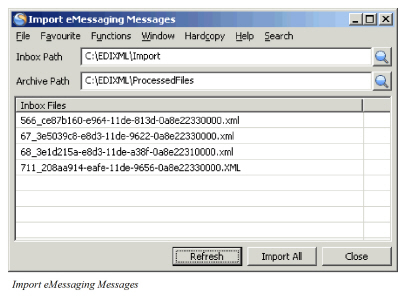
This is particularly useful during testing, as the manual import gives full control of the import process to the user, and is selected from the desktop menu.
| Field | Description |
|---|---|
| Inbox Path | The location of the folder containing the xml messages you wish to import. |
| Archive Path | The location of the folder that will contain the xml messages once they are imported. |
| Inbox Files | A list of the xml messages contained in the inbox folder. We only show files with the extension ‘.xml’ |
Actions #
Refresh: The inbox folder is refreshed with the latest list of xml messages.
Import All: Initiates the import process, loading the xml message into the SICS eMessaging database. When the import is complete, we move the xml message from the inbox folder to the archive folder. This prevents the system from importing the same message many times.
Close: Closes this window. The window will close automatically when all the xml files in the inbox folder have been imported. We retained the inbox and archive paths when the window is closed.
If the import process detects an xml file that is not well-formed, a validation error message (EM0010) is shown. The message is not imported, nor is it moved to the archived folder. The import process will continue with the next message.
Two system parameters affect the import process.
Rename message file on import appends a date/timestamp to the message file when we move it from the inbox folder to the archive folder. This prevents any problem with duplicate file names in the archive folder. If we find an identical name for the message file in the archive folder, it is not removed from the inbox folder.
Process on load initiates the automatic processing of each message once it is loaded into the eMessaging database. If this option is off, the message remains unprocessed until the user initiates the processing of each one.
3 - Job Scheduler #
There is an option to load messages in background using the job scheduler in the System Administration Utility. If you get large numbers of messages delivered at once (e.g. from a service provider) it can advantageous to process them at a time when the system is less busy - in the early morning say - and this is where the job scheduler comes in. The scheduled job can be set to start at a convenient time, and will load and process xml messages.
Field Description #
| Field | Description |
|---|---|
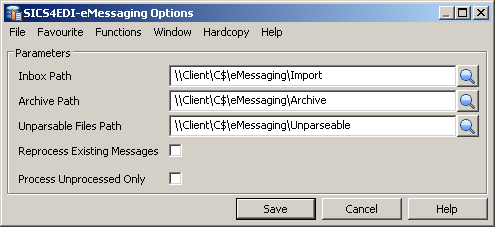
| Inbox Path | The location of the folder containing the xml messages you wish to import. |
| Archive Path | The location of the folder that will contain the xml messages once they are imported. |
| Unparsable File Path | The location of the folder that will contain any files that do not contain well-formed XML messages. |
| Reprocess Existing Messages | If this option is ticked, the job scheduler will reprocess all the messages in the eMessaging database that have the following statuses: -Unprocessed - Error - Validated - Examined It will only reprocess messages that are ‘included’. If the message is ‘excluded’ it will not be processed. See section Pop-up Menu Options for further details of inlucde/exclude. |
| Process unprocessed only | If this option is ticked, the job scheduler will only process unprocessed included messages. |