Desktop Icons
Accounting Folder #
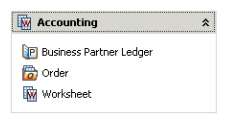
When you click the Accounting folder you see icons that take you to worksheets and ledgers for accounting. The Business Partner Ledger icon lets you search for business partners and the ledger opens automatically when you select a business partner. The Worksheet icon takes you to the Find: Worksheet window where you can search for and create different types of worksheets. And the Order icon takes you to the Find: Order window where you can search for and create accounting orders for automatic accounting. Refer to the Accounting chapter for information about the icons in the Accounting folder. Click here for more information about the accounting icons.
Business Folder #
Click the Business icon in the Business folder to see the Find: Business window.
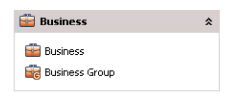
Here you can register businesses or search for and open registered businesses in SICS.
Click the Business Groups icon in the Business folder to see the Find: Business Groups window. Here you can create, search for and maintain businesses in SICS.
Claims Folder #
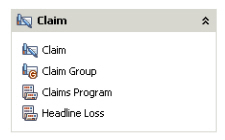
Click the Claims folder to see the types of claims you can work with. The icons for Claims, Claim Groups, Claims Program and Headline Loss take you to windows with specific features that pertain to each respective claim category.
Partners Folder #
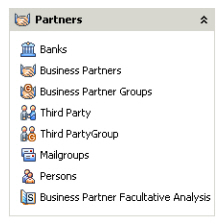
Click the Partners folder to see the type of partners you can work with. Here you register, update, and open already registered information about business partners with whom you are making, or have made, agreements. This section is broken down into: Banks, Business Partners, Business Partner Groups, Third Party, Third Party Group, Mail Groups, Persons and Business Partner Policy Analysis. Refer to the Maintain Business Partner chapter for information about the icons in the Partners folder.
Insurable Objects Folder #
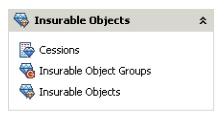
Click the Insurable Objects icon in the Insurable Objects folder to see the Insurable Objects window. Here you register, update, and find registered information about objects (possible risks not necessarily connected to an agreement such as a ship or rig, for example) that may be insured/reinsured, or already are insured/reinsured.
Click the Insurable Objects Group icon on the Insurable Objects folder to search for insurable objects by accumulation group or risk group.
EDI Folder #
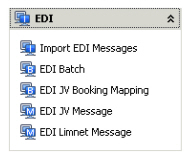
C lick the EDI folder to see the EDI Batch and the EDI Message icons. If you discover that an EDI validation failed, you will go into the Find: Message window to determine what went wrong. If, however, you do not see the source of your problem there, you can check the Find: Batch window and look for the problem at the batch level. The Import EDI Messages icon takes you to a window where you can specify which batches to read, archive, and process
Reference Items Folder #
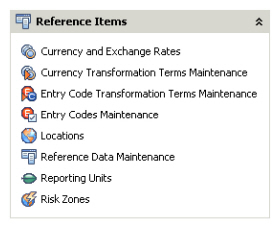
Click the Reference Items folder to access icons that take you to windows where you can work with: Currency and Exchange Rates; Currency Transformation Terms; Entry Codes and Entry Code Transformation Terms; Locations; Reference Data; Reporting Units, and Risk Zones. Because the functionality of the items in this folder are primarily things that your SICS System Administrator will be working with, Reference Items are described in the System Administrator’s Guide. It is also available as online help through the System Administration Utility, which you must have System Administrator’s rights to access.
Periodic Functions Folder #
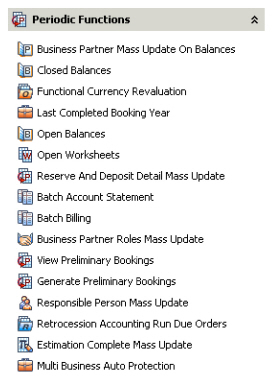
Click the Periodic Functions folder to access windows where update jobs are run. This includes Accounting Mass Updates, Protection Assignment Mass Updates, Batch Account Statements, Business Partner Roles Mass Updates, View Preliminary Bookings, Generate Preliminary Bookings, Responsible Person Mass Updates, Retrocession Accounting Run Due Orders and Ultimate Loss Ration Import. Mass Update Balances and Worksheets are explained in the Accounting chapter of this User’s Guide. Generate Preliminary Bookings and Retrocession Accounting Run Due Orders are explained in the System Administrator’s Guide. Generate Preliminary Bookings and Retrocession Accounting Run Due Orders are explained in the System Administrator’s Guide.
Task Management Folder #
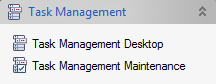
Click the Task Management icon to access the Task Management facility. The Task Management folder has two sub folders:
-
Task Management Desktop.
This is where your current tasks and processes are displayed and the follow-up of your own assignments are executed.
You can also access the Find Task window from the Task Management Desktop -
Task Management Maintenance
New processes and task management User Groups are created and maintained from here
External Folder #
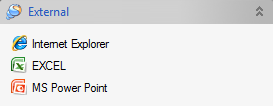
Click the External folder to launch external programs like Business Objects, Power Point, or Excel.
SICS Search Folder #
Click the Find Objects in SICS icon in the SICS Search folder to access the SICS Search functionality
