Handle Period Estimates
You can create period estimations on individual Assumed Business by using the Multi GAAP functionality. In SICS, you access the functionality by clicking the ES-button in the Business Properties window.
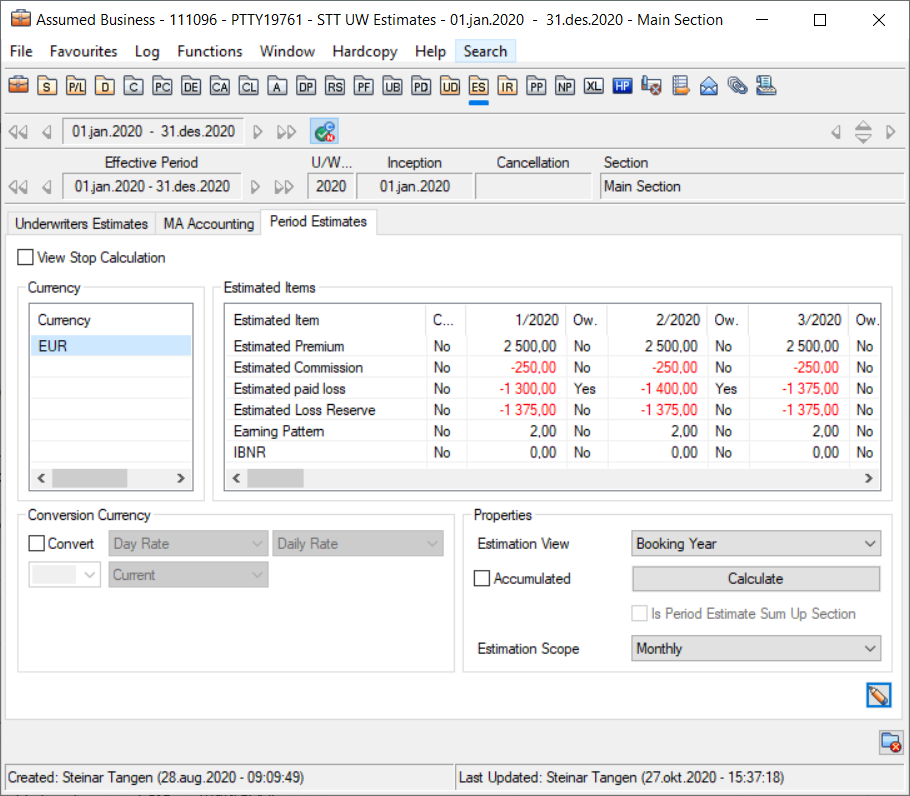
When you click the ES-button, SICS opens the Underwriters Estimates window. On this window you see the Period Estimate tab, which enables you to maintain your estimations. (You specify the estimation items that appear on the Period Estimation tab on the Multi GAAP tab in the system parameters-System Administration folder/System Parameter Maintenance) For each of the Estimation Items estimates are calculated from rules that are specified with the Estimation Items. These calculated values represent the estimation of certain figures (items) for a certain period. These values are often based on a pattern (portfolio default). The patterns are entered on a Section of a Portfolio Program so that they apply to a group of Assumed Business matching the classification criteria set in the Portfolio Program.
On the Period Estimates tab calculated estimations for different currencies are displayed.
To adjust the estimates by overwriting them:
-
Click the Underwriters Estimates button on an assumed business.
-
Select the Period Estimates tab.
-
Click the Edit button. You see the Edit Period Estimates window.
-
In the Currency list, select Add from the pop-up menu. You see the Select Currencies to be Added window.
You can do estimations for as many currencies as you want. Often the currencies on this tab correspond to the main currency of the business or currencies in which the EPI is entered. This is because the Calculation Rules often rely on the EPI entered on the Limits and Premium Conditions window.
The system calculates the estimates based on the Calculation Rules defined in the system parameter. You can overwrite these amounts. An overwritten amount is marked by a Yes in the Ow. Column. -
Repeat these steps for each currency you want to do estimations for.
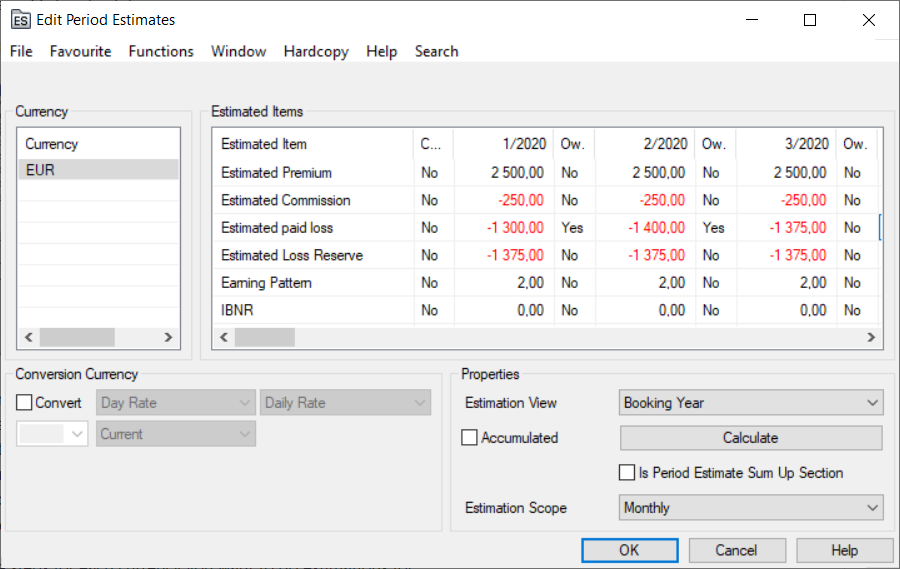
Note! There is a quicker way to get the estimations if you want them to be based on the Main Currency of the Assumed Business. Instead of selecting the currency from the pop-up menu, you can click the Calculate button and the system will provide the currency code and show the Estimate Items with the calculated figures for each estimation quarter.
After entering all estimations you can view the results in the following ways:
- Accumulated: The estimated amount can be displayed by quarter or accumulated (year to date) view.
- Converted: You can convert the estimated amounts to any currency using one of the rates.
- Estimation View: You can view your estimation based on accounting year or booking year. Using accounting year you can see your estimations based on periods that start with the first period touched by the insured period. Using booking year you can see the estimations based on the booking periods the estimations fall in. Period allocation for estimations done on declarations/cessions use the attachment period of the declaration/cession instead of the insured period.
- Is Period Estimate Sum Up Section: On the Main Section of an assumed business you can sum up Estimated Figures from cessions/declarations. If the Is Period Estimate Sum Up Section check box is selected, the Estimated Figures on the Main Section are replaced by the estimates on the child declarations/cessions/sections.
Enter Estimation Complete Reason and Description
Manually register why an Estimated Item is completed.
- Open Underwriter’s Estimates / Period Estimates in edit mode
- Highlight wanted Estimated Item, right mouse click and select option Edit Complete Reason
- Select a Complete Reason from the drop down
- Enter a Description
- Press Save
- Press Save
View Estimation Complete Reason and Description
- Open Underwriter’s Estimates / Period Estimates in view mode
- Highlight wanted Estimated Item, right mouse click and select option View Complete Reason
Remove Estimation Complete Reason and Description
If entered in error, an Estimation Complete Reason and Description may be removed.
- Open Underwriter’s Estimates / Period Estimates in edit mode
- Highlight wanted Estimated Item, right mouse click and select option R_emove Complete Reason_
- Confirm removal
- Press Save
Note! Manually entered Complete Reason is for informational purposes only and has no functional impact
Field Description
View Stop Calculation:
Selected: The Ow. column is replaced with the StopCalc column.
Cleared: Standard view is shown, with the Ow. column for each period.
Currency
Currency: Currency of the displayed estimation item amounts in the right hand column.
Calculation: Selectable from SICS table with currency codes
Validations: Currency codes from ISO table
Values: three positions
Functional Impact: Currency in which the Estimated Item values are displayed on Period Estimates.
Estimated Item: The item defined in the System Parameter Maintenance for which estimation values shall be calculated and displayed.
Calculation: System generated from System Parameter Maintenance, Multi GAAP.
Validations: Period Estimation Rule
Values: Alphanumeric
Functional Impact: Estimated item value is shown in the matrix between Estimated item and Period/Year.
Compl.: Indicates that the Estimated Item is completed. This means that no further estimates will be booked and existing accruals can be reversed by the Multi GAAP Accounting Order. This flag will also stop recalculation of the Estimated Item, if set up to do so by your system administrator.
Calculation: Default value; No. Manual change to Yes.
Validations: Only options; No/Yes
Values: Alphanumeric, 3 positions
Functional Impact: Multi GAAP Accounting Order, Multi GAAP Recalculation Order, Calculation of Period Estimates
P/YYYY: Period and Year for which an estimated amount is calculated. The period refers to a quarter or a month, depending on Estimation Frequency defined in your system parameters.
Calculation: System generated from System Parameter Maintenance, Multi GAAP
Validations: Period Estimation Rule
Values: Numeric, 5 positions
Functional Impact: Estimated item value is shown in the matrix between Estimated item and Period/Year.
Ow.: Indicates if the value under P/YYYY is manually overwritten ‘Yes’. ‘No’ is default value.
Calculation: Manually editable. Default value ‘No’
Validations: Possible values ‘Yes’ or ‘No’
Values: Alphanumeric, 3 positions
Functional Impact: None
Conversion currency
Convert: Check box for option to display estimation amounts in any currency in the system. Select currency, Exchange Rate Type, Exchange Rate Category and Exchange Rate As of Type.
Calculation: Check box
Validations: None
Values: None.
Functional Impact: If selected, all other fields in ‘Conversion currency’ are editable.
Properties
Estimation View: Option to view the estimation values in Accounting Year or Booking Year mode.
Calculation: Fixed values selected from drop-down list
Validations: Hard coded values
Values: Alphanumeric
Functional Impact: Estimated item values are shown in two ways: Booking Year or Accounting Year.
Accumulated: Option to view the estimation values as accumulated.
Calculation: Check box. Manually entered
Validations: If selected, the figures are accumulated.
Values: None
Functional Impact: Figures are shown accumulated or for each period separately.
Is Period Sum Up Section: Option to sum up figures from child cessions/declarations to main section.
Calculation: Check box.
Validations: None.
Values: None.
Functional Impact: If selected, all figures for defined Estimated Items on cession/declaration level are summed up to main section.
Calculate (button): By clicking the button all estimates will be recalculated
You cannot change the Estimation Item names or their sequence in the column. The Estimation Items displayed depend on the settings in the system parameters of the respective Estimate Item and Period Estimation Rule. The same applies to the number of displayed periods.
To prevent estimations from being booked on the Business Ledger you can set the Complete indicator to Yes. This can be done for each Estimation Item separately. When set, the estimated amount is not booked by the Multi GAAP Accounting order nor does the order produce any accrual bookings for that Estimation Item. Note that this is regardless of what might be booked manually on the ledger and that the system does not create a warning if there are changes on the ledger.
If you want to overwrite one of the systems calculated amounts switch to edit mode and enter the values. The Ow. Column automatically changes to Yes. You can set this column back to No to get the system calculated value back, but this will delete your overwritten amount.
By selecting the estimation view from the drop-down list, you can look at the Period Estimates in two different ways:
- Accounting Year: In the list you see the period periods of the Assumed Business as if they start from inception date of the Portfolio Program.
- Booking Year: In the list you see in which booking period the estimates on the linked business are booked. Note! The actual booking period is determined by running the Multi GAAP Accounting Order that is described later in this document.