Handle Period Estimates on Non-Proportional OCC
With respect to premiums, deductions, or any other items, a Non-Proportional OCC has no connection to Assumed Business. Estimations therefore cannot be driven from the estimations of any Assumed Business.
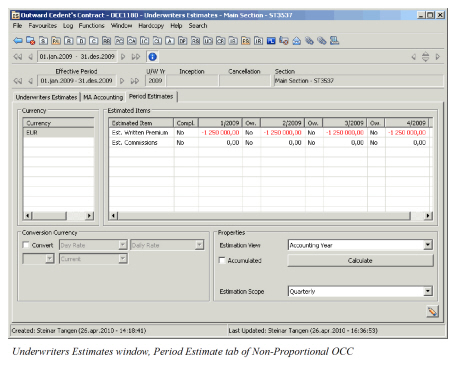
To enter estimations on a Non-Proportional OCC follow the same procedures as for an Assumed Business. Note that it is not possible to attach an OCC to a Portfolio Program and therefore no default Period Estimates can be used to calculate the estimates. However, it is possible to set up a ‘simple’ calculation rule for a Non-Proportional OCC. That calculation rule could, for example, be EPI/number of periods and would give a proportional split of an EPI figure for X amount of periods.
Period Estimate currencies on the Non-Proportional OCCs can be added manually, or automatically by running the Multi GAAP Recalculation Order. See the Create/Update Period Estimates Automatically chapter for further information about this Order.
Enter Estimation Complete Reason and Description
Manually register why an Estimated Item is completed.
- Open Underwriter’s Estimates / Period Estimates in edit mode
- Highlight wanted Estimated Item, right mouse click and select option Edit Complete Reason
- Select a Complete Reason from the drop down
- Enter a Description
- Press Save
- Press Save
View Estimation Complete Reason and Description
- Open Underwriter’s Estimates / Period Estimates in view mode
- Highlight wanted Estimated Item, right mouse click and select option View Complete Reason
Remove Estimation Complete Reason and Description. If entered in error an Estimation Complete Reason and Description may be removed.
- Open Underwriter’s Estimates / Period Estimates in edit mode
- Highlight wanted Estimated Item, right mouse click and select option Remove Complete Reason
- Confirm removal
- Press Save
Note! Manually entered Complete Reason is for informational purposes only and has no functional impact
Field Descriptions
Currency
Currency: Currency of the displayed estimation item amounts in the right hand field.
Calculation: Selectable from SICS table with currency codes
Validations: Currency codes from ISO table
Values: three positions
Functional Impact: Currency in which the Estimated Item values are displayed on Period Estimates.
Estimated Item: The item defined in the System Parameter Maintenance for which estimation values shall be calculated and displayed.
Calculation: System generated from System Parameter Maintenance, Multi GAAP
Validations: Period Estimation Rule
Values: Alphanumeric
Functional Impact: Estimated item value is shown in the matrix between Estimated item and Period/Year.
Compl.: Indicates that the Estimated Item is completed. This means that no further estimates will be booked and existing accruals can be reversed by the Multi GAAP Retrocession Order. This flag will also stop recalculation of the Estimated Item, if set up to do so by your system administrator.
Calculation: Default value; No. Manual change to Yes.
Validations: Only options; No/Yes
Values: Alphanumeric, 3 positions
Functional Impact: Multi GAAP Retrocession Order, Multi GAAP Recalculation Order, calculation of Period Estimates
P/YYYY: Period and Year for which an estimated amount is calculated. The period refers to a quarter or a month, depending on Estimation Frequency defined in your system parameters.
Calculation: System generated from System Parameter Maintenance, Multi GAAP
Validations: Period Estimation Rule
Values: Numeric
Functional Impact: Estimated item value is shown in the matrix between Estimated item and Period/Year.
Ow.: Indicates if the value under P/YYYY is manually overwritten ‘Yes’. ‘No’ is default value.
Calculation: Check box
Validations: None
Values: None
Functional Impact: None
Conversion currency
Convert: check box for option to display estimation amounts in any currency in the system. Select currency, Exchange Rate Type, Exchange Rate Category and Exchange Rate As of Type.
Calculation: Check box
Validations: None
Values: None
Functional Impact: If checked, all other fields in ‘Conversion currency’ are editable.
Properties
Estimation view: Option to view the estimation values in Accounting Year or Booking Year mode.
Calculation: Fixed values selected from drop-down list
Validations: Hard coded values.
Values: Alphanumeric
Functional Impact: Estimated values are shown either by Booking Year/Period or by Accounting Year/Period
Accumulated: Option to view the estimation values as accumulated Year to date
Calculation: Check box. Manually entered
Validations: If checked, the figures are accumulated.
Values: None
Functional Impact: Figures are shown accumulated or for each period separately.
Calculate (button): By clicking the button all estimates will be recalculated