Maintain MGU
Overview of the MGU Frame Agreements for a Paper Provider #
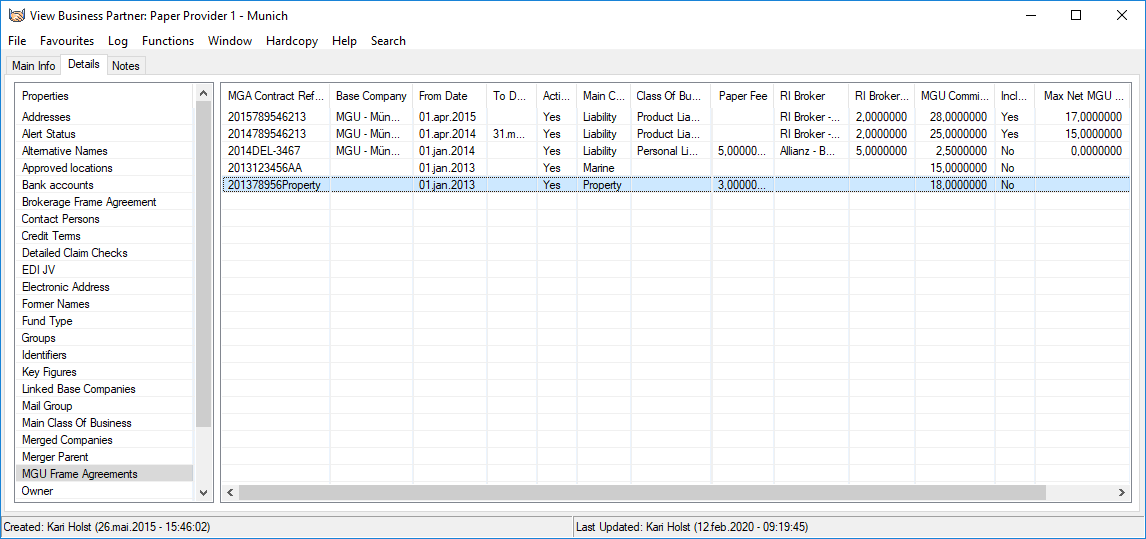
- Find and open the Business Partner Paper Provider you want to see the MGU Frame Agreements for. You see the View Business Partner Paper Provider window.
- Click the Details tab.
- Select MGU Frame Agreements. You see a list on all existing MGU Frame Agreements for the Paper Provider.
If select one of the contracts and open pop-up menu, it is possible to
- Create a new agreement
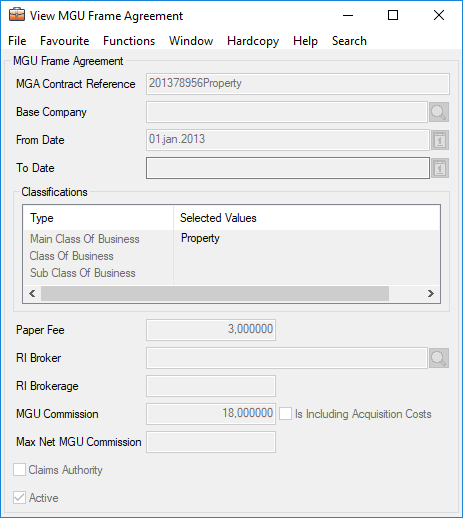
- View details on an exisiitng aggrement
- Edit an agreement to make changes
- Renew/Copy an agreement
- Delete an agreemnet
- Inactivate an agreement
- Reactivate an inactive agreement
Record a new MGU Frame Agreement #
- Open MGU Frame Agreements for wanted Paper Providerer
- In pop-up menu, select New.
- Enter the required information for the new MGU Frame Agreement
- Click OK. Validation is given if overlapping agreements exist
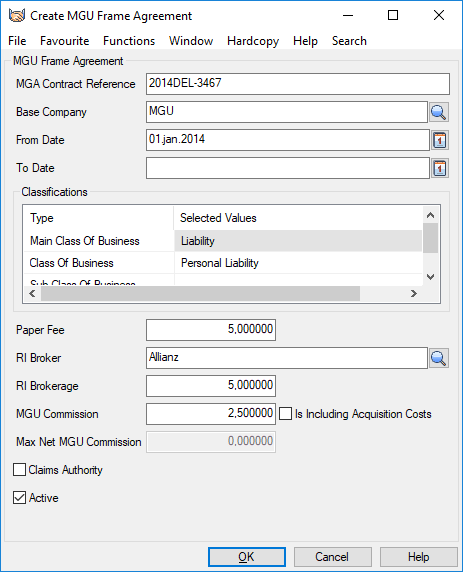
| Field | Description |
|---|---|
| MGA Contract Reference | A reference to identify the agreement. Values: Free-text, maximum 39 characters. Validation: Empty field not allowed. Mandatory: Yes |
| Base Company | If no Base Base Company recorded, it means that the MGU Frame Agreement is valid for all MGUs. Mandatory: No |
| From date | The date from when the MGU Frame Agreement is valid. Mandatory: Yes |
| To date | Mandatory: No |
| Main Class of Business | Mandatory: Yes |
| Class of Business | Mandatory: No |
| Sub Class of Business | Mandatory: No |
| Paper Fee | Values: Minimum value: 0 Maximum value: 100 Number of decimals: 6 Mandatory: No |
| RI Broker | Mandatory: No |
| RI Brokerage | RI Brokerage cannot be recorded until a RI Broker is assigned. Values: Minimum value: 0 Maximum value: 100 Number of decimals: 6 Mandatory: No |
| MGU Commission | Values: Minimum value: 0 Maximum value: 100 Number of decimals: 6 Mandatory: No |
| Active | Possible to inactivate a MGU Frame Agreement to prevent that it is assigned to new MGU businesses/Insured Periods. An inactivated MGU Frame Agreement is still valid and will be used for the MGU businesses/Insured Periods it was assigned to before it was inactivated Mandatory: No |
No changes, except for the To Date, are allowed for a MGU Frame Agreement which is linked to one or more Insured Periods.
Assign a MGU Frame Agreement to an Insured Period #
A MGU Frame Agreement must be assigned to the MGU Business/Insured Period before any bookings are allowed for the Insured Period.
The MGU Frame Agreement assigned to the Insured Period can be removed or replaced until closed worksheet (Technical and/or Claim) exists for the Insured Period.
Each time a worksheet is closed, the system validates that a MGU Frame Agreement is assigned to the Insured Period.
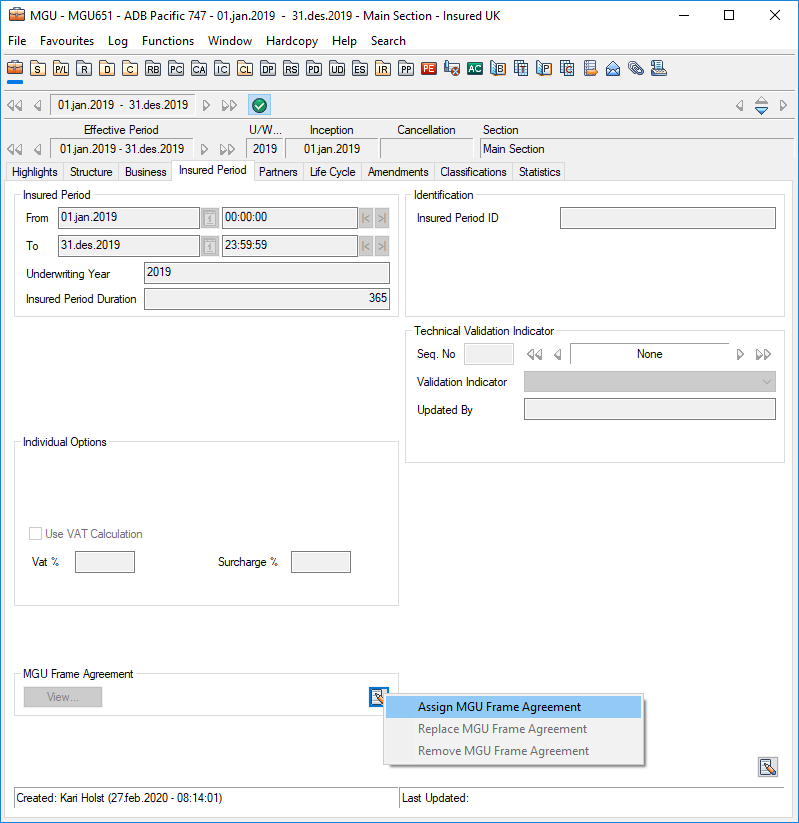
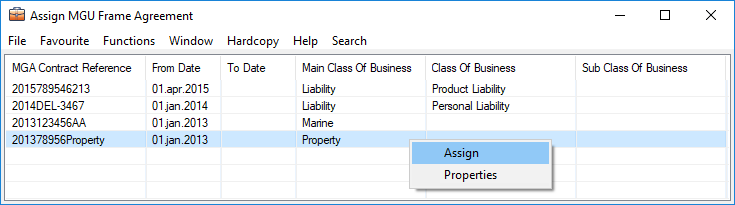
On the Paper Provider on the MGU Business, the system lists the MGU Frame Agreement(s) which match the Insured Period and the MGU of the business. No validation of Classifications.
To link the MGU Frame Agreement to the Insured Period, the user selects the relevant MGU Frame Agreement, right click and select the option ‘‘Assign’’.
If the Insured Period is changed after the MGU Frame Agreement is assigned, but before any bookings exist, it is the user’s responsibility to ensure/check that the already linked MGU Frame Agreement is still valid for the changed Insured Period. And when it is no longer valid, the user must replace it with a MGU Frame Agreement which is valid for the changed Insured Period.
NO system validations to ensure that the already linked MGU framework agreement is still valid for the changed insured period.
View MGU Frame Agreement linked to the Insured Period #
When a MGU Frame Agreement is assigned to the Insured Period, the button View become enabled.
- Click the View button to see which MGU Frame Agreement that is linked to the Insured Period.

Depending on the access rights, the details of the linked MGU Frame Agreement can be inspected from the Insured period of the business.
- Click the View button in the MGU Frame Agreement groupbox
- Select the MGU Frame Agreement
- Right click and select the option ‘‘Properties’’.