MGU Accounting
Automatic creation of a corresponding worksheet for Paper Provider #
When a Technical or Claim worksheet is closed for a MGU Business, system automatically creates and close a corresponding worksheet for the Paper Provider.
Both worksheets are displayed on the Business Ledger of the MGU Business.
In addition it will automatically be calculated and booked a net MGU Commission amount, Paper Fee and RI Brokerage when recorded on the MGU Frame Agreement.
Automatic calculation of MGU Deduction for the Paper Provider #
When a Techncial worksheet is closed for the inward Broker/Cedent/Insured, the MGU Deductions for the Paper Provider will automatically be calculate if:
- A MGU Frame Agreement is assigned to the Insured Period of the MGU Business.
- Entry Codes is defined for MGU Commission, Paper Fee and RI Brokerage within the Entry Code Sub Category MGU Deduction.
- An Entry Code Group is defined within the Entry Code Group Sub Category MGU Deduction Basis. And all the Entry Codes which shall be the basis for the calculation of the MGU Commission, Paper Fee and RI Brokerage are assigned to this Entry Code Group.
- Within System Parameter - Accounting - Entry Codes, both the Entry Codes and the Entry Code Group are assigned to the Accounting Calculations within the Accounting Function MGU Deduction.
Automatic calculation of MGU Commission #
In addition to the premium which is booked on the Paper Provider with the opposite sign as on the source /Broker worksheet:
-
All the acquisition costs from the source (Broker) worksheet are booked as original, but with the opposite sign, on the Paper Provider.
-
Acquisition costs means all bookings with an Entry Code belonging to any of the Entry Code Sub Categories:
- Brokerage (code DBRO)
- Fronting Fee (code DFF)
- Original Commission (code DCOM)
- Other Deduction (code DX)
- Overriding Commission (code DOCOM)
-
The net MGU Commission amount is booked
-
MGU Commission, Paper Fee and RI Brokerage are calculated:
- According to the MGU Frame Agreement assigned to the Insured Period of the current booking
- On Gross Premium.
- Gross Premium means the Entry Codes assigned to the Entry Code Group which is linked to the Accounting Function MGU Deduction within System Parameter - Accounting - Entry Codes.
-
All the details on the Paper Provider worksheet get a link /worksheet reference to the source detail on the Broker worksheet.
-
All the details on the source (Broker) worksheet get a link/worksheet reference to the corresponding detail on the Paper Provider worksheet.
Automatic creation of worksheet for Paper Providers on the Balance and Balance grouping #
The MGU Commission and the Paper Fee are included in the same Balance as the corresponding premium.
The Paper Provider is both the Payment Partner and the Responsible Business Partner on the Balance.
RI Brokerage is booked in a separate Balance, with
- RI Broker as the Payment Partner
- Paper Provider as the Responsible Business Partner
Automatic calculation of MGU Deduction for the Paper Provider #
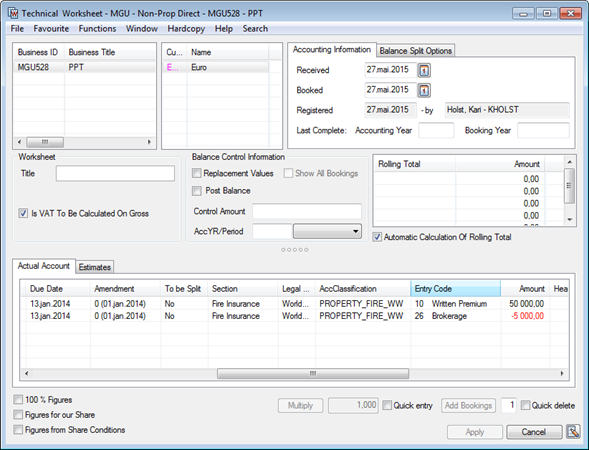
Technical worksheet to Broker with Brokerage #
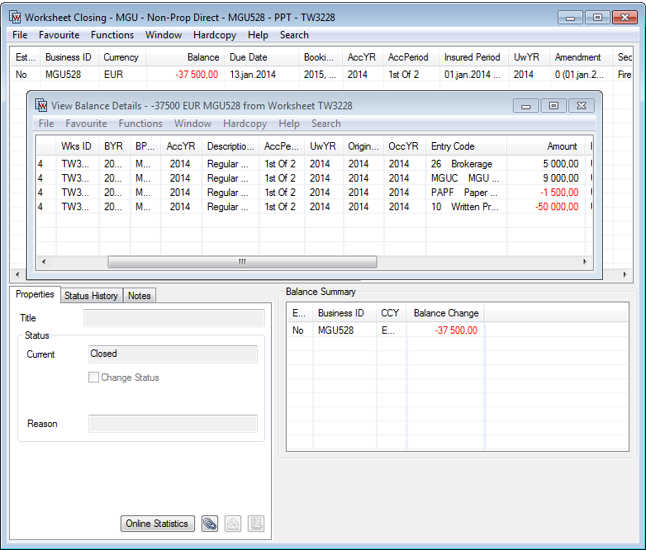
When closing the worksheet for the Broker, the corresponding worksheet for the Paper Provider is automatically closed as well.
The Balance includes the Premium, acquisition costs and the MGU Deductions except for the RI Brokerage. When RI Brokerage is applicable, a separate Balance is created for it.
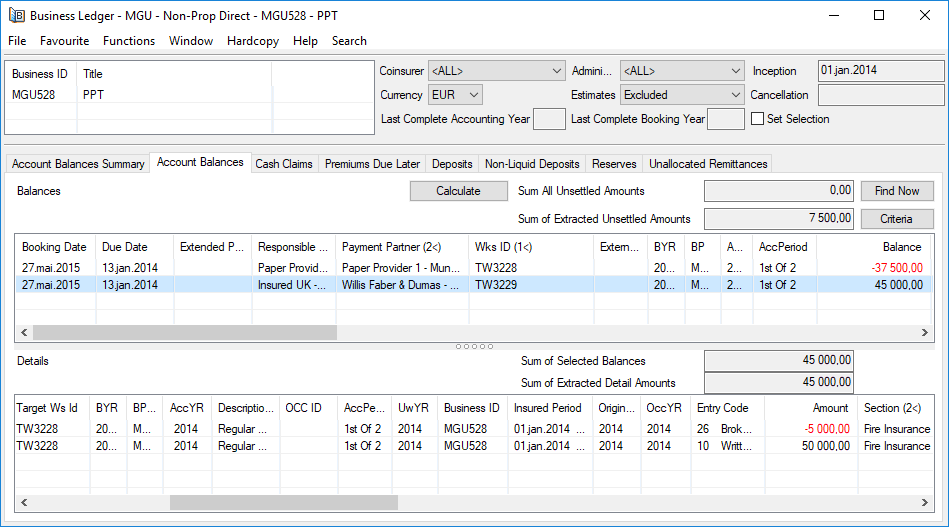
Business Ledger for a MGU Business #
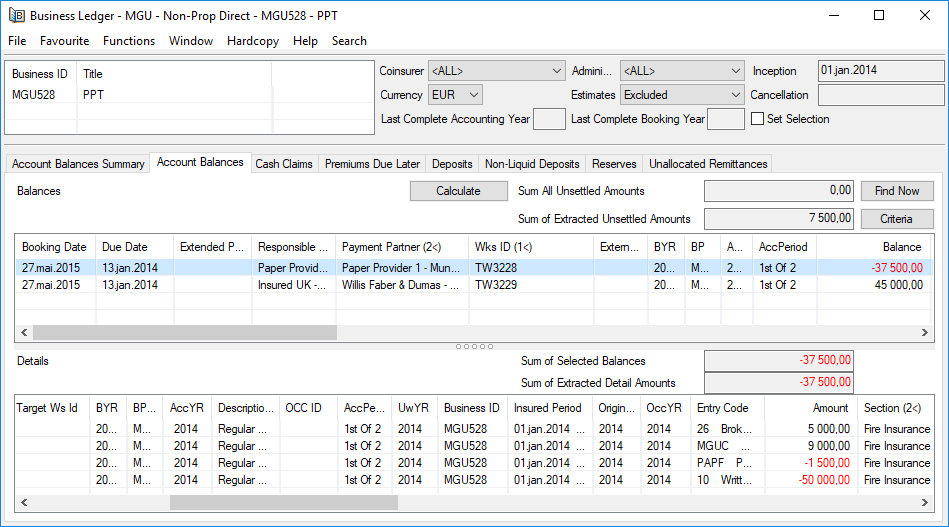
Business Ledger for a MGU Business includes the Balances to the
- Broker
- Paper Provider
- RI Broker (when applicable for the Insured Period)
Details in the Balance to the Broker
Details in the Balance to the Paper Provider.
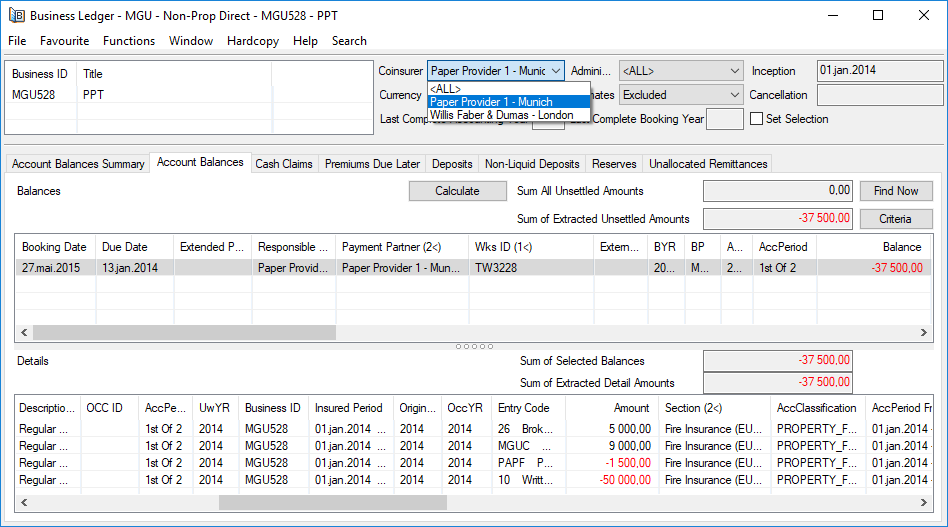
It is possible to limit the view to only include the Balances for either the
- Broker
- Paper Provider
- RI Broker
Select the Business Partner in the list for the field ‘‘Coinsurer’’ and then click the Find Now button.
Booking of Insurance Premium Tax and other Insured’s taxes #
For a non-proportional direct MGU Business Insured’s, taxes can be manually included on an Instalment worksheet.
- On the Limit and Premium Condition open Instalment Condition.
- Click on Acconting button to open Premium Accounting window.
- Select wanted item and open pop-up menu.
- You may select Book Selected Instalments or Book Instalment on All Sections
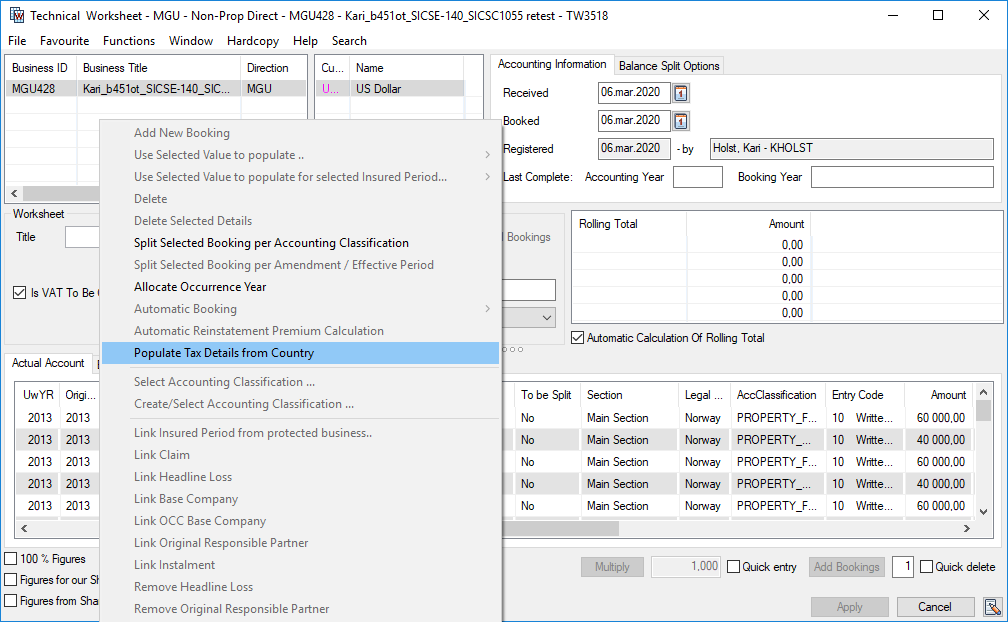
- On the Technical Worksheet, open the pop-up menu and slect Populate Tax Details from Country. (If the Tax Type details has been prerecorded on the Country).
Allow booking of taxes on the same worksheet as the Instalments #
- When selecting ‘‘Populate Tax Details from Country, the system will populate tax rows on to the Instalment worksheet according to the Accounting Classification of the Instalment detail(s).
- When the area in the Accounting Classification of the Instalment detail is a Country Group, the system will search for matching Tax Types rule on the Domicile Country of the Insured. When the area in the Accounting Classification of the Instalment detail is a Country, then the system will search for matching Tax Type rules on this Country.
- One Tax row per Instalment detail per matching Tax Type on the Country will be populated.
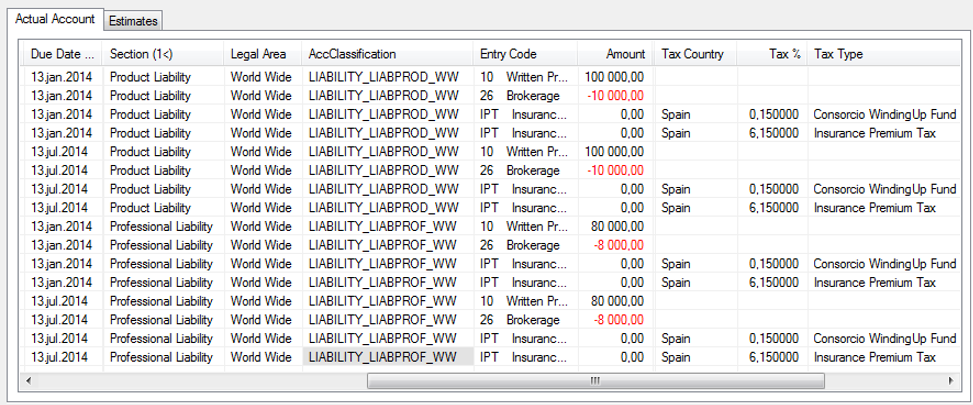
- Tax Country, Tax Percentage and Tax Type will be populated in separate columns on the Technical Worksheet. When the area in the Accounting Classification of the Instalment detail is a Country, the system will calculate the amount for the populated Tax rows.
- Tax rows with zero amount will automatically be deleted when the end user selects Change Status from the worksheet’s menu button.
- Additional Tax rows can be manually added to the worksheet, by first selecting the relevant Instalment detail and then select Add New Booking.
- If the Instalment is reversed, the taxes will also be reversed.
- If taxes are booked on a separate worksheet, the Tax detail can be linked to the relevant Instalment.
In the exampel below see how the Instalment worksheet can look after the end user has selected Populate Tax Details from Country. In the example the area in the Accounting Classification is a Country Group, the Domicile Country of the Insured is Spain. The system has found that two Tax Type rules match the Accounting Classification of the Instalment Detail and the Insured Period of the Business.
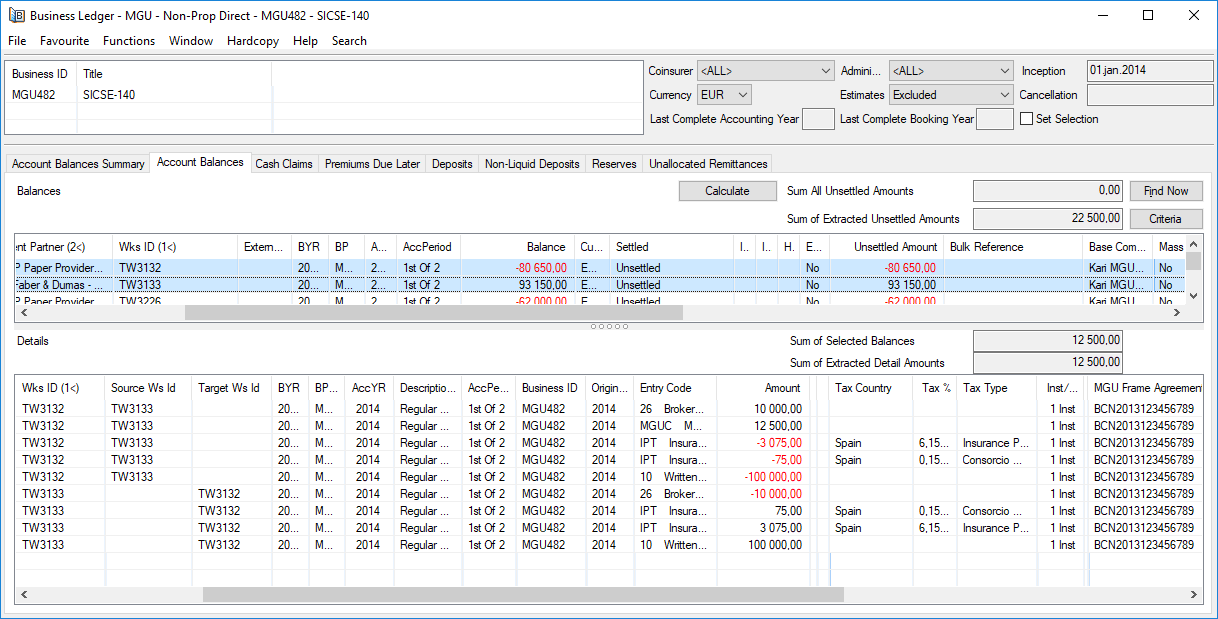
See also Business Ledger showing the details, including taxes, for both the Broker and the Paper Provider.
- The detail reference between the source and target detail can be seen in columns Source and Target in the Details list at the bottom.
- The MGU Frame Agreement contract reference is displayed in a separate column.
- The column Inst/ shows the Instalment Number
View settlement status of the associated Balance #
For a payable Balance it is possible to view the settlement status of the associated Balance in the column Payable Part on the Business Partner Ledger. The functionality requires that the System Parameter Show Payable Amount in Business Partner Ledger is activated.
Business Partner Ledger for a Paper Provider #
| For a payable Paper Provider | |
|---|---|
| When Payable Part = 0 | The corresponding receivable (Broker) Balance is unsettled |
| When Payable Part = the Balance amount | The corresponding receivable (Broker) Balance is fully settled |
| When Payable Part <> 0 and <> Balance amount | The corresponding receivable (Broker) Balance is partially settled. Payable part is calculated proportionally. |
| For a receivable Paper Provider Balance | |
| The column Payable Part is always blank/empty |
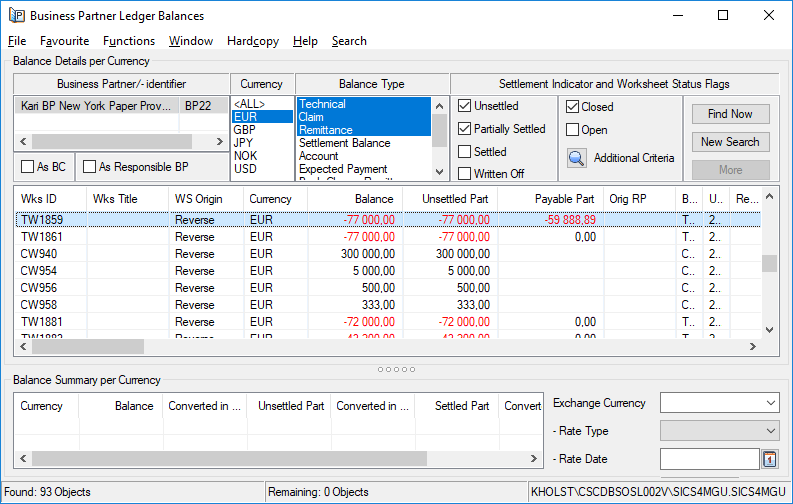
- On the Business Partner Ledger Balances mark wanted item.
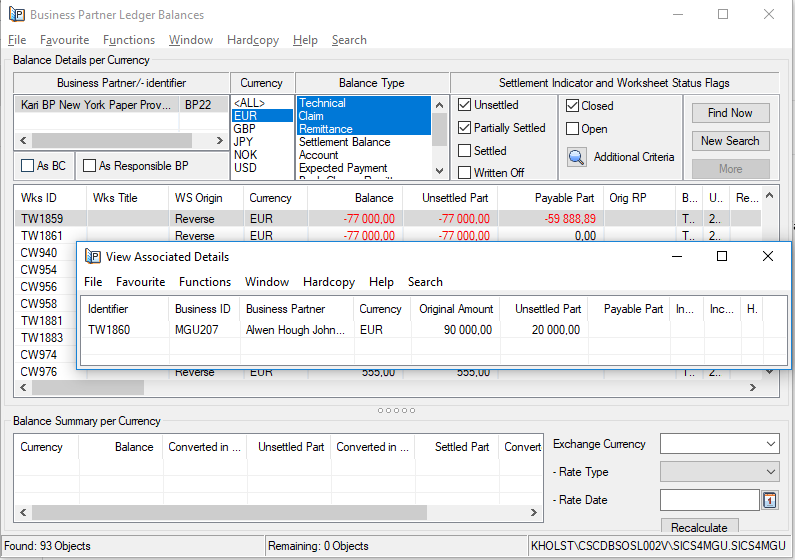
- In pop-up menu, select View Associated Balances
- The system opens View Associated Details window with possibility to view the details of the corresponding source/inward Balance.
Business Partner Ledger for a for a Broker (or Insured or Cedent ) #
| For a payable source (Broker) Balance (e.g. Claim or Return Premium) | |
|---|---|
| When Payable Part = 0 | The corresponding receivable Paper Provider Balance is unsettled |
| When Payable Part = the Balance amount | The corresponding receivable Paper Provider Balance is fully settled |
| When Payable Part <> 0 and <> Balance amount | The corresponding receivable Paper Provider Balance is partially settled. Payable part is calculated proportionally. |
| For a receivable source (Broker) Balance | |
| The column Payable Part is always blank/empty |
On Business Ledger #
The pop up menu option View Associated Balances is always enabled for the
- Source/inward (Broker /Insured/Cedent) Balance
- Paper Provider Balance