Run the Multi GAAP Retrocession Order
The purpose of this order is to calculate the difference between the booked estimated values and the accounted figures. The calculated difference is booked as accrual. If the accruals of the Assumed side is not transferred to the retrocession side by the Retrocession Estimation Calculation order the Multi GAAP Retrocession order must be run in order to get accruals calculated.
The Multi GAAP Retrocession order will perform the following:
- It books the estimates in the Period Estimates tab on the Non-Proportional Retrocessionaire’s “as Booking”.
- It books the estimates in the Period Estimates tab on the Proportional Retrocessionaire’æs “as Booking”, if MG system parameter Period Estimation Calculation on Prop Outward Contracts is selected.
- It books any adjustments made to the estimates coming from the Assumed Business on a Proportional OCC and Retrocessionaire, if MG system parameter Period Estimation Calculation on Prop Outward Contracts is cleared.
- It calculates accruals for both Proportional and non-Proportional Retrocessionaire’s
Note! When the worksheets are Closed and in case the proportional/non-proportional ORP business is linked to an Assumed Intra Group Contract business and the system parameter Book Estimates on Intra Group Contracts is active, the estimate/accrual bookings in the closed worksheet will be copied to the linked Assumed Business. Your system may have been set up to include bookings made on sub sections. Refer to System Administration Guide / System Parameters for Underwriter’s Estimates.
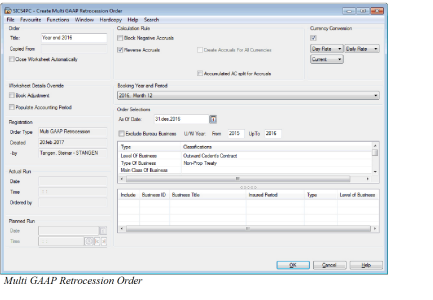
There are three check boxes on the order screen that determines how the estimates and accruals shall be calculated and booked on the business ledger.
Calculation Rule #
Block Negative Accruals: This shall be selected if the technical bookings for some reason are greater than the estimates. This would result in negative accruals, which is not always requested.
Reverse Accruals: This is used when earlier calculated accruals needs to be reversed to zero. In this case the Complete indicator on the Estimation Item on Period Estimates of the Retrocessionaire has to be set to Yes.
Create Accruals For All Currencies: This check box makes it possible for the order to calculate accruals for all currencies with technical bookings on the ledger. No estimate figures for the currency must exist. The accruals will be calculated as zero - technical bookings. If the check box is empty, only accruals for the currency with estimate values will be considered
Accumulated AC split for Accruals: When selected, Accrual bookings are split on different Accounting Classifications according to the Accounting Classification split defined on the business on a cumulative basis. This means that after each order run, the Accounting Classification split on the total accruals are equal to the current Accounting Classification split on the business.
Currency Conversion #
When this option is selected, the system will convert all actual bookings to the Main Currency on the business section. The accrual bookings will then be calculated as the estimate figures in Main Currency less the total of actual bookings converted to Main Currency.
Note! When using this option, actual bookings will always be converted to Main Currency. It is therefore advisable to have Period Estimates in Main Currency and only Main Currency when using this option.
When Currency Conversion is selected on the Order, the user has the option to select which rate to be used for the conversion to Main Currency. The following options are available:
| Exchange Rate Type | Exchange Rate Category | Exchange Rate As Of Type | Additional input | Conversion rule | | —————— | ———————- | ———————— | ———————————- | | Day Rate | Daily Rate | Current | | The most recent Daily Rates is used | | Day Rate | Daily Rate | Fixed | Date | The Daily Rate valid at the specified date is used | | Day Rate | Daily Rate | Sliding | | For Technical bookings, the Daily Rate valid at the Date of Booking is used. For Claim bookings the Daily Rate valid at the Claim As At Date on the booking is used. | | Day Rate | Daily Rate | Inception | | The Daily Rate valid at the business Inception Date is used. | | Period Rate | Period End Rate | Current | | The most recent Period End Rate is used | | Period Rate | Period End Rate | Fixed | Year, Booking Period Frequency (e.g. month or quarter) and Booking Period | The Period End Rate for the specified year and period is used | | Period Rate | Period End Rate | Sliding | | The Period End Rate for the period equal to the booking period on each booking is used | | Period Rate | Period End Rate | Inception | | The Period End Rate for the period prior to the business Inception Date is used. | | Period Rate | Provisional Period End Rate | Current | | The most recent Provisional Period End Rate is used | | Period Rate | Provisional Period End Rate | Fixed | Year, Booking Period Frequency (e.g. month or quarter) and Booking Period | The Provisional Period End Rate for the specified year and period is used | | Period Rate | Provisional Period End Rate | Sliding | | The Provisional Period End Rate for the period equal to the booking period on each booking is used | | Year Rate | Year End Rate | Current | | The most recent Year End Rate is used | | Year Rate | Year End Rate | Fixed | Year | The Year End Rate for the specified year is used | | Year Rate | Year End Rate | Sliding | | The Year End Rate for the year equal to the booking year on each booking is used | | Year Rate | Provisional Year End Rate | Current | | The most recent Provisional Year End Rate is used | | Year Rate | Provisional Year End Rate | Fixed | Year | The Provisional Year End Rate for the specified year is used | | Year Rate | Provisional Year End Rate | Sliding | | The Provisional Year End Rate for the year equal to the booking year on each booking is used |
Note! This order can be run for both Proportional and Non-Proportional OCC and Retrocessionaire’s at the same time. The accruals will only be calculated for the Retrocessionaire’s and not for the OCC’s.
Worksheet Details Override #
Book Adjustment: When selected, estimate and accrual details are booked with Description of Account = Adjustment. When cleared, estimate and accrual details are booked with Description of Account = Regular Account.
Populate Accounting Period: When this option is selected, the AccPeriod on the booking will be populated. If Estimation Frequency is Quarterly, AccPeriod is set to “1 of 4”, “2 of 4”, etc. If Estimation Frequency is Monthly, AccPeriod is set to “1 of 12”, “2 of 12”, etc. For estimate bookings, the actual period is set equal to the period of the relevant estimate. For accrual bookings, the period is set equal to the booking period. If this option is cleared, AccPeriod on both estimate and accrual bookings is set to <None>.