Calculate Portfolio when Change in Retroceded Share
You may want the SICS to adjust the Reserve booked on the OCC/RP as basis for the Portfolio when the Gross Retroceded Share for an OCC has been changed from one Insured Period (IP) to the next. This should be done before the retrocession calculation order is produced for the last account on the current IP.
Only predefined reserve entry codes booked on the current Insured Period defined in Reserve Calculation Conditions will be adjusted. Refer to the chapter Handle Portfolio of Reserve Calculation Conditions.
To have the Reserve adjusted on the OCC as Original Business Ledger, do the following;
- On the OCC’s Administration Conditions select the last account for the accounting year
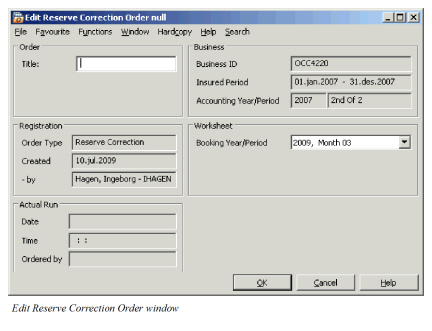
- Select the option Create Reserve Correction Order from the pop up menu. This option is only available if the OCC’s Cession Basis is Accounting Year and if the OCC has been renewed. The Edit Reserve Correction Order appears.
- Define the different fields on the order (Refer to the field description below).
- Select Run Now from the menu
| Field | Description |
|---|---|
| Title | A title making it easier to find/identify the specific order among other orders in a list, i.e. from the Find: Accounting order window. Values: Free text Functional Impact: Search criterion in the Title field in the Find: Accounting order window Mandatory: No |
| Business Id | The id of the OCC business. Values: Business id Derived from: The OCC’s business id |
| Insured Period | The Insured Period From and To date of the OCC business. Values: From and To date Derived from: The OCC’s Insured Period from where the user created the order. |
| Accounting Year/Period | The Accounting Year and the Accounting Period this order will be run for. Values: Accounting Year and Accounting Period Derived from: The account from the OCC’s Administration Conditions from where the user created the order. |
| Registration - Order Type | The name of the order type Values: Reserve Correction Derived from: Reference data Accounting Order Type. |
| Registration - Created / -by | The date when the order was first created and name of the person who created the order. Values: Created = Date, by = Full Name and Logon ID Mandatory: Yes |
| Booking Year/Period | The defined Booking Year/Period to be used on the bookings created from the order. Values: Year, Period (E.g. 2003, Month 05 or 2004, 1st half-year) Derived from: Open Booking Year/Periods for Local defined for the Base Company in the System Parameters by your system administrator. Can be changed by the user. Functional Impact: The system uses the value from this field when bookings are created on the OCC as Original Business Ledger. Mandatory: Yes |
| Actual Run - Date and Time | A date- and time field updated each time the order is run. Values: Date and Time Mandatory: Yes |
| Actual Run - Ordered by | The name of the person who runs the order Values: Full Name and Logon ID Derived from: The register of System Users in SICS Mandatory: Yes |
When running the order the system will search through the business ledger on all Assumed Businesses retroceded to the OCC protecting both this Insured Period AND next Insured Period, but ONLY if the Gross Retroceded share has been changed.
On all above ledgers the system will summarize the figures retroceded to the OCC on the current Insured Period for each entry code within the entry code groups defined as basis for the portfolio calculation on the PO conditions. This is to find the current status of each type of reserves on the following aggregation level: insured period, section, accounting classification, reporting classification, original underwriting year and occurrence year.
The total amount per business for each currency/entry code found in the previous step is multiplied with this formula:
(Gross Retroceded share on current IP - Gross Retroceded share on next IP)
Example where the total reserve amount is calculated to -10.000 on the AB and the Gross Retroceded share on the current IP is 40% and the Gross Retroceded share on next IP is 50%:
-10.000 * (40% - 50%) = 1.000
The above calculated amount is booked on the OCC with the same currency and entry code. In this example because the retroceded share has increased from 40% to 50%, the reserve basis is multiplied with 10% and booked as an additional reserve on the OCC asOriginal Business Ledger.
The function Trace Source Business from Outward Bookings applies for these bookings. The booking year and period (local) is taken from the above order and the accounting year and period is set from the last account on the administration conditions (the starting point). The booking period for legal and global is taken from default settings.
Note! If the above process has been performed before, then the earlier booked reserves are deducted from the newly calculated reserves. The latter calculation is done in original currency, per business, insured period, accounting classification, reporting classification, original underwriting year and occurrence year.
A special Worksheet Origin - Reserve Correction - is set on the worksheet for this booking and the worksheet is linked to and can be inspected from the order.
Calculate Portfolio Based on Reserve Corrections #
The above reserve correction bookings done on the special Worksheet Origin will be treated in a special process when the Retrocession Calculation Order runs for the last account on the OCC. Refer to chapter Create and Run Retrocession Calculation Order.
Definition of the Last Account:
The given accounting year is the same as defined as Last Accounting Year on the OCC’s Administration Conditions, either globally on the Accounts tab or on one of the Classes of Business defined on the Closed Period Handling tab, and the accounting period is defined as the last account within a year.
To have the Portfolio based on the Reserve Corrections calculated, the field Portfolio as Reserve in Items Included on the Retrocession Calculation order must be selected.
The reserve correction amounts will be summarized per entry code and booked on the OCC as Booking Business Ledger and proportionally distributed to the RPs. Both places booked on worksheets with the special worksheet origin to be able to separate these reserves from other reserves booked on the ledger.
Note! The aggregation principle used else in the retrocession calculation order is used for these bookings as well.
Based on the above bookings on the RPs the system will use the PO conditions to find the Portfolio percentage and the basis, refer to chapter Calculate Portfolio as Reserve, and then calculate either a portfolio withdrawal on the current insured period if the reserves are due to decrease of the Gross Retroceded Share OR a portfolio entry on the next insured period if the reserves are due to increase of the Gross Retroceded Share. The Worksheet Origin Reserve Correction is also used for these bookings.
The above calculation is on cumulative basis which means that if this calculation has been performed for this insured period previously, these bookings will be taken into account before any new portfolio figures are booked. Only previously booked portfolios on the special worksheet origin are taken into consideration.
Edit Reserve Correction Order #
Before the Reserve Correction order has been run, some of the fields on the order can be modified.
- Open a Reserve Correction order in view mode.
- Select Edit from the order menu.
- Edit the Title and/or change the Booking Year/Period.
- Select OK to save your changes.
- The View Reserve Correction order window appears.
View Worksheets from Reserve Correction Order #
When the order has been run, the produced worksheets can be inspected directly from the order.
- Create and Run a Reserve Correction order.
- Select View Worksheets from the order menu. The View
Worksheet window appears. 3. Select the Worksheet you want to inspect and select View Worksheet from the pop-up menu. The Worksheet Closing window appears. 4. In order to inspect the booking details of the balance, select a balance and select View Balance Details from the pop-up menu.
The View Balance Details window appears. Note! The worksheet created from a Reserve Correction order gets a special Origin of Worksheet; Reserve Correction.
Open the Business from Reserve Correction Order #
From the Reserve Correction order it is possible to open the relevant Insured Period of the OCC from where this order is created.
- Open a Reserve Correction order.
- Select Business Property from the order menu.
The Business property window for the relevant Insured Period appears.