Exclude Retrocessions
Inter-Company Pooling #
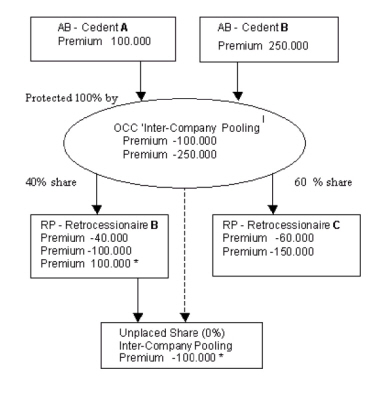
Inter-company Pooling functionality is used when a reinsurance pooling arrangement requires that bookings to be retroceded to a Retrocessionaire Participation (RP) is excluded when the Business Partner being a Retrocessionaire is also the Cedent of the Assumed Business being protected.
- Select the field Inter-Company Pooling on the Insured Period tab on the Outward Cedent’s Contract. Refer to Handle Miscellaneous Business and Accounting Information, Individual Options, field Inter-Company Pooling.
- Run the Retrocession Calculation order.
The system will do the following;
- For each Insured Period being subject to Inter-Company Pooling system checks if any of the created new detail bookings on the Retrocessionaire Business Ledger are linked to businesses where the Retrocessionaire is equal to the Cedent of the contributing detail on the Assumed Business
- If a match is found, the detail bookings on the RP Business Ledger will be reversed. The reversal bookings are marked as Inter-Company Pooling bookings.
- If an Unplaced Share Business is flagged as Inter-Company Pooling and the field Automatic Booking is activated, the reversal bookings are booked with opposite sign on the Unplaced Share business ledger. Bookings are traced back to an Assumed Business. If the field Automatic Booking is inactive, no bookings will be made to the Unplaced Share business.
No calculations of Profit Commission, Loss Participation, Sliding Scale Commission etc. will be performed on the Unplaced Share level.
If the Inter-Company Pooling flag has been changed since last run of the Retrocession Calculation order, only new bookings will be affected by the change. This is the case both when order is running on non-cumulative basis and on cumulative basis
Note! More than one Unplaced Share businesses can be registered for the Outward Cedent’s Contract, but only one can be flagged as Inter-Company Pooling per Insured Period.
Example:
Bookings performed by the Retrocession Calculation order when OCC/Unplaced Share marked as Inter-Company Pooling
Produce documents from order with WS status ‘Open’
You can produce documents in the same step as you close the worksheets of the order:
- Select a Retrocession Account order with WS status Open.
- Select the Close Worksheet and Produce Documents check boxes.
- Select Run Now from the order menu.
Documents are automatically produced without any further user specifications. Statement of Account and Technical Account documents are produced. In addition, if conditions and account frequency apply, Loss Participation Statement, Profit Loss Account and/or Sliding Scale Commission Statement documents are produced. When the Items Included - Cash Claim check box of the Retrocession Account order is selected, the Cash Claim documents apply.
Produce worksheet from order with WS status ‘Closed’
If the worksheets of the order are closed and you want to produce documents, you should follow the procedure below. It is possible to produce documents from an order when documents have been produced previously.
- Select a Retrocession Account order with WS status Closed.
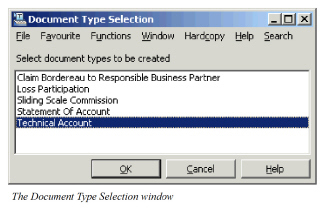
- Select Produce Documents from the order menu. The Document Type Selection window appears with predefined selection of documents to be produced.
- If necessary, modify Document Types to be created and Click OK.
Documents are created according to the selected Document Types, OCC/RP Business conditions and account frequency.
Exclude Contracts from XL Premium Netting #
This section is only enabled when CEDE module is activated, and only for US Quota Share Outwards Cedent’s Contracts (OCC). It allows users to exclude specific non-proportional OCCs, for which the XL Premium should not be netted on the US Quota Share.
You can at any time add and/or remove businesses to be included/excluded.
To add exclusions:
- Open the Insured Period tab of the OCC for which you want to exclude OCCs. Ensure that you are on the Main Section.
- Select Edit Exclusions from popup menu in the “Exclusions from Netting Premium Process” section
- In the Edit Exclusions from Netting Premium Process window select Add Business
- In Find Business select the Non-Proportional OCC that you want to exclude from the netting, and transfer back to Edit Exclusions window.
- Repeat steps 3 and 4 until you have defined all required exclusions.
- Press OK
The exclusions are reflected on the retrocessionaires of the OCC, where they can be viewed, but not modified.
To remove exclusions:
- Open the Insured Period tab of the OCC for which you want to exclude OCCs. Ensure that you are on the Main Section
- Select Edit Exclusions from popup menu in the “Exclusions from Netting Premium Process” section
- In the Edit Exclusions from Netting Premium Process window highlight the business you want to remove and select Remove Business
- Press OK
Note! Note: Exclusions are not reflected on renewed or copied OCCs.
The Ceded Premium order - refer to Accounting - Calculate Ceded Premium - generates informational bookings for the ceded portion of the policy premium; irrespective of any exclusions. The Preliminary Bookings order generates preliminary worksheets for all non-retroceded bookings, including the informational bookings made through the Ceded Premium order; but taking into consideration any exclusions.
.
| Field | Description |
|---|---|
| Exclusions from Netting Premium Process: | List the business for which the XL premium should not be netted on the US Quota Share treaty. Values: Level of Business must Outward Cedent’s Contract. Type of Business must be Non-Proportional Treaty Validation: Selected OCC must have same base company as US Quota Share Mandatory: No |