Produce Proportional Retrocession Accounting Documents
In Proportional Retrocession Accounting, documents are produced from the Retrocession Account order. The following document types apply:
- Statement of Account
- Technical Accounts
- Profit/Loss Account
- Loss Participation Statement
- Sliding Scale Commission Statement
- Cash Claim Request
The Profit Loss-, Loss Participation- and Sliding Scale Commission documents can be produced if conditions and account frequency apply.
Cash Claim Request documents can be produced if Retrocession Account order is run with the check box Items Included - Cash Claim selected when Cash Claim booking details are processed. (Refer to the chapter_The Retrocession Account Order on page 13-48_ .)
Note! The document production is dependent on Reference Data, Identifier Series, File paths and Template files being defined/set up by your System Administrator.
Produce Documents from Retrocession Account Order #
Documents can be produced from the order in the same step as the worksheets are closed or from the order when worksheets are already closed in a previous run. I.e. it is not possible to produce documents unless the worksheets are closed.
List Documents from Retrocession Account Order #
After the documents have been produced, they are listed in a Document List window.
- Select the Retrocession Account Order from which documents are produced.
- Select List Documents from the order menu. The Document List window appears.
You can Open and Print the documents. You can view the properties of each document and make modifications to some of the attributes. It is also possible to delete documents from the list
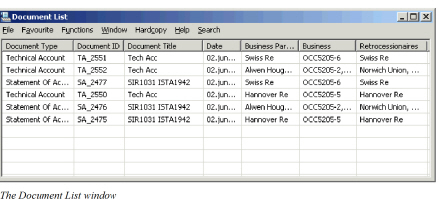
| Field | Description |
|---|---|
| Document Type | The Type of document produced Values: Technical Account, Statement of Account, Profit Loss Account, Loss Participation Statement, Sliding Scale Commission Statement, and Cash Claim Request Mandatory: Yes |
| Document ID | A unique ID automatically issued for each document being produced. Values: Prefix + number Derived from: A Document identifier series predefined in the System Parameters by your System Administrator. Mandatory: Yes |
| Document Title | A title predefined for the document template selected when the document was produced. Values: Free text Derived from: The template automatically selected for the Document Type in the Document Production Template Maintenance. Mandatory: Yes |
| Date | The Date when the document was produced Values: Date (mm/dd/yy) Mandatory: Yes |
| Business Partner | The expected payment partner of the business Values: Business Partner Name Derived from: The Business Partner of the agreement (OCC placement list) Mandatory: Yes |
| Business | The Business ID of the Business the document is produced for Values: Business ID (For example: OCC100-1 and OCC100-2) Mandatory: Yes |
| Retro-cessionaires | The RP(s) the document applies for. More than one RP are listed in this field when the RP’s are placed through an Intermediary with Payment task and Summary accounts apply. Values: Business Partner name(s) Derived from: The Business Partner of the agreement (OCC placement list) Mandatory: Yes |
View the Properties of the Document #
For each produced document you can inspect the document details, i.e. document type, - id, - title, etc.
- Open the Document List from the Retrocession Account order.
- Select the document which details you want to inspect.
- Select Properties from the pop-up menu.
- The Document Details window appears:
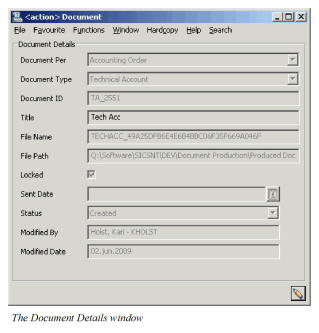
| Field | Description |
|---|---|
| Document Per | From where in SICS the document is produced Values: Accounting Order Derived from: Reference Data Maintenance (Defined by your System Administrator) Mandatory: Yes |
| Document Type | The type of document produced Values: Technical Account, Statement of Account, Profit Loss Account, Loss Participation Statement, Sliding Scale Commission Statement, and Cash Claim Request Mandatory: Yes |
| Document ID | Unique ID automatically issued for each document being produced. Values: Prefix + number Derived from: A Document identifier series predefined in the System Parameters by your System Administrator Mandatory: Yes |
| Title | A title predefined for the document template Values: Free text Derived from: The document template that is automatically selected for the Document Type from the Document Production Template Maintenance Mandatory: Yes |
| File name | The name of the file automatically generated when storing the document Values: Reference data code for the specific document + different object ID’s. (E.g.: TECHACC_D766CC1D967BCE4F822D4776595F3FF4 ) Mandatory: Yes |
| File path | The default path to the directory where the produced documents are stored Values: The directory path (i.e. H:\Software\SICSNT\xxx\yyy) Mandatory: Yes |
| Sent Date | The date when the document is issued to the Business Partner Values: Free input of date (mm/dd/yy) Default value: No value Mandatory: No |
| Status | Indicates the status of the document Values: Statuses defined in the Reference Data Maintenance by your System Administrator, e.g. Approved, Created, Sent, Test_Mandatory:_ No |
| Modified by | The name of the person who produced the document Values: Full name and Logon ID Mandatory: Yes |
| Modified date | The date when the document was created or modified Values: Date (mm/dd/yy) Mandatory: Yes |
Edit Document Details #
Some document details can be modified.
- Open the Document List from the Retrocession Account order.
- Select the document for which you want to modify details.
- Select Edit from the menu. Or, select Properties and click the Edit button from the Document Details window.
You are allowed to modify the Title-, Locked-, Sent Date- and Status fields. (Refer to the on page 13-75 above for further information about these fields.)
Open Documents #
Before you print and issue a document to your Business Partner, you may want to inspect the document.
- Open the Document List from the Retrocession Account order.
- Select the document(s) you want to open from the Document List window.
- Select Open from the menu.
The document(s) is/are opened and the details of the account(s) or statement(s) can be inspected.
Note! The document is created according to the template predefined for each Document Type.
Print Documents #
When the documents are produced and ready to be issued by mail to your Business Partners, you print the documents from the Document list.
- Open the Document List from the Retrocession Account order.
- Select the document(s) due to be printed.
- Select Print from the menu. All documents selected from the Document List are printed.
Delete Documents #
Documents may be deleted from the list of documents. If several documents are produced for same Document Type and Business Partner and only the latest version should be issued, the remaining version(s) may be deleted.
- Open the Document List from the Retrocession Account order.
- Select the document(s) that you want to remove from the list.
- Select Delete from the menu.
- A Confirm Deletion of Documents message appears. Select Yes to confirm your actions, No or Cancel to abort.