The Retrocession Calculation Order
For each account to be run for an Outward Cedent’s Contract (OCC), a Retrocession Calculation order has to be created. The following processes are performed when running the order:
- Preliminary (‘OCC as original’) bookings, not previously included in an account, are transferred and booked on the business ledger of the OCC in booking currency. If defined on the OCC, Entry Codes and/or Currencies and/or Classification Types are transformed before the business ledger in booking currency is updated. NB! If the OCC is defined with Premium Basis equal Cash Based Premium (refer to the section “Add Accounting Information on Business” in the Accounting chapter) it will have the following functional impact; When the Retrocession Calculation order runs, the system will include the As Original bookings on the OCC if the source details they belong to on the IAB is in a balance that is Settled. If the source detail’s balance on the IAB is Unsettled or Partially Settled then it will NOT be included in the order. If the As Original details does not have a source detail, e.g. because it is manually booked on the OCC, it shall always be included in the Retrocession Calculation order.
- If selected on the Administration Conditions of the OCC, only booking details with Accounting Year(s) marked as complete will be included in the Retrocession Calculation order. A check will be performed; If the preliminary booking detail has an Accounting Year equal or lower than the year entered as Last Complete Accounting Year on the protecting business, then the detail will be included in the order. This check will only have an impact on bookings having a link to an Assumed Business. (Refer to the field “Account Complete Accounting Years only” on the Administration Condition).
- The OCC as booking amounts from the above step are used as basis for calculation of each Retrocessionaire’s Participation (ORP) share. Calculations according to OCC conditions and ORP specific conditions are also performed. The results of the calculations are booked on each ORP’s business ledger in booking currency. In case of Entry Code Transformation Term being defined on the OCC (Main Section/Sub Section), the corresponding calculation method has to be defined to have the Entry Code transferred/booked on the ORP business ledger.
Create and Run the Retrocession Calculation Order #
- Open the administration conditions of the OCC for which the account should be created.
- Select the account number to be processed from the Accounts tab.
- Select Create Retrocession Calculation order from the menu. The New Retrocession Calculation order window appears.
- Define the different fields of the order. (Refer to - Retrocession Calculation Order.)
- Select Run Now from the menu.
Note! DXC recommends you to create and run the accounts in a sequence. We also recommend you to run/rerun the order without closing the worksheets until the figures on the OCC- and ORP business ledgers are correct. When all figures are correctly booked, you select Close Worksheets option and clear the Outward Cedent Contract and the Placement option before running the order for the last time.
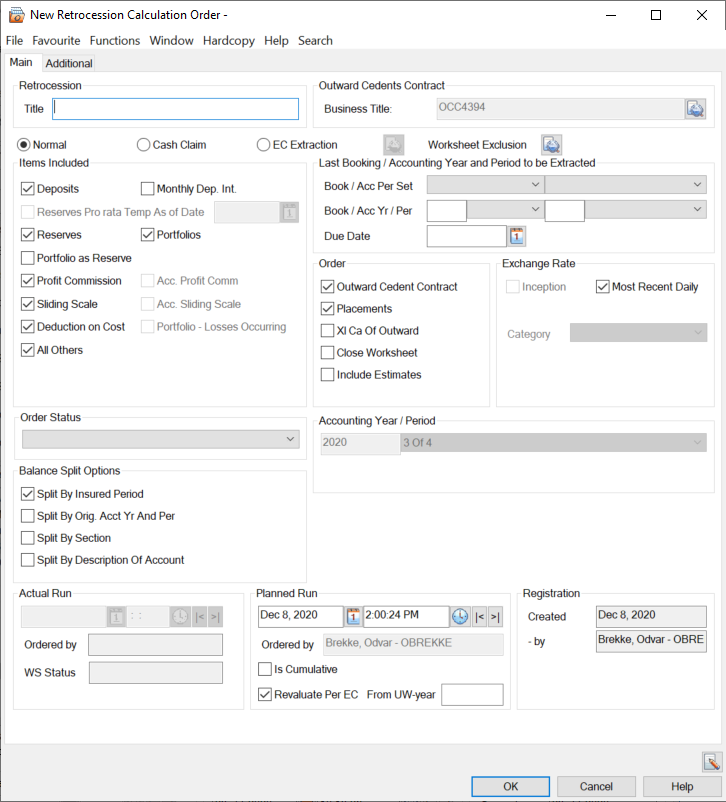
| Field | Description |
|---|---|
| Title | A title making it easier to find/identify the specific order among other orders in a list, i.e. from the Find: Accounting order window. Values: Free text Functional Impact: Search criterion in the Title field in the Find: Accounting order window Mandatory: No |
| Business Title | The title defined on the OCC business. (The detail button next to the field displays the Business Id and Insured Periods/UW Years. You can access the Business Properties by selecting one Insured Period) Values: Output of text Derived from: The title field placed on the Business tab of the OCC business |
| Normal | All bookings are extracted from the preliminary/as original business ledger and used as basis for bookings in OCC business ledger in booking currency, which are basis for the ORPs calculations. Also Cash Claim bookings are extracted if included among the preliminary bookings. All the check boxes (Deposits, Reserves/Portfolios, All Others, Deduction on Cost, Profit Commission, Portfolio as Reserve, Monthly Dep. Int. and Sliding Scale) are active if Normal is selected, provided that the relevant individual check box is also selected. Select this option for all accounts not being specific Cash Claim accounts. Values: Yes, No Default: Yes |
| Cash Claim | Bookings made with Entry Codes included in the Entry Code Category/Sub Category Cash Claim are extracted from the preliminary/ as original business ledger and used as basis for booking in OCC business ledgers in booking currency which are basis for the ORPs bookings Select this option if the account is a Cash Claim account and only Cash Claim amounts are to be included in the calculations. Values: Yes, No Default: No |
| Special | Only bookings on worksheets marked with the ‘Special’ flagare extracted from the preliminary/ as original business ledger and used as basis for booking in OCC business ledgers in booking currency which are basis for the ORPs bookings. Select this option if a special account is to be produced to the retrocessionaire participations. This option is activated by a system parameter. Refer toMark a Worksheet Special for the Document Production in Retrocession Accounting_"._ _Values:_ Yes, No _Default:_ No |
| EC Extraction | Will make it possible to limit the entry codes to be extracted as basis for the bookings made to the OCC/ORP. Only the entry codes selected for extraction will be extracted from the OCC ‘as Original’/'Preliminary' business ledger. By selecting this option, the system enables the Details button which allows you to select the entry codes to be extracted. Values: Yes, No Default: No Relevant when: Select the EC Extraction when you want the system to extract only a certain entry codes e.g. reserve entry codes. Functional Impact: All check boxes within Items Included, except from All Other, will be cleared by default. Enables the check box Override - Complete Accounting Years Only. |
| Worksheet Exclusion | By selecting this option, the system enables the Worksheet Exclusion window which allows you to exclude specific as Original Worksheets pending from Retrocession Calculation Order. You can exclude as Original worksheets by the extraction criteria including Underwriting Year (U/W year), Currency, Settlement Status, and/or Booking/Accounting Period/Year (Book/Acc Per Set, Book/Acc Yr/Per). You can also exclude specific as Original worksheets by the Arrow button in the middle right of Worksheet Exclusion window Relevant when: Select the Worksheet Exclusion when you want to run the Retrocession Calculation Order excluding some specific as Original Worksheets. |
| Generate As Informational | This parameter is visible and can be selected only when corresponding OCC premium basis is ‘Cash Based Premium’. Default value is Selected. When this opiton is selected, additional to generating As Booking details only for ‘As Original’ bookings on OCC’s source coming from IAB and where the source detail’s balance is Settled, the system will also generate ‘As Informational’ bookings on OCC/ORP with status ‘Settled’ for ALL ‘As Original’ bookings on OCC’s source coming from IAB independent if source detail’s balance is settled or not. Manual bookings on OCC/ORP will not generate As Informational bookings. Calculation logic for ‘As Informational’ is similar with that for ‘As Bookings’ basing on OCC premium basis ‘Proportional based Premium’. Later if ‘As Original’ source details on IAB status is changed to Settled, the when running the Retrocession Calculation order, these bookings will generate As Booking details, no change for ‘As Informational’ details. Please be noticed that ‘As Informational’ bookings won’t be transferred to General Ledger. |
| Details | Enables the Entry Code Selection where you can define the entry codes to be extracted by the order. Select an Entry Code Category and system will let you select a relevant Entry Code Sub Category. Select an Entry Code Sub Category and system will let you select one or more entry codes within the selected Entry Code Sub Category. (Only active Entry Code Categories/Entry Code Sub Categories will be shown). Validations: Entry codes can only be added/removed when EC Extraction is selected and worksheets created by order are open. Mandatory: No Functional Impact: The system only extracts the entry codes defined for selection - must also be seen in relation to Items Included. If no entry codes are defined, all will be extracted. |
| Items Included -Deposits | Selected: Selected by default and active if used in combination with the check box Normal. Deposit, Interest and Tax on Interest are calculated according to conditions defined on OCC/ORP. (Refer to Calculate Deposit, Interest, Tax on Interest on page 13-146.) Cleared: The calculation of Deposit, Interest and Tax on Interest are not calculated even if conditions apply. Relevant when: Select the check box when you want the system to calculate Deposit, Interest and Tax on Interest according to conditions. You should clear the check box if the same account number has to be run for the second time andthe previous account was run with the Order Status Partial or Adjustment. You then avoid having the Deposit Retained in 1strun Released in 2ndrun and the Interest and Tax on Interest calculated. |
| Items Included -Reserves Pro rata Temp | Selected: Selected by default when the system parameter Default Items Included ‘Reserves Pro rata Temp’ on REAC Orders is active. This field is enabled only when the fields ‘Reserved/Portfolios_ and _Portfolio as Reserve’ are deselected. _Premium Reserve Pro rata Temp_ is calculated according to conditions defined on OCC and according to the date given in the field _As of Date_. (Refer to _Calculate Reserves Pro rata Temporis_.) _Cleared:_ The calculation of _Reserves Pro rata Temp_ is not calculated even if conditions apply. _Relevant when:_ Select the check box when you want the system to calculate _Reserves Pro rata Temp_. |
| Items Included -Reserves Pro rata Temp -As of Date | A date field is enabled when the field Reserves Pro rata Temp is selected. The date is used in the calculation of the Premium Reserve Pro rata Temp. (Refer to Calculate Reserves Pro rata Temporis). An error message is issued if the field Reserves Pro rata Temp is selected, but no date is not entered in the As of Date. Relevant when: Enter a date from which you want the Reserves Pro rata Temp to be calculated. |
| Items Included -Reserves | Selected: Selected by default and active if used in combination with the check box Normal. Reserves are calculated according to conditions defined on OCC/ORP. (Refer to Calculate Reserves.) Cleared: The Reserves are not calculated even if conditions apply. Note that this check box is automatically cleared when you select the box Portfolio as Reserve. Relevant when: Select the checkbox when you want the system to calculate Reserves according to conditions defined. |
| Items Included -Portfolios | Selected: Selected by default and active if used in combination with the check box Normal. Portfolios are calculated according to conditions defined on OCC/ORP. (Refer to Calculate Portfolio.) Cleared: The Portfolios are not calculated even if conditions apply. Note that this check box is automatically cleared when you select the box Portfolio as Reserve. Relevant when: Select the checkbox when you want the system to calculate Portfolios according to conditions defined. |
| Items Included - All others | Selected: Selected by default and active when the check box Normal is selected. No functional impact. Check box is only for information to indicate that all calculations not covered among the remaining Items Included check boxes are calculated and booked according to conditions defined on OCC/ORP. E.g. Commission, Loss Participation, etc. Cleared: No impact Relevant when: Select the check box when you want to indicate that the order includes all other calculations, not otherwise defined as Items Included, according to the conditions that apply for the OCC/ORP. |
| Items Included - Deduction on Cost | Selected: Selected by default and active if used in combination with the check box Normal. Deduction on Cost is calculated according to conditions defined on OCC/ORP. (Refer to Calculate Reserveson page 13-193) Cleared: The Deduction on Cost is not calculated even if conditions apply. Relevant when: Select the check box when you want the system to calculate Deduction on Cost according to conditions defined. |
| Items Included - Profit Commission | Selected: Selected by default and active if used in combination with the check box Normal. Profit Commission is calculated according to conditions defined on OCC/ORP. (Refer to_Calculate Profit Commission on page 13-128__)_ _Cleared:_ The Profit Commission is not calculated even if conditions apply. _Relevant when:_ Select the check box when you want the system to calculate Profit Commission according to conditions defined. |
| Items Included - Portfolio as Reserve | Selected: Used in combination with the check box Normal. When selected, the Original Premium/Loss Reserves are booked to the OCC/ORP Business Ledger as Booking irrespective of the Reserve (RS) condition being defined or not. The Portfolio as Reserve is calculated in the last account of the Insured Period and according to the conditions defined. When selected, the Reserves/Portfolios are automatically deselect. Cleared: Cleared by default. No calculation of Portfolio as Reserve is performed. Relevant when: Select the check box when the Portfolio as Reserve condition is defined and you want the system to book the Original Premium/Loss Reserve independent of the Reserve condition and when you want the system to calculate Portfolio as Reserve. |
| Items Included - Monthly Dep. Int. | Selected: Used in combination with the check box Normal. All Interest Calculations are done on a monthly basis. Monthly Interest Calculations will only make sense if Interest Calculation method on OCC/ORP is On Deposit Balance - Each Account. (Refer to Calculate Deposit, Interest, Tax on Intereston page 13-146.) Whenever Monthly Interest Calculation is selected, the check box Deposits has to be cleared. Cleared: Cleared by default. No monthly interest calculations are performed. Relevant when: Select the check box when Monthly Interest Calculation is to be calculated and booked. |
| Items Included - Sliding Scale | Selected: Selected by default and active if used in combination with the check box Normal. Sliding Scale Commission is calculated according to conditions defined on OCC/ORP. (Refer to Calculate Deductions on page 13-87.) Cleared: The Sliding Scale Commission is not calculated even if conditions apply. Relevant when: Select the check box when you want the system to calculate Sliding Scale Commission according to conditions defined. |
| Items Included - Acc. Sliding Scale | Can only be selected from a Retrocession Calculation Order Group. See description under Create and Run a Retrocession Calculation Group Order. |
| Items Included - Acc. Profit Comm | Can only be selected from a Retrocession Calculation Order Group. See description under Create and Run a Retrocession Calculation Group Order. |
| Items Included - Portfolio - Losses Occurring | Selected: Selected by default when system parameter ‘Transfer Premium/Portfolio on OCCs with claim basis Losses Occurring’ being active. Used to calculate Portfolio Entry in past when OCC Claim Basis is Losses Occurring and the OCC was not renewed when system should have calculated a Portfolio Entry due to Losses Occurring. The functionality behind this field is dependent on the system parameter ‘Accounting/Retrocession ‘Transfer Premium/Portfolio on OCCs with claim basis Losses Occurring’ being active. Cleared: Cleared by default when system parameter ‘Transfer Premium/Portfolio on OCCs with claim basis Losses Occurring’ being inactive. No Portfolio Entry is calculated in past. Relevant when: Select the check box when you want the system to calculate Portfolio Entry in past as OCC was not renewed when running a previous Account for the same Accounting Year/Period for the first time. |
| Override - Complete Accounting Years Only | Selected: Used in combination with the check box EC Extraction. Overrides the business flag Account Complete Accounting Years only(refer to the Administration conditions of the OCC). This means that the system also extracts booking details made with accounting years not marked as complete on the Assumed Business. Cleared: Only booking details made with accounting years marked as complete on the Assumed Business are extracted Relevant: Select the check box when you want the system to also include booking details made with accounting year(s) not yet marked as complete on the Assumed Business. Mandatory: No Derived from: EC Extraction Functional Impact: system also extracts booking details with accounting year(s) not yet marked as complete on the Assumed Business. |
| Accounting Year/Period | The Year and Period the account applies for . Values: Accounting Year: Year Value (yyyy), Accounting Period: 3rd of 4, 2nd of 2, 1st of 12, etc. Derived from: The Account no. selected, and the Account frequency defined in the OCC’s Administration Conditions. E.g. Account no. ‘3/2004’ and Account frequency ‘Quarterly’ => Accounting Year/Period ‘2004, 3rd of 4’. Functional Impact: The OCC- and ORP business ledgers in booking currency are updated with the Accounting Year/Period values both on balance and detail level. |
| Last Booking/Accounting Year and Period to be extracted - Booking Period Set | Defines a group of booking periods. Determines the available Booking Periods in the Period field below. Values: Half Years, Months or Quarters Mandatory: Yes |
| Last Booking/Accounting Year and Period to be extracted - Booking Year/Period | The last Booking Year and Period to be extracted from the OCC preliminary/as original business ledger. Values: Year: Free input of Year value, Period: A set of periods according to definition in Period Set above, e.g. 1st Quarter, 2nd half year, Month 09, etc. Functional Impact: All bookings having Booking Year and -Period up to and including these defined values are extracted, unless they are marked as being processed in a previous order. Also, if defined in the Retrocession System Parameters by your system administrator, the Booking Year/Period values are allocated to the OCC-and ORP business ledgers in booking currency. Mandatory: Yes |
| Last Booking/Accounting Year and Period to be extracted - Accounting Period Set | Defines a group of accounting periods. Determines the available Accounting Periods in the Period field below. Values: Half Years, Months, Quarters, Trimester or Years Mandatory: No |
| Last Booking/Accounting Year and Period to be extracted - Accounting Year/Period | Last Booking/Accounting year and Period to be exctracted Accounting Year/Period: The last Accounting Year and Period to be extracted from the OCC preliminary/as original business ledger. Values: Year: Free input of Year value, Period: A set of periods according to definition in Period Set above, e.g. 1st of 2, 1st of 12, 1st of 4, 1stof 3, Yearly etc. Functional Impact: All bookings having Accounting Year and -Period up to and including these defined values are extracted, unless they are marked as being processed in a previous order. The extract criteria will be in addition to the Last Booking Year and -Period to be Extracted. Mandatory: Only when input in Accounting Period Set |
| Due Date | The Due Date to be extracted from the OCC preliminary/as original business ledger. Values: Date value (mm/dd/yyyy). Functional Impact: All bookings having due date up to and including this defined value are extracted, unless they are marked as being processed in a previous order. The extract criteria will be in addition to the Last Booking Year and -Period to be Extracted. Mandatory: No |
| Order -Outward Cedent Contract | Selected: The OCC Preliminary/as original bookings, not previously included in an account, are transferred and booked on the business ledger of the OCC in booking currency. Is selected alone or together with the Placements check box. The check box is selected by default when a new order is first created. Cleared: Only allowed to clear the check box if the OCC step has been included in a previous run of the same order. Relevant when: Select the check box when you want the order to select all new preliminary bookings matching the extraction criteria. |
| Order - Placement | Selected: The OCC Temporary/as booking amounts, produced from the above step (OCC), are used as basis for calculation of each ORP share. Calculations according to OCC conditions and ORP specific conditions are performed. You have to select the OCC check box in addition to the Placement check box, unless the OCC step is previously run with the same order and extraction criteria. The check box is selected by default when a new order is first created. Cleared: The Placement (ORP) step is not included running the order, i.e. calculations according to share and conditions are not performed. Relevant when: Select the check box when the ORP share and conditions are to be calculated or recalculated and details booked on the ORP business ledger in booking currency. |
| Order - XL Ca of Outward | Selected: Bookings made on XL CA of Outward businesses linked to the OCC, for which the order is created, are booked to the ORP business ledger in booking currency. The bookings made on the XL CA of Outward must satisfy the extraction criteria of the order. Only the business ledgers of the ORPs covered by the XLCA of Outward are updated. Cleared: Bookings made on XL CA of Outward businesses linked to the OCC, are not booked to the business ledgers of the ORPs covered by the XLCA of Outward. Relevant when: Select the check box when XL CA of Outward businesses are linked to the OCC, and you want to update the business ledgers of the ORPs covered by the XL CA of Outward. |
| Order - Close Worksheet | Selected: The worksheets created for the OCC- and ORP business ledgers in booking currency are closed. If you want to select new preliminary bookings and/or recalculate the figures when closing the worksheets, the OCC-, Placement- and Xl Ca of Outward check boxes should also be selected. If open worksheets only are to be closed, only the check box Close Worksheet should be selected. Once the worksheets are closed, it is not possible to rerun the order. Cleared: The worksheets created for the OCC- and ORP business ledgers in booking currency have the status open. It is possible to rerun the order. Relevant when: Select the check box alone or in combination with the OCC- Placement and XL_CA of Outward (if any)_ check boxes when you want to close worksheets produced by the order. Do notselect the check box when you want to control the calculated amounts and possibly rerun the order. |
| Order - Include Estimates | Selected: Estimate bookings will be included in addition to the Actual bookings. Separate worksheets are created for the Estimates and the Actual bookings. Cleared: Only Actual bookings will be included. Relevant when: Select the check box when you want to also include Estimate bookings in this run. |
| Exchange Rate - Inception | Selected: The Rate valid as per Inception date of the OCC business is used converting original currencies into booking currencies. If Inception is defined as exchange rate condition in the Currencies/Entry Codes tab of the OCC’s Administration Conditions, the check box is selected as default when a new order is created. The Inception option is active if Inception Rate accounting is allowed. (Activated by your System Administrator.) Cleared: The Category field + an additional Day/Year field is enabled/displayed. The Most Recent check box is also active. Relevant when: Select the check box when you want to convert the original currencies to booking currencies using the rate of exchange as at the business’ inception date. |
| Exchange Rate - Most Recent | Selected: Most Recent Daily Rate is used converting original currencies into booking currencies. If Most Recent Daily rate is defined as exchange rate condition in the Currencies/Entry Codes tab of the Administration Conditions, the check box is selected as default when a new order is created. Cleared: The Category field + an additional Day/Year field is enabled/displayed. The check box Inception is enabled if Inception Rate accounting is allowed. (Activated by your System Administrator). Relevant when: Select the check box when you want the original currencies to be converted to booking currencies according to the Most Recent Daily Rates. |
| Exchange Rate - Category | For each Type of Exchange Rate (Day-/Period-/Year Rate), Exchange Rate Category(ies) is/are defined. Exchange Rates are defined per Category Values: Daily Rate, Provisional Year End Rate, Year End Rate Functional Impact: The selected Category in combination with the defined Day/Year value determines the exchange rate to be used converting original currencies into booking currencies Mandatory: No |
| Exchange Rate -Day/Year | A Day/Year value used to determine which Exchange Rate to be used. Values: Day: Free input of Date value (mm/dd/yy), Year: Free input of Year value (yyyy) Derived from: Day: The category Daily Rate, Year: The categories Provisional Year End Rate and Year End Rate Functional Impact: The Day/Year value determines, in combination with the selected Category, which exchange rate to be used converting original currencies into booking currencies. Mandatory: Only if a Category is defined. |
| Order Status | The selected value defines the status of the order Values: Partial, Final or Adjustment Functional Impact: In the Administration Conditions/Accounts tab, the Account’s status field is updated with the Order Status value when the order is run with the Close Worksheet option selected. The status field is informational unless when Deposit conditions apply, the same account number is selected for the second time and the previous account was run with the status Partial or Adjustment. (Refer to the field description of Items Included - Deposits). Mandatory: Yes |
| Balance Split Options - Split By Insured Period | Selected: All balances are split by Insured Periods when booked on the OCC- and ORP business ledgers in booking currency. The check box is selected by default. Cleared: All Insured Periods are included in one balance. Relevant when: Select the check box when you want the system to split balances per Insured Period. |
| Balance Split Options - Split By Orig, Acct Yr And Per |
Selected: All balances are split by Original Accounting Years and Periods when booked on the OCC- and ORP business ledgers in booking currency. Cleared: All Original Accounting Years and Periods are included in one balance. The check box is cleared by default. Relevant when: Select the check box when you want Original Accounting Year and Period on the Insured Period tab of the OCC is selected). |
| Balance Split Options - Split By Section |
Selected: All balances are split by Sections when booked on the OCC- and ORP business ledgers in booking currency. Cleared: All Sections are included in one balance. The check box is cleared by default. Relevant when: Select the check box when you want the system to split balances per Section. |
| Balance Split Options - Split By Description of Account |
Selected: All balances are split by Description Of Account when booked on the OCC- and ORP business ledgers in booking currency. Cleared: All Description Of Account are included in one balance. The check box is cleared by default. Relevant when: Select the check box when you want the system to split balances per Description of Account. |
| Worksheet Details Override - Booking Year / Period | The defined Booking Year/Period overrides either a) Original Booking Years/Periods or b) Year/Period values defined in the order as Last Booking Year and Period to be extracted. (It is System Parameters defined whether a) or b) apply.) Values: Year, Period (E.g. 2003, Month 05 or 2004, 1st half-year) Derived from: Open Booking Year/Periods for Local defined for the Base Company in the System Parameters by your system administrator. Functional Impact: If defined, the system uses the value from this field when updating the Booking Year/Period fields in the OCC- and ORP business ledgers in booking currency. Mandatory: No |
| Worksheet Details Override - Portfolio Entry BYRP | The defined Booking Year/Period overrides the original Booking Year/Period assigned to the re-booking of reserves (into next insured Period) and the portfolio entry bookings. Values: Year, Period (E.g. 2006, Month 05 or 2005, 2nd half-year) Derived from: Periods from selected Booking Period Set in fieldLast Booking Year and Period to be Extracted. Functional Impact: If defined, the system is using the value from this field when assigning the Booking Year/Period of the re-booking of the reserves (into the next Insured Period) and the portfolio entry bookings on the Retrocessionaire Participations. Mandatory: No |
| Worksheet Details Override - Date of Booking | A date to override the default Date of Booking. (The default date is when the order is run and figures booked.) Values: Date value (mm/dd/yy) Validations: Max allowable value is according to system parameter Accounting, Booking Dates defined by your System Administrator. Functional Impact: Updates the Booking Date field of the OCC- and ORP business ledgers in booking currency with the value entered in this field Mandatory: No |
| Worksheet Details Override - Due Date | A date to override the default Due Date. (The default due date is the Payment Cedent date defined in the Administration Conditions for the account number being processed.) Values: Free input of Date value (mm/dd/yy_)_ _Functional Impact:_ Updates the Due Date field of the OCC- and ORP business ledgers in booking currency with the value entered in this field _Mandatory:_ No |
| Worksheet Details Override - Due Date-Same as Booking Date | Selected: The default Due Date is overridden by the Booking Date and updated in the OCC- and ORP business ledgers in booking currency. I.e. the Due Date and Booking date values are the same. The Worksheet Details Override - Due Date field is disabled. Cleared: The Due Date updated in the OCC and ORP business ledgers in booking currency is either the default value (the Payment Cedent date of the account) or another date defined to override the default value. Relevant when: Select the check box when you want the system to use the booking date as due date, e.g. in case of an overdue account being processed. |
| Actual Run | A date- and time field updated each time the order is run. Values: Date (mm/dd/yyyy) and Time (hh:mm:ss PM/AM) Functional Impact: When the order is run with the Order step Closed selected, the Account’s Closed Date field in the Administration Conditions is updated with this date. Mandatory: Yes |
| Actual Run - Ordered by | The name of the person who runs the order Values: Full Name and Logon ID Derived from: The register of System Users in SICS Mandatory: Yes |
| Actual Run - WS Status | The status of the worksheets produced when running the order Values: Open, Closed Derived from: The definition of the Order section. The status is Open until the order is run with the Close Worksheet check box selected. Mandatory: Yes |
| Planned Run | A date- and time field to indicate when the order is planned run. Values: Free input of: Date (mm/dd/yyyy) and Time (hh:mm:ss: PM/AM) Default: The date and time when the order was first opened from the Administration Conditions Functional Impact: The order is listed among Retrocession Accounting Run Due Orders with the Planned Run Date & Time if the order is created/modified but not yet run/rerun. Mandatory: Yes |
| Planned run - Order by | The name of the person who created the order Values: Full Name and Logon ID Derived from: The register of System Users in SICS Mandatory: Yes |
| Registration Created and -by | The date when the order was first created and name of the person who created the order. Values: Created = Date (mm/dd/yyyy), by = Full Name and Logon ID Mandatory: Yes |
| Is Cumulative | Selected: The Retrocession Calculation order is processed on a cumulative basis: The ORP’s share of the current account is calculated by taking: Bookings for the whole Accounting Year less Bookings from Previous accounts in same Accounting Year Cleared: The Retrocession Calculation order is processed on a non-cumulative basis. All new bookings are distributed to the ORP’s according to their share, e.g. premium, losses. Basis for calculations is current account except for some specific calculations that have to be calculated cumulatively to have correct result, e.g. Reserves, Deposits, Portfolio. Relevant when: You should ask for cumulative run (select the check box) if any conditions/share has changedand you want the system to recalculate already calculated accounts for current accounting year. If conditions/shares are not changed, you should run the order on a non-cumulative basis to increase performance. |
| Revaluate Per EC |
Selected: Selected by default . The revaluation of figures previously booked is performed for the Entry Codes defined for Exchange Adjustment (refer to Administration Conditions, Currencies/Entry Codes tab). Cleared: No revaluation of figures previously booked is performed for Entry Codes defined for Exchange Adjustment. Relevant when: You should deselect the check box if you do not want the system to revaluate the Entry Codes defined for Exchange Adjustment. |
| Revaluate Per EC From UW-year |
Values: Underwriting Year (yyyy). Input in this field is dependent on the field ‘Revaluate Per EC’ being selected. Relevant: You should enter an Underwriting Year in this field if you want the system to limit the number of Underwriting Years being revaluated. Refer to Entry Codes for Exchange Adjustment. Functional Impact: System starts revaluating the Entry Codes for Exchange Adjustment from the Underwriting Year entered in this field. For Underwriting Years older than the year entered in this field, no Exchange Adjustment will be booked. |
Example:
Change of share during an Insured Period:
OCC conditions:
| Field | |
|---|---|
| Insured Period 2001 | => last accounting year 2003 |
| Cession /Accounting basis | = UwYear/Run-off Premium/Loss |
| Account frequency | = Half-yearly |
| Premium reserve | = 50% of Gross Premium |
| Loss Reserve | = 50% of Original reserve |
Bookings on OCC + booked on ORP after running Calculation order:
| Ins Period - Account | OCC ‘as original’ | RP1 -20% share | RP2 -30% share | RP3-35% share |
|---|---|---|---|---|
| IP2001, 1st half 2001 | ||||
| 10) Premium | 100.000 | 20.000 | 30.000 | 35.000 |
| 81) Premium reserve | 10.000 | 15.000 | 17.500 | |
| 83) Loss reserve | 100.000 | 10.000 | 15.000 | 17.500 |
| IP2001, 2nd half 2001 | ||||
| 10) Premium | 200.000 | 40.000 | 60.000 | 70.000 |
| 81) Premium reserve | 20.000 | 30.000 | 35.000 | |
| 83) Loss reserve | 200.000 | 20.000 | 30.000 | 35.000 |
| IP2001, 1st half 2002 | ||||
| 10) Premium | 150.000 | 30.000 | 45.000 | 52.500 |
| 81) Premium reserve | 5.000 | 7.500 | 8.750 | |
| 83) Loss reserve | 150.000 | 15.000 | 22.500 | 26.250 |
| Share of RP2 set to ‘0 %’, Share of RP3 set to ‘65 %’ after 1sthalf 2002 account IP2001 | ||||
| IP2001, 2nd half 2002 | Result when running the order on non-cumulative basis | |||
| 10) Premium | 250.000 | 50.000 | 162.500 | |
| 81) Premium reserve | 5.000 | 68.750 a) | ||
| 83) Loss reserve | 250.000 | 25.000 | 81.250 b) | |
| IP2001, 2nd half 2002 | Result when running the order on cumulative basis | |||
| 10) Premium | 250.000 | 50.000 | -45.000 c) | 207.500 d) |
| 81) Premium reserve | 5.000 | -52.500 c) | 68.750 a) | |
| 83) Loss reserve | 250.000 | 25.000 | -22.500 c) | 103.750 e) |
a) Premium 400.000 x 50% x 65% = 130.000
130.000 - (17.500 + 35.000 + 8.750) = 68.750
b) Loss Reserve 250.000 x 50% x 65% = 81.250
c) Figures booked in 1sthalf 2002 account are reversed when running the order on Cumulative basis. Note that Premium Reserve is calculated different from Loss Reserve. When calculating the Premium Reserve as a percent of Premium, the basis is the Premium for one Accounting Year (last 12 months/4 quarters/3 trimesters/2 half years).
d) Premium 1st+2nd half year 2002: 400.000 x 65% = 260.000
260.000 - 52.500 = 207.500
e) Loss Reserve 1st+2nd half year 2002: 400.000 x 50% x 65% = 130.000
130.000 - 26.250 = 103.750
View Worksheets from Retrocession Calculation Order #
When the order has been run, the produced worksheets can be inspected directly from the order.
- Create and Run a Retrocession Calculation order.
- Select View Worksheets from the order menu. The View Worksheet window appears.
- Select the Worksheet you want to inspect and select View Worksheet from the pop-up menu. The Worksheet Closing window appears.
- In order to inspect the booking details of the balance, select a balance and select View Balance Details from the pop-up menu. The View Balance Details window appears.
In the View Worksheet window a worksheet is produced per Business ID. You are allowed to access the Business Properties and Business Ledger for these businesses by selecting Business Properties or Business Ledger from the pop-up menu.
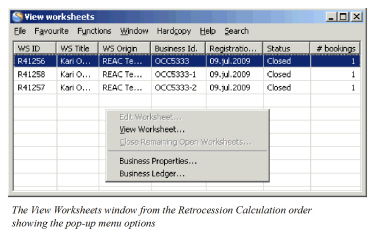
In order to open the Balance details window for a balance, select the balance and select More Balance Information. You are allowed to do the following from the More Balance Information window in Edit mode:
- Select the Include in Statement check box.
- Update the Cedent/Broker reference field.
- Update the EDI reference field.
(For further information about the More Balance Information window, see The Business Ledger) (For further information about the Worksheet Closing window, see Manual Bookings on a Worksheet)
| Field | Description |
|---|---|
| WS ID | The Worksheet IDs created per Business ID running the order Values: Prefix + number, e.g. ‘R100’ Derived from: A value from a Worksheet Identifier Series predefined for the Type of Worksheet Retrocession in the System Parameters by your System Administrator. Mandatory: Yes |
| WS title | (Not relevant for automatically produced worksheets). |
| WS origin | Describes the origin of the worksheet Values: REAC Temporary Mandatory: Yes |
| Business ID | The IDs of the different businesses for which worksheets are produced. Values: Business ID’s for OCC- and ORP businesses. (For example: OCC100, OCC100-1, OCC100-2) Mandatory: Yes |
| Registration Date | The date when the worksheet was created/updated. Values: Date value (mm/dd/yyyy) Derived from: The Actual Run Date field of the order. Mandatory: Yes |
| Status | The current status of the worksheet Values: Open, Closed Derived from: The WS Status field from the order Mandatory: Yes |
| Notes | (Not relevant for automatically produced worksheets.) |
| # bookings | The number of booking details included in the balance. Values: A number Mandatory: Yes |
View ALL Balances created by Retrocession Calculation Order #
Sometimes, the numbers of the produced worksheets may be very large, and the information on the view worksheets window is in some situations, not enough for the users to filter what they want.
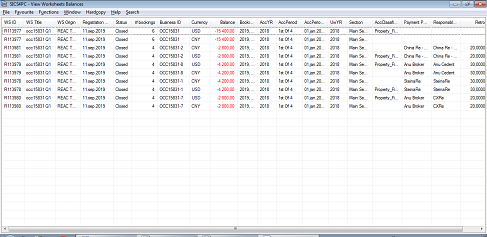
In these situations you can choose the option View Worksheets Balances. Through this option, the system can show the balances for ALL Businesses and ALL Worksheets created by the order in the same overview.
You can view all these balances directly from the order:
-
Create and Run a Retrocession Calculation order.
-
Select View Worksheets Balances from the order menu button. The View Worksheet Balances window appears.
-
For each balance found on the worksheets created by this order, the following information is displayed, which combines the information on View Worksheets window and Worksheet Closing window. (The detailed fields description can found on those two windows)
- WS ID (Worksheet Id)
- WS Title (Worksheet title)
- WS Origin (Worksheet origin)
- Registration Date
- Status
- #Bookings (number of details in the balance)
- Business ID
- Currency
- Balance (Balance amount)
- Booking Year/Period - Local
- AccYR (Accounting Year)
- AccPeriod
- AccPeriod From - To
- UWYR (Underwriting Year) - if more than one Underwriting Year is found on the details within a balance the field is blank and the user can see the values by drop down the list
- Section - if more than one Section is found on the details within a balance the field is blank and the user can see the values by drop down the list
- AccClassification - if more than one Accounting Classification is found on the details within a balance the field is blank and the user can see the values by drop down the list
- Payment Partner - blank for the balances on the OCC
- Responsible BP - blank for the balances on the OCC
- Retroceded% (the signed share of the ORP) - blank for the balances on the OCC
- WS ID (Worksheet Id)
-
In order to inspect the booking details of the balance, select a balance and select View Balance Details from the pop-up menu. The View Balance Details window appears from where you can navigate to the More Detail Information window.
-
In order to open the balance properties window for a balance, select the balance and select More Balance Information from the pop-up menu. The Balance Properties window appears.
-
You are also allowed to access the Business Properties, Online Statistics, Claim Properties for these businesses by selecting the corresponding options from the pop-up menu.
Inactivate a Worksheet from a Retrocession Calculation Order #
You are allowed to inactivate the worksheets produced from a Retrocession Calculation order. The worksheets must have the status Open.
- Create and run the Retrocession Calculation order without closing the worksheets.
- Select Inactivate Worksheet from the menu of the order.
A confirmation message appears asking if you want to continue. Select Yes to confirm, or No to Cancel. The order is inactivated along with the worksheets.
Copy a Retrocession Calculation Order #
You can make a copy of a Retrocession Calculation order when the order is run and Worksheets have the status Closed. This may be relevant when you want to create a new order for the same business and Accounting Year and - Period as defined in the source order.
- Open a Retrocession Calculation order, where the status of the Worksheets is Closed.
- Select Copy to from the order menu.
- A New Retrocession Calculation Order is created.
Compared with a New Retrocession Calculation Order created from the Administration Conditions, more fields are predefined in the copied order:
Title: The title ‘copy of ……’ is displayed. If a title is defined in the source order, the title is added to copy of.
Order Status: Copied from the source order.
Last Booking Year and Period to be Extracted: Period Set and Year/Period values are copied from the source order.
Access the Business Ledger from a Retrocession Calculation Order #
You may access the Business Ledger of the OCC business and ORP businesses. This may be relevant if you want to inspect figures booked to the OCC business ledger in original currency or the OCC and ORP business ledger in booking currency.
To open Business Ledger directly from the Order Menu:
When you want to access the OCC business ledger only, you can navigate directly from the order menu.
- Create and run the Retrocession Calculation order, or open an existing order.
- Select Business Ledger from the menu of the order.
- The Business Ledger of the OCC business is opened.
- You may navigate to the as original ledger and as booking ledger.
To open Business Ledger from View Worksheet window:
When you want to access the Business Ledger for the ORP’s in addition to the OCC business ledger, you should navigate via the View Worksheet window:
- Create and run the Retrocession Calculation order, or open an existing order.
- Select View Worksheet from the order menu.
- Select the WS/ID/Business Id for which the Business Ledger is to be opened.
- Select Business Ledger from the menu.
Note! If the Worksheet status of the order is Open you must select WS status Open in the OCC as booking business ledger to view the worksheets produced from the specific order.
(Refer to the chapter The Business Ledger for further information about business ledger details.)
Create and Run a Retrocession Calculation Group Order #
You can create and run Retrocession Calculation orders as a group. You include the OCC businesses, for which calculation orders are to be run, in a Retrocession Calculation Group order. Individual orders per included OCC are automatically created and processed in sequence from the group order. The same Accounting Period and Accounting Year must apply for all individual orders.
- Open the Find: Accounting order window from the Accounting folder.
- Select New from the menu/C_reate New_. The Order Type Selection window appears.
- Select Retrocession in the drop-down list, select Calculation Group Order from the list and click OK. A New Retrocession Calculation Group order appears.
- Select Add Business or Add Group from the menu in Identifier/Business Title/Bouquet Calc.Group Name/Type display area. Dependent on the selection, the Find: Business or Find: Business Groups window appears.
- Search for OCC business or Business Group. Businesses are automatically transferred to the order upon selection. (See Field Description below.)
- Define the fields of the order. (For details about the fields, refer to the Field Description below.)
- Select Create Orders from the menu when the group order is created.
- Select Run Now to process the individual orders in sequence.
When Create Orders is selected from the order menu, the individual orders are created with subsequent order numbers. The Order Title on the individual orders is generated from the Group Order ID + Title + Account As of Date. After the group order has been run the worksheets have to be inspected from each individual order. It is recommended to run/rerun the group order without closing the worksheets until the figures on each OCC/ORP business ledger are correct.
The individual orders created from the Group Order can be edited and ran individually.
You can also create scheduled jobs for the individual orders created from the Group Order, by selecting the option Create Scheduled Jobs for Ordes.
From the Retrocession Calculation Group order you can modify the different fields by selecting Edit from the order menu. Your changes are automatically updated by the individual orders. You may select to rerun the order until the worksheets are closed. Select Inactivate Worksheets from the Group order menu to inactivate worksheets and the individual orders.
Request Scheduled Job Template #
When the Retrocession Calculation Order Group is flagged as a ‘Batch Template, a Job Template may be requested from the Retrocession Calculation Order Group;
- Select the field ‘Batch Template’ in section ‘Order’ on the Retrocession Calculation Order Group and fill in remaining fields
- Press OK button
- Select ‘Request Scheduled Job Template’ from the order menu
- Job Template window appears (refer to Scheduler, Job Templates for more information)
- If you want, you can change one or more of the default values
- Press the ‘Save’ button
- A Job Template is created and may be inspected from the Periodic Functions, Accounting Order Monitor or from the Schedules Jobs, Job Templates tab.
The Group Order Template holds the information needed to create orders (group order and single orders). Group order and single orders are created when the option ‘Copy to Actual Job’ is selected either from the pop-up menu for the marked Job Template in the Scheduler or in the Accounting Order Monitor (for more information refer to the Scheduler or the Periodic Functions).
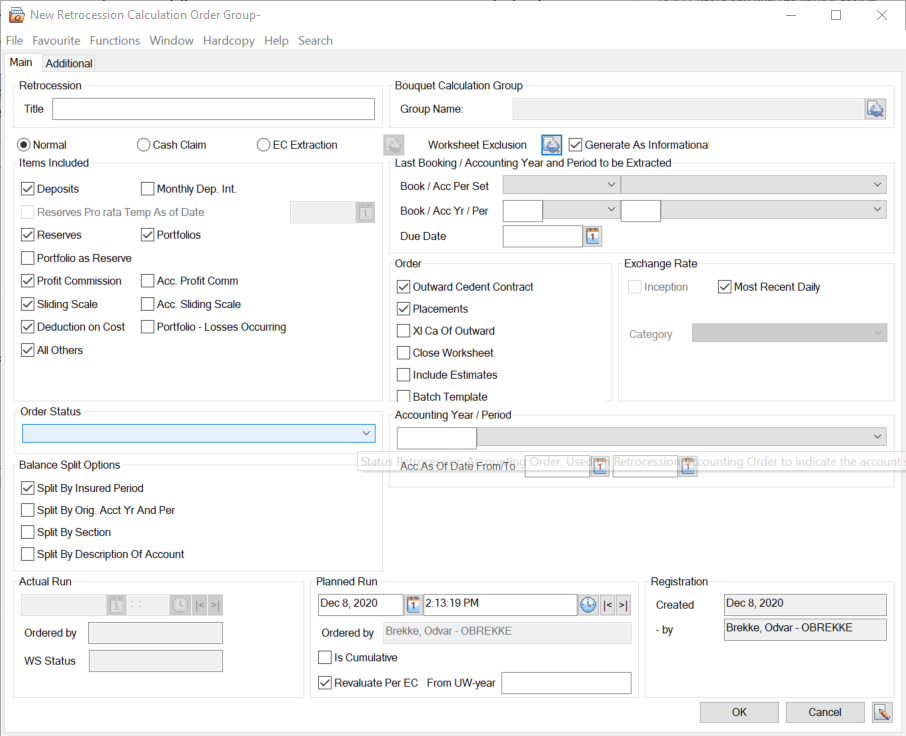
The below fields are different from the individual Retrocession Calculation order. For description of the remaining fields of the order, see the above. Field Description - Retrocession Calculation order
| Field | Description |
|---|---|
| Items Included - Acc. Profit Comm |
Selected: All other fields in Items Included are deselected and disabled You can include one and only one Bouquet Calculation Group in the order. No single OCCs can be included. Bouquet calculation of Profit Commission is performed. For each Retrocessionaire’s Participation, Profit Commission is calculated combined for all OCCs included in the included Bouquet Calculation Group. No other calculations or bookings than Profit Commission are performed. See the Calculate Profit Commission chapter for more details Cleared: Cleared by default. No Bouquet calculation of Profit Commission is performed Relevant when: Select this if you want Profit Commission to be calculated combined for a group of OCCs |
| Items Included - Acc. Sliding Scale |
Selected: All other fields in Items Included are deselected and disabled You can include one and only one Bouquet Calculation Group in the order. No single OCCs can be included. Bouquet calculation of Sliding Scale Commission / Stepped Sliding Scale Commission is performed when the order is run. No other calculations or bookings are made. See the Calculate Deductions - (Stepped) Sliding Scale Commission chapter for more details Cleared: Cleared by default. No Bouquet calculation of (Stepped) Sliding Scale Commission is performed. Relevant when: Select this if you want (Stepped) Sliding Scale Commission to be calculated combined for a group of OCCs |
| Order - Batch Template |
Selected: The Retrocession Calculation Order Group is flagged as a ‘Batch Template’ and may be used to create a Job Template (refer to Request Scheduled Job Template). Cleared: The Retrocession Calculation Order Group is an ordinary group order. Relevant when: Select this if you want to create a Job Template to manage a high number of Retrocession Calculation Orders. (From the Job Template it will be possible to automatically create group orders and single orders for the inlcuded Outward Cedent’s Contracts. Refer to Periodic Functions/Accounting Order Monitor for more information). Functional impact: Enables the menu option ‘Request Schedules Job Template’ |
| Accounting Year/Period | The Year and Period all individual accounts, created from the group order, apply for. Values: Accounting Year: Year Value (yyyy), Accounting Period: All available accounting periods (1st of 12, 3rd of 4, 2nd of 3, 1stof 2, Yearly, etc.) Functional Impact: The account frequency of each business added to the order is validated against these fields. Mandatory: Yes |
| Acc. As Of Date From | To be used together with the Acc as of dates on the Single Accounts in the Administration conditions of the Outward Cedent’s Contract as an extraction criteria when Retrocession Calculation orders are created and linked to the Calculation Group order. Values: Date (mm/dd/yyyy) that is equal to or less than the Acc. As Of Date To Functional Impact: If both an Acc. As Of Date From and To is given the system validates that the date in the field Acct as of on the Single Accounts in the Administration conditions of the Outward Cedent’s Contract is equal to or within the Acc. As Of Date From and To dates. Mandatory: No |
| Acc. As Of Date To | To be used together with the Acc as of dates on the Single Accounts in the Administration conditions of the Outward Cedent’s Contract as an extraction criteria when Retrocession Calculation orders are created and linked to the Calculation Group order. Values: Date (mm/dd/yyyy) that is equal to or higher than the Acc. As Of Date From Functional Impact: If only an Acc. As Of Date To is given the system validate that the entered date is the same as the date in the field Acct as of on the Single Accounts in the Administration conditions of the Outward Cedent’s Contract. If both an Acc. As Of Date From and To is given the system validates that the date in the field Acct as of on the Single Accounts in the Administration conditions of the Outward Cedent’s Contract is equal to or within the Acc. As Of Date From and To dates. Mandatory: Yes, this field and/or the Accounting Year/Period must be defined. It is also mandatory if the field Acc. As Of Date From is given. |
| Business/Business Group display list | List of OCC businesses/Bouquet Groups Values: Identifier, Title/Name and Type Validation: A business/business group is only added if the Account Frequency of each business (single or included in a group) matches the Accounting Year/period defined in the group order. Functional Impact: Individual Retrocession Calculation order is created and run for each added business. Mandatory: Yes |
| Generate As Informational | Default value is Selected. Individual orders per included OCC are automatically created and processed in sequence from the group order, if corresponding OCC premium basis is “Cash Based Premium”, then parameter “Generate As Informational” for the individual order is got from group order setting; or else related parameter for the individual order is invisible on the order management panel, see the Field Description - Retrocession Calculation order above. |
The below fields are different from the individual Retrocession Calculation order and placed on the ‘Additional’ tab. For description of the remaining fields of the order, see the Field Description - Retrocession Calculation order above.
| Field | Description |
|---|---|
| Type ‘Base Company’ |
Select one or more Base Company/-ies to create orders for Outward Cedent’s Contract with the selected Base Company/-ies only |
| Type ‘Main Class of Business’ |
Select one or more Main Class(es) of Business to create orders for Outward Cedent’s Contract with the selected Main Class(es) of Business only |
| Type ‘Type of Participation’ |
Select one or more Type(s) of Participation to create orders for Outward Cedent’s Contract with the selected Type(s) of Participation only |
| Type ‘Reporting Unit’ | Select one or more Reporting Unit(s) to create orders for Outward Cedent’s Contract with the selected Reporting Unit(s) only |
| Identifier | The OCC business Id if Add Business is selected. No identifier if Add Group is selected. Values: Prefix + number for OCC business |
| Business Title/Bouquet Calc.Group Name | The name of the OCC business and/or Bouquet Calculation Group Values: OCC business title, Group Name |
| Type | Defines if business or Group is added Values: Outward Cedent’s Contract, Bouquet Calculation Group |
Copy a Retrocession Calculation Order Group #
When you want to create a new group order for the same businesses/group(s) as defined in the source group order, the easiest way is to copy an existing Retrocession Calculation Order Group.
To copy a retrocession calculation order group:
- Open a Retrocession Calculation Order Group.
- Select ‘Copy to’ from the Order menu.
You see a copy of the source order. Compared with a New Retrocession Calculation Order Group created from the Find: Accounting Order window, the following fields are predefined in the copied group order:
- Title: The title ‘copy of ……’ is displayed. If a title is defined in the source order group, the title is added to copy of.
- Items Included: Copied from the source order group.
- Order fields: Copied from the source order group.
- Exchange Rate: Copied from the source order group.
- Balance Split Options: Copied from the source order group.
- Order Status: Copied from the source order group.
- List of Businesses/groups: Copied from the source order group.
Create and Run a Retrocession Estimation Calculation Order #
When the preliminary (OCC as original) bookings are estimates, you process the estimated figures to the OCC and ORP business ledgers in booking currency by running the Retrocession Estimation Calculation order.
As for Retrocession Calculation orders, you can select View Worksheets from the estimation order. It is recommended to run/rerun the order without closing the worksheets until the estimated figures on the OCC/ORP business ledger in booking currency are correct.
Intra Group Contracts
When the worksheets are Closed and in case the ORP business is linked to an Intra Group Assumed Business and the system parameter Book Estimates on Intra Group Contracts is On, the estimate bookings in the closed worksheet will be copied to the linked Assumed Business.
When manual booking of estimates is done directly on the ORP and the worksheet is closed, then the system follows the same process as when the Retrocession Estimation Calculation order runs with Closed worksheet on an ORP with IGC AB linked
You can also copy the order:
- Open the Administration conditions of the OCC for which the order is to be created.
- Select the account number to be processed from the Accounts tab.
- Select ‘Create Retrocession Estimation Calculation Order’from the menu. The Create Retrocession Estimation Calculation Order window appears.
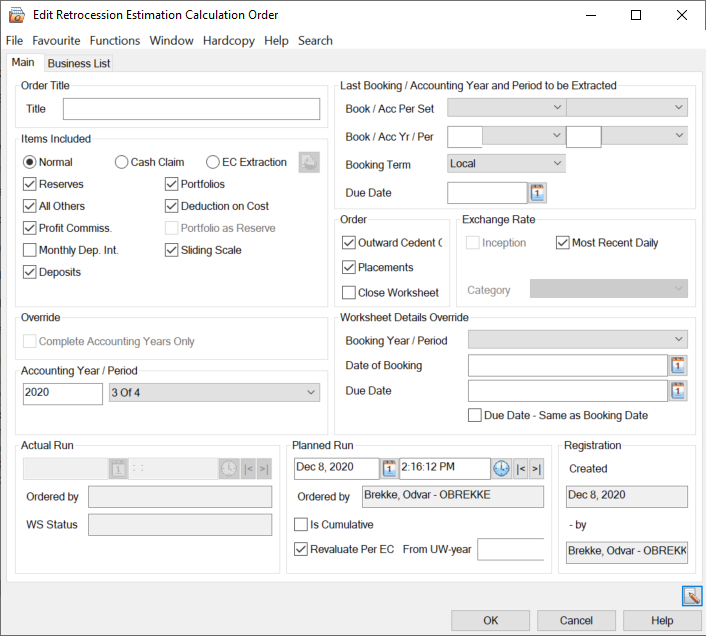
- Define the different fields of the order. (Refer to the field description below.)
- Select Run Now from the menu.
| Field | Description |
|---|---|
| Last Booking/Accounting Year and Period to be extracted - Booking Term | Defines the Booking Year/period term of the estimated retroceded figures Values: Local, Leg a_l_ or _Global_ _Default value:_ Local _Functional Impact:_ The system extracts all OCC as Original estimates having Booking Year/Period <= the defined values. (Local –> Local Booking Year/periods are used as basis, Legal >> Legal Booking Year/periods are used as basis, Global –> Global Booking Year/Periods are used as basis) _Mandatory:_ Yes |