Protect Business
Assign Protection Manually #
|

Proportional Protection Assignment | To assign a Proportional Protection to the Assumed Business, click the Proportional Protection Assignment button in the Navigation bar of a proportional business.
You can also assign Non-Proportional Protection to the business by clicking the Non-Proportional Protection Assignment button. |
|

Non-Proportional Protection Assignment |
Assign Proportional Protection #
Clicking the Proportional Protection Assignment button opens the Proportional Protection Assignment window. The window is split into two parts: the upper part is for the proportional protection, and the lower part for the non-proportional protection.
At the top you see the reinsurer of the Assumed Business. If there is more than one reinsurer of the Assumed Business, you see the reinsurer you want to assign protection for. If a Protection has already been assigned or only indicated for this business and insured period, the protection is displayed.
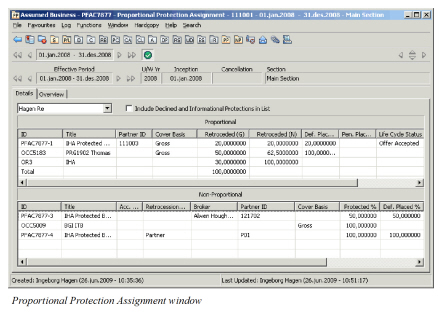
Click Edit and select appropriate option from menu when creating new or maintaining existing assignments.
Considering the basis for entering Retroceded share #
The usual way of assigning protection would be to express the protected share in percent of the Reinsurers share. However, sometimes it is more convenient for the reinsurer to operate with the retroceded share expressed in percent of the original risk. The following options are available to provide for an easy way of entering protection assignments in both situations:
From Order: When this option is selected, entered share is expressed in % of the Reinsurers share.
Default: Selected
Functional Impact:
- Retroceded % can be entered either on Gross or Net basis.
- Depending on the selected choice the fields Retroceded (G) or Retroceded (N) becomes available for input Share of 100%: When this option is selected, entered share is expressed in % of the original risk.
Functional Impact:
- Share Of 100% becomes available for input
Outward Cedent’s Contract #
Select this option if you want to protect the Assumed Business by a Proportional Treaty Outward Cedent ’s Contract.
Note! This option will not be available if the assumed business does not have a valid Insured Period. This applies only to direct or facultative business with an insured period To Be Advised. Note that this type of insured period is only allowed if your System Administrator has set up the System Parameters this way.
Note! The Proportional Protection Assignment will be enabled on Non-proportional OCCs if your System Administrator has enabled this.
- Select Add Outward Cedent’s Contract from pop up menu
- If you know the identifier of the protecting contract, please enter it directly in the Business field.
If you know its title, you may use the ‘typeahead’ feature: Type in the title or part of it in the Business field, and you will receive possible matches for the text. If none of these are not known, you may use the normal Business Find facility. For the latter, search for the contract, highlight it and select Transfer on menu or double click. 3. You return to the Add Outward Cedent’s Contract with the Business ID transferred. 4. Select the protecting section 5. Specify if the Retroceded Percent shall be expressed From Order or as_Share of 100%_ 6. When _From Order_ is selected, you can choose to enter the Retroceded Percent either on Gross or Net basis 7. If the selected business is a Quota Share treaty you can choose to enter the Allocated %, provided Gross basis is selected. 8. Enter the appropriate Retroceded% and Save 9. The systems validation of the selected Outward Cedent’s Contract:
-
The Outward Cedent’s Contract Type of Business must be Proportional Treaty
-
The insured period From Date of the Assumed Business must be within the insured period of the Outward Cedent ’s Contract
-
The Base Company of the assumed business must match the Base Company of the Outward Cedent’s Contract
-
The Account Group of the inward business must be linked to the Outward Account Group, provided your System Administrator has set up the system this way
-
The system validates and raises a warning if the:
-
Type of Business (Method) of the assumed business is not a subset of the Type of Business (Classification) of the Outward Cedent’s Contract section
-
Legal Area of the assumed business section is not a subset of the Outward Cedent’s Contract section
-
Mandatory Classifications of the assumed section is not a subset of the Outward Cedent’s Contract section
-
- Save or Cancel the selection
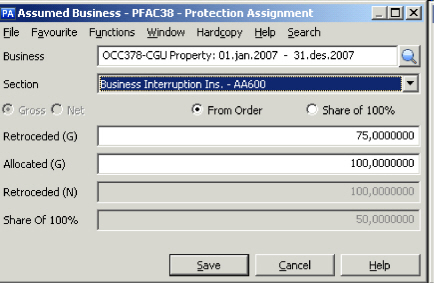
Add Outward Cedent’s Contract
| Field | Description |
|---|---|
| Business: | Selected protecting proportional treaty Outward Cedent’s Contract Value: Business Identification number of Outward Cedent’s Contract Mandatory: Yes Functional Impact: * Allocated (G)% becomes available only when selected business is a Quota Share treaty * Accounting * Claims |
| Section: | Section name and External identifier (if in use) of selected protecting section. This Outward Cedent’s Contract section will receive a link to protected business. Value: Existing sections of selected Outward Cedent’s Contract. If system set up for defaulting leaf sections (sections at bottom level of the section hierarchies), only leaf sections of the Outward Cedent’s Contract will be avaialable. Default: Main section. If system set up for defaulting leaf sections, this will be empty. Mandatory: Yes Functional Impact: * Protection Assignment * Accounting * Claims |
| All Sections Included: | Indicates whether or not all sections of the Outward Cedent’s Contract should be available for selection or only bottom section level. Values: Selected - All sections available. Cleared - Only leaf sections (sections at bottom level of the section hierarchies) available. Default: Cleared Validations: Only available if system set up for defaulting leaf sections |
| From Order: | When selected, the Retroceded percent can be entered on Gross or Net basis. The system will store on what basis you assigned the protection initially. Gross: When selected, the entered share is expressing gross of Reinsurers share. Default: Selected, unless previously assigned protection was entered on Net basis. Functional impact: * Retroceded (G) becomes available for input * Allocated (G) becomes available for input when selected business is a Quota Share treaty * If this is the initial assignment of the protection the system will store the initial value as Gross when saved. |
| Retroceded (G): | Expressing the protecting business’s share in percent of Reinsurers share. Value: Percentage Default: * 100% - when no protections have previously been assigned * Remaining Gross percentage - when protection has previously been assigned (100% - Total Reteroceded percent) * A calculated value based on Allocated (G)% and Quota Share % of protecting section, if selected business is a Quota Share treaty (Allocated% x QS% / 100) _Functional Impact:_ * Calculate Allocated (G)% |
| Allocated (G): | Expressing in percent of Reinsurers share the portion of the liability that is allocated to the protecting business. Value: Percentage Default: * 100% - when no protection has previously been assigned * Remaining percentage - when protection has previously been assigned (100% - Total Allocated percent) _Functional Impact:_ Calculate Retroceded (G)% _Relevant when:_ Selected protecting business is a Quota Share treaty. |
| Allocated (N): | When selected, entered share is expressed as net after previous protections. Default: Selected only when the previously assigned protection was entered on Net basis Functional Impact: Retroceded N' field becomes available Validations: ‘Share of 100%’ option is not available If this is the initial assignment of the protection, the system will store the initial value as Net when saved. |
| Retroceded (N): | The protecting business’s share in percent of Reinsurers remaining unprotected share. Value: Percentage Default: 100% Functional Impact: * When saved, the Retroceded (G)% is calculated: Retroceded (N)% x (100% - Total Retroceded%) / 100 |
| Share of 100%: | When this option is selected, entered share is expressed in % of the original risk. Available only when selected basis is Gross. Functional Impact: Share Of 100% becomes available for input |
| Share Of 100%: | Value: Percentage Default: Calculated percentage based on the defaulted Retroceded (G)% and the Reinsurers share (Retroceded (G)% x Reinsurers share % / 100)Functional Impact: * Calculation of Retroceded (G)% (Share Of 100% x 100 / Reinsurers share) * When saved, the Retroceded (G)% will be stored and Share of 100% displayed as a calculated field |
If the indicator “Automatic Bookings on OCC ORP” is ticked on OCC, below rules must follow when assign protection:
- In “A” condition, accouting year and accouting details on Assumed Business and OCC must be same.
- OCC hasn’t protected one Assumed Business yet.
Specify Own Retention #
You can specify a percent to be held for own retention by selecting the Add Own Retention option from the pop-up menu.
Note! This option will not be available if the assumed business does not have a valid Insured Period. This applies only to direct or facultative business with an insured period To Be Advised. Note that this type of insured period is only allowed if your System Administrator has set up the System Parameters this way.
Protect Facultatively #
If you plan to protect the Assumed Business facultatively through a retrocessionaire, select Add Retrocessionaire Fac Protection from the pop-up menu. A new window is opened where you can enter the business partner and a retroceded percent. If you know the Business Partner ID, you can enter it directly. Or you can type in the business partner name or part of it and receive possible matches for the text. Find button for search for the business partner is also a possibility..
|

Find button | When you click the Find button, you see the Find: Business Partner window where you can search for a partner to transfer to the Protection Assignment list. (When you find the one you want to transfer, select it and select Transfer from the pop-up menu.) |
If there is one Outward Account Group linked with the Inward Account Group on the system parameter, then the Account Group on Assumed Business is inherited on the Fac Retrocessionaire Participation when realizing Retrocession Fac protection and the Account Group field will be disabled for editing in the update Retrocession Participation window.
If there are more than one Outward Account Group linked with the Inward Account Group on the system parameter, then the Account Group on Assumed Business does NOT inherited on the Fac Retrocessionaire Participation but gives user choice to select one Account Group from the drop down and the Account Group field will be enable for editing in the update Retrocession Participation window.
If you plan to protect the Assumed Business facultatively through an intermediary, select Add Intermediary Fac Protection. This option works similarly to the Add Retrocessionaire Fac Protection option explained above.
Remove Protection Indication #
When you select Remove from the pop-up menu, you can remove a protection.
Protect by Group of Facultative Protections #
If you want to protect the Assumed Business with a number of facultative protections it might be a more convenient solution using a Proportional Facultative Outward Cedent’s Contract for this purpose.
This type of contract contains a number of facultative agreements grouped into a contract covering the same scope.
By using a Facultative Outward Cedent’s Contract, this means that these facultative agreements can easily be assigned in one go, rather than creating separate assignments for each agreement.
This also means that these facultative agreements can be assigned to more Assumed Businesses that are considered the same risk.
Refer also to chapter describing Design Facultative Protection Program
If you want to protect the Assumed Business with a Facultative Outward Cedent’s Contract:
-
Select Add Facultative Outward Cedent’s Contract from menu.
This option is only available for Direct or Facultative Assumed Business. -
Follow description for Ouward Cedent’s Contract
-
Exception: Allocated% not available for Facultative Outward Cedent’s Contract.
-
The systems validation of the selected Outward Cedent’s Contract:
-
The Outward Cedent’s Contract Type of Business must be Proportional Facultative.
-
The insured period From Date of the Assumed Business must be within the insured period of the Outward Cedent ’s Contract
-
The Base Company of the assumed business must match the Base Company of the Outward Cedent’s Contract
-
The Account Group of the inward business must be linked to the Outward Account Group, provided your System Administrator has set up the system this way
-
The system validates and raises a warning if the:
-
Type of Business (Method) of the assumed business is not a subset of the Type of Business (Classification) of the Outward Cedent’s Contract section
-
Legal Area of the assumed business section is not a subset of the Outward Cedent’s Contract section
-
Mandatory Classifications of the assumed section is not a subset of the Outward Cedent’s Contract section
-
Assign Protecting Section #
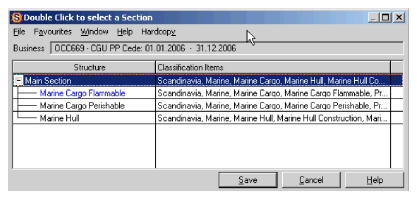
An assigned Outward Cedent’s Contract always has a link to its insured period (main section). In addition, there might be a link to the protecting section. This section is highlighted in a blue.
When assigning a protection manually, the system always assigns, as per default, the ‘main section’, unless the user selects a sub section as the protecting section.
If your company normally assigns sections from the bottom level of the section hierarchies, your system administrator may have set up the system to default to leaft sections. These sections will then be available at protection assignment.
If the protection does not point to the correct outward cedent’s contract section, the link can be changed manually.
- From Proportional (in edit mode) or Non Proportional Protection Assignment, highlight the applicable OCC
- Select ‘Edit link to protecting OCC section’ from pop up menu
- You see a tree view of the selected OCC
- Double click the correct protecting section and save
- You see that the selected section is highlighted
Occurrence Year Basis #
Occurrence Year means that the retrocession is based on the Occurrence Year of the inward bookings instead of the Underwriting Year. Occurrence Year Basis is set in proportional protection.
In the Proportional Protection table, right click and select Occurrence Year from the pop-up menu. You see the Edit Occurrence Year Table.
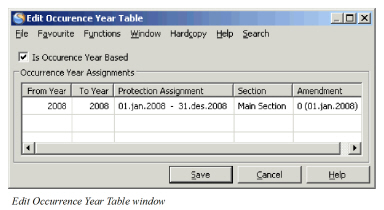
If the Is Occurrence Year Based check box is selected, the system validates the occurrence year on the worksheet against the insured period for the different occurrence year to find the correct insured period and retroceded share.
To assign Occurrence Years, enter the From Year and To Year and select the Protection Assignment, Section and Amendment details from the drop-down lists.
Assign Non-Proportional Protection #
Non-Proportional Protection functions similarly to the Proportional Protection. The differences are:
- You can add the retrocessional protection program to the assumed business. This enables you to attach the assumed business to the current years overall retrocession coverage instead of having to select an exact OCC.
- Instead of Retroceded percent, you see Protected Percent. The Protected Percent is 100 by default, and indicates that 100% of the premium on the Assumed Business should be the premium basis for the non-proportional protection. You can change the Protected percent.
- When you select Add Outward Cedent’s Contract, the system only validates that the recorded business is a Non-proportional Treaty Outward Cedent’s Contract
However, certain criteria are defaulted into the Find Business to help the search process:
- Level of Business (Outward Cedent’s Contract)
- Type of Business (Non-Proportional Treaty)
- Starting Date of Insured Period (Insured Period/ Includes field)
- Consider Only Latest Insured Period is not selected
- Include Single Treaty Protection is not selected
- You cannot have a non-proportional protection assignment unless the proportional protection assignment is owned or inherited.
- You can override non-proportional protection without having to override proportional protection. If proportional protection is overridden, the non-proportional protection is automatically overridden.
- Protections have the same inheritance rules as other business conditions unless affected by the above scenarios.
- In order to assign all Excess of Loss layers in one operation you can select Add Protection Program to assign all Non-Proportional Outward Cedent’s Contracts in one operation. To assign a protection program:
- In the Non-Proportional part of the window, click the right-mouse button and select Add Protection Program.
- You see the Find Scope of Cover window.
- Click the Find button to access the Find: Business window. Here you can search for a Protection Program.
- Select the required Protection Program and select Transfer from the pop-up menu.
- The Protection Program is transferred to the Find Scope of Cover window.
- Enter an Insured Period and Scope of Cover from the drop-down lists and click Save.
All the Non-Proportional Outward Cedents Contracts are shown in the Non-Proportional part of the Protection Assignment window. Non Prop Facultative Outward Cedent’s Contract is available for protection of Facultative or Direct Assumed Business.
- Select Add Facultative Outward Cedent’s Contract from Non Prop Protection Assignment of the Assumed Business
- If you know the identifier of the contract, please enter it in the Business field.
If you know its title, you may use the ‘typeahead’ feature: Type in the title or part of it in the Business field, and you will receive possible matches for the text.
If none of these are not known, you may use the normal Business Find facility.
The system defaults search criteria as for Treaty Outward Cedent’s Contract, except that Non-Prop Facultative is the selected Type of Business.
- You can enter a Protected % or keep the defaulted 100% value
- When saving the assignment the system validates that the selected Outward Cedent’s Contract is a Non-Proportional Facultative Outward Cedent’s Contract.
Ref to description in Proportional section- Protect by Group of Facultative
Single Treaty Protection #
Single Treaty Protection is the purchase of only one reinsurance treaty for the protection of only one treaty. Seen from the reinsurer’s point of view, protecting an assumed business by setting up an outward treaty for protection of this assumed business only.
Facultative Outward Cedent’s Contract Protection #
Fac OCC is a facultative protection that can protect one or more policies covering the same risk. The Fac OCC can be created from the Protection Program of Type Facultative, as described in the Design Facultative Protection Program part of the Create a Protection Program chapter. In addition, SICS allows you to create the proportional fac OCC and non-proportional fac OCC from the inward business and simultaneously register the Fac OCC Placements.
Create and Assign Facultative Outward Cedent’s Contract with Placements in one - Proportional #
- From the Proportional Protection Assignment Condition, select Add and Realize OCC Fac Protection from the pop-up menu.
- In the Protection Assignment window, in the Outward Cedent’s Contract section, enter Title, Premium Basis, Deduction Conditions and Retrocession Share
- In the lower part of the window, define Ooutward Cedent’s Contract Placements details, such as Business Partner, Intermediary Partner, Life Cycle Status, Retroceded Share and Deduction Conditions.
- When all values are entered, click Save
Upload Placements in Add and Realize Facultative Outward Cedent’s Contract process - Proportional #
- From the Proportional Protection Assignment Condition, select Add and Realize OCC Fac Protection from the pop-up menu.
- In the Protection Assignment window, in the Outward Cedent’s Contract section enter Title, Premium Basis, Deduction Conditions and Retrocession Share
- In the lower part of the window, select Upload Placements from the pop up menu
- Click the Find button in the Upload Placement Window, and navigate to the wanted folder.
- Select the wanted file and click Open.
- Click the Import button
- If the process passes the validations, a small dialogue box appears with the number of details found.
- Click the OK button. The values from the file are loaded and shown in an edit window
- If wanted, manually change some values.
- Click Finish.
If the process fails the validations, an Error List appears. This problem must be solved before the spreadsheet can be imported.
The spreadsheet must have the following columns and in the below order:
- Business Partner Identifier
- Intermediary Busienss Partner ID (if relevant)
- Signed Share
The system performs a check of whether the outward cedent’s contract is 100% placed. If the retrocessionaire participation has a definite life cycle status and a signed share totaling 100%, the placement complete check box is set to Yes on the facultative outward cedent’s contract.
Note! The Proportional Fac OCC created from an inward business, can protect other inward business/policies matching the conditions and classifications of the Fac OCC.
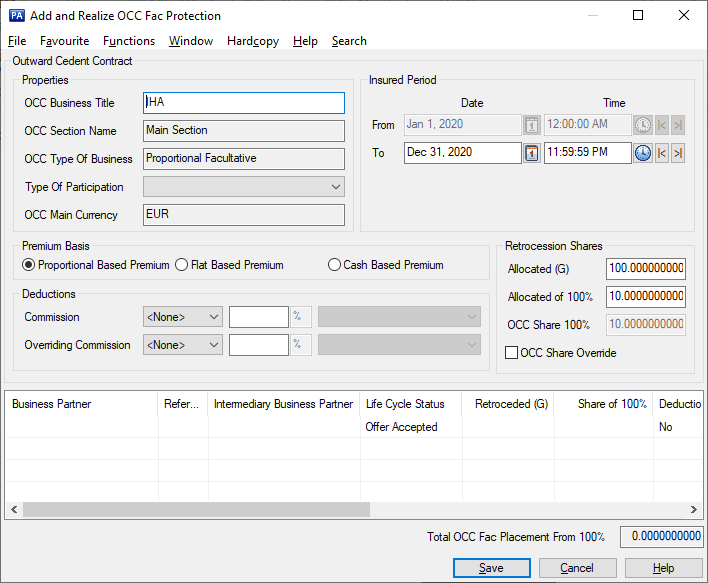
| Field | Description | Location |
|---|---|---|
| OCC Business Title | Number of characters that identifies the Fac OCC Business. Default: Business Title of inward business Mandatory: Yes |
Properties |
| OCC Section Name | Name of the section. Default: Main Section Mandatory: Yes |
Properties |
| OCC Type of Business | The Type of Business of the Fac OCC Default: Proportional Facultative Mandatory: Yes |
Properties |
| OCC Main Currency | Main currency of the Fac OCC. Default: Main Currency of Inward Business Section Mandatory: Yes |
Properties |
| Insured Period From and To | Insured Period From and To Date of the Fac OCC. Default: Insured Period From and To Date of Inward Business Mandatory: Yes |
Insured Period |
| Premium Basis | Defines how the premium is ceded to the Fac OCC. Default: Proportional Based Premium Values: Proportional Based Premium, Flat Based Premium, Cash Based Premium Mandatory: Yes Functional impact: Generation of ‘As booking’ details on the Fac OCC Business Ledger. |
Premium Basis |
| Commission Method | Defines how Commission is calculated on Fac OCC. Default: None Values: None, Original and Percent Mandatory: Yes Functional impact: Automatic Premium Calculation |
Deductions |
| Commission Percent | Commission paid to the party that is responsible for placing the agreement. Mandatory: if selected Commission Method is_Percent_ _Functional impact:_ Automatic Premium Calculation |
Deductions |
| Commission Calculation Basis | Basis on which the Commission is calculated on the Fac OCC. Values: Entry Code Groups for Entry Code Group Category ‘Subject Premium Income, Proportional’ Mandatory: if selected Commission Method is Percent Functional impact: Automatic Premium Calculation |
Deductions |
| Overriding Commission Method | Defines how Overriding Commission is calculated on Fac OCC. Default: None Values: None, Original and Percent Mandatory: Yes Functional impact: Automatic Premium Calculation |
Deductions |
| Overriding Commission Percent | Overriding Commission paid to the party that is responsible for placing the agreement. Mandatory: if selected Overriding Commission Method is Percent Functional impact: Automatic Premium Calculation |
Deductions |
| Overriding Commission Calculation Basis | Basis on which the Overriding Commission is calculated on the Fac OCC. Values: Entry Code Groups for Entry Code Group Category ‘Subject Premium Income, Proportional’ Mandatory: if selected Overriding Commission Method is Percent Functional impact: Automatic Premium Calculation |
Deductions |
| Allocated (G) | Percentage retroceded of assumed business. Calculation: 100% - already Allocated (G), or Allocated of 100% x 100/ Assumed Share from 100% Mandatory: Yes Functional impact: Protection Assignment. |
Retrocession Shares |
| Allocated of 100% | Allocated (G) expressed of original risk (100%). Calculation: (Allocated (G) x Assumed Share from 100%) / 100 Mandatory: Yes Functional impact: Protection Assignment. |
Retrocession Shares |
| OCC Share 100% | Assumed share from 100%. Default: Assumed share from 100% Functional impact: Maintain Share Conditions |
Retrocession Shares |
| OCC Share Override | Indicates whether the OCC Share of 100% can be overridden Mandatory: No Functional impact: Other Share values |
Retrocession Shares |
| Business Partner | Name of the Business Partner being the Retrocessionaire. Mandatory: Yes |
Placements |
| Intermediary Business Partner | Name of the Business Partner being the Broker. Mandatory: No |
Placements |
| Life Cycle Status | The phase in the retrocession’s life cycle. Default: Offer Accepted Values: Customized by your company, e.g. New Agreement Offered, Offer Accepted, Quoted, Offer Declined Mandatory: Yes Functional Impact: Share Conditions and Placement Completed validations |
Placements |
| Retroceded (G) | Fac retrocessionaire’s share of inward business' share from 100%. Validation: Total retroceded % for intermediaries and other retrocessionaires cannot exceed 100% Calculation: ( Share of 100% / OCC Share of 100%) x 100 Mandatory: Yes Functional impact: becomes Share from 100% on Retrocessionaire |
Placements |
| Share of 100% | Fac retrocessionaire’s share expressed of the 100% OCC Share. Calculation: Retroceded (G) x OCC Share 100% / 100 Validations: Accumulated Offered/ Signed share for intermediaries and other retrocessionaires cannot exceed 100% Mandatory: Yes Functional impact: becomes From Ceded of 100% on Retrocessionaire |
Placements |
| Deduction Override | Flag that indicates how deduction conditions are defined at Fac OCC Placement level. Values: Yes and No Functional impact: If Yes, Commission and Overriding Commission can be defined at Fac OCC Placement level. If set to No, Commission and Overriding Commission are inherited to the Fac OCC Placements. |
Placements |
| Commission Method | Defines how Commission is calculated on Fac OCC Placements. Values: None, Original and Percent. If Deduction Overrider is set to No, only None is available. If Deduction Overrider is set to Yes, Original or Percent can be selected. Mandatory: Yes Functional Impact: Automatic Premium Calculation |
Placements |
| Commission Percent | Commission paid to the party that is responsible for placing the agreement. Mandatory: if selected Commission Method is_Percent._ Functional impact: Automatic Premium Calculation |
Placements |
| Commission Calculation Basis | Basis on which the Commission is calculated on the Fac OCC Placements. Values: Entry Code Groups for Entry Code Group Category ‘Subject Premium Income, Proportional’ Mandatory: if selected Commission Method is Percent Functional impact: Automatic Premium Calculation |
Placements |
| Overriding Commission Method | Defines how Overriding Commission is calculated on Fac OCC Placements. Values: None, Original and Percent. If Deduction Overrider is set to No, only None is available. If Deduction Overrider is set to Yes, Original or Percent can be selected. Mandatory: Yes Functional impact: Automatic Premium Calculation |
Placements |
| Overriding Commission Percent | Overriding Commission paid to the party that is responsible for placing the agreement. Mandatory: if selected Overriding Commission Method is Percent. Functional impact: Automatic Premium Calculation |
Placements |
| Overriding Commission Calculation Basis | Basis on which the Overriding Commission is calculated on the Fac OCC Placements. Values: Entry Code Groups for Entry Code Group Category ‘Subject Premium Income, Proportional’ Mandatory: if selected Overriding Commission Method is Percent. Functional impact: Automatic Premium Calculation |
Placements |
| Account Group | Overall category for internal purposes Values: Customized by your company. Mandatory: No |
Placements |
Create and Assign Facultative Outward Cedent’s Contract with Placements in one Go - Non-Proportional #
- From the Non Proportional Protection Assignment Condition, select Add and Realize OCC Fac Protection from the pop-up menu.
- In the Protection Assignment window, in the Outward Cedent’s Contract section, enter Title, Premium Basis, Deduction Conditions and Retrocession Share.
- In the lower part of the window, define OCC Placements details, such as Business Partner, Intermediary Partner, Life Cycle Status, Retroceded Share and Deduction Conditions
- when all values are entered, click Save.
Upload Placements in Add and Realize Facultative Outward Cedent’s Contract process - Non-Proportional #
- From the Non-Proportional Protection Assignment Condition, select Add and Realize OCC Fac Protection from the pop-up menu.
- In the Protection Assignment window, in the Outward Cedent’s Contract section, enter Title, Premium Basis, Deduction Conditions and Retrocession Share
- In the lower part of the window, select Upload Placements from the pop up menu
- Click the Find button in the Upload Placement Window, and navigate to the wanted folder.
- Select the wanted file and then click Open.
- Click the Import button
- If the process passes the validations, a small dialogue box appears with the number of details found.
- Click the OK button. The values from the file are loaded and shown in an edit window
- If wanted, manually change some values.
- Click Finish.
If the process fails the validations, an Error List appears. This problem must be solved before the spreadsheet can be imported. The spreadsheet must have the following columns and in the below order:
- Business Partner Identifier
- Intermediary Busienss Partner ID (if relevant)
- Signed Share
The system performs a check of whether the outward cedent’s contract is 100% placed. If the retrocessionaire participation has a definite life cycle status and a signed share totaling 100%, the placement complete check box is set to Yes on the facultative outward cedent’s contract.
Note! The Non Proportional Fac OCC created from an inward business, can protect other inward business/policies matching the conditions and classifications of the Fac OCC.
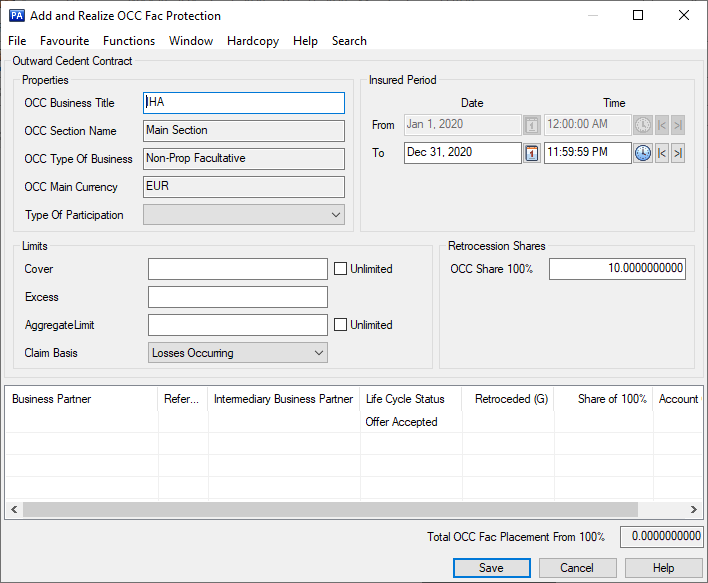
| Field | Description | Location |
|---|---|---|
| OCC Business Title | Name that identifies the Fac OCC Business. Default: Business Title of inward business Mandatory: Yes |
Properties |
| OCC Section Name | Name of the section. Default: Main Section Mandatory: Yes |
Properties |
| OCC Type of Business | The Type of Business of the Fac OCC Default: Non Proportional Facultative Mandatory: Yes |
Properties |
| OCC Main Currency | Main currency of the Fac OCC. Default: Main Currency of Inward Business Section Mandatory: Yes |
Properties |
| Insured Period From and To | Insured Period From and To Date of the Fac OCC. Default: Insured Period From and To Date of Inward Business Mandatory: Yes |
Insured Period |
| Excess: | Excess amount for the OCC Values: amount Mandatory: Yes Functional Impact Maintain Limit Conditions |
Properties |
| Cover | Cover limit amount for the OCC Values: amount Mandatory: Yes Validations: Available if Is Unlimited is not selected Functional Impact Maintain Limit Conditions |
Properties |
| Is Unlimited: | The cover of the OCC is unlimited Values: selected, not selected Default: not selected Mandatory: yes Validations: Cover amount must be empty Functional Impact: Maintain Limit Conditions |
Properties |
| Aggregate Limit | Aggregate Limit. This field is editable and mandatory, unless the “Is Unlimited” tick-box is activated. If the “Is Unlimited” tick-box is activated Aggregate Limit field must be null Mandatory: Yes |
Properties |
| Aggregate Limit Unlimited: | The Aggregate Limit of the OCC is unlimited Values: selected, not selected Default: not selected Mandatory: yes Validations: Aggregate Limit amount must be empty Functional Impact: Maintain Limit Conditions |
Properties |
| Claim Basis | List of available Claim Basis. Editable.. Available options are according to the list of reference data ‘Claim Basis’. Default : Losses Occuring Mandatory: Yes |
Properties |
| Allocated (G) | Percentage retroceded of assumed business. Calculation: 100% - already Allocated (G), or Allocated of 100% x 100/ Assumed Share from 100% Mandatory: Yes Functional impact: Protection Assignment. |
Retrocession Shares |
| Allocated of 100% | Allocated (G) expressed of original risk (100%). Calculation: (Allocated (G) x Assumed Share from 100%) / 100 Mandatory: Yes Functional impact: Protection Assignment. |
Retrocession Shares |
| OCC Share 100% | Assumed share from 100%. Default: Assumed share from 100% Functional impact: Other Share values |
Retrocession Shares |
| OCC Share Override | Indicates whether the OCC Share of 100% can be overridden Mandatory: No Functional impact: Other Share values |
Retrocession Shares |
| Business Partner | Name of the Business Partner being the Retrocessionaire. Mandatory: Yes |
Placements |
| Intermediary Business Partner | Name of the Business Partner being the Broker. Mandatory: No |
Placements |
| Life Cycle Status | The phase in the retrocession’s life cycle. Default: Offer Accepted Values: Customized by your company, e.g. New Agreement Offered, Offer Accepted, Quoted, Offer Declined Mandatory: Yes Functional Impact: Share Conditions and Placement Completed validations |
Placements |
| Retroceded (G) | Fac retrocessionaire’s share of inward business' share from 100%. Validation: Total retroceded % for intermediaries and other retrocessionaires cannot exceed 100% Calculation: ( Share of 100% / OCC Share of 100%) x 100 Mandatory: Yes Functional impact: becomes Share from 100% on Retrocessionaire |
Placements |
| Share of 100% | Fac retrocessionaire’s share expressed of the 100% OCC Share. Calculation: Retroceded (G) x OCC Share 100% / 100 Validations: Accumulated Offered/ Signed share for intermediaries and other retrocessionaires cannot exceed 100% Mandatory: Yes Functional impact: becomes From Ceded of 100% on Retrocessionaire |
Placements |
| Account Group | Overall category for internal purposes Values: Customized by your company. Mandatory: No |
Placements |
Copy Protection Assignment #
In some cases, the protections your company has bought for a portfolio are often the same from business to business. SICS therefore allows you to copy protections from one business to other selected businesses.
The Copy Protections function copies the following protections:
- Proportional and Non-Proportional Treaty Outward Cedent’s Contract
- Proportional and Non-Proportional Fac Outward Cedent’s Contract
- Own Retention
Proportional and Non-Proportional Retrocessionaire Facultative Protections and Single Treaty Protections are not copied.
- Open the Proportional or Non-Proportional Protection Assignment Condition.
- Select the Copy Protections from the pop-up menu.
Note! This option will not be available if the System Parameter ‘Protection Assignment 100% Mandatory’ is activated. Please refer to the Maintain System Parameter chapter in the System Administration Guide for more details about this parameter.
- You see a new window where you can search for the business you want to copy the Protection Assignment to.
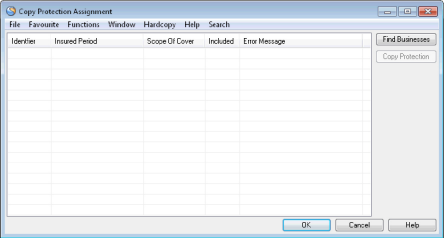
- Click the Find Business button to see the Find: Business window. Search for the business Section/Cession/Declaration you want to copy the Protection Assignment to.
- Select one or more businesses or sections/cessions/declarations, and select Transfer from the pop-up menu to transfer it and return to the Copy Protection Assignment window.
- When you have selected all businesses and sections/cessions/declarations you want to copy protections to, press the Copy Protection button. The system validates the selected business section/cession/declaration according to the same validation rules that apply to manual protection assignment, as described in chapter Assign Protection Manually above.
Note! If the selected section/cession/declaration already has protection assignment defined, system returns an error message, and no protections are copied.
Generate Protection Automatically #
The system offers a way to simplify the protection assignment process by providing for an automated way of generating protection proposal and protection assignment of assumed direct and facultative businesses.
There are two ways of initiating automatic protection assignment:
-
Generate Single Business Auto Protection
Manual initiation from a single business.
-
Generate Multi Business Auto Protection
Auto Protection Overview #
When the automatic protection assignment is generated, the system identifies and allocates protecting reinsurance agreements, calculates the correct retroceded % (proportional) and/or protected % (non- proportional) and presents a proposal for new or changed protections.
If you want to, you may save the systems' proposal for protection assignment on the business.
Consider Protection Sectioning
The auto protection process is based on the reinsurance arrangements set up by your company. When arranging the protection program, your company might enter a reinsurance agreement where one agreement will cover various parts of its portfolio under different conditions, (e.g. different limit and retention amounts are agreed upon depending on the classification coverage.) The system is able to consider and allocate correct protection also when the outward cedent’s contract has multiple limit conditions according to classification.
The assignment is always made to the main section of the outward cedent’s contract, but is calculated according to the limit conditions of the protecting outward cedent’s contract section.
Note! Only outward cedent’s contracts that are linked to a protection program are considered.
Find Valid Protections
According to the Base Company, Insured Period, Effective Period, Classification Coverage, Business structure (Section hierarchy), Limit Conditions and Account Group of the assumed business, the system will identify the outward cedent’s contracts protecting the assumed business sections.
Depending on classification coverage and business structure, the system decides on what business section level to calculate and propose the protection.
Calculate Retroceded Percent
The calculation of retroceded % (proportional) is generally based on the main limit of the protected assumed business section and the limit conditions of the protecting outward cedent’s contract. If business is to be protected by a US Quota Share contract, the the retroceded percent is based on the cover basis and the quota share percent of the outward cedent’s contract.
The calculation of the protected % (non-proportional) is based on the cover basis of the outward cedent’s contract (only those supported by auto protection functionality).
The system considers facultative protections already assigned to the business and adjusts the main limit accordingly when calculating the treaty protection.
Verify Proposed Protections
The proposed protection is presented to the user before committing to the assignment (always for single business auto protection, optional for multi business auto protection).
Consider Changes in Assumed Business
The next time auto protection is generated after businesses have been subject to changes, the system is able to take into consideration the modifications made and propose a new protection from the correct effective date.
Note! This functionality is NOT available for businesses with NO insured period specified(insured period To Be Advised). This type of insured period is only allowed if your System Administrator has set up the System Parameters this way.
Note! This functionalityis NOT available if your System Administrator has set up the System in a way that it requires the Protection Assignment to be a total of 100% (including Own Retention) or has activated System Parameter ‘Parallel Retrocession’.
Exempt Business from Auto Protection #
There might be different reasons why you do not want automatic protection assignment to be generated on a business insured period, e.g.:
- The business needs manual intervention before auto protection is generated, e.g. awaiting facultative protection to be manually assigned.
- It is decided that the protection assignment of this business shall be made on manual basis only. For some reason manual override of the protection program set up in the system is needed.
The system provides a way to indicate whether or not the business Insured Period shall be included in the generate automatic protection assignment function and the reason why.
- Go to insured period of the business in question
- Select Edit Automatic Protection from pop-up menu.
- Clear Automatic Protection check box.
- The system will give you a choice from pre-defined reasons for manual protection (e.g. exceeding program limit) to indicate the reason why this business should not be a part of the automatic process.
- Click OK. The system will not consider this assumed business insured period for automatic protection.
Generate Auto Protection of Single Business #
This function offers you the possibility of asking the system to give a proposal for protection assignment of the business you are working on.
General Principles #
A protection assignment proposal will only be presented if the system finds a new or changed protection compared to what is already assigned.
You may choose to:
- ignore the systems protection proposal and e.g. decide to assign manually
- accept and save the systems protection proposal as it is
- modify the systems protection proposal before saving the protection assignments.
The function can be started from any section of the business and will be performed for the whole business, both for proportional and non-proportional protection.
You may generate single business auto protection from any insured period of a single assumed business (direct or facultative).
The system will recognize from what insured period of the business the function was started and perform the automatic protection assignment for this insured period.
Only the latest version of the insured period will be considered for auto protection.
Finding matching protection will be based on the OCC Effective Period of the Classification including the policy Insured Period From date.
Calculation of retrocession to a protecting OCC will be based on the Limit Conditions of the OCC Effective Period including the assumed business Insured Period From date.
Generate and Verify Auto Protection of Single Business #
- Navigate to the business insured period that you want to generate protection for.
- On the structure tab of the business, select generate automatic protection assignment from the pop-up menu in the section hierarchy. (Alternatively you can select generate automatic protection assignment from the pop-up menu on proportional protection assignment).
- When the auto protection process for some reason cannot be performed or the system has nothing to propose the system gives a message:
- Auto protection is not allowed on this business (only manual protection applies).
- Main limit is missing on the assumed business.
When at least one business section subject to receive auto protection does not have sufficient limit information, except for assignment to proportional US Quota Share protection.
-
No proportional protection is found for the business
-
No non-proportional protection is found for the business
-
No change in proportional protection assignment is found.
The system has identified protection, but there are no changes to existing protection assignment on the business. -
No change in non-proportional protection assignment is found.
The system has identified protection, but there are no changes to existing protection assignment on the business.
- When the system has found new protection or changes to existing protection a warning is given when:
-
No proportional protection is found for at least one business section (identifying the sections)
-
No non-proportional protection is found for at least one business section (identifying the sections)
-
Limit is exceeding program limit (identifying sections). Means that adjusted main limit of a business section subject to receive auto protection exceeds the proportional protection program limit (highest top limit of the protecting OCC sections). Note! Whether the system instead checks the limit against a combination of proportional and non proportional program limits and rather triggers an error message, or does not check for exceeding limit at all, depends on how your system administrator has set up the system.
-
Total retroceded % exceeds 100%.
The proportional protection found by the system to be proposed for a business section is more than 100% and needs to be adjusted by the user before protection proposal can be saved. This might suggest that the protection is not set up in the correct way.
- Limit is missing for outward cedent’s contract (identifying the OCC’s).
Means that at least one of the OCC’s with classification that otherwise could have protected a business section does not have sufficient limits information on any section. This particular OCC is therefore not included in the auto protection process. This suggests that OCC conditions needs to be reconsidered and that the assumed business might be insufficiently protected.
- You see the protection assignment proposal.
The system has found that the protection according to the latest version of the insured period is different from the existing protection assignment on the business. The new result is therefore presented on the protection assignment proposal.
- The protection assignment proposal window is divided into a proportional and non-proportional part. Dependent on whether the system has a proposal for one or both parts, protection assignment will be proposed for proportional part only, non-proportional part only, or both.
- Note that existing facultative protections will also be displayed along with the proposed treaty protections found by the system.
- You can select any section with a protection assignment proposal from the drop-down list on the proportional or non-proportional part of the proposal. You see the proposed protection for the selected section. The effective date from which the section proposal is valid is displayed next to the section name.
- You can edit and delete the proposed protection assignments or create new assignments according to the rules for manual protection assignment. (Ref. Field Descriptions - Maintain Protection Assignment)
- When you have reviewed, made modifications if needed and accepted the proposals, click save.
The system will recognize whether the new protection assignment should be an update of the existing protection assignment conditions or linked to an amendment.
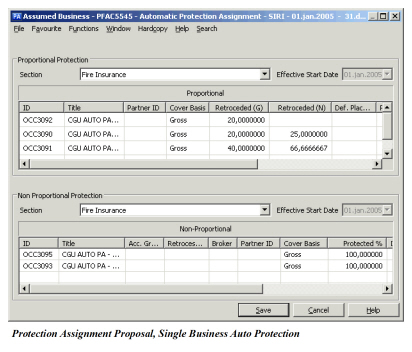
| Field | Description |
|---|---|
| Section | Name of the business section which the presented proposed protection applies to. Separate section fields for Proportional and for Non-Proportional. Values: Sections for which the system proposes protection. Select from available sections in drop-down list. You can change the selection at any time. Validations: No validation. Sections for Proportional and Non-Proportional proposals can be selected independently. Mandatory: Yes Functional Impact: Auto Protection |
| Effective Start Date | The date from which the proposed protection for a section applies to. There is one Effective Start Date for Proportional and one for Non-Proportional proposals. Values: Date within the Insured Period of the business. Calculation: The system arrives to the Effective Start Date based on the effective period of the last version of the business insured period conditions affecting protection assignment compared to the last Effective Start date of existing protection assignment. Validations: Output only. Mandatory: Yes Functional Impact: Auto Protection. |
Proposed Assignments Display List
The list includes all proportional and/or non-proportional protections proposed by the system as per the effective start date of the selected section. The view of listed proposals contains the same type of information as the list of protections on proportional and non-proportional protection assignment.
Proportional Protections:
- Existing facultative protections
- Facultative Retrocessionaire Participation
- Facultative Outward Cedent’s Contract
- Treaty Outward Cedent’s Contracts that the system found to be protecting the selected section as per the Effective Start Date.
Note that possible existing assignments of treaty protection that the system did now NOT find through the auto protection process will NOT be proposed and therefore not listed. This means that existing assignments of OCCs NOT linked to a protection program will never be included on the proposal. 3. Existing own retention 4. If no protections are found for a section from a certain date, the system proposes to remove existing Treaty Outward Cedent' Contract assignments from this date.This is represented by an empty proposal for the relevant section as per the Effective Start Date.
Non-Proportional Protections:
- Existing facultative protections
- Facultative Retrocessionaire Participation
- Facultative Outward Cedent’s Contract
- Existing stand-alone treaties (non-prop OCCs NOT linked to a protection program)
- Outward cedent’s contracts that the system found through the auto protection process.
Note that possible existing assignments of treaty protection (outward cedent’s contracts linked to protection program) that the system did now NOT find through the auto protection process will NOT be proposed and therefore not listed. 4. Existing own retention 5. If no protections are found for a section from a certain date, the system will propose to remove existing Treaty Outward Cedent' Contract assignments (linked to protection program) from this date. This is represented by an empty proposal for the relevant section as per the Effective Start Date.
Save Proposed Assignments #
General:
Saving the proposal means that all the sections that are included in the Protection Assignment Proposal will be updated from the Effective Start Date as they are presented on the proposal at the time of save (with or without manual modifications). Existing Protection Assignment from the same Effective Start Date will be replaced. Existing Protection Assignment with a different Effective Start Date will be amended.
Update Existing Claims with New Protection Assignment: Whenever you register a new or modify an existing non-proportional protection assignment of a business, SICS gives you an option to update existing claims with the same. If you choose to update claims with the new protection assignment, the system goes through the following steps, for each outward cedent’s contract:
- Verifies that the existing claims are matching the new protection assignment. If one or more claims are not matching, the system returns an informational message listing the Claim IDs of claims which cannot be updated.
- Checks if any of the matching claims are already linked to another protection. If so, the system returns a message listing the Claim IDs of the claims which are linked to another Protection. The user can then choose whether or not to update the claims' protection assignment with the new Protection (in addition to the existing).
- Checks if any of the matching claims are already linked to the same Protection, but with a different allocation percentage. If so, the system returns a message listing the Claim IDs, giving the user an option to update the allocation percentage.
The user response to any of the above messages are valid for all claims listed in the message.
Find Matching Protection #
There are certain ‘built in’ principles in the auto protection process in order to arrive to the proposed protection. It involves finding the correct ‘match’ between an assumed business or business section and an outward cedent’s contract main or sub section. In order to qualify for a ‘match’ and thereby be considered for protection, the assumed business section scope of cover needs to be a subset of the outward cedent’s contract or one of its sub sections.
By subset we mean that the scope of cover of the business section is equal or more restricted than the scope of cover of the OCC section it is compared against.
This means that the structure of the assumed business might also influence whether or not the system will find the intended protection.
If the outward cedent’s contract classification has been amended, the system will use the appropriate OCC effective period to perform the ‘match’.
For establishing the scope of cover to be used in the matching process, the following is considered:
-
OCC must be linked to a Protection Program
-
OCC Insured Period must include the Business Insured Period start date (Additional rule applies if your System Administrator has set up the system to consider the OCC Attachment Method.
Refer to section ‘Generate Auto Protection according to Reinsurance Agreement Attachment Method’.) -
OCC must have the same Base Company as the Business
-
The scope of cover of the OCC effective period that includes the policy’s insured period start date
After the scope of cover to be used in the matching process is established, the following is considered:
- OCC Type of Business Coverage against assumed Type of Business Method on assumed
- Main Class of Business
- Class of Business
- Legal Area (Countries within Country Group, States within State Group)
- Legal Area exclusions (excluded Countries within Country Group, excluded States within State Group)
- Perils (included or excluded). No Perils specified means ‘All Perils’.
- Mandatory classifications (Base Company specific), e.g. Sub Class of Business, Additional Classification, etc.
Account Group on Assumed Business (Note! Only when the System Administrator has set up the system this way).
The system considers all sections of the outward cedents contract, but will only attempt to find matching protection of an outward cedents contract section with sufficient limit information.
The principle of the searching procedure is first to check if the assumed business main section is a subset of an OCC sub section, starting at the lowest level of the OCC section hierarchy. If this fails, the system will continue checking the sub sections of the assumed business to find a match. If no match is found, the system continues to parent sections of the outward cedent’s contract and go through the same procedure.
Example of Finding Matching Protection
An outward cedent’s contract covering property and casualty is sectioned according to classification because the liability for the two is different. The two sub sections each have special limit conditions.
Let us say OCC1 has the following classification coverage:
Main section covering property & casualty (no limit information)
Sub section property - Limit 5M
Sub section casualty - Limit 7M
Assuming all other classifications of the sample direct businesses below is a subset of OCC1, the auto protection matching process will arrive to the following results:
Ex1:
-
Direct Business AB1
Main section only
Classification: Property -
The system will find protection by OCC1, and calculate according to limit conditions of OCC1 section property.
Ex2:
-
Direct Business AB2
Main section only
Classification: Property & Casualty -
The system will NOT find protection by OCC1 as the AB2 scope of cover is NOT a subset of either section property or section casualty, nor does limit conditions exist for OCC1 main section.
Ex3:
-
Direct Business AB3
Main section - Classification: Property, Casualty and Liability
Sub section: Property
Sub section: Casualty
Sub section: Liability -
The system will find protection of AB3 sub sections property and casualty by OCC1. OCC1 will therefore be assigned both to section property and section casualty of AB3. The retroceded % for AB3 section property will be calculated according to limit conditions of section property of OCC1 and the retroceded % for AB3 section casualty will be calculated according to limit conditions of section casualty of OCC1.
NO protection for sub section liability according to this setup.
Find Assumed Section Level Subject to Receiving Protection Proposal #
Find Assumed Section Based on Protection Section Level
Whether the protection is to be suggested for the business main section or sub section depends on the detail level of the classification of the protection program. Even if the system will attempt to propose protection on the highest level possible, the final assignment and calculation will have to be made at the lowest level where the system found any matching classification.
Allocate Protection According to Limits per Location
If the assumed business is set up in a certain way, the system is able to capture that even though different locations covered under a business are protected by the same agreement(s), they should not be regarded as one risk, but be allocated to retrocession separately and calculated according to their specific limits (S.I., PML, etc.).
This is achieved by using insurable object as part of the classification coverage, then section the business by split per insurable object down to the necessary detail level.
If the assumed business section where the system finds matching protection has more than one insurable object included in the classification coverage, the system will check if this section is split by location. If the system finds that subsections have a lower number of insurable objects specified, protection will be calculated and assigned on the level of these sub sections, using the limits recorded for each section.
Example of Protection on Location Level
-
Direct Business AB3
Main section
Classification Coverage:
MCOB: Property, Casualty
Insurable Object: Building A, Building B -
Sub section 1: Property
Insurable Object: Building A, Building B
Sub section 1.1: Property, Building A
Sub section 1.2: Property, Building B
- Sub section 2: Casualty
Even if the system finds matching protection for sub section 1, the final calculation and assignment will be made on sub sections 1.1 and 1.2., based on the limits recorded for these sub sections.
Find Limit Applicable to Auto Protection #
When the system has found the protecting business section according to classification, the assumed business section limit needs to be allocated to retrocession accordingly to arrive to the correct assignment.
Limit for Use in Auto Protection:
Main Limit Our Share: This assumed business limit amount is to be used for allocation and calculation in auto protection when:
- The main limit type of protecting outward cedent’s contract
section indicates that the liability is based on:
Sum Insured, Top Sum Insured, Top Loss Probability or has no value.
Top Location Loss Probability Our Share: This assumed business limit amount is to be used for allocation and calculation in auto protection when:
-
The main limit type of protection outwards cedent’s contract section indicates that the liability is based on loss probability:
E.g. PML, EML (means that limit type is other than Sum Insured, Top Sum Insured, Top Loss Probability, ‘blank’). -
If top location loss probability our share has no value on the assumed business section, Main Limit Our Share shall be used.
-
assumed limit in its validations and calculations.
Adjust Limit and Assignment for Facultative Protection #
When the system has found the correct limit for use in auto protection, this amount still might need to be adjusted before retrocession allocation can be made. This happens in the following scenarios:
- Your company has added a proportional facultative protection to the business section that is subject to receiving auto protection assignment.
- Your company has added a proportional facultative protection to one (or more) of the sub sections of the business section that is subject to receiving auto protection assignment.
This will reduce the liability amount that is subject to allocation to treaty retrocession. This adjusted amount will be referred to as ‘Adjusted Main Limit’.
The system arrives to the adjusted main limit by reducing the limit for use in auto protection with the limit of the proportional facultative protection. The following examples for when the business is protected by proportional Facultative
Retrocessionaire, will also apply when the business is protected by proportional FAC OCC.
Examples of how Facultative Protection is handled in Auto Protection calculation:
Let us say that your company’s protection program for property has the following arrangements:
| Type of Participation | Proportional Limit | Retention | Lines/ QS% |
|---|---|---|---|
| Quota Share | 5.000.000 | 0/ 80% | |
| Surplus 1 | 10.000.000 | 50.000.000 | 2 |
| Surplus 2 | 15.000.000 | 15.000.000 | 3 |
In the auto protection process the system finds that assumed businesses in the examples below are protected by these outward cedent’s contracts according to classification.
Example 1:
Assumed business covering Property (no sub sections).
Main Limit Our Share: 40.000.000
Proportional Facultative Protection: 25%
Adjusted Main Limit (40.000.000 - 10.000.000): 30.000.000
Since the adjusted main limit of 30.000.000 is still enough to fully allocate to retrocession, the system will calculate the following protection:
| Protection | Retroceded (G)% | Allocated Limit |
|---|---|---|
| Facultative | 25% (already assigned) | 10.000.000 |
| Quota Share | 10% | 4.000.000 |
| Surplus 1 | 25% | 10.000.000 |
| Surplus 2 | 37,5% | 15.000.000 |
| Total | 97,5% | 39.000.000 |
(The remaining 2,5% not specified equals the Net Retention QS)
Example 2:
Assumed business covering property (no sub sections).
Main Limit Our Share: 25.000.000
Proportional Facultative Protection: 20%
Adjusted Main Limit (25.000.000 - 5.000.000): 20.000.000
The system will calculate the following protection:
| Protection | Retroceded (G)% | Allocated Limit |
|---|---|---|
| Facultative | 20% (already assigned) | 5.000.000 |
| Quota Share | 16% | 4.000.000 |
| Surplus 1 | 40% | 10.000.000 |
| Surplus 2 | 20% | 5.000.000 |
| Total | 96% | 39.000.000 |
(The remaining 4% not specified, equals the net retention QS of 1.000.000)
Example 3: Assumed business covering property is split into sub sections for ‘Fire’ and ‘Engineering’, but main section is subject to receiving protection assignment.
Main Limit Our Share, Main section: 25.000.000
Main Limit Our Share, sub section ‘Fire’: 10.000.000
Main Limit Our Share, sub section ‘Engineering’: 15.000.000
Proportional facultative protection of 50% is assigned to the sub section covering ‘Fire’.
The system recognizes that the main section (which is the section subject to receiving protection assignment) needs to get the limit for use in auto protection adjusted by the facultative protection on its sub section, like this:
Main Limit Our Share: 25.000.000
-Limit of Facultative protection (10.000.000 x 50%): 5.000.000
Adjusted Main Limit: 20.000.000
The system will calculate the following protection for main section:
| Protection | Proposal | Allocated Limit |
|---|---|---|
| Quota Share | 16% | 4.000.000 |
| Surplus 1 | 40% | 10.000.000 |
| Surplus 2 | 20% | 5.000.000 |
| Total | 76% | 19.000.000 |
(The Net Retention QS not specified, equals 4%: 1.000.000)
Save Auto Protection Assignment when Facultative Protection is Added on Sub Section:
When saving the Auto Protection assignment the system updates the assumed business sections subject for assignment.
Inherit assignment to sub sections
The system updates the sub sections according to existing functionality for inheritance to subsections.
There is one exception to these rules when a sub section has a proportional facultative protection.
Copy to sub section with broken inheritance According to inheritance rules, the saved protection assignment is not copied to the sub sections with broken inheritance. Saving Auto Protection Assignment is an exception. Even if the inheritance is broken on a sub section, the system will still apply the proportional protection assignment saved on the parent section in case a proportional facultative protection is assigned to this sub section.
Adjust the Auto Protection assignment result to be copied to sub sections with Proportional Facultative Protection In case the Total Retroceded (G)% of the sub section would have exceeded 100% by adding the copied assignments from parent section, the assigned treaty protections will be reduced proportionally for the sub section.
Example of how an inherited sub section will be updated when saving an Auto Protection assignment to its parent section:
Following Example 3 above for the inherited section ‘Engineering’:
| Type of Participation | Percentage |
|---|---|
| Quota Share | 6% |
| Surplus 1 | 40% |
| Surplus 2 1 20% | |
| Total | 76% |
Example of how a sub section with Facultative protection will be updated when saving an Auto Protection assignment to its parent section:
Following Example 3 above for the sub section ‘Fire’ with broken inheritance due to Proportional Facultative Protection Assignment:
- Result as it would have been if copying without adjustment:
| Type of Participation | Percentage |
|---|---|
| Facultative | 50% |
| Quota Share | 16% |
| Surplus 1 | 40% |
| Surplus 2 | 20% |
| Total | 26% |
- The Auto Protection Assignment copied from parent section is reduced proportionally in order not to exceed 100%.
- Updated result (adjusted):
| Type of Participation | Percentage |
|---|---|
| Facultative | 50,0000% |
| Quota Share | 10,52632% |
| Surplus 1 | 26,31579% |
| Surplus 2 | 13,15789% |
| Total | 100,0000% |
Find Correct Effective Period of OCC Classifications #
When the system has found an OCC Insured Period that could potentially protect the Assumed Business Insured Period and the OCC has amended classifications, the system will search for classification match against the OCC Effective Period that includes the Assumed Business Insured Period Start Date.
In case the Assumed Business has been amended in an area relevant for Auto Protection the system will find and match against the correct OCC Effective Period depending on the Claim Basis of the OCC:
-
Losses Occurring or Claims Made:
OCC Effective Period that includes the latest Effective Period start date of the Assumed Business. -
Risk Attaching (other than L/O or C/M):
OCC Effective Period that includes the Assumed Business Insured Period.
In case the Assumed Business has been amended from a date that falls outside the Insured Period of an already assigned OCC, behavior is depending on the Claim Basis of the OCC.
-
Losses Occurring or Claims Made:
If OCC has been renewed, OCC Effective Period of the next Insured Period that includes the Effective Period start date of the Assumed Business will be used. -
Risk Attaching (other than L/O or C/M):
The OCC Effective Period that the Assumed Business was originally attached to will be used even if OCC has been renewed
Find Correct Effective Period of OCC Limit Conditions #
Once the system has found that the assumed business section is protected by an OCC Effective Period protection assignment will be calculated using the Limit conditions of the same Effective Period. In case the OCC Limit conditions has been amended within this period, the system will use theLimit conditions of the OCC Effective Period that includes the assumed Insured Period From date (or latest Effective Period From date influencing auto protection, depending on the Cover Basis of the OCC insured period).
Calculate Proportional Protection #
The calculation of retroceded percent is based on the values of:
- ‘Main Limit Our Share’ of assumed business (irrelevant when protecting business is a US Quota Share)
- ‘Adjusted Main Limit Our Share’ of assumed business (irrelevant when protecting business is a US Quota Share)
- ‘Underlying Top Limit’ of outward cedent’s contract
- ‘Proportional Limit’ of outward cedent’s contract
- ‘Quota Share %’ if OCC is a quota share treaty Calculation Rule: Applied Limit x 100 / Main Limit Our Share = Retroceded (G)%
Calculation Rule when Outward Cedent Contract is Quota Share: Applied Limit x 100 / Main Limit Our Share x QS% = Retroceded (G)%
Calculation Rule when Outward Cedent Contract is US Quota Share:
Cover basis of Outward Cedent’s Contract = “Gross”: QS% = Retroceded (G)%
Cover basis of Outward Cedent’s Contract = “Net after underlying Quota Share”: QS% (100% - underlying QS %) = retroceded (G) %
Amount to be allocated to OCC and amount to be applied in calculation of Retroceded (G)% is determined as follows.
‘Limit for allocation’: Adjusted Main Limit - Underlying Top Limit
‘Applied Limit’:
-
‘Limit for allocation’ <= 0: Nothing to be applied in calculation >> No Retroceded (G)% to be assigned
-
0 < ‘Limit for allocation’ <= Proportional Liability:
Use ‘Limit for allocation’ as ‘Applied Limit’ in calculation -
‘Limit for allocation’ > Proportional Limit:
Use Proportional Limit as ‘Applied Limit’ in calculationFor US Quota Share set Retroceded (G) to Outwards Cedent’s contract’s Quota Share %, when the protecting business' cover basis is “Gross”, or to The Outward Cedent’s Contract’s Quota Share % (100 - underlying Quota share %); if the protecting business cover basis is “Net after underlying quota share”
Calculate Non-Proportional Protection #
Once the system has determined the non proportional OCC’s subject to protect an assumed business section, the protected % is calculated based on the cover basis of the protecting OCC section. The cover basis' that are supported in auto protection is listed below in the in the sequence in which they are calculated:
Cover Basis Supported in Auto Protection:
- Gross
Protected% = 100%
- Net After Proportional Protections
Calculate Protected%:
100% - Proportional Retroceded (G)% 3. Net After Proportional Protections and Bottom Retention
Calculate Protected%:
Proportional Overflow in % of Main Limit.
The same Protected % is applied to all treaties with this Cover Basis belonging to the same PP section.
Proportional Overflow is determined as follows:
Highest Proportional Top Limit (HPTL) of the OCC’s sections belonging to the same Protection Program section as the Non Proportional OCC section being calculated.
(Proportional Top Limit = Underlying Top Limit + Proportional Limit.)
Proportional Overflow (POF): Adjusted Main Limit - HPTL
POF <= 0: No Protected%
POF > 0: Calculate POF in % of Main Limit
Protected% = POF%
4. Net After Proportional Protections and Non Proportional Overflow
Calculate Protected%:
Remaining after Proportional Protections and Non Proportional Overflow.
Non Proportional Overflow is determined as follows:
Highest Non Proportional Top Limit (HNPTL) of the OCC’s sections belonging to the same Protection Program section as the Non Proportional OCC section being calculated.
(Non Proportional Top Limit = Excess + Cover)
Non Proportional Overflow (NPOF): Adjusted Main Limit - HNPTL
NPOF <= 0: NPOF% = 0
NPOF > 0: Calculate NPOF in % of Adjusted Main Limit.
Protected% = 100% - Proportional Retroceded (G)% - NPOF%
- Net After Non Proportional Protections and Bottom Retention
Calculate Protected%:
Remaining after Proportional Protections and Other Non Proportional Protections.
Protected % =
100% - Proportional Retroceded (G)% - Other Single NP OCC% - NP% (per Cover Basis per PP section)
- ‘Other Single Non Proportional OCC’s’ in this context means assigned Outward Cedent’s Contracts that is NOT linked to a Protection Program.
- ‘NP% (per Cover Basis per PP section)’ in this context means that the system shall only deduct the Protected %once for NP OCC’s having the same Cover Basis if they belong to the same Protection Program section. The same Protected % is applied to all treaties with this Cover Basis belonging to the same PP section.
Propose Changed Assignments #
The system goes through the auto protection process and determines the protection according to the latest version of the applicable insured period of the business. Before presenting the result as a protection assignment proposal, the system checks if protection assignment already exists on the business.
If protection assignment does not exist, the result is presented as it is on the protection assignment proposal.
If protection assignment exists on the business or business sections:
- Present proposal only when changed protection.
Only if the result is different from the existing protection assignment the system will present a proposal for the new (changed) protection assignment. This means that only those assumed business sections where the protection has changed will be presented on the protection assignment proposal.
- Effective date of changed protection.
The effective date of the changed protection is captured from the last effective date of the business conditions used in the calculation of protection assignment.
This date is reflected accordingly on the presented proposal.
- Existing protection assignment no longer valid.
Sometimes a situation may occur that a protection is no longer valid. This may happen e.g. if classification coverage of the assumed business has been increased or if changes has been made to an outward cedents contract. Even if this assumed business previously has been assigned to this OCC, the nature of these changes could mean that this business or business section does no longer qualify for protection by this OCC.
The auto protection process will recognize this and propose a protection not including this OCC. If this OCC was the only one assigned, the proposal will be presented as ‘empty’ effective from the appropriate date, and upon saving the proposal this assignment will be removed from existing protection.
Save Proposed Changed Assignments #
The saved protection assignment proposal will be updated on the business with the effective date presented on the proposal for the different sections.
Update Protection Assignment
Protection assignment already exists on the business section and the change is effective from the same date. Upon saving the proposed protection the changed protection assignment will replace the existing
Amend Protection Assignment
Protection assignment already exists on the business section from a certain date and the change is effective from another date. Upon saving the proposed protection the changed protection assignment will be linked to an amendment and a new effective period will be created on the protection assignment for the applicable section
Remove Assignment
Protection Assignment proposal is presented as ‘empty’, due to the fact that existing protection is no longer valid. Upon saving the proposal this assignment will be removed from existing protection or removed as part of amendment.
Generate Auto Protection when in Force Functionality in Use #
Note! Only when your system administrator has enabled the In Force Functionality
When OCC has Attachment Method ‘In Force’ from Insured Period Start
-
Assumed Business Insured Periods being in force on OCC Insured Period From date will be protected effective from OCC Insured Period From date.
-
Provided the business is a subset of the OCC classifications, the Retroceded % is calculated and result presented on protection assignment proposal.
-
If OCC Classification or OCC Limit Conditions have later amendments the changes will also apply to this assumed business and protection assignment will be calculated and proposed accordingly.
-
Upon saving the proposal, the protections will be linked to amendment and new effective periods will be created on the protection assignment of the applicable section. When OCC has Attachment Method ‘New/Renewal’from Insured Period Start.
-
Assumed Business Insured Periods with a start date included in OCC Insured Period will be covered.
-
Provided the business is a subset of the appropriate version of the OCC classifications, the Retroceded % is calculated based on OCC limit conditions of the correct OCC Effective Period.
-
If OCC Classification or OCC Limit Conditions are amended on new/renewal basis, the changes apply to New/Renewal business and do not cause any amendment of protection assignment of the business
-
If OCC Classification or OCC Limit Conditions are amended on in force basis (effective from the selected ‘In Force from Amendment date’ defined on OCC Insured Period), the changes will also apply to the already attached policy and protection assignment will be calculated and proposed accordingly.
-
Upon saving the proposal, the system will update protection assignment of the applicable policy sections, and if necessary create amendments for new effective dates of protection assignment. When OCC has Attachment Method ‘New/Renewal/In Force’ from Insured Period Start
-
Assumed Business Insured Periods will be covered according to both types of methods.
-
Any amendment to OCC classification or limit will be considered to be on in force basis. When Amended OCC Classifications Applies to in force business
Let’s say Auto Protection is generated for a new Policy and the system finds classification match by an OCC Effective Period. In case the system finds that OCC classification has later amendments, the system will also check if the policy is still protected according to the OCC classifications for the new effective period(s). If the policy is no longer covered, the system will propose to remove the existing protection assignment from the applicable OCC effective date.
When Amended OCC Limit Conditions Applies to in force business
-
For example, this could be expressed on OCC Insured Period 01.01.11 - 31.12.11 as:
Attachment Method From Insured Period Start: New/Renewal
In Force From Amendment Date: 01.03.11 -
Assumed Business Insured Periods with a start date included in OCC Insured Period will be covered.
-
Provided the business is a subset of the appropriate version of the OCC classifications, the Retroceded % is calculated based on OCC limit conditions of the correct OCC Effective Period.
-
If the OCC limit condition has later amendments on in force basis, Retroceded% will also be calculated based on these limits (e.g. limit has been amended 01.03.11 and 01.06.11).
-
On the Protection Assignment proposal, the system will present all calculated protections per section and according to their Effective Start Date.
-
Upon saving the proposal, the protections will be linked to amendments and new effective periods will be created on the protection assignment of the applicable section. Example:
Business scenario:
A. Assumed Business Insured Period: 01.09.2009 - 31.08.2010
B. Proportional and Non Proportional Treaty OCC with Insured Period:
01.01.2010 - 31.12.2010
C. Automatic Protection Assignment result when:
- OCC’s have Attachment Method New/Renewal:
- No protection is found
- OCC’s has Attachment Method In Force:
-
Existing protection (if any) is unchanged
-
The system has updated Protection Assignment as part of amendment:
-
Amendment 0: 01.09.2009-31.12.2009:
No protection by these OCC’s
Existing protection on policy (if any) is unchanged -
Amendment 1: 01.01.2010-31.08.2010:
OCC' assigned
Generate Auto Protection when Combined Limits #
Some times a treaty has a combined limit for different parts of the covered portfolio, (e.g. combined limit for fire and business interruption)
In SICS a combined limit is indicated by setting the limit type to Top Sum Insured or Top Loss Probability, which is supported by the Auto Protection facility.
The difference to the auto protection handling of OCC with single limits is how the system decides which assumed section will be subject to protection, and which OCC limits to be used upon calculation.
This is achieved by starting the matching process with the OCC section having the combined limit instead of first checking the OCC sub sections.
Example
An outward cedent’s contract covering property and casualty has a combined limit for property and casualty, but for single risks covering specifically property or casualty the limit is different. This is recorded in the system by entering a ‘Top value’ as limit type on parent section (e.g. top sum insured) and a value other than a ‘Top value’ as limit type for sub sections property and casualty (e.g. sum insured), like this:
Let us say OCC1 has the following structure:
Main section (Property & Casualty) - Limit 10M (Top Sum Insured) Sub section Property - Limit 5M (Sum Insured) Sub section Casualty - Limit 7M (Sum Insured) Assuming all other classifications of the sample direct businesses below is a subset of OCC1, the auto protection matching process will arrive to the following results:
Ex1:
Direct Business AB1
Main section only
Classification: Property
- The system recognizes that the classification coverage of AB1 qualify as a single risk. The system will find protection by OCC1, and calculate according to limit conditions of AB1 main section and OCC1 section Property.
Ex2:
Direct Business AB2
Main section only
Classification: Property & Casualty
- The system recognizes that the classification coverage of AB2 qualify as a combined risk. The system will find protection by OCC1, and calculate according to limit conditions of AB2 main section and OCC1 main section.
Ex3:
Direct Business AB3
Main section - Classification: Property, Casualty and Liability
Sub section: Property
Sub section: Casualty
Sub section: Liability
- The system recognizes that the classification coverage of AB3, sections property and casualty qualify as single risks and OCC1 will therefore be assigned both to section property and section casualty. The system will calculate protection for AB3 section property based on limit conditions of section property of AB3 and OCC1 and for AB3 section casualty based on limit conditions of section casualty of AB3 and OCC1. NO protection for sub section liability according to this setup.
Ex4:
Direct Business AB4
Main section - Classification: Property, Casualty and Liability
Sub section:Property & Casualty
Sub section: Property
Sub section: Casualty
Sub section: Liability
- The system recognizes that the classification coverage of AB4, section property & casualty qualify as a combined risk and assign OCC1 to this section. The system will calculate according to limit conditions of AB4 section property & casualty and limit conditions of OCC1 main section. NO protection for sub section liability according to this setup.
Generate Automatic Protection of Multiple Businesses #
The (re)insurance portfolio of some companies consist of a quite high number of direct and facultative polices. To simplify the reinsurance/retrocession process of these, SICS offers facility for automatic protection of multiple businesses.
The system allocates protections for a whole portfolio in one process, instead of doing the protection assignment for each assumed business.
Create Multi Business Auto Protection Order #
Set up the order that defines the criteria for extracting assumed businesses that should be checked for treaty retrocession. In this order you also select if the system should only propose valid treaty retrocession or also save them onto the assumed businesses.
- Click the Multi Business Auto Protection icon in the Periodic Functions folder on your SICS workstation desktop.
- Select Create New.
- Enter the information that outlines your requirements.
- Click OK.
- To find and open the order you just created, enter the relevant search criteria, and click Find Now. Find the order in the display list and double-click to open it.
| Field | Description |
|---|---|
| Order Title | A title making it easier to find and identify the specific order among other orders. Value: Free-text Mandatory: Yes Functional Impact: Find Multi Business Auto Protection Orders |
| Order Type | Indicates the auto protection order type. Value: Automatic Protection Assignment Business. Output field only. Mandatory: Yes Functional Impact - Find Multi Business Auto Protection Order - Auto Protection |
| Created | The date the order was created. Value: Date (dd/mm/yyyy). Output field only. Derived from: T oday’s Date Mandatory: Yes Functional Impact: Find Multi Business Auto Protection Order |
| Created by | The name of the person who created the order. Value: Full Name and Logon ID. Output field only. Derived from: SICS’s directory of System Users. Mandatory: Yes Functional Impact: None |
| Actual Run Date and Time | The date and time you last ran the order for generating protections. Value: Date (dd.mm.yyyy) and Time (hh:mm:ss PM/AM). Output field only. Derived from: Date and time when order last run with Generate Protections selected. (No update if run only with Save Results selected.) Mandatory: No Functional Impact: Auto Protection |
| Ordered by | The name of the person who last ran the order. Value: Full Name and Logon ID. Output field only. Derived from: SICS’s directory of System Users. Mandatory: Yes Functional Impact: None |
| Generate Protection Proportional | Selected: The system generates proportional protections. Cleared: The system does NOT generate proportional protections. This is relevant when wanting to save already generated proportional proposal. Default: Cleared Functional Impact: Auto Protection |
| Generate Protection Non-Proportional | Selected: The system generates non-proportional protections. Cleared: The system does NOT generate non-proportional protections. This is relevant when wanting to generate proportional protection only or when wanting to save already generated non-proportional protections. Default: Cleared Functional Impact: Auto Protection |
| Generate Protection Non-Proportional | Selected: The system generates non-proportional protections. Cleared: The system does NOT generate non-proportional protections. This is relevant when wanting to generate proportional protection only or when wanting to save already generated non-proportional protections. Default: Cleared Functional Impact: Auto Protection |
| Save Results on Business | Selected: The system saves the calculated protections directly without giving a proposal list to verify. Cleared: The system calculates protections proposals and gives a proposal list for verification. The saving you do in a second step. Default: Cleared Functional Impact: Auto Protection Other Information on Order |
| Save Results on Claim | Selected: As part of the auto protection for business, the system saves the generated protections also on the claim. Note that only program sections which are considered for Claim Protection Assignment are saved on the claims. Cleared: The system only saves the generated protections on the business. If the generated protection is US Quota Share, and the Auto Protection is Yes at claim, the result will be saved regardless if the Save on Claim is selected or not. Validation: Save Results on Business must be selected. Default: Cleared Functional Impact: Protection Allocation on Claim |
| New Business | Selected: The system calculates protection allocation for all businesses that have not been subject to single or multi automatic protection assignment before. The system considers however only the latest insured period that has a define status. Cleared: The system includes either changed business or all business, depending on what you choose. Default: Selected Validations: Changed Business and All Business must be cleared. Functional Impact: Auto Protection |
| Changed Business | Selected: The auto protection is for re-consideration due to changes in terms and conditions. The system includes the businesses with changes after the last time a single or multi auto protection run included them. The system considers all definite insured periods of the business. Cleared: The system includes either all business or new business, depending on what you choose. Default: Cleared Validations: New Business and All Business must be cleared Functional Impact: Auto Protection |
| All Business | Selected: Indicates that the protection allocation will be calculated on all extracted business regardless of having been subject to a previous single or multi auto protection or not. This might be needed for example when changes have been done in the protection structure. For the included insured periods, the system considers only the ones with a definite status. Cleared: The system includes either new business or changed business, depending on what you choose. Default: Cleared Validations: New Business and Changed Business must be cleared. Insured Period Start Date on the Multi Business Auto Protection Order must be exist Functional Impact: Auto Protection Other Information on Order |
| Insured Period Start Date | Indicates that business with an insured period start date equal to or greater than the defined insured period start date will be extracted by the multi automatic protection. Value: Date (dd.mm.yyyy) Validations: Mandatory and available when All Business selected. Mandatory: No Functional Impact: Auto Protection |
| Classification Selection by Protection Program Section | Selected: Enables the Protection Program Section filter criteria. The Classifications can not be selected manually on the order. Cleared: Disables the Protection Program Section filter criteria. The Classifications can be selected manually on the order. Default: Cleared Functional Impact: Other Information on Order |
| Protection Program | A method for selecting classifications. The system extracts assumed businesses for protection allocation according to the classification of the selected Protection Program. Value: Protection Program Identifier, Title, Insured Period From - To Validations: Classification Selection by Protection Program Section must be selected. Mandatory: No Functional Impact: Auto Protection Other Information on Order |
| Section | A method for selecting classifications. The system extracts assumed businesses for protection allocation according to the classification of the selected Program Section. Value: Section name Validations: Classification Selection by Protection Program Section must be selected. Only sections of selected program available. Mandatory: No Functional Impact: Auto Protection. |
| Level of Business | The system extracts this Level of business for calculation of protection assignment Value: Assumed Business and/or Policy Ceded Default: Depends on how your system administrator has set up the system. Validations: Not editable when Protection Program Section selected. Mandatory: Yes Functional Impact: Auto Protection |
| Main Class of Business | The policies must have at least one of the selected main classes of business to be considered for protection allocation. If the policy has property and casualty for example, but the order has only property, the policy will be included. Value: Customized by your company, e.g. Marine, Property. Allows multiple Main Classes of Business. Derived from: If the Protection Program is selected, this is equal the Main Class of Business of this section. Validations: Not editable when the Protection Program Section filter criteria selected. Mandatory: No Functional Impact: Auto Protection |
| Class of Business | Description: The policies must have at least one of the selected classes of business to be considered for protection allocation. Value: Customized by your company, e.g. Marine Cargo, Fire. Allows multiple Classes of Business. Validations: Depends on selected Main Class of Business. Not editable when Protection Program Section is selected. Mandatory: No Functional Impact: Auto Protection. |
| Base Company | The policies must have at least one of the selected base companies to be considered for protection allocation. Value: Customized by your company Allows multiple Base Companies. Derived from: If a Protection Program is selected, this is equal to the base company(ies) of this program Validations: Not editable when the Protection Program Section is selected Mandatory: No Functional Impact: Auto Protection. |
Generate Multi Business Auto Protection #
Run the Multi business auto protection order to perform the automatic protection allocation.
- Open an existing or create a new Multi Business Auto Protection order.
- Click OK.
- Select Run Order from the Menu button.
Propose and Save Protection Allocation in Two Steps #
SICS gives you a possibility to inspect the calculated protection allocation before you save it.
- Open an existing or create a new Multi Business Auto Protection order.
- Select Generate Protection on Proportional/Proportional & Non-Proportional and define your relevant Include option and filter criteria.
- Make sure that you clear the Save Results on Business flag.
- Click OK and select Run Order from the menu.
- Verify the proposed protections by selecting View Proposed Protections from the Menu button.
- If you are happy with the suggestion, close the window and select Edit from the menu.
- Clear the Generate Protection on Proportional/Proportional & Non-Proportional flags.
- Select Save Results on Business.
- Click OK and select Run Order from the Menu button.
The system saves the protection allocation calculated in the first run.
Propose and Save Protection Allocation in One Go #
SICS gives you a possibility to save the calculated protection allocation on business without inspecting it first.
- Open an existing or create a new Multi Business Auto Protection order.
- Select Generate Protection on Proportional/Proportional & Non-Proportional and Save Results on Business, and define your relevant Include option and filter criteria.
- Click OK and select Run Order from the Menu button.
The system calculates and saves the protection allocation at the same time.
Note! Any changes made to assumed business or protections between calculating and saving assignments which could affect the current protection allocation will not be considered when saving the results. To include such changes, you have to run the order again with Generate Protection on Proportional/Proportional & Non-Proportional selected.
Process Multi Business Auto Protection #
When you run the order, SICS extracts business to be considered for automatic protection according to your defined selection criteria. For these SICS finds potential protections
The search for potential protections may have resulted in one or more valid outward cedent’s contracts or no valid protections. SICS determines the most proper protection according to rules outlined in Generate Automatic Protection of a Single Business chapter. If there are no valid protections in the system, the assumed business/insured period is displayed in the list of failed assignments. See the View Failed Assignment section.
For more information about the matching and calculation rules, refer to the Generate Automatic Protection of Single Business section.
View Proposed Assignments #
The system shows new proposed protection allocation for the assumed business that will receive changes to their protection assignment, including protections to be removed.
To view a proposed assignment list:
Open the Multi Business Auto Protection order that you ran.
- Select View Proposed Protections from the Menu button. The Assumed Business/Insured Period with proposed assignment window is opened.
- You can view a business or protection by highlighting a business and selecting the appropriate option from the pop-up menu.
The View Proposed Assignments Display List
| Display List Item | Description |
|---|---|
| Business ID and Title | Number or characters that uniquely identify the assumed business that will receive proposed protection. With it, the business' title is also shown. |
| Insured Period | Insured period, of the assumed business, that will receive the proposed protection. |
| Section Name | Name of the section, of the assumed business, that will receive the proposed protection. |
| Effective Period | The from and to dates of the effective period, of the assumed business, that will receive proposed protection. |
| OCC ID and Title | The proposed protection given by the identifier and title of the outward cedent’s contract. |
| OCC Type of Business | The type of business of the outward cedent’s contract. Non-Proportional or Proportional |
| Percentage | Calculated retroceded percentage to be assigned to the assumed business section. |
- Proposed Protections
| Display List Item | Description |
|---|---|
| Business ID and Title | Number or characters that uniquely identify the policy where protection is proposed to be removed. With it, the business' title is also shown. |
| Insured Period | Insured period of the policy where protection is proposed to be removed. |
| Section Name | Name of the section of the policy where protection is proposed to be removed. |
| Effective Period | The from and to dates of the effective period, that the proposed removal of protection applies to. |
| OCC ID and Title | The identifier and title of the outward cedent’s contract proposed to be removed. |
| OCC Type of Business | The type of business of the outward cedent’s contract. Non-Proportional or Proportional |
The View Proposed Assignments Display List - Removed Protections
View Failed Assignments #
SICS produces a list of assumed businesses which were evaluated but the system did not find any protections for them. Assumed businesses where the protection will be removed is also shown here.
- Open the Multi Business Auto Protection order.
- Select View Failed Assignments from the Menu button.
- You can view a business by highlighting an Assumed Business/Insured Period and selecting the appropriate option from the pop-up menu.
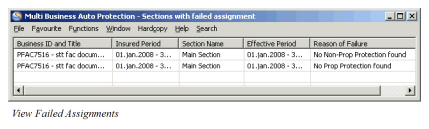 The View Failed Assignments Display List
| Display List Item | Description |
|---|---|
| Business ID and Title | Number or characters that uniquely identify the assumed business which the system did not find any protection for. With it, the business' title is also shown. |
| Insured Period | Insured period of the assumed business. |
| Section Name | Name of the section which the system did not find any protection for. |
| Effective Period | The from and to date of the effective period, which the system did not find any protection for. |
| Reason of Failure | The reason for not having proposed any protection assignment for this assumed business |
Assign Own Protection Automatically #
For some companies it is required to show their retention explicitly as part of protection assignment allocation.
Provided the System Administrator has set up the system this way the Automatic Protection Assignment will include also automatic assignment of Own Retention.
Refer to System Administration Guide for description of System Parameter ‘Retrocede to Own Retention’.
When generating automatic protection assignment of either a single or multiple businesses the system will also assign Own Retention for the unprotected portion as long as the system finds matching Own Retention.
A business section qualifies for assignment if the following business scope of cover values is a subset of the Own Retention:
- Insured Period
- Base Company
- Legal Area
- Mandatory Classifications for the Base Company
The proposed assignment of Own Retention will appear on the Single Business Auto Protection Proposal and on the list of proposed protections on the Multi Business Auto Protection order.
Own Retention is recalculated and will replace existing Own Retention assignment each time Automatic Protection is generated for a business.
Assign Protected Business #
View Protected Business #
|

Assumed Business button | It is possible to see the protected assumed business by clicking the Assumed Business button in the Navigation bar, both from the Outward Cedent’s Contract and from the Outward Proportional Facultative Business.
It is possible to see the protected business from the XL CA (inward or outward). Search for the business (XL CA of Outward or Inward) in the Find: Business window. Open the required business and click the Protected button on the Navigation bar.
Assign Protected Business Manually #
You may manually assign assumed businesses that should be retroceded to your outward cedent’s contract.
- Open your Outward Cedent’s Contract, select Assumed Business button in the navigation bar.
- In the Protected Assumed Business List, select Add Assumed Business from the popup menu.
- Find the protected assumed business, select it and select Transfer from the popup menu.
- Enter the Retroceded (G) percent as you require.
- Select OK
Assign Protected Business by Upload #
Load Referenced Assumed Businesses from external spreadsheet files.
- Open your Outward Cedent’s Contract, select Assumed Business button in the navigation bar.
- In the Protected Assumed Business List, select Import Assumed Business from popup menu.
- For the File to Import, select the Find button.
- Navigate to the wanted folder, select the file and Open.
- Select the Import button.
- After the system validation, a small dialogue box appears with the number of successful details found and number of failed details found.
- For the details that failed the validation, an Error List appears behind the dialogue box. The problem must be solved before the failed details can be imported.
- Select the OK button. The details that pass the validation are loaded and shown in Protected Assumed Business List.
Assign Protected Business Details: #
- The system will allow this way of assigning protections only if your system administratior has set the system up to allow it.
- The total Retroceded G percent to an assigned assumed business must not exceed 100%
- This option can perform the generation of preliminary bookings on the OCC. If bookings exist on the newly uploaded and linked Assumed Businesses these bookings will be transferred to the As Original ledger (preliminary bookings) according to the retroceded shares.
Assign Protected Business by Upload Details: #
- The system will allow this upload only if your system administratior has set the system up to allow it.
- The Outward Cedent’s Contract must have Type of Business proportional treaty or non-proportional treaty
- The spreadsheet must have the following columns and in the below order:
- Assumed Business Identifier
- Insured Period Start Date
- Assumed Business Section Name
- Gross Retroceded Share (Share of 100%)
- OCC Section Name
- The total Retroceded G percent to an assigned assumed business must not exceed 100%
- This option can perform the generation of preliminary bookings on the OCC. If bookings exist on the newly uploaded and linked Assumed Businesses these bookings will be transferred to the As Original ledger (preliminary bookings) according to the retroceded shares.
Assign Headline Loss Protection #
The Headline Loss Protection Assignment is a link that is created on a Proportional Assumed Business. Based on this link and the link from a claim that is booked directly on a technical worksheet to a headline loss, the system can perform recovery calculations. See Non-Proportional Recovery System for more details.
|

Headline Loss
Protection
Assignment button | To assign a Protection to a Headline Loss, click the Headline Loss Protection Assignment button in the Navigation bar. This button only appears on assumed proportional business. |
Clicking the Headline Loss Protection Assignment button opens the Headline Loss Protection Assignment window.
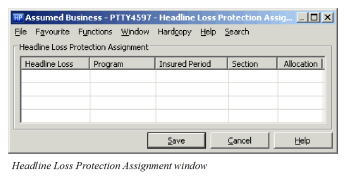
From the pop-up menu you can select Add. You see a new window where you can select the Headline Loss to protect. Thereafter you select a Protection Program, an Insured Period, a Section and an Allocation Percentage.
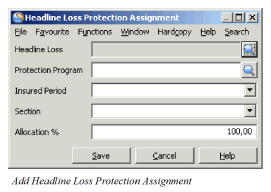
Click the Find button to see the Find: Headline Loss window. Search for the Headline loss you want to transfer to the Headline Loss Protection Assignment window, select it in the display list, and select Transfer from the pop-up menu to transfer it and return it to the Headline Loss Protection Assignment window.
Click the next Find button to see the Find: Business window. Search for the Protection Program and transfer it to the Headline Loss Protection Assignment window. Select an insured period and a section from the drop-down lists that appears. The allocation percentage must be filled in (defaults to 100%).
If you select an existing protection in the Headline Loss Protection Assignment window and select Delete from the pop-up menu, you can remove a protection.