View Protection Assignment
Proportional Protections #
|
 | From an inward business, click the Proportional Protection Assignment button in the Navigation bar. |
This opens the Proportional Protection Assignment window. The window is split into two parts: the upper part is for the proportional protection, and the lower part for the non-proportional protection.
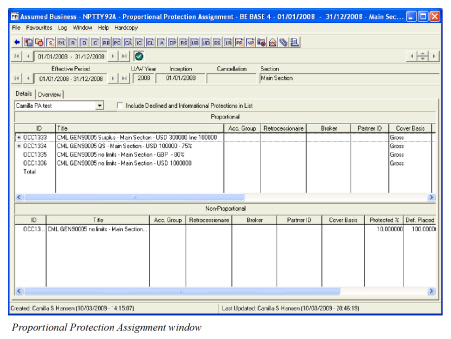
When a protection is assigned for the business, the protection is displayed in this window. In the ID column you can see the business ID. If there is a node in front of the Business ID, you can expand the business by clicking the node, to see the sub sections.
In the Title column, the system displays the Section Name, Main Currency and Limit information, in addition to the Business Title. The currency and limit information is taken from the P/L Condition and displays limit information in main currency for each section. The limit information is dependant of the Type of Participation of the protecting business:
If the Type of Participation is Quota Share, the system displays the following:
- Main Limit (Liability 100%)
- Quota Share Percent
If the Type of Participation is other thanQuota Share:
- Main Limit (Liability 100%)
- Liability 1st Line
Non-Proportional Protection #
|
 | From an inward business, click the Non-Proportional Protection Assignment button in the Navigation bar. |
This opens the Non- Proportional Protection Assignment window.
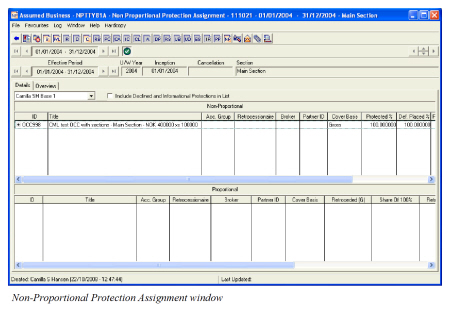
If the protecting business has several sections, you will see a node in front of the business ID. By clicking this node, the sub sections will appear. In the Title column, the system displays the following information per section:
- Business Title
- Section Name
- Main Currency
- Cover and Excess