Design Treaty Protection Program
In addition to being an overview of all protections previously purchased for a base company, the Protection Program is also a tool for planning your protection needs at a high level. When you create a protection program for a base company, you start with registering all classifications on a top level, and de_pending_ on the planned structure, you can split the program into _sections_ down to the level where you want to make outward _cedent_ s' contracts.
Create a Treaty Protection Program #
- From the Find: Business window, click the Business display and select New from the right-mouse pop-up menu. You see the Create New Business wizard.
- Enter a Protection Program title in the Title field.
- Select Protection Program in the Level of Business drop-down list.
- Select Treaty Program i n the Type of Program drop-down list.
- Select a Main Currency from the drop-down list.
- Enter the From and the To dates for the Insured Period. A From Time and a To Time automatically appear, which you can change. An Underwriting Year also appears automatically based on the From Date of the Insured Period. Click Next. You see the Assign Business Partner window. The system gives you your base company as the default.
- If you are making a protection for a different base company, click the right-mouse button and select Remove to remove the cedent. Click the Cedent button and select another base company to transfer back from the Find: Business Partner window.
- Click Next. You see the Classifications window.
- Add Classifications for each of the categories in the list. Refer to Classify Business in the Creating New Business section of the Handle Business Life Span chapter for more information.
- Click Next. You see the Business Identifier window, which is the last window in the Create New Business wizard.
- Click Finish. You see the Property window for the Protection Program.
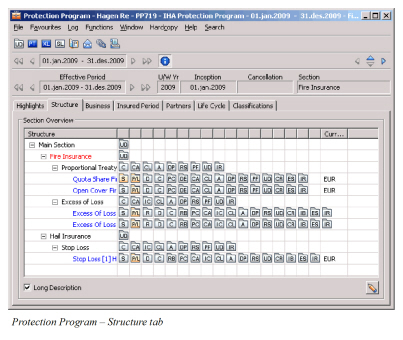
Design Proportional Protection #
You may plan your protection program by first outlining the outer boundaries of the proportional protection. You may then split this into planned treaties. When you are happy with your plan, you may realise the treaty outlines, whereby the system creates outward cedent’s contract(s) from each of them.
Outline Proportional Treaty Protections #
To record the proportional part of the protection program and split it into treaty outlines with limits:
- Click the Proportional Treaty Part button on the navigation bar of the Properties window for the protection program. You see the Edit Protection Program window.
- On the upper-half of the window, use the drop-down list to select a Currency and the Insured Basis. If you select EML, MPL or PML, you must also give a percentage.
- On the upper-half of the window, enter a Program Retention and Program Limit.
- Click the display list, and select Add Treaty Outline from the pop-up menu.
- Click in the Type of Participation, and use the drop-down list to select a Type of Participation. If you select Surplus, the system will open up the column for Surplus No. Depending on how your system has been set up, this might be mandatory.
- You may select Limit Type from the available choices.
- Enter the Proportional Retention and the Proportional Limit. The system calculates the Proportional Top Limit, which is the total of the two recorded values.
Create a New Version of a Program #
During your planning process you may want to create several editions of your program. You may have set up your plan some time ago and want now to change it, but still want to keep record of your old plan. When you create a new version of your program part, SICS copies the earlier version and new version receives today’s date. You can edit the new version without any effect on the old version.
To create a new version of a program:
- Open your protection program.
- Click the Structure tab and navigate to your section.
- On the toolbar, click PT button (Prop Treaty Part), XL button (XL Treaty Part) or SL button (Stop Loss Treaty Part), depending on where your plan is.
- Click the Menu button.
- Select Create New Version from the pop-up menu.
- Enter your changes and click OK.
Create Proportional Treaty from Program #
You may create an outward cedent’s contract from the protection that you outlined.
- Highlight the saved treaty outline.
- Select Realize from the pop-up menu.
- The system creates a new outward cedent’s contract with a link to the protection program.
Assign Existing Proportional Treaty to Program #
If you have already created an outward cedent’s contract, it is possible to link it to the program as long as the classification of the contract is a subset of the program classification.
- Choose Create Treaty Outline from Business from the pop-up menu.
- Select an Outward Cedent’s Contract from the Find Business window.
- The system checks that the OCC is a proportional treaty and has inception within the insured period of the program. It also checks if the classification of the treaty is a sub set of the program.
- The system shows the assigned treaty with any limits it might have. The limits of this treaty can now not be updated anymore from the program. If needed, you must update them on the treaty itself.
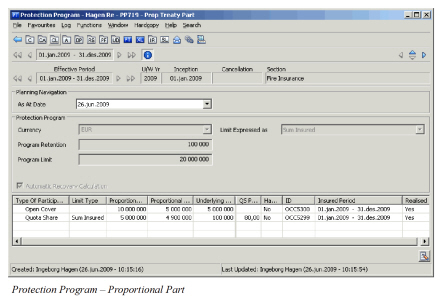
| Field | Description |
|---|---|
| As-at date | The date the program part that you see was created. Values: Date Derived from: Today’s date (when Program Part created) Mandatory: Yes Functional Impact: Automatic Protection Assignment |
| Currency | The currency in which the limits are expressed. Values: Short Name ISO Standard Default: Program Main Currency Mandatory: Yes Functional Impact: Contract Currency |
| Program Retention | The retained part of the program, equal to the “smallest” underlying top limit. Values: Amount > or = 0 Derived from: If larger than lowest Underlying Top Limit, then option of setting equal to this. Validations: If a treaty outline limit is present, then this is required. Must be smaller than Program Limit. Warning if any Underlying Top Limit is larger. Mandatory: No Functional Impact: - Outline Limits - Program Limit |
| Program Limit | Top limit of the program, equal to the top limit of the highest layer. Values: Amount > 0 Derived from: The highest Proportional Top Limit. Validations: If a treaty outline limit is present, then this is required.Must be larger than Program Retention. Mandatory: No Functional Impact: - Outline Limits - Program Retention |
| Type of Participation | Indicates the method of calculation for retrocession. Values: Sub classifications of proportional treaty: - Line slip - Open Cover - Quota Share - Risk Transfer - Second Risk Cover - Surplus 1 - Surplus 2 - Surplus 3 - US Quota Share Your company may have defined additional values. Validations: Depends on selected Type of Business. Must be US Quota Share if other outlines in program are US Quota Share _Mandatory:_Yes Functional Impact: - Outline Limits - Contract Classification |
| Limit Type | Indicates at which basis treaty outline limits are expressed. Values: - Sum Insured - EML - Estimated Maximum Loss - PML - Possible Maximum Loss - MPL - Maximum Possible Loss - Sum Insured - Top Sum Insured - Top Loss Probability Your company may have defined additional values. Derived from: Limit type of assigned contract if exists. Mandatory: No Functional Impact: - Contract Limit Conditions |
| Proportional Top Limit | The excess point, above which this treaty does not apply. Values: Amount > or = 0 Derived from: Limits of assigned contract if exists. Calculations: Proportional Limit + Underlying Top Limit Validations: - Can not be higher than Program Limit. - Warning if larger than the next treaty’s Underlying Top Limit (overlap) - Warning if smaller than the next treaty’s Underlying Top Limit (gap) Mandatory: No Functional Impact: Contract Limit Conditions |
| Proportional Limit | The liability (100%) of this treaty. Values: Amount > 0 Derived from: Limits of assigned contract if exists. Calculations: Proportional Top Limit - Underlying Top Limit If Surplus, Liability 1 Line x Lines Validations: Can not be higher than Program Limit. Mandatory: No Functional Impact: - Outline Limits - Contract Limit Condition |
| Underlying Top Limit | Top Limit of the underlying treaty outline. Values: Amount > or = 0 Derived from: Limits of assigned contract if exists. Validations: Can not be less than Program Retention.Warning if smaller than the underlying treaty’s Top Limit (overlap) Warning when larger than the underlying treaty’s Top Limit (gap) If quota share, this must be the lowest. Mandatory: No Functional Impact:- Outline Limits - Contract Limit conditions |
| Liability 1 line | The amount being the cedent’s retention. Derived from: Previously entered surplus outlines Calculation: Proportional Limit / number of Lines Validations: Must be the same on all surplus outlines in the same program part. Mandatory: No Functional Impact: - Outline Limits - Contract Limit Conditions |
| Lines | Number of times by which the retention must be multiplied to get the liability of the treaty. Value: Number 0 - 99 Calculation: Proportional Limit / Liability 1 line. Mandatory: No Functional Impact: - Outline Limits - Contract Limit Conditions |
| QS Percent | The maximum liability per risk in percent of the main limit of the quota share treaty. Value: Percentage 0-100 Mandatory: No Validation: If Type of Participation is Quota Share, or US Quota Share, this is required Functional Impact: - Outline Limits - Contract Limit conditions |
| Has Sub-limits | Indicates if this treaty outline has limits on any program sub section. Values: Yes, No Default: No Derived from: Set to Yes if sub limits exist. Validation: Cannot be manually changed. Mandatory: Yes |
| ID | The identifier of the linked outward cedent’s contract. Values: Text. Validation: There must be a linked outward cedent’s contract Cannot be manually changed. Mandatory: No Your system administrator might however have made this mandatory. |
| Insured Period | The insured period of the linked outward cedent’s contract. Values: Date Validation: There must be a linked outward cedent’s contract Cannot be manually changed. Mandatory: No |
| Realized | Indicates if the treaty outline has become an outward cedent’s contract. Values: Yes, No Default: No Derived from: Set to Yes when the outward cedent’s contract is linked Mandatory: No |
Design Excess of Loss Protection #
|

Protection Program
Excess of Loss
button | The Protection Program Excess of Loss button appears on the Protection Program Properties window. Here you can register an excess of loss protection program part with its upper and lower limits, and then split the program into excess of loss program treaty outline. For each outline you can indicate limits and layer numbers.
If you have more than one section on the same level in the hierarchy, you can set the Sequence Number, to indicate which section should be processed first. The sequence number can be changed after initial registration, but must be unique within the program part. The sequence number ensures that Inuring bookings are considered correctly in recovery calculation, where such rules are defined to a sibling section.
You can also exclude a programme section from the Auto Claim Protection Assignment order. This may be relevant if a sibling section is a back-up layer. The order would then find two matching protections, and fail to assign any of them automatically.
When you have finished the split, you can make one Outward Cedent’s Contract out of each Treaty Outline part by selecting Realize Treaty Outline
Insert new line after “…selecting Realize Treaty Outline.” |
Design Stop Loss Protection #
|

Protection Program Stop Loss button | The Protection Program Stop Loss button appears on the Protection Program Properties window. Here you can register a Stop Loss protection program with its upper and lower limits, and then split the program into Stop Loss program Treaty Outline. You can also register the layer number. When you have finished the split, you can make one Outward Cedent’s Contract out of each Treaty Outline part by choosing Realize Treaty Outline. |
Design Aggregate Loss Protection #
|

Protection Program Aggregate Loss
button | The Protection Program Aggregate Loss button appears on the Protection Program Properties window. Here you can register an Aggregate Loss protection program part with its upper and lower limits, and then split the program part into Aggregate Loss program Treaty Outline. You can also register the layer number. When you have finished the split, you can make one Outward Cedent’s Contract out of each Treaty Outline part by choosing Realize Treaty Outline. |
Design Program with Multiple Limits #
If you plan to have different limits for a treaty, for example one for machinery and one for loss of profit, you may reflect this already in the program.
Add Sub Limits to Treaty Outline #
To be able to add sub limits for a treaty outline, the protection program must have sections. When you later realize the outline, the system will create sub sections for your outward cedent’s contract equal to the program sections where you entered your sub limits.
-
Open your protection program.
-
Click the Structure tab.
-
Navigate to the section of the program which you want to be the main section of your outward cedent’s contract.
-
Being on this section, open the program part, (e.g. click PT button) in the navigation bar.
-
From the menu button options, select Edit Existing Version(or Create New Versio n)
-
Highlight the treaty outline that you want to create sub-limits for.
-
Select Add Sub limits from the pop-menu.
-
Select the program section that you want to make sub limits for and double click.
-
You now see the name of the section you are working on in the title bar at the top of the window. Enter the details for your sub limits in the same manner as when creating a treaty outline.
-
Click Save.
-
The system shows you again the main level of the treaty you are working on. (You see the title of the section in the title bar)
-
You can now repeat the procedure to enter more sub limits for this treaty.
-
Click OK when you are finished.
Note that on a program section with treaty sub limits, you cannot establish treaty outlines representing the main section of the treaty. Likewise, you cannot add a sub-limit to a program section already having the main section of another treaty. This rule applies only to non-proportional business (XL, SL and AX parts).
Assign Existing Treaty with Multiple Limits #
It is possible to link an existing outward cedent’s contract with sub sections to the protection program. The system assigns the contract to the program with sub-limits corresponding to the sub sections with limits of the outward cedent’s contract. To do this, follow the same procedure as describe for the Assign Existing Treaty to Program procedure.
Add Sub Limit from Existing Treaty Section #
Sometimes the protection program section structure changes after the linked outward cedent’s contract is realized. To avoid a mismatch in the section structure, the system allows you to attach an existing section of an outward cedent’s contract to a protection program section.
-
Open your protection program.
-
Select the Structure Tab. Navigate to the section of the program from where you want to attach the outward cedent’s contract section.
-
Being on this section, open the program part, (e.g. click PT button) in the navigation bar.
-
From the menu button options, select Edit Existing Version (or Create New Versio n).
-
Select Create Sub Limits from Business Section from the pop-up menu.
-
Select the outward cedent’s contract you want to attach, and click OK.
-
You now see a list of sections matching the protection program classifications.
-
Select a section, and double click.
-
The system opens the program part again, with the linked outward cedent’s contract listed in the business list.
-
You can now repeat the procedure to create more sub limit links for this protection program section.
-
Click OK when you are finished.
Delete Sub Limit Link #
Sometimes the protection program structure differs after belonging treaties have been realized/linked. It might therefore be necessary to remove the link to a section of an outward cedent’s contract.
- Open your protection program.
- Select the Structure Tab. Navigate to the program section that you want to unlink from a treaty section.
- Being on this section, open the program part, (e.g. click PT button) in the navigation bar.
- From the menu button options, select Edit Existing Version.
- Highlight the Outward Cedent’s Contract section that you want to delete.
- Select Delete Sub Limit Link from the pop-up menu and select OK.
- You can now repeat the procedure to delete more sub limit links for this protection program section.
Note! The above procedure does not apply to the ‘main’ section of a treaty. (Removing the link to the main section would have meant removing the link to the entire treaty.)
View Treaty Sub Limits from Program #
You can inspect a treaty outline with all of its sub limits in the same window. This feature gives you a quick overview of one single treaty and is sub limits, without seeing any other treaties or without needing to navigate to each section. It shows all sections with the belonging limits. It is available both before and after your have realised the outward cedent’s contracts.
- Open the program part, (e.g. click PT button) in the navigation bar.
- Highlight the treaty outline with the sub limits that you want to inspect.
- Choose View Sublimits from the pop-up menu.
Program Cedent Handling #
The cedent(s) of the Outward Cedent’s Contracts (OCC) must be a subset of the Protection Program’s cedent(s). You may add, edit or remove a cedent on the OCC as long as the modifications are within the subset of the Protection Program.
View a Protection Program from OCC #
|

Protection Program button from OCC | After creating an Outward Cedent’s Contract from a Protection Program, the Protection Program button appears on the Navigation bar of the Outward Cedent’s Contract. When you click this button, you see the properties of the connected protection program. |
Navigate in the Protection Program #
A program usually has a complex structure with several sections, sub sections and treaties linked at different levels of these sections. To get a better overview of the what the program looks like and to improve navigation, SICS offers a number of different navigation features.
View the Program Highlights #
The program highlights shows the outer monetary bounders of the program. It shows the upper and lower limits of the program parts (Proportional Treaty, Excess of Loss and Stop Loss) for the selected section.
To view the program highlights:
- Open your protection program.
- Click the Highlights tab.
Get Overview of Program Sections #
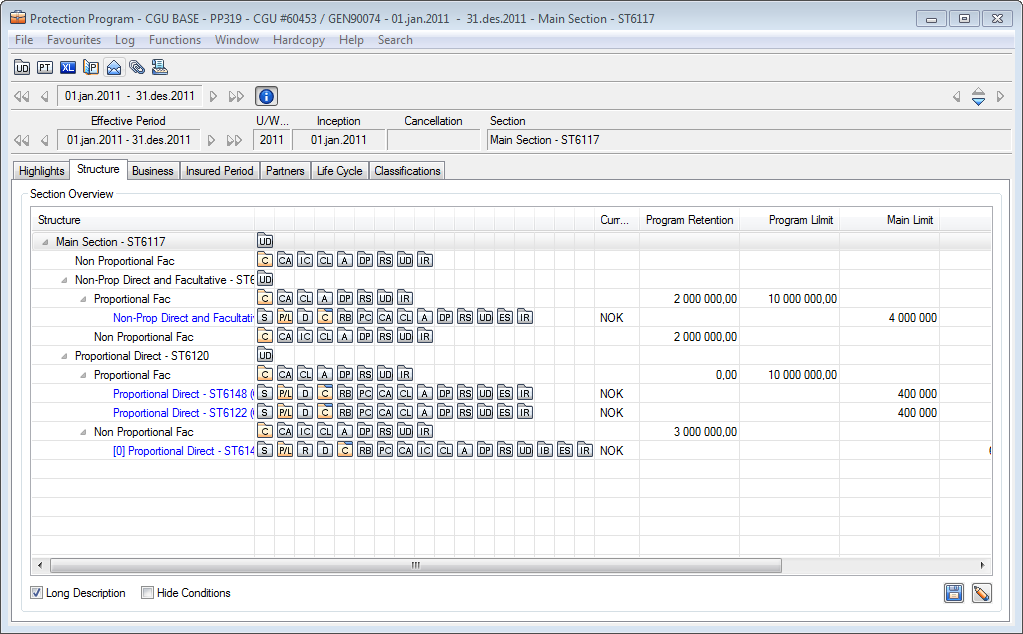
The section overview shows the sections and sub sections of the program in a hierarchical form. It also shows existing treaty outlines and outward cedent’s contracts at the section level they belong.
To see the overview of the program sections:
- Open your protection program.
- Click the Structure tab.
- Click the arrow if you want to collapse the hierarchy below it to focus higher levels
- Expand a level again by clicking the lowest arrow
Navigate to Program Parts #
The program section overview makes it easy to find and open the program part that you want to see.
To open a program from the program section overview:
- Open your protection program.
- Click theStructure tab.
- Choose your program part; Proportional Treaty, Excess of Loss or Stop Loss and double-click it.
Navigate to Treaties in Program #
You can navigate directly to the detailed information of the outward cedent’s contracts that you have bought for this insured period from the program. In SICS you navigate from the following areas:
- the Section Overview area on the Structure tab where you get a complete overview of the program.
- from the toolbar in the Program Part window where you see parts if the program with OCC limits included. To navigate to the treaty from the Section Overview area:
- Open your protection program.
- Click the Structure tab.
- Under Proportional Treaty, Excess of Loss or Stop Loss, select your treaty and double click it.
To navigate to the treaty in the Program Part: #
- Open your protection program.
- On the toolbar, click PT button (Prop Treaty Part), XL button (XL Treaty Part) or SL button (Stop Loss Treaty Part), depending on what you want to see. You see the Protection Program Part window with the OCC limits shown.
- Use the arrow button to find the section you are looking for.
- Double-click to open the OCC.
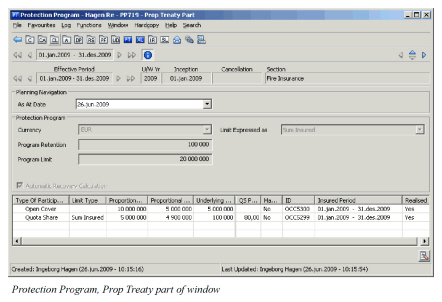
To simplify overview:
- On the bottom of the overview, deselect Long Description
- On the bottom of the Overview, select Hide Conditions
- To see only higher levels in the hierarchy, you may click the arrow and collapse the levels below.
To save the section overview to a spread sheet:
- Make your selections (expand, collapse, etc) as your require
- Select the Save as Spreadsheet button
- Define where to save the Section Overview
- Enter a file name
Visualize Non-Proportional Treaty Protection Structure #
The protections relevant for a specific portfolio for a specific period may be structured in single reinsurance contracts, or different sections within a protection program, or even registered in different programs. SICS offers a graphical overview of all non-proportional treaty protections which relevant for a selected portfolio.
To Visualize Non-Proportional Protections:
- Open the structure tab of a Treaty Protection Program, or a non-proportional treaty outward cedent’s contract
- If you are on a program, select the starting section from where you want to initialise the graphical overview, or if you are on the OCC, select the Main Section.
- Select Visualize Non-Proportional Protections from the pop-up menu. The system opens the graphical display.
- To open a specific OCC, click on its' box in the display.

The section from which you start the overview determines which OCCs are included in the display:
-
All OCCs which are defined in the starting section
-
All OCCs for which any of the starting section’s OCCs are linked through the Inuring Rules Through Top or Reinstatement Exhausted.
-
All OCCs which are pointing to the starting section through Inuring rules Through Top or Reinstatement Exhausted.
-
All OCCs which are linked to any of the above OCCs through Inuring rules Through Top or Reinstatement Exhausted.
You may experience that the same OCC is displayed in several boxes, but in different columns. This is the case when an OCC is more general, and the underlying protections are a more specific nature. For example, if you have specific Aviation and Marine sections, both of which are pointing to the more general Marine & Aviation section, the OCCs in the Marine & Aviation Section will appear in the columns for both Marine and Aviation. One OCC is displayed in the same colour regardless of where in the structure it is displayed. The graphical overview only displays OCCs which are non-proportional treaties, and has certain limitations:
-
It does not display limits on sub sections of an OCC, nor does it support sub-limits (and such sections) in a protection program.
-
It does not display cessions on any displayed OCC.
-
It does not display Aggregate Excess of Loss, or Stop Loss contracts which may be relevant for the portfolio.