Business Reporting
Report Conditions to Consider #
In order to get the correct information when creating reports with business information there are a few objects that usually have to be included as query filters:
- Level of Business (Code) to limit the report result on the level of business (IAB, OCC, ORP etc).
- Basic Status Current (Code) set to ‘DEF’ only brings back businesses with life cycle phase Definite.
- Is Latest Life Cycle Phase (Y/N) set to ‘Y’ brings back the latest life cycle phase within each insured period of a business.

All the above objects are found in the Business Information class.
Life Cycle Phase Flags #
When you create reports on business information there are three object flags that you should remember. They are associated with the life cycle phases.
-
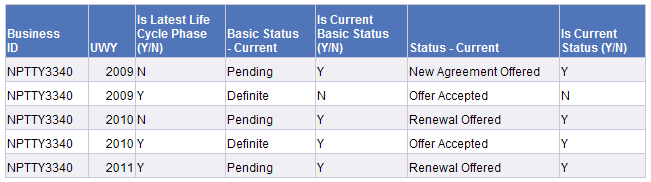
The object Latest Life Cycle Phase (Y/N) is set to ‘Y’ on the last Life Cycle Phase (LCP) within each Insured Period (IP). Note! Not within each business, but only within each insured period.
-
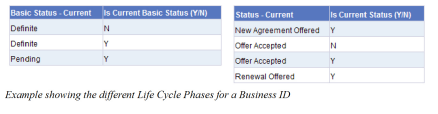
The objects Is Current Basic Status (Y/N) and Is Current Status (Y/N) show a ‘Y’ for the newest/latest entry within each status group, not taking Insured Period into account.
In the example below you see how the last two mentioned status flag objects show the data. They disregard the underwriting year of the different statuses. They only show a ‘Y’ representing the latest individual status throughout the business.
Scope of Cover (All) Objects #
In the Business Classification structure there are two sets of objects for reporting on Scope of Cover. They are grouped into classes Scope of Cover and Scope of Cover (All).
Using objects from the Scope of Cover (SOC) class each value will be shown on separate rows. Meaning that a Business with several values for various types of SOCs will end up with a report result showing all possible combinations of the SOCs. In the business example below there are several Countries, Main Class- and Class of Businesses and they all relate to the main section of the business.
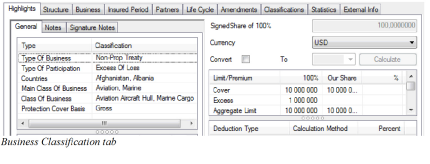
A report with objects from the Scope of Cover class, BusinessObjects has no way of telling which of the objects are related. Hence it does the next best thing, which is to show all possible combinations, making the report unnecessarily large. Furthermore, if you for example add an object for premium or limit this numeric data will be repeated for each combination of SOC.
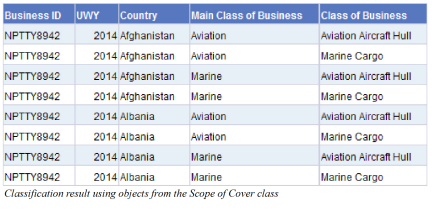 To avoid the above it is more suitable to use the objects from the class Scope of Cover (All), which shows all values per SOC type in one row but with more details in the cells.

If you want to filter a query on SOC objects, you can not use the Scope of Cover (All) objects. You need to select objects from the Scope of Cover class.
Main Class, Class and Sub Class Dependency #
Reporting on dependencies in the scope of cover between the Main Class (MCOB), Class (COB) and Sub Class (SCOB) of Business is possible, but there are some restrictions, which you must be aware of in order to report correctly.
Using objects from structure Business Information / Classification / Scope of Cover / Sub Class of Business Hierarchy you need to consider the following:
- The report will only show businesses that actually have a Sub Class. Those that do not have a Sub Class will be excluded in the report query, meaning that businesses with only Main Class and Class of business will not be shown in the report result.
- In order to report accurately it is important that the Reference Data in SICS is set up properly. This means that the SCOB must only belong to a unique COB. The COB must also only belong to a unique MCOB.
Section or Aggregation Objects #
In the Limit and Premium Condition structure you find several subclasses referred as per Section and Aggregated.
In the per Section class you find Dimension objects, and in the Aggregated class Measure objects. Choosing the correct one is dependent on which type of report you are doing.
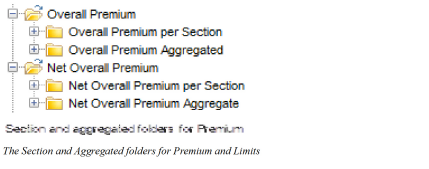
For more details regarding Dimension and Measure objects refer to the BusinessObjects Definitions on page 20-2section.
Limit and Premium Conditions #
Both the Limit Information class and Premium Information class hold many types of Limits and Premiums.
You should note that when you select explicit limit information, for example Cover Limit, you only get this predefined limit type in your report.
The same can be applied for the Premium structure. If you run a report with the predefined EPI objects, you will only receive information from those businesses that have EPI as a premium type. Businesses with premium type Gross Premium are excluded from that report.
To make sure all types of Limits and Premiums are retrieved it is recommended, to use All Limit objects for limit information and Overall Premium objects for premium information, whenever possible.
Max Loss Ratio on a Proportional Business #
Reporting the Max Loss Ratio for Loss Participation on proportional businesses is problematic since this value is not stored in the database. This is the reason why you do not find any object for this in the Deductible Conditions structure.
However, the Min Loss Ratio is stored in the database which means that you can create your own Max Loss Ratio object by a Local Variable formula based on the Min Loss Ratio.
To Create an Object for Max Loss Ratio:
- In your report query you need to have objects Business ID and Min Loss Ratio.
- Create a local variable for the Max Loss Ratio containing the formula:
=If (Max(<Min Loss Ratio>) In (<Business ID>))=<Min Loss Ratio> Then 10000 Else Previous(<Min Loss Ratio>) -0.01
GAAP Estimates #
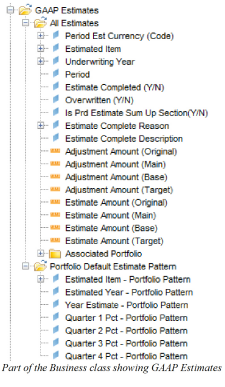
Reportable objects for GAAP Estimates are found in the Business Information / Underwriter Estimate structure.
Underwriters Estimate #
There are two sets of objects within this structure, where you on Business ID and Underwriting Year level either can view the latest estimate only or all estimates.
You need to remember to select the correct Date object. Creating a report with object Estimate Amount (Latest) requires that you also have included the object Estimate Date (Latest).
Underwriters Estimate - Ratios in Base Currency #
When obtaining information about underwriters' estimates in Base currency, you need to adjust your report result for estimated items defined as ratios.
A prerequisite in the following report example is that each estimated item first has been defined as a local variable. Steps on how to create such variables refer to section Creating Local Variables.

In the above example, you see that the ratios in Base currency make no sense, which means that you can not use this ratio in any calculations. The solution is to:
- Retrieve the Underwriters Estimate amounts in both Base and in Original currency.
- For report calculations using ratio items, the ratio must be taken from the original amount, for example Estimate Amount in Base multiplied with the ratio in original.
To calculate the Estimate Loss in Base currency based on the Loss Ratio in the example, the formula for this local variable would be:
=(<Estimate Amount (Latest) (Base)> Where (<Estimated Item>=“Premium Income (PI)"))*<Estimate Amount (Latest)> Where (<Estimated Item>=“Loss Ratio”) Note! The Loss Ratio is in Original currency, and the Premium Income is in Base Currency.
Applying Sum on Ratios #
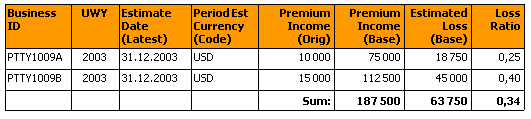
If you want to summarize the ratios, the aggregation is totally incorrect. Here is an example:
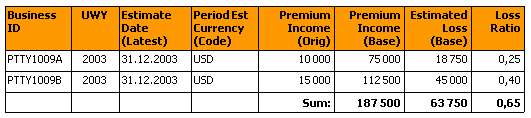
The total loss ratio figure of 0,65 is incorrect. The correct ratio should be 0,34 (i.e. the total of Estimated Loss divided by Premium Income).
To Achieve Correct Sums on Ratios:
- Mark the cell holding the sum of the ratios.
- Select Variables from the Data menu.
- Edit the formula to be:
=Sum(<Estimated Loss (Base)>)/Sum(<Premium Income (Base)>) 4. Click the Replace button, and the total for the ratios is now showing the correct value.