General Reporting
The Section Prompt #
When running reports having objects coming from the Reporting table you are asked to enter a section level.
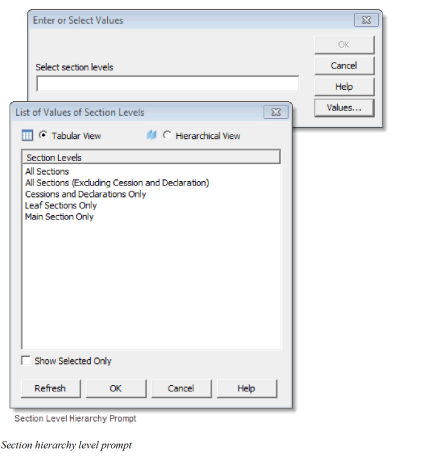
The Reporting table consists primarily of information coming from the Business, Insured Period, Classification (Scope of Cover, SOC), Life Cycle Phase and Partner Information areas. This means that when selecting objects coming from any of these areas, the Reporting table is accessed and this prompt occurs.
You can either enter a value directly or click the Values button.
The Section Prompt Options:
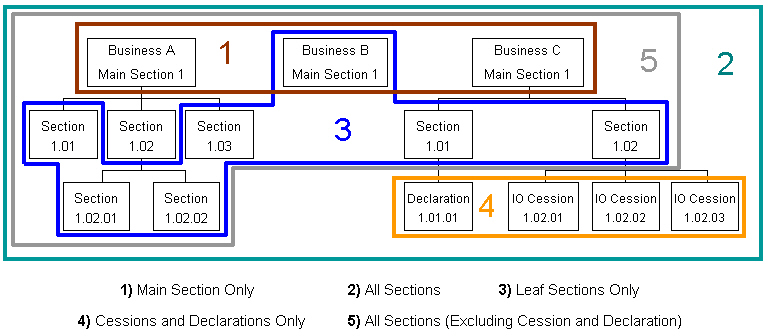
- Main Section Only
Relates to the main section, meaning that the report only returns information related to the main section level of the business. 2. All Sections
This returns information relating to all sections of the business. 3. Leaf Sections Only
This option selects the leaf sections of the businesses. You must be aware of the following:
- For businesses without a substructure the main section is considered as a leaf section (Business B in the example shown below).
- Section types ‘Insurable Object (IO) Cession’ and ‘Declaration’ are not considered as leaf sections.
- Cessions and Declarations Only
Selecting this option only data registered on IO Cessions and Declarations are retrieved. 5. All Sections (Excluding Cession and Declaration)
This option returns information relating to all sections of the business, but with the IO Cessions and Declarations excluded.
Active/Inactive Sections #
All Sections, not only the active ones, are included in a report if nothing to the contrary has been specified. The object, SOC Is Active (Y/N),found in class Business Information / Section is used to report if the section is active or not.
SOC Is Active (Y/N) may also be used as a condition in the report.
Reporting in Different Currencies #
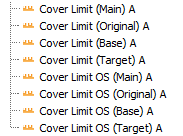
In severalclasses of the main universe you find that some numeric information is available in Main, Original, Base and Target currency.
- Main gives you the amount in the Main currency of the Business.
- Original gives you the amount in the Original currency as it has been entered.
- Base and Target gives you the amount in the Base and Target currencies selected in the exchange rate prompt when running the report. The available Base currencies are those that are defined as Base currency in SICS, and the Target currencies are all existing currencies.
Examples of these are the Cover Limit objects:
The Exchange Rate Prompt #
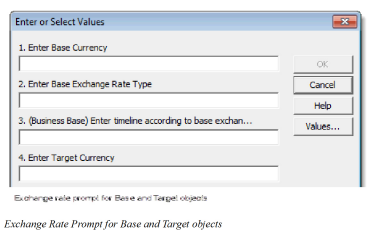
When running a report with base and/or target objects a prompt for currency exchange rates appears where values are required for the following options:
- The Base Currency
- The Exchange Rate Type for the Base Currency selected in option 1
- The Timeline for the Exchange Rate Type selected in option 2
- The Target Currency with possibility to enter FC1 or FC2 for specification of Functional Currency 1 or 2 from Accounting.
Possible Exchange Rate Combinations #
For option 2 the exchange rate types to select are:
| Code | Description |
|---|---|
| DR | Daily Rate |
| DR2 | Daily Rate 2 |
| EYR | Year End Rate |
| None | None |
| PEPR | Provisional Period End Rate |
| PER | Period End Rate |
| PEYR | Provisional Year End Rate |
The possible values for option 3 for the timeline are dependant on your selection in option 2. The possible combinations also vary depending on the Base and Target objects originate from the Balance, Booking, Claim, Remittance or Business areas.
Option 3 (Balance):
Selected in option 2 Possible combinations in option 3
| Code | Description |
|---|---|
| DR | Today, Date of Booking, Due Date or YYYYMMDD (20031227) |
| EYR or PEYR | YYYY(2003), Booking Year, Year of Booking Date or Accounting Year |
| PER or PEPR | - Booking Year/Period - Local - Booking Year/Period - Legal - Booking Year/Period - Global - Booking Year - Local/Fixed Period Mnn - Booking Year - Legal/Fixed Period Mnn - Booking Year - Global/Fixed Period Mnn - MYYYYMnn (M2003M12 i.e. end of December month 2003) (Q2003Q3 i.e. third quarter of year 2003) (HY2003HY1 i.e. first half year of year 2003) For Booking Year/Fixed Period, see further description below |
Option 3 (Booking):
Selected in option 2 Possible combinations in option 3
| Code | Description |
|---|---|
| DR | Today, Date of Booking, Due Date, Insured Period Start Date or YYYYMMDD (20031227) |
| EYR or PEYR | Underwriting Year, YYYY(2003), Booking Year, Year of Booking Date or Accounting Year |
| PER or PEPR | - Booking Year/Period - Local - Booking Year/Period - Legal - Booking Year/Period - Global - Booking Year - Local/Fixed Period Mnn - Booking Year - Legal/Fixed Period Mnn - Booking Year - Global/Fixed Period Mnn - MYYYYMnn (M2003M12 i.e. end of December month 2003) (Q2003Q3 i.e. third quarter of year 2003) (HY2003HY1 i.e. first half year of year 2003) For Booking Year/Fixed Period, see further description below |
Option 3 (Remit):
Selected in option 2 Possible combinations in option 3
| Code | Description |
|---|---|
| DR | Today, Date of Booking, Due Date, Value Date or YYYYMMDD (20031227) |
| EYR or PEYR | YYYY(2003), Booking Year, Year of Booking Date or Accounting Year |
| PER or PEPR | - Booking Year/Period - Local - Booking Year/Period - Legal - Booking Year/Period - Global - Booking Year - Local/Fixed Period Mnn - Booking Year - Legal/Fixed Period Mnn - Booking Year - Global/Fixed Period Mnn - MYYYYMnn (M2003M12 i.e. end of December month 2003) (Q2003Q3 i.e. third quarter of year 2003) (HY2003HY1 i.e. first half year of year 2003) For Booking Year/Fixed Period, see further description below |
Option 3 (Business) and (Claim):
Selected in option 2 Possible combinations in option 3
| Code | Description |
|---|---|
| DR | **Today, Actual Period, Insured Period Start Date ** or YYYYMMDD (20031227) |
| EYR or PEYR | Underwriting Year or YYYY (2003) |
| PER or PEPR | End Period Rate or MYYYYMnn (M2003M12 i.e. end of December month 2003) |
| (Q2003Q3 i.e. third quarter of year 2003) | |
| (HY2003HY1 i.e. first half year of year 2003) |
Note! All dates have to be entered manually. The coded choices can be overwritten by the dates.
Note! The above coded choices are possible to customise, so you can have additional selections in your reporting environment.
The Timeline Options #
Today: Everything is converted to today’s exchange rate (or the most recent related exchange rate). This best applies to accounting information.
Date of Booking & Actual Period: The used rate relate to the day (or most recent) of the booking. This best applies to accounting information.
Due Date: The exchange rate is the due date of the booking (or most recent). This best applies to accounting information.
Value Date: The exchange rate is the value date of the remittance. This only applies to remittance information.
UW Year: For this the Year End exchange rate is used. This best applies to business information.
Booking Year: For this the Year End exchange rate for the booking year is used. This best applies to accounting information.
Year of Booking Date: The year of the date of booking. This best applies to accounting information.
Booking Year/Period & End Period Rate: The end rate for a certain period (half year, quarter or month) is used.
Booking Year - Local(Legal/Global)/Fixed Period: When selected, the wanted period must be entered in the selected field after the selection has been made. E.g., when you have selected Booking Year - Local/Fixed Period, you have to enter e.g. M01 in the selected value field, so that the selection reads Booking Year - Local/Fixed Period M01. Possible period inputs are M01 - M12, Q1 - Q4, HY1 or HY2. When selected, the Period Rate corresponding to the Booking Year of the booking and the entered period is used.
Accounting Year: The Accounting Year of bookings. This best applies to accounting information.
Insured Period Start Date: The exchange rate is the start date for the insured period. This best applies to business information,but can also be used for accounting detail information (not balances).
The various rates used are those defined in SICS. They are found on the tabs Day Rates, Period Rates and Year Rates for each currency in the Reference Items subfolder Currency and Exchange Rates.
Two Exchange Rate Types #
Within the Accounting Information structure there are some balance and entry amount objects labelled as Base2 and Target2. With these objects it is possible to have two types of Exchange Rates and Timelines in Base and Target currency, within the same report query.
Example: In a report you want two columns with entry amounts in Base currency where one of them is shown with the latest daily rate, and the other one with the year end rate 2003.
- You select entry amount objects for Base and Base2
- In the exchange rate prompt you get two rows for option 2 to enter the type of rate for Base and Base2, and two rows for option 3 to enter the exchange rate timeline for Base and Base2.
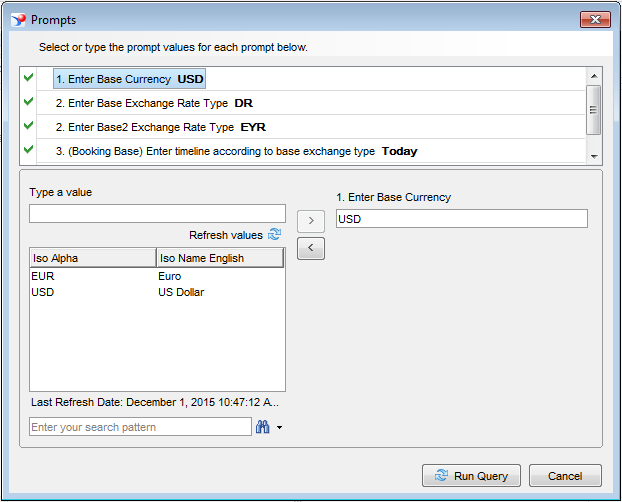 3. The report result displays two columns in Base currency where two different exchange rates have been applied.
 See Reference Items in the SICS System Administrator’s Guide for more information on exchange rates.
The All Values Class #
If you have created user prompts as conditions in a report, there is a limit on how many list of values you can select in the prompt. A validation message is displayed when you have selected too many values.
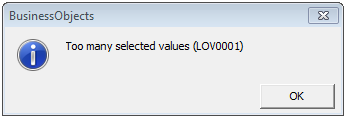
If you for example at one time want to select five values, and the second time want to see all values, you can not do that with a regular ‘in list’ operator as a condition.
The solution is to use one of the objects in the All Values class together with the conditioned object. There are three types of objects:
- All Dates- for objects defined as a Date, like Inception Date.
- All Values- for objects defined as a Character, like Business ID.
- Zero Value- for objects defined as a Numeric, like Underwriting Year.
The objects are found in the All Values class in the System Information structure.
To create a prompt using an All Values object:
- Add the object condition on which you want to create a prompt.
- Create the prompt with a suitable name.
- Add the correct All Values object with the same prompt name as the related conditioned object.
- Double-click the ‘And’ that was inserted between these two conditions, in order to change it to an ‘OR’.
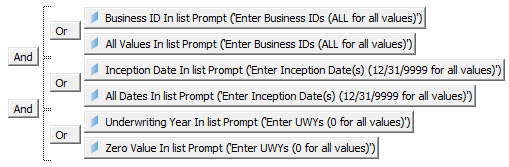 When the report is run or refreshed you have in the report prompt the flexibility to select one, a few or all values.
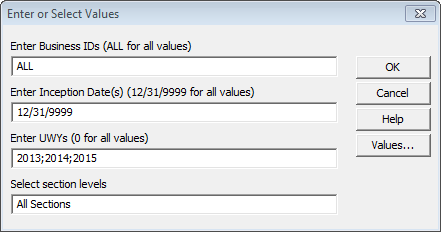
To retrieve all data for the different types you enter:
- 12/31/9999 when using the date object All Dates.
- ALL when using the character object All Values.
- 0(a zero) when using the numeric object Zero Value.
For more details on how to use these objects refer to the informational text for each object within the Query Panel.
Two of the three objects in class ‘All Values’ do not work in the BO XI Web Intelligence reporting tool. For the ‘All Dates’ object the system does not accept the date string 12/31/9999 to get all values, which means you cannot complete the condition. It’s possible to create a condition with the ‘Zero Value’ object, but when running the query the following error message is triggered: “Multiple query filters contain a prompt with the same text, but the prompts use a different operand type or operator count of values. (Error: WIS 00015)”.