Set up Co-Insurance Structure
You may find that you are in the process of recording a new business offer and wish to record it in SICS. However, this offer is part of a co-insurance policy where several insurers are independently sharing the liability. You wish therefore to indicate that you are a participant in such a policy.
In some cases your company has also been given the responsibility to administer this co-insurance policy on behalf of the other co-insurers, (e.g. to produce premium closings or handle claims). As the administrator, you need to structure this policy in SICS to maintain the co-insurers in an efficient way, e.g. book 100% figures and get automatic allocation of figures to participants according to their terms and conditions.
In addition to administering the co-insurance, your company may also in special cases have the responsibility of administering the co-insurers' reinsurance on their behalf. SICS offers functionality for supporting also this.
In brief, a complete co-insurance structure in SICS consist of the following:
- Insured’s Contract: The business representing the overall 100% co-insurance policy.
- Assumed Business: The agreement representing your company’s (/base company’s) own participation in the co-insurance policy.
- Administrative Businesses: Co-insurance agreements your company handles on behalf of other co-insurers.
This section describes how you indicate that a business is part of a co-insurance policy. It also describes how to structure this co-insurance policy when your company is the administrator.
If you want more details on co-insurance as part of a more general process; like creating a new business, accepting an offer, renewing a business, assigning protection,placing a protection; see the section describing your particular process.
Record a Complete Co-Insurance Policy in One Go #
If you are the administrator of a co-insurance policy, you need to capture the entire co-insurance structure. If you know who the other co-insurers are and you are aware of their acceptance status and share in the policy, you can record the entire co-insurance structure in one go, including some or all of the businesses.
- Open the Find Business window and select the Create New button or select New from the pop-up menu.
- In the New Business Wizard, select Assumed Business as the Level of Business.
- Select Proportional Direct or Non-Proportional Direct as Type of Business. The Co-Insurance check box appears to the right of Type of Business box.
- Select the Co-Insurance check box.
- Reply Yes to the question that you are the Administrator and Yes to the question of creating a Co-Insurance Agreement.
Note! The Level of Business has now changed to Insured’s Contract.
- Continue completing the other details (Insured Period, Title, Main Currency, etc.) as you would when creating any new business. Click Next.
- On the Assign Business Partners page of the wizard, assign Other Co-Insurers as Business Partners to the Co-Insurance Policy.
- Assign your own company (Base Company) as Administrator for this Co-Insurance Agreement. You also assign an Insured. Click Next.
- Classify the Business as you would any other business.
- On the Add Placements page of the new business wizard, you have the possibility to record details relating directly to the Administrator and the Other Co-Insurers. Enter a Life Cycle Status and Share for each Business Partner if you require.
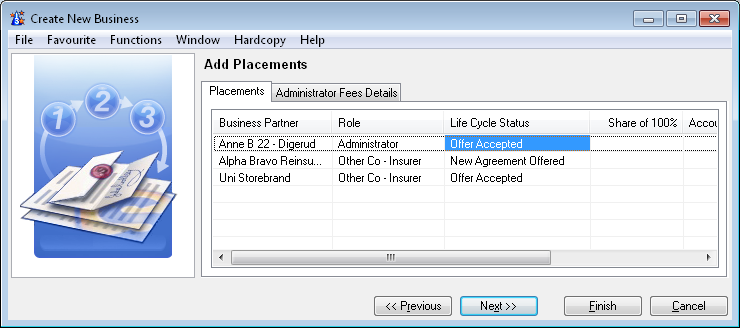 You may add administration fees at this point if you require. Select the Administrators Fee tab. (You may also wait with adding these until you have finished creating the businesses.)
Select a Calculation Method for the Administrators Fees for each Co-Insurer. The information entered here will be stored on the deduction condition of the administrative businesses. For more details, refer to Maintain Deductions Conditions.
You can at this point indicate the level of business for your own participation; i.e. Assumed Business.
Select Finish to complete the New Business Wizard.
If the Signed Share of the definite placements totals 100%, the system will now ask you if you want to set the Placement Complete flag. Reply Yes or No as you require. Refer to Place Protection section for more information.
You may add administration fees at this point if you require. Select the Administrators Fee tab. (You may also wait with adding these until you have finished creating the businesses.)
Select a Calculation Method for the Administrators Fees for each Co-Insurer. The information entered here will be stored on the deduction condition of the administrative businesses. For more details, refer to Maintain Deductions Conditions.
You can at this point indicate the level of business for your own participation; i.e. Assumed Business.
Select Finish to complete the New Business Wizard.
If the Signed Share of the definite placements totals 100%, the system will now ask you if you want to set the Placement Complete flag. Reply Yes or No as you require. Refer to Place Protection section for more information.

As an alternative to Steps 2 to 5 in the process above you can also do the following:
- In the New Business Wizard, select Insured’s Contract as the Level of Business.
- Select Proportional Direct or Non-Proportional Direct as Type of Business.
- Since you have selected Insured’s Contract as the Level of Business, you are indicating that you are the administrator of the Co-Insurance Agreement.
- The Co-Insurance check box is automatically selected as default.
- Continue with the process as described above from Step 6.
When you have completed the wizard, you have created:
- Insured’s Contract with your company as an administrator.
- Assumed Business linked to the insured’s contract, for the business partner with the role administrator.
- Administrative Businesses: For each of the business partners with role Other Co-Insurer you entered a share and a status for.
- They are all linked to the insured’s contract. Only one Assumed Business can be linked to an Insured’s Contract. This is because you as a Base Company cannot have two different shares of the one Co-Insurance Agreement.
EXAMPLE Co-Insurance Policy
Insured = ABC Company
100% Sum Insured = 10,000,000
100% Premium = 100,000
Co-Insurers: Uni Storebrand = 60%, Allianz = 30%, Axa = 10%
As you, the underwriter, work for Uni Storebrand, this is your base company. Your company has also taken the responsibly of administration and is therefore the Administrator.
When you create the businesses according to the above procedure, the set up will look like the following:
| Insured’s Contract: | |
|---|---|
| Business ID = IC100 | Administrator = Uni Storebrand Sum Insured =10,000,000 Premium = 100,000 |
| Assumed Business: | |
| Business ID = AB111 | Life Cycle Status = Offer Accepted Co-Insurer = Uni Storebrand Share = 60% Sum Insured = 6,000,000 Premium = 60,000 |
| Administrative Business: | |
| Business ID = AD88 | Life Cycle Status = Offer Accepted Administrator = Uni Storebrand Other Co-Insurer = Allianz Share = 30% Sum Insured = 3,000,000 Premium = 30,000 |
| Administrative Business: | |
| Business ID = AD89 | Life Cycle Status = Offer Accepted Administrator = Uni Storebrand Other Co-Insurer = Axa Share = 10% Sum Insured = 1,000,000 Premium = 10,000 |
Add Businesses for the Remaining Co-Insurers #
You have created the co-insurance policy and identified the co-insurers, (refer to Record a Complete Co-Insurance Policy in One Go on page 4-51), however because you were missing share or status for some of them, you did not get any business created for these. Create therefore a business for each co-insurer not yet represented by a business.
- Open the Find Business window. Select Insured’s Contract in Level of Business and click Find Now.
- Select the Insured’s Contract that you require and open it.
- Click the PL button to open the Placements window. Here you see the Placement List of this Insured’s Contract.
If you already placed some of the Co-Insurers, you see them on the placement list. 4. Click in the display list and select Create Placements from Partners from the pop-up menu.
You see the Add Placements dialog box.
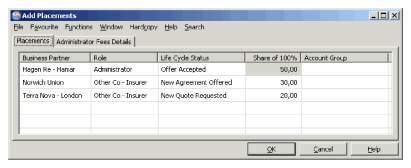 The Business Partners defined on the Insured’s Contract with either the role of Administrator or Other Co-Insurer that have not yet been created as placements businesses are shown here.
5. Enter a Life Cycle Status and Share for each of the Business Partners that you want to create a business for. If the CEDE module is activated, you must also define the level of business (Assumed Business) for the administrator’s placement.
The Business Partners defined on the Insured’s Contract with either the role of Administrator or Other Co-Insurer that have not yet been created as placements businesses are shown here.
5. Enter a Life Cycle Status and Share for each of the Business Partners that you want to create a business for. If the CEDE module is activated, you must also define the level of business (Assumed Business) for the administrator’s placement.
You may add administration fees at this point if you require. Select the Administrators Fee Tab. (You may also wait with adding these until you have finished creating the businesses.) 6. Select a Calculation Method for the Administrators Fees for each Co-Insurer. The information entered here will be stored on the Deduction Condition of the administrative businesses. For more details, refer to Maintain Deductions Conditions. 7. Click OK to create these placement businesses.
If the Signed Share of the definite placements totals 100%, the system will now ask you if you want to select the Placement Complete check box. Reply Yes or No as you require. Refer to Place Protection chapter for more information. A business linked to the insured’s contract is created for each business Partner that you give a life cycle status and share to.
Add Business for Co-Insurers not yet registered #
If you were unaware of one of the other co-insurers until some time after you have created the co-insurance policy and so you have not defined that business partner on the insured’s contract, you can still create this co-insurer’s business from the Insured’s Contract.
- Open the Find Business window. Select Insured’s Contract in Level of Business and click Find Now.
- Select the Insured’s Contract that you require and open it.
- Click the PL button to open the Placements window, which shows a list of this Insured’s Contract.
- If you have already placed some of the Co-Insurers, you see them on the placements list.
- Select Create Administrative Business from the pop-up menu.
- Click the Business Partner column and enter the Business Partner ID directly or alternatively select the Find button to open the Find Business Partner window.
- Find the Business Partner you require and transfer it to the Add Placements window by selecting Transfer on the pop-up menu or just double-click the Business Partner.
- Select a Business Partner Role “Other Co-Insurer” for this Business Partner.
- Add a Life Cycle Status and a Share for this Business Partner.
- You may add administration fees at this point if you require. Select the Administrators Fee Tab. (You may also wait with adding these until you have finished creating the businesses.) Select a Calculation Method for the Administrators Fees for each Co-Insurer. The information entered here will be stored on the Deduction Condition of the administrative businesses. For more details, refer to Maintain Deductions Conditions.
- Click OK when you are happy with the details entered.
- If the Signed Share of the definite placements totals 100%, the system will now ask you if you want to set the Placement Complete flag. Reply Yes or No as you require. Refer to Place Protection chapter for more information.
An Administrative Business for the Business Partner you selected is created and linked to the Insured’s Contract.
Record a Co-Insurance Business when you are Not the Administrator #
Record a co-insurance business when you are not the administrator of the agreement but you want it noted on the business that you are a participant in a co-insurance policy.
- Open the Find Business window, select the Create New button or select New from the pop-up menu.
- In the New Business Wizard, select Assumed Business as the Level of Business.
- Select Proportional Direct or Non-Proportional Direct as Type of Business. A Co-Insurance check box appears to the right of Type of Business box.
- Select the Co-Insurance check box.
- Reply No to the question “Are you the Administrator?”.
- Complete the New Business Wizard as you would for any other Business.
When you finish the New Business Wizard, the system creates an assumed business for your share of the co-insurance policy. The co-insurance check box on the Business tab of the Business is selected indicating that this business is part of a co-insurance agreement.

.
Maintain Co-Insurance Special and Standard Conditions #
Most conditions in a co-insurance policy are the same for all its participants. For example, the clauses to the policy will normally be the same for all the parties. However, you may find that certain conditions in a co-insurance policy are specific to one of the participants.
Maintain Conditions Variable per Co-Insurer #
When the conditions are the same for all or most of the participants in a co-insurance policy, you define the conditions on the insured’s contract level to avoid entering the same conditions twice. These conditions are then ‘inherited’ to all the participants, - to your assumed business and to the administrative businesses.
You can, however, change the conditions (override this inheritance) for the participants with different conditions.
Example:
To add clauses standard and special conditions:
- Open the Insured’s Contract.
- On the Clauses condition, select, for example, an inclusion for the entire co-insurance policy. (Define it on the Clauses Conditions of the insured’s contract and it is inherited to all the participating businesses.)
- Add an additional inclusion to one of the participating businesses by editing the Clauses Condition of that business. When you edit the Clauses condition, you override the existing condition to create the participating businesses' own condition.
For more details about conditions and overriding conditions, refer to Maintain Standard and Special Conditions
When most of the conditions in the co-insurance policy vary per insurer (for example, the Administrator’s Fee), you might want you define them directly on the participating businesses themselves.
Terms and Conditions Variable per Co-Insurer Business Include:
- Deduction Conditions
- Rebate Conditions
- Profit Conditions
- Cancellation Conditions
- Clauses
- Deposit Conditions
- Reserve Conditions
- Internal Premium Reserve Conditions
- Administration Conditions
Maintain Non-Variable Conditions #
Conditions that are considered to always be the same for all insurers in a co-insurance policy must also be the same in SICS. These conditions are entered on the insured’s contract level only, and are only shown on the participating businesses. In other words, you cannot override or change these conditions on the participating businesses.
Non-Variable Terms and Conditions Include:
- Insured
- Limit and Premium Condition. (You can, however, see the amounts for the co-insurers' share on each of their businesses.)
- Claims Conditions (technically possible to change this, but in reality it should not vary).
- Business Classification.
- Insured Period
Reinsure Co-Insurance #
In global multiline insurance, where similar risks in different locations are covered under the same contract, you may be part of a corporation where several of its companies are involved in this contract. One of its companies may be fronting as a co-insurer, while another company may be both a co-insurer and an administrator for the fronting party and maybe even a reinsurer for some insurers.
If you are a reinsurer in this fronting arrangement, you would typically have a proportional facultative protection of your local insurer’s share in the insurance. This can be represented in 2 different ways in SICS:
Record Administrative Business and Protect this
The co-insurance is placed to a direct administrative businesses, and your local company is an insurer on it. The latter is again protected facultative by your company, which becomes an assumed facultative business in SICS. This option is applicable when you want to represent both the portion of your fronting company and your own participation, in the system.
- Open the Administrative Business representing your fronting company
- Open the Proportional Protection assignment.
- From the pop up menu, select Add Assumed Business from Administrative Business
- Give information as required and select Save and OK
Record Assumed Reinsurance Directly
The insured’s contract is placed directly to a proportional facultative business. (This is applicable if you do not administer the fronting company’s part - only the other co-insurers.)
- Open the Find Business window, select the Create New button or select New from the pop-up menu.
- In the New Business Wizard, select Insured’s Contract as the Level of Business.
- Select Proportional Facultative or Non-Proportional Facultative as Type of Business.
- The Cedent’s Co Insurance check box appears to the right of Type of Business box.
- Complete the New Business Wizard as you would for a Direct Insured’s Contract.
Administer Reinsurance on Behalf of #
Co-Insurers
For some co-insurances, proportional reinsurance for common account might apply. In case your company is administering a co-insurance policy with such reinsurance, your company might also administer this reinsurance on behalf of the other co-insurers, in addition to your own.SICS offers a possibility to handle this through the Insured’s Contract structure.
Reinsurance Administration Principles:
Available protections limited to:
-
Proportional Facultative Outward Cedent’s Contract
-
Proportional Outward Cedent’s Contract
-
Own Retention Validations:
-
Similar validations apply as protection assignment to Direct Assumed Business, when placements of Insured’s Contract of type co-insurance
-
Administrator on administrative business must be cedent (base company) on reinsurance
-
Administer Reinsurance of Co-Insurance flag must be selected
-
Protection assignment may vary per co-insurer and protection must be assigned at placement level (Assumed Business/Administrative Business). To indicate reinsurance administration on behalf of co-insurers:
- Open the Insured’s Contract
- Select the Business Tab
- Select the General Sub Tab
- Select Edit from menu button
- Select Administer Reinsurance of Co Insurance and save.
- Proportional protection assignment will become available for the Administrative Businesses.
Note! This selection can not be reversed.
For further descriptions on the protection assignment process, see the section describing your particular process within the Protect Business chapter.
For further description of how the co-insurers reinsurance of premium and claims is handled in the system, refer to the Co-Insurance Accounting chapter.

| Field | Description |
|---|---|
| Co-Insurance | Indicates if a business is part of a coinsurance policy or not Values: Selected - business is part of a coinsurance policy Not Selected - business is not part of a coinsurance policy Default: Not Selected if Level of Business is Assumed Business or Administrative Business Selected if Level of Business is Insured’s Contract Validation: Only available when Level of Business is Insured’s Contract Functional Impact: Place Insured’s Contract |
| Administer Reinsurance of Co-Insurance | Indicates if a base company administers the reinsurance on behalf of the co-insurers or not. Values: Selected - base company administers the reinsurance Not Selected - base company does not administer reinsurance Default: Not Selected Validation: Only available when Level of Business is Insured’s Contract Not possible to change (irreversible) Functional Impact: Assign Protection Automatic Accounting |