Manage Contracts by Cedent's Program
Underwriters most often see reinsurance contracts from the same cedent and covering the same portfolio as one program. What type of SICS program your company chooses to use, reinsurance program or cedent’s program, depends on your company’s requirements:
Some prefer to maintain most information on the program level to have a strict control of that the belonging treaties are synchronized with the program. If this is a priority, please see the chapter Design Reinsurance Program.
Others view these programs primarily as a tool for analysing the contracts together, e.g. view them as layers, see the details of the belonging contracts simultaneously. They would then keep most information on the contracts themselves, but would see the programs as a natural starting point for updates of the individual contracts. In this case, the cedent’s program might be the most suitable.
Cedent’s program is flexible and has a minimum of information on the program level, but gives a good overview of the belonging treaties - proportional and non-proportional together. It serves as a starting point for efficient update of terms and conditions of one or multiple treaties, comparing multiple layers, as well as initiating mass updates, like renewals and cancellations.
Establish Cedent’s Program #
Cedent’s program can be created in different ways and from different places in SICS.
Create Cedent’s Program from Scratch #
Establish a new program without copied details.
- From Find Business, select the Create New button
- On the wizard’s first page, select Cedent’s Program in the Level of Business and other relevant details.
- Select Next and assign wanted business partners.
- Select Nex t and add classifications for each of the categories in the list. Refer to Classify Business in the Creating new Business section of Handle Business Life Span chapter for more information
- Select Next. You see the Business Identifier window, which is the last window in the Create New Business wizard
- Select Finish. You see the Contract Overview of the Cedent’s Program
Create Cedent’s Program from Workbench #
Establish a new program from a cedent.
- From the SICS desktop, the Workbench section, click on wanted cedent and select Create New Program from the pop-up menu
- On the wizard’s first page, level of business Cedent’s Program and insured period details are defaulted and not editable.
- Enter other necessary details and click Next
- Reinsurer and cedent are defaulted and not editable
- Select Nex t and add classifications for each of the categories in the list. Refer to Classify Business in the Creating new Business section of Handle Business Life Span chapter for more information
- Select Next. You see the Business Identifier window, which is the last window in the Create New Business wizard
- Select Finish. You see the Contract Overview of the Cedent’s Program
Create Cedent’s Program by Copying Program #
Copy an existing program to create a new program.
- Open Cedent’s Program from Find Business or for the Workbench
- Navigate to the Period and Partners tab
- From the pop-up menu, select Copy to New Business
- If wanted, change Title and enter a Business ID
- Enter Insured Period details
- Press Save
Create Cedent’s Program from Contract #
Create new program and automatically link the source contract to the program.
- From Find Business, open wanted contract
- Navigate to the Life Cycle tab
- From the pop-up menu, select Create New Cedent’s Program
- If wanted, enter/change Title, enter Business ID and Former ID
- If wanted, assign Responsible Person(s)
- Press Finish
If the cedent’s program is created from a multi year contract’s sub period, only the sub period from which the cedent’s program is created is linked to the program.

Establish Contract from Cedent’s Program #
Create a contract based on information on the cedent’s program it belongs to.
Create contract from cedent’s program #
The system copies relevant information from the program and links the program to the contract you create.
- Open wanted cedent’s program and select Contracts Overview. Alternatively, from the Workbench, select wanted program.
- Select Create New Contract from the pop-up menu.
- On the wizard’s first page, the system defaults the Level of Business to Assumed Business and the insured period equal to the program. Depending on your system set up, you may change the insured period.
- Select Type of Participation, Main Currency and Life Cycle Status. Enter other details if wanted.
- Select Next. In the Assign Business Partners page, the system assigns the same reinsurer and cedent as on the program and they are not editable.
Assign other business partners if wanted - Select Next. Classify your contract. Refer to Classify Business in the Creating new Business section of Handle Business Life Span chapter for more information
- Select Next. Enter Share condition details
- Select Save
Create Contract by Copying Contract in Program #
The system copies relevant information from the source contract and links the new contract to the program.
- Open cedent’s program, contract overview tab
- Highlight contract you want to copy from
- Select Copy to New Contract from the pop-up menu
- Select Life Cycle Status from the drop-down. Enter Title, Business ID, ID and Name in External System if wanted. Depending on the system set up, you may also be allowed to change the Insured Period.
- Press Save
Assign Contract to Program #
Link an existing contracts to the existing program it should be part of.
- Open cedent’s program and select Contracts tab
- Select Assign Contract from the pop-up menu
- System opens Find Business. Several fields are defaulted in the Find Business, e.g. Level, business partner roles and insured period. See field description for more details
- Enter other wanted search criteria, e.g. title or classification details
- Selected wanted contract(s) and double click (on single contract) or select Transfer from pop-up menu
| Field | Description |
|---|---|
| Level | Finds businesses according to the Level of Business (part of the contract or program) it represents. Value: Assumed Business Validations: Cannot be manually changed |
| Role | Defines the role of the business partner to be searched on Value: Cedent Validations: Cannot be manually changed |
| Business Partner | Name of the business partner to be searched on Value: Business Partner NamE Same as the business partner with role as cedent on the program Validations: Cannot be manually changed |
| Role 2 | Defines the role of the business partner to be searched on Value: Reinsurer Validations: Cannot be manually changed |
| Business Partner 2 | Name of the business partner to be searched on Value: Business partner Name Same as the business partner with role as reinsurer on the program Validations: Cannot be manually changed |
| Type of Business | Finds businesses by their method of reinsurance Values: Proportional treaty Non-proportional treaty |
| Insured Period From/To | Finds businesses equal to or being within these dates Values: Date Default: Program’s insured period from and to date |
| Consider Only Latest Insured Period | Decides whether the search should be only on the latest insured period of the contract or on all of the insured periods Values: Selected - searches only on the latest insured period of a business Not selected - Searches through all insured periods of a business Default: Not selected. |
| Consider only Latest Status | When selected, SICS will only search on the contracts' latest Basic Status Values: Selected - searches on latest Basic Status only Not Selected - searches on all Basic Status a contract has had Default: Selected |
Assign Program to Contract #
Link an existing cedent’s program to an existing contract.
- Open the contract and select Life Cycle tab
- From the pop-up menu, select Assign Cedent’s Program
- System opens Find Business. Several fields are defaulted in the Find Business, e.g. Level, business partner roles and insured period. See field description for more details
- Enter other wanted search criteria, e.g. title or classification details
- Selected wanted program and double click or select Transfer from pop-up menu
| Field | Description |
|---|---|
| Level | Finds businesses according to the Level of Business (part of the contract or program) it represents Value: Cedent’s Program Validations: Cannot be manually changed |
| Role | Defines the role of the business partner to be searched on Value: Cedent Validations: Cannot be manually changed |
| Business Partner | Name of the business partner to be searched on Value: Business Partner Name Same as the business partner with role as cedent on the contract Validations: Cannot be manually changed |
| Role 2 | Defines the role of the business partner to be searched on Value: Reinsurer Validations: Cannot be manually changed |
| Business Partner 2 | Name of the business partner to be searched on Value: Business partner Name Same as the business partner with role as reinsurer on the contract Validations: Cannot be manually changed |
| Insured Period From/To | Finds businesses equal to or being within these dates Values: Date Default: Contract’s insured period from and to date |
| Consider Only Latest Insured Period | Decides whether the search should be only on the latest insured period of the program or on all of the insured periods Values: Selected- searches only on the latest insured period of a business Not selected- Searches through all insured periods of a business Default: Not selected. |
| Consider only Latest Status | When selected, SICS will only search on the program’s latest Basic Status Values: Selected - searches on latest Basic Status only Not Selected- searches on all Basic Status a program has had Default: Selected |
Get Overview of Contracts in Program #
It is important to get an overview of the key information of the reinsurance from a cedent. A large number of contracts can be linked to a cedent’s program. You may view details from all treaties in the program simultaneously in the contract overview of the program.
- From the Workbench or from Find Business, open wanted cedent’s program
- Select the Contracts tab
View Contract Summary #
See at one glance the main categories of contracts the program contains and the phase they are at.
- Open Cedent’s Program
- Select Contracts tab
- Select Show Long Description
- Have a look at the top of the overview, next to the label Program
Information - View Contract Summary #
| Item | Description |
|---|---|
| Type of Business | Values: Proportional treaty, Non-proportional treaty Derived from: Types of Business of member contracts |
| Type of Participation | Values: Customized by your company, e.g. excess of loss, quota share, surplus 1 Derived from: Types of Participation of member contracts. |
| Principal Main Class of Business | Values: Main Classes of Business customized by your company, e.g. Motor, Liability Derived from: Main Classes of Business selected as principal on member contracts |
| Reporting Units | Values: Customized by your company, e.g. Northern Europe, S&C Europe Derived from: Reporting units (e.g. profit centers) of member contracts |
| Status | Values: Draft, Active, Inactive Derived from: Draft - If program does not contain any contracts, it is a draft Active - If program contains a contract with other than declined or inactive basic status, it is active Inactive - If program contains only contracts with inactive or declined basic status, it is inactive |
Sort Contract Overview #
Contracts are grouped and sorted bottom up/vertical according to type of participation method group in the following sequence:
- Quota Share- Within the quota share group, contracts are sorted according to the Underlying Top Limits. (If not shown in overview, the system uses the stored Underlying Top Limits.)
- Surplus - Includes all treaties with a surplus Types of Participation e.g. Surplus, Surplus 1, Surplus 2, Surplus 3. If your contract has a Surplus Number stored separately, the system sorts according to this number. If a contract is missing a surplus number, the system sorts it according to its Underlying Top Limit.
- Other proportional treaties- Contracts are sorted according to the Underlying Top Limits. (If not shown in overview, the system uses the stored underlying Top Limits.)
- Excess of loss- Includes all non-proportional treaties, except those with Type of Participation ‘Stop Loss’or ‘Aggregate XL’. The contracts are sorted according to their Layer Number. If a contract is missing the Layer Number, the system sorts it according to its Underlying Top Limit (Excess amount) instead.
- Aggregate XL - contracts are sorted according to their Layer Number. If a contract is missing the Layer Number, the system sorts it according to its Underlying Top Limit (Excess amount) instead.
- Stop Loss- contracts are sorted according to their Layer Number. If a contract is missing the Layer Number, the system sorts it according to its Underlying Top Limit (Excess percent) instead.
Display List - Get Overview of Contracts in Program #
To be able to identify the individual contracts and sections, the following details are displayed for each individual contract.
| Contract Identification | Description |
|---|---|
| Type of Participation | Treaty method of reinsurance, e.g. quota share, excess of loss |
| Layer/Surplus number | The layer number of a non-proportional business or the surplus number of a proportional surplus treaty |
| Business ID | Unique identification of the contract |
| Business Title | Name of the contract |
| Section Name | Title found on the section, sub section, sub sub section. Note: insured object cessions and declarations are not displayed. |
| Structure Indicator | An indicator in front of the contract tells you if any of the contracts have section(s). Selecting to show sections, sub sections, sub sub sections shows the structure in a tree view. |
Which items the overview display depends on the terms and conditions existing on the contracts and your system set up - columns can be hidden and the sequence may be changed. Refer to the Layout and Organization of Display lists chapter. View mode shows only columns where at least one of the linked contracts has a value.
| Contract Details | Description |
|---|---|
| Life Cycle Status | The phase in the contract’s life cycle shown as a symbol on a button |
| Currency | The main currency of the contract |
| M.Yr | Indicates whether the linked contract is a Multi Year Contract or not |
| Liability | The 100% main limit amount of the contract, e.g. Cover for excess of loss treaties and underwriting limit amount per risk for surplus. |
| Premium 100%: | The estimated premium of the contract unless a flat premium is agreed., i e. EPI or Flat Premium |
| Reinsurer: | The name of the business partner being the reinsurer of the contract |
| Broker: | Name the business partner being the intermediary of the contract. |
| Liability | Treaty underwriting limit amount per risk for the 100% contract |
| Signed Share | The accepted ‘Share from 100%’ of the agreement. |
| Main Class of Business | The nature of the covered business, e.g. property, marine. |
| Class of Business | The sub classification of Main Class of Business, e.g. Fire Industrial, Fire Liability |
Update Individual Contracts from Program #
From the program itself, you can enter or change the terms and conditions of multiple contracts in one go. You can also copy information from one contract to another.
Enter Values in Contract Overview #
Record information for some contacts or their sections without opening the contracts.
- Open your program and select the Contracts tab
- Select the edit button
- Locate the correct item to be updated, e.g. Liability, Commission percent or Deduction Basis
- Enter new/changed value for your item, egg. Liability and Commission Percent, directly in the column/cell.
Do the same for another contract if you require. - Select wanted value for your item, e.g. Deduction Basis, from the drop-down
- Select Save
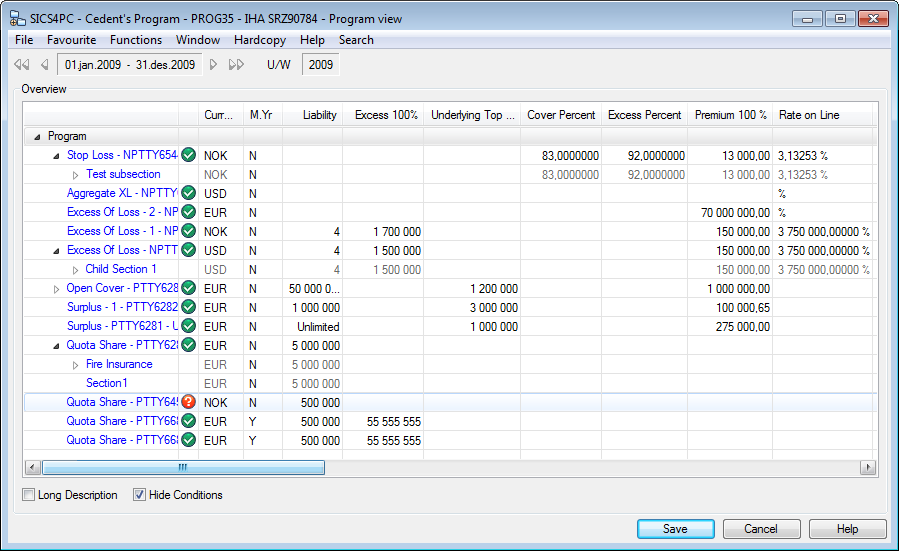
Value Entry Details: #
- Edit mode shows always all available columns whether having value for contract or not. For example, no linked contracts with brokerage, edit mode shows brokerage columns as empty. Available columns depend also on set up - columns can be hidden and sequence changed. Refer to the Layout and Organization of Display lists chapter.
- All validations, calculations, defaults, functional impacts and security checks apply as on contract conditions themselves.
- Once entry accepted, overview shows new entry as well as associated items. For example, if entering Cover, overview shows recalculated Aggregate Limit.
- For simple overview, common labels and columns used where possible, e.g. Liability column represents ‘Cover 100%‘for XL treaties, while ‘Liability 100%’ for surplus treaties.
Copy Values in Contract Overview #
As the cedent’s program is designed to ease the maintenance of multiple contracts from the same cedent, you can copy contract information from one cell to another:
- Open your program and select Contracts
- Select the edit button
- Select the value/cell to be copied.
- From the pop up menu, select Copy
- Select the cell to copy to and select Paste from the pop-up menu
- Select Save
Copy Value Details: #
- Overview validates that receiving cell has same data type as source, (e.g. amount to amount, percent to percent).
- All validations executed as if same field updated within contract’s conditions.
Record Information by Opening Terms and Conditions #
Business conditions for linked contracts, can be updated/entered from the contract overview in the same way as from structure tab on assumed businesses.
Copy Contract Terms and Conditions #
Copy terms and conditions from one contract to another.
- Open contract overview in edit mode
- Click on an already defined business condition and right mouse click
- Select Copy from the pop-up menu
- Click on the same condition on another linked contract and right mouse click
- Select Paste from pop-up menu
- Save contract overview
Alternatively to the copy/paste, you can use a drag and drop function.
- Open contract overview in edit mode
- Click on an already defined business condition
- Keep the left mouse button pressed down and drag the condition to the same condition on another linked contract
- Drop the condition by releasing the left mouse button
- Save the contract overview
 Contract overview with conditions in edit mode
Set Registration Complete on Contracts from Program #
You can mark contracts as completed directly from the program, without opening each contract.
Mark single contract as completed #
Set the Registration Complete flag to yes on the selected contract, without opening the contract.
- Open your program and select the Contracts tab
- Select the contract to be marked as complete
- From the pop up menu, select Mark as Registration Complete
Mark all contracts as completed #
Set the Registration Complete flag to yes on all contracts in the program, without opening each contract.
- Open your program and select the Contracts tab
- Select the Program row (top level in contract overview)
- From the Pop Up menu, select Mark All as Registration Complete.
Mark as Complete Details: #
- Whether Registration complete functionality in use depends on system set up of your system administrator.
- Same validations setting from program as when setting complete flag from contract.
- When registration complete set, definite status symbol in overview shows small c, indicating Complete.
Renew Cedent’s Program #
Establish a new insured period for the program. The system copies the basic information from the previous insured period.
- Open the cedent’s program and navigate to the Period and Partners Tab
- Select Renewal from the menu button.
- You see the Insured Period and Underwriting Year suggested by the system. You can change the new Insured Period and/or Underwriting Year if needed
- Select Finish.
To speed up the process, there is also an option to renew both the program and the participating contracts in one go. See the Renew Program with Mass Renewal chapter.
Renew Contracts in Program #
Establish a new insured period for a contract in a cedent’s program.
Renew Contract from Program #
Create the next insured period of a linked contract with a link to an insured period of the program. The renewal copies the cedent from the program’s new period to the new period of the contract. The rest it copies from the contract’s previous insured period.
- Open the program and select the left arrow of the insured period navigation to navigate to the period with the contracts to be renewed.
- Select the Contracts tab
- Select the contract you want to renew and select Renew Contract from the pop-up menu
- On the wizard’s first page, select Life Cycle Status.
The Insured Period From, Insured Period To and Underwriting Year are defaulted according to the contract’s previous period, but may be changed - Select Next. Enter the information as you require.
- Select Finish.
For renewal details, see the Renew Business chapter.
Renew Contract without Program being renewed #
You may renew a contract without having established the new period on the program. This is relevant when, for example, the next insured period of a linked contract should not be part of the program.
Mass Renew Contracts in Program #
To speed up the renewal process for multiple contracts being part of a program, the cedent’s program offers a mass renewal function. This establishes a new insured period for the selected contracts, in the same way as at renewal of a single contract.
- Open the program and navigate to the insured period with the contracts to be renewed, (e.g. navigate to the previous period)
- Select either the C_ontracts_ tab or the _Period and Partners_ tab
- Select Mass Renew from the pop-up menu
- The system lists all contracts valid for renewal. It defaults all to selected. You can change the selection.
- Select the Life Cycle Status that the contacts should get on the new period.
- Select OK.
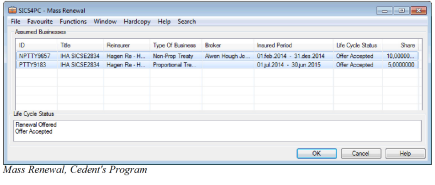
Renew Program with Mass Renewal #
To optimize the mass renewal of cedent’s programs, you may renew the program and the participating contracts in one go.
- Open the program and navigate to the insured period to be renewed
- Select either the Contracts tab or the Period and Partners tab
- Select Renew Program with Mass Renewal from the pop-up menu
- You see the Insured Period and Underwriting Year suggested by the system. You can change the new Insured Period and/or Underwriting Year if needed
- Select Finish
- The system lists all contracts valid for renewal. It defaults all to selected. You can change the selection
- Select the Life Cycle Status that the contracts should get on the new period
- Select Save
Mass Renewal Details: #
- The mass renewal list shows only contracts valid for renewal according to standard renewal validations, e.g. only definite and not cancelled, not already renewed.
- It sets the Insured Period From of the new period of the contract to one second later than the Insured Period To of the contract’s previous insured period.
- It sets the Insured Period To according to the standard rules for manual renewal of contracts. It does however set it no later than the new Insured Period To date of the program.
- It links the new insured period of a contract to the program insured period that includes the renewed Insured Period From date of the contract.
Cancel Contracts in Program #
Cancel Contract in Program Manually #
If you want to cancel a single contract, you must do it from the contract’s Partners tab.
Refer to Terminate Business in the chapter Handle Business Life Span.
Mass Cancel Contracts in Program #
To simplify the maintenance of multiple contracts in a program, the cedent’s program offers a mass cancel facility. This facility sets the selected expiry status on the selected contracts.
- Open the cedent’s program and navigate to the insured period that has the contract periods that you want to update.
- Navigate to either the C_ontracts tab_ or the _Period and Partners_ tab
- Select Mass Cancel from the pop-up menu
- The system lists all the contracts valid for cancellation. It defaults all to select. You can change the selection.
- Select Cancellation Type to indicate the expiry status the contracts should receive.
- Select OK
- Enter the applicable cancellation information. Refer to the Terminate Business chapter for more information.
- Select OK.
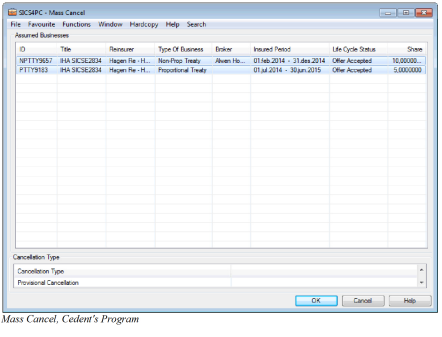
Mass Cancel Details: #
The mass cancel list shows only contracts valid for cancellation according to standard cancellation rules, e.g. only definite not already cancelled contracts can be cancelled
Delink Contract from Program #
A contract may e.g. by mistake, have been made part of a cedent’s program. The link between the contract and the program can be removed.
Remove Link to Contract from Program #
Remove link between contract and program starting from the program
- Open cedent’s program and navigate to the Contract Overview
- Highlight wanted contract and select Delink Contract from the pop-up menu
- Confirm removal of link
Remove Link to Program from Contract #
Remove link between contract and program, starting from the contract
- Open contract and navigate to t he Life Cycle tab
- Select Delink Cedent’s Program from the menu button
- Confirm removal of link
Delete Program #
A cedent’s program or its last period may have been created in error. You can delete the program. All insured periods must be deleted before the entire program can be deleted. This is only allowed if there are no linked contracts.
- Open the program and navigate to the Period and Partners Tab
- Select Delete Business from the menu button
- Or select Delete Insured Period from the menu button if this is not the last insured period of the program.
- Confirm the deletion of program/insured period.