Design Reinsurance Program
Treaties offered from the same cedent often cover the same underlying portfolio and have some common factors. To efficiently handle these treaties and to get a good overview of these assumed businesses, SICS lets you register information common to these in a new reinsurance program.
In this way, you can work with conditions and classifications common to participating Assumed Business on the Reinsurance Program. The Reinsurance Program and the belonging Assumed Businesses must have the same cedent and reinsurer (Base Company). If you want to change the cedent, the change must be made on the Reinsurance Program, and the change is reflected on the linked businesses.
Create Reinsurance Program #
To Create a Reinsurance Program:
-
From the Find: Business window, click in the Business display and select New from the pop-up menu. You see the Create New Business wizard.
-
Enter a Reinsurance Program title in the Title field.
-
Select Reinsurance Program in the Level of Business drop-down list.
-
Select a Main Currency from the drop-down list.
-
Enter the From and the To dates for the Insured Period. A From Time and a To Time automatically appear, which you can change. An Underwriting Year also appears automatically based on the From Date of the Insured Period. Click Next. You see the Assign Business Partner window.
-
Click Next. You see the Assign Business Partner window. The mandatory partners for a reinsurance program will be marked. To simplify the registration process of businesses belonging to the reinsurance program, you can now assign additional partners that will be common for the participating assumed businesses. If you later create an assumed business from the reinsurance program, these partners will be copied to the new business. Note that changes to assigned business partners on an existing reinsurance program will NOT be reflected on already assigned businesses.
-
Click Next. You see the Classifications window.
-
Add Classifications for each of the categories in the list. Refer to Classify Business in the Creating New Business section of the Handle Business Life Span chapter for more information.
-
Click Next. You see the Business Identifier window, which is the last window in the Create New Business wizard.
-
Click Finish. You see the Property window for the Reinsurance Program.
Create Reinsurance Program from Assumed Business #
If you created the assumed business first and then discover that a reinsurance program should be set up for it, you can later create this reinsurance program from the assumed business. Once the program is created, you may create additional assumed businesses from the program.
Note that other than the relevant limits, conditions will then NOT be copied, while most other information will be copied. For example, all business partners assigned to the assumed business will be copied to the new reinsurance program. Later changes to the business partners of the assumed business will, however, NOT be reflected on the connected reinsurance program.
To create a reinsurance program from an assumed business:
- Open your assumed business and click the Life Cycle tab.
- From the ‘Meny ‘button, select ‘Add Reinsurance Program’.
- Define the insured period and click ‘Next’.
- Click ‘Finish’.
If the reinsurance program is created from a multi year contract’s sub period, only the sub period from which the reinsurance program is created is linked to the program.
A link to the Reinsurance Program is shown on the Assumed Business as a button called RP (Reinsurance Program). If the Assumed Business is already connected to a Reinsurance Program, you cannot create another link. Refer to sections Structure Multiple Contracts on page 4-1 and Inherit Conditions on page 4-8 in this chapter.
Create Proportional Part of Reinsurance Program #
You may want to record a proportional part of the reinsurance program with limits to help you register Assumed Businesses. You can then split the proportional part of the reinsurance program to make one or more assumed businesses for this reinsurance program.
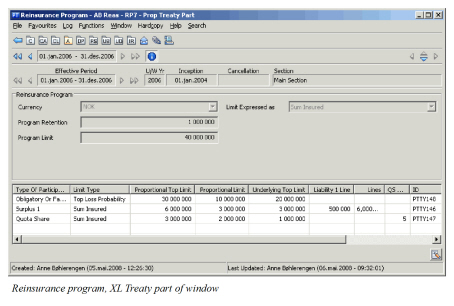
- Click the Proportional Treaty Part button on the Navigation bar of the Properties window for the reinsurance program. You see the Edit Reinsurance program window.
- On the upper-half of the window, use the drop-down list to select a Currency and the Insured Basis; Sum Insured, Estimated Maximum Loss (EML), Maximum Probably Loss (MPL), or Possible Maximum Loss (PML). If you select EML, MPL or PML, you must also give a percentage.
- On the upper-half of the window, enter a Program Retention and Program Limit.
- Click in the display list, and select Add Treaty Outline from the pop-up menu.
- Click in the Type of Participation field, and use the drop-down list to select a Type of Participation. If you select Quota Share,the system also requires you to fill in the Quota Share Retrocede percent.
If you select Surplus, the system will open up the column for Surplus No. Depending on how your system has been set up, this might be mandatory.
6. You can also link an existing Assumed Business to the program by selecting Create Treaty Outline from Assumed Business from the pop-up menu.
7. After you select an Assumed Business from the Find: Business window, the system checks that the Assumed Business is a Proportional Treaty and has inception within the insured period of the program.
The system also checks that the classification of the Assumed Business is a subset of the Reinsurance Program’s classification. If it is not a subset, the assignment is not permitted.
Impact:
If the system parameter Enlarge Reinsurance Program Classification From Treaty has been selected, the assignment is still allowed provided that the missing classification is added to the Reinsurance Program as part of the process. For more information about the system parameter, refer to Business Settings, Conditions/Classification section in the System Administrator’s Guide.
- Enter the proportional retention.
The system creates a proportional part with the proportional retention as given above, and calculates the proportional limit by adding the Assumed Business to the proportional retention. You can detach the Assumed Business from the Reinsurance Program by selecting Delete Treaty Outline.
Create Excess of Loss Part of Reinsurance Program #
|

Reinsurance program Excess of Loss button | The Reinsurance program Excess of Loss button appears on the Reinsurance program Properties window. Here you can register an excess of loss reinsurance program with its upper and lower limits, and then split the program into excess of loss program treaty outline. You can also register the layer number. When you have finished the split, you can make one Assumed Business out of each Treaty Outline part by choosing Realise Treaty Outline. |
Create Stop Loss Part of Reinsurance Program #
|

Reinsurance program Stop Loss button | The Reinsurance program Stop Loss button appears on the Reinsurance program Properties window. Here you can register a Stop Loss reinsurance program with its upper and lower limits, and then split the program into Stop Loss program Treaty Outline. You can also register the layer number. When you have finished the split, you can make one Assumed Business out of each Treaty Outline part by selecting the Realize Treaty Outline option. |
Create Aggregate XL Part of Reinsurance Program #
|
 | A part of the program may consist of treaties where the reinsurer participates when the losses incurred during a specific period exceed an agreed amount. You may establish this as an Aggregate XL part and record information such as the overall upper and lower limits.
1. Open your reinsurance program
2. Select the AX Treaty Part button (AX) on the navigation bar.
3. On the upper-half of the window, fill in information as you require.
4. Select Save
For how to create the individual aggregate XL treaties, see the procedure under Create Proportional Part of Reinsurance Program. |
View Reinsurance Program from Assumed Business #
|

Reinsurance program Proportional Treaty | After creating an assumed business from a Reinsurance program, the Reinsurance Program Proportional Treaty button appears on
the Navigation bar of the Assumed Business. When you click this
button, you see the properties of the connected reinsurance program. |
Navigate in Reinsurance Program Hierarchy #
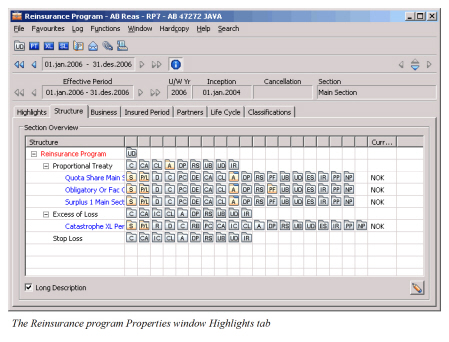
The Reinsurance program Properties window Structure tab gives you an overview of the selected insured period. Unlike the Protection Program, the Reinsurance Program has only one section. If you expand the section, you will see the different Program Parts, and whether or not they have been recorded for this particular section.
Details about how many Assumed Businesses that are registered for a part is available when expanding each of the parts. The right-hand side of the Highlights tab shows the upper and lower limits of the program parts (Proportional Treaty, Excess of Loss, Stop Loss and Aggregate XL).
Multiple sub periods from the same multi year contract can be linked to the same period of the reinsurance program. Each sub period is shown in the reinsurance program hierarchy
Inherit Conditions #
All conditions on a Reinsurance Program are inherited to the Assumed Business.
When assigning an existing Assumed Business to a Reinsurance Program:
- If there are no conditions on the Assumed Business, conditions are inherited from the Program conditions.
- If there are existing conditions on the Assumed Business, SICS establishes special conditions/overridden conditions on the Assumed Business. Note! When creating a Reinsurance Program from an Assumed Business, no conditions are copied. In this case, the conditions on the Assumed Business are considered special conditions, and the system creates the Assumed Business Conditions as such.
Refer to Enter Special Conditions in the Protect Business Reinsurance chapter for more information on inherited conditions.
Mass Updates #
In order to simplify and speed up the maintenance of multiple treaties from the same Cedent, SICS offers a Mass Update and a Mass Cancel, Mass Renewal function from a Reinsurance Program. After a mass update or mass cancel, you can update individual treaties one by one, if necessary.