Find Task
The Find Task feature in Task Management offers a variety of searches. The mainpurpose of this find facility is to find your own tasks, i.e. tasks where you are
- The actual owner
- The actual owner of the process
- The process initiator
- Input/Output Values
General Search Options #
To execute a search, you use the following buttons:
- Find Now starts the search.
- New Search clears the results in the display list and resets the search criteria to the same as they were when you first opened the find business
- More becomes available if the number of found tasks are more than the displayed number. You may need to click the More button several times.
Results of a Search #
When SICS has executed the search, it shows the results in the display list at the bottom of the window.
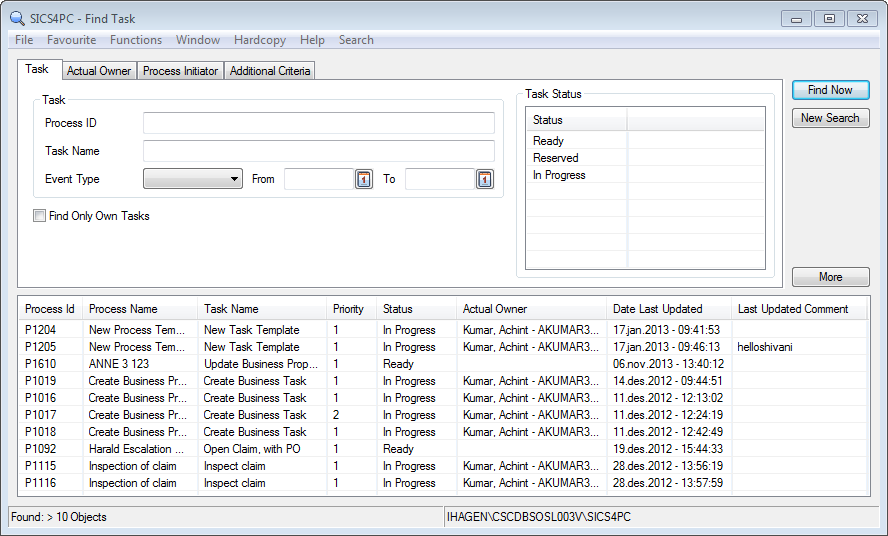
| Display List Item | Description |
|---|---|
| Process ID | Process unique identifier, typically a prefix and a number |
| Sub Process Name | Display name of Sub Process |
| Task Name | Display name of task |
| Priority | |
| Status | Description of which step the task is in, e.g. Ready, Reserved, Finished |
| Actual Owner | User the active tasks assigned to |
| Date Last Updated | Date the task was last changed |
| Last Updated Comment | The last comment made on the task is displayed |
From the display list it is possible to:
- View details- opens the selected task (task is also opened if you double click on the task)
- View Template - opens the template from which the process the task belongs to is created
Search on Incomplete text #
When you only are sure of a part of the word that you want to search on, e.g. a part of the task' name or a part of the process identifier, you may search by use of a wildcard character (e.g. *). The system will then ignore the rest of the word in itssearch. If using the task name as an example, knowing only e.g. the first part:
- In Task Name, enter the part of the name you know and , e.g. Create new
- Click Find Now
You can have more than one wildcard entry as search criterion in the Find Business window. This helps you narrow you search. You can, for example, enter the part of the ID follow a wildcard at the end and the part the title follow by a wildcard and then click Find Now.
When SICS has executed the search, it shows the results in the display list at the bottom of the window.
Examples on How to Find Own Tasks #
There are numerous ways of searching for a task in SICS. In this section we only give examples of the most common searches for finding your own tasks.
To find own tasks only, the “Find Only Own Tasks” indicator must be selected
Search for Task by Default Settings #
Sometimes you want to find all your own tasks which are “active”, i.e. with status
Ready, Reserved or In Progress.
- Open Task Management Desktop, and click the Find Task icon
- In the Find Task window, press
- Find Now
Search for Task by Process Identifier #
When you know the exact process identifier, enter this as search criteria.
- Open Task Management Desktop, and click the Find Task icon
- In the Find Task enter Process ID
- Press Find Now
Search for Task by Event Type #
Sometimes you may want to search for tasks with a specific event type on a certain date or within a time span.
- Open Task Management Desktop, and click the Find Task icon
- In the Find Task select an Event Type from the drop-down list
- Enter a From date and / or a To Date
- Press Find Now
Search for Task by Task Status #
Find Tasks with other or more task statuses then the defaulted statuses
- Open Task Management Desktop, and click the Find Task icon
- In the Task Status, right mouse click and select Add Status
- Select wanted statuses and press OK
- Press Find Now
Search for Task by Actual Owner #
Find tasks where by the task' actual owner.
- Open Task Management Desktop, and click the Find Task icon
- In the Find Task, select the Actual Owner tab and select wanted SICS user
- Press Find Now
Search for Task by Input/Output value #
Find tasks which have an input or an output value, e.g. a Busienss ID or an Accounting Order ID
- Open Task Management Desktop, and click the Find Task icon
- Navigate to the Additional Criteria tab
- Select wanted type in the Input/Output Values drop down
- Enter wanted e.g. Business ID or Accounting Order ID in the text field
- Press Find Now
How to Find All Tasks #
If you are a “super user”, you may search for all tasks in the system, regardless of who is the actual owner.
To be able to find all tasks the “Find Only Own Tasks” indicator cannot be selected.
This indicator can only be manually selected/ deselected if use case “SICS Task Management Find All Tasks” is assigned to you user role.
For search examples, please see chapter Examples on How to Find Own Tasks
| Field | Description |
|---|---|
| Process ID | Finds task on the Process' unique identifier Values: Text field Mandatory: No |
| Task Name | Name of task for which you are searching Values: Text field Mandatory: No |
| Event Type | Defines the Event Type for which you are searching Values: System defined, i.e.: None Activate Add Attachment Complete Create Delegate Fail Release Remove Attachment Reserve Skip Start Stop Mandatory: No |
| Event Type From/To Date | Finds tasks with selected event type equal to, within or up to these dates Values: Date Validations: Only From Date - selected Event Type on the same date Only To Date - selected Event Type up to and including this date From and To Date - selected Event Type within these dates, both dates included Mandatory: No |
| Find Only Own Tasks | Indication whether the search will find all tasks matching criteria or only Own Tasks my tasks Values: Selected: Only own tasks found Not selected: All tasks found Validations: If only use case “SICS Task Management Find Task” is assigned to user role, indicator is selected and cannot be changed. If in addition use case “SICS Task Management Find All Task” is assigned to user role, indicator is not selected, but can be changed. Default: Selected if only use case “SICS Task Management Find Task” is assigned to user role. Not selected if in addition use case “SICS Task Management Find All Task” is assigned to user role Mandatory: No |
| Task Status | Searches on the status of the task Values: System defined, i.e.: Completed Created Failed In Progress Ready Reserved Skipped Default: In Progress, Ready and Reserved Mandatory: No |
| Actual Owner | Name of the actual owner of the task Values: All SICS Users (Logon ID and Full Name) Mandatory: No |
| Process Initiator | Name of the person who started the process Values: All SICS Users (Logon ID and Full Name) Mandatory: No |
| Input/Output Type | Name of the input or output values to be used in the search Values: Drop down with the following values: Accounting Order ID Archive Path Business ID Business Partner ID Claim ID Inbox Path URL UUID Worksheet ID Mandatory: No |
| Input/Output value | Field to enter the values to be searched for, e.g. the Business ID or the Worksheet ID Values: Free text field Maximum number of characters: 80 Mandatory: No |