Introduction
The SICS Task Management Module provides a process and task oriented way of working in SICS.
You can configure your own process templates, from which actual processes can be created. How to create a new a process template is described in the System Administration Guide / Set Up Task Management.
A process will contain one or more tasks, each task being a well-defined piece of work to be carried out by one SICS user. A process with several tasks for different users will automatically flow from one user to the next as tasks are completed.
Keep the Task Management Desktop updated #
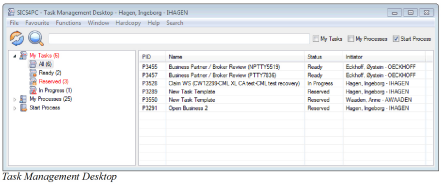
The Task Management Desktop shows data which has been read from the database. If any changes affecting the current user are made in the database, the “My Tasks”, “My Processes” and / or the “Start Processes” text will change into red colour, to give the user a hint that the desktop should be refreshed.
The Task Management Desktop will be refreshed (data will be read once more from the database) in when:
- The user does a light refresh from the Task Management Desktop
- The user does a light or full refresh of SICS and reopens the Task Management Desktop
- The user performs some action on a task or process
Filter Search in Task Management Desktop #
To ease the search for active tasks, active processes and processes to be started, there is a filter search available in the Task Management Desktop
- Open Task Management Desktop
- Enter a search text in the text field
- Select to filter My Tasks, My Processes and/or Start Processes
To narrow the search, you may select one or more of the following tick boxes:
- My Tasks
- My Processes
- Start Process (default selection)
It is possible to search on separate words or phrases, e.g. “create” or “create business”. The system will only search on what is displayed on the Task Management Desktop, i.e.:
- My Tasks: PID, Task Name, Status, Initiator
- My Processes: PID, Process Name, Task Name, Actual Owner, Status
- Start Process:Name, Description